Contents

Using Azure AD Managed Service Identity to Access Microsoft Graph with Azure Functions and PowerShell

Recently Microsoft released an exciting new preview in Azure AD: Managed Service Identity! You can go and read the details at the Enterprise Mobility + Security blog, and some examples of usage scenarios: https://azure.microsoft.com/en-us/blog/keep-credentials-out-of-code-introducing-azure-ad-managed-service-identity/ Managed Service Identity makes it possible to keep credentials out of code, and that is a very inviting prospect. As I have been exploring Microsoft Graph in different scenarios using PowerShell, I thought I should have a go at using Managed Service Identity in an Azure Function and run some PowerShell commands to get data from the Microsoft Graph. Lets get started!

Configuring the Azure Function

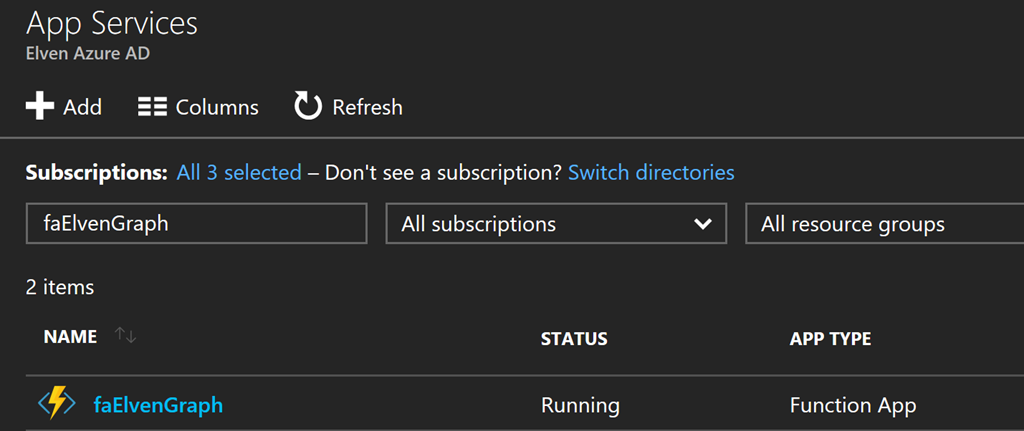
First, if you haven’t already created an existing Azure Function App, go ahead and do that. Here is my Function App I will use in this demo:
/uploads/2017/09/image_thumb7.png
image
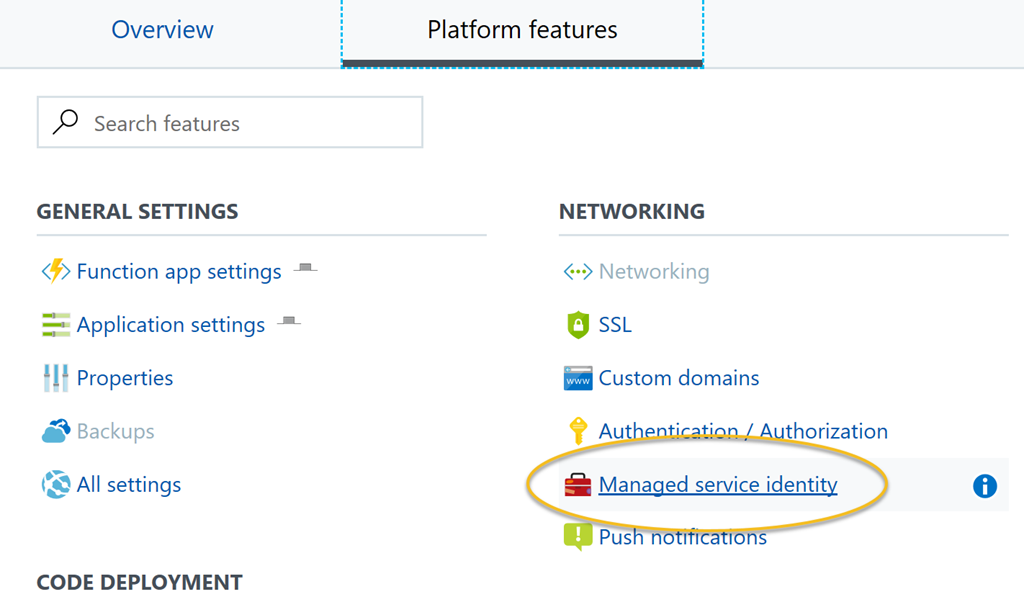
Next, open the Function App and go to Platform features, and then click on Managed service identity:
/uploads/2017/09/image_thumb8.png
image
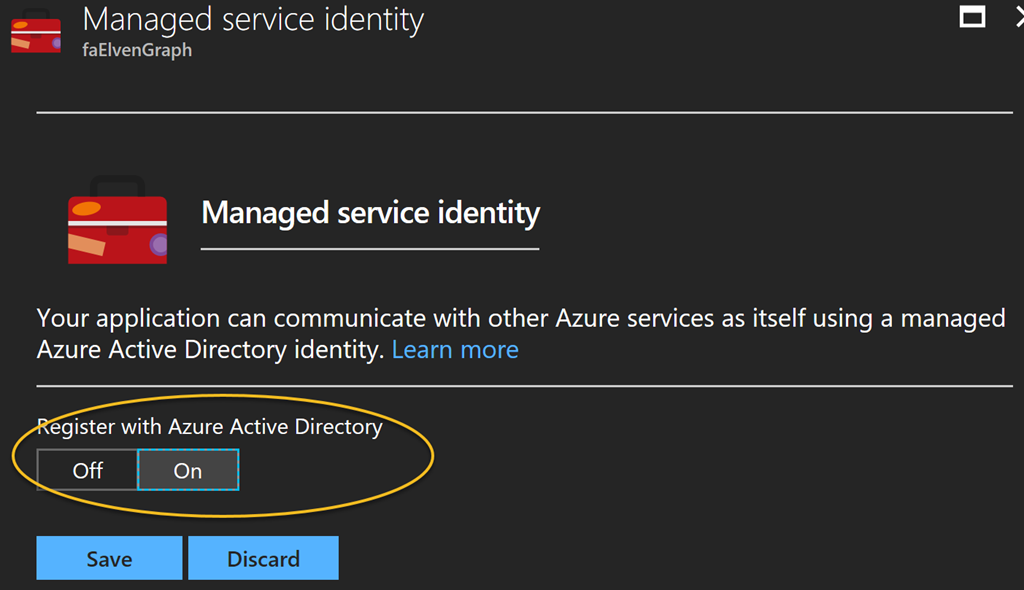
Under Managed service identity, select to Register with Azure Active Directory:
/uploads/2017/09/image_thumb9.png
image
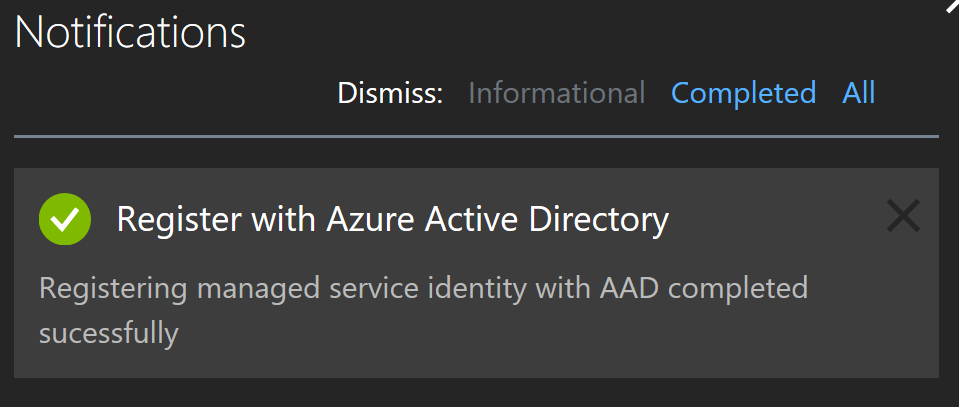
After saving you should get a successful notification that the managed service identity has been registered.
/uploads/2017/09/image_thumb10.png
image
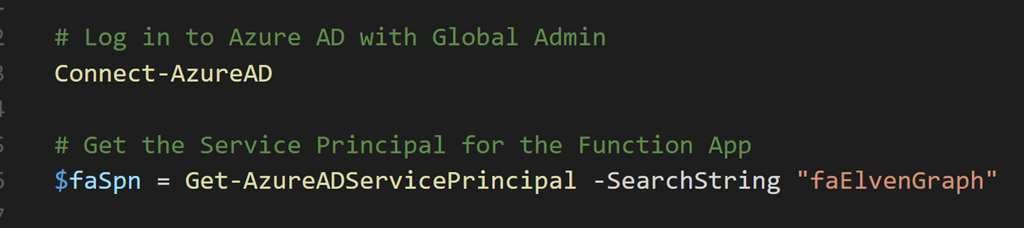
Let’s check what has happened in Azure AD, to that I will use the AzureAD PowerShell CmdLets. After connecting to my Azure AD tenant, I will try to get the Service Principal:
/uploads/2017/09/image_thumb11.png
image
And get some properties of that object:
/uploads/2017/09/image_thumb12.png
image
We can see that the Service Principal object is connected to the Azure Function App and of type ServiceAccount.
/uploads/2017/09/image_thumb13.png
image
Now, we are ready for the next step, which is to create a function that will get data from Microsoft Graph. But first we will need to give this Service Principal some permissions.

Permissions and Roles for the Managed Service Identity

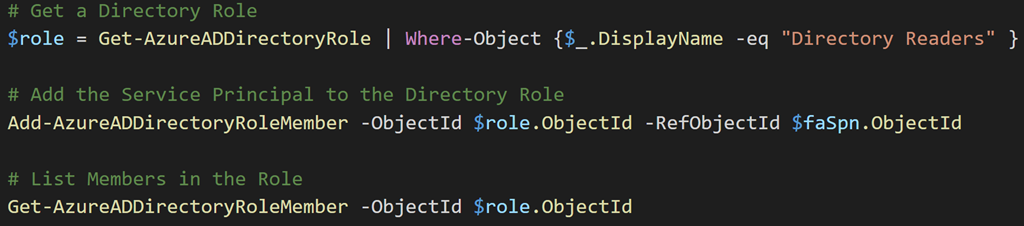
Depending of what you want to do with your Function App, the managed service identity, represented by the service principal, will need some permissions to access resources. You could give the service principal rights to Azure resources like Virtual Machines, or to access Key Vault secrets (a nice blog post on that here: https://blog.kloud.com.au/2017/09/19/enabling-and-using-managed-service-identity-to-access-an-azure-key-vault-with-azure-powershell-functions/ ). In my scenario I want to access the Microsoft Graph, and specifically get some Directory data like user information from my Azure AD. When accessing Microsoft Graph you would normally register an Azure AD Application and set up Application or Delegated Permissions, and follow the authentication flow for that. But in this case I want the Service Principal to be able to directly access Directory Data, so I will have to give my Service Principal permission to do that. The following Azure AD commands adds my service principal to the AD Directory Role “Directory Readers”:

/uploads/2017/09/image_thumb14.png
image
When listing membership in that role I can see my Service Principal has been added:
/uploads/2017/09/image_thumb15.png
image

Creating a PowerShell Function for the Managed Service Identity

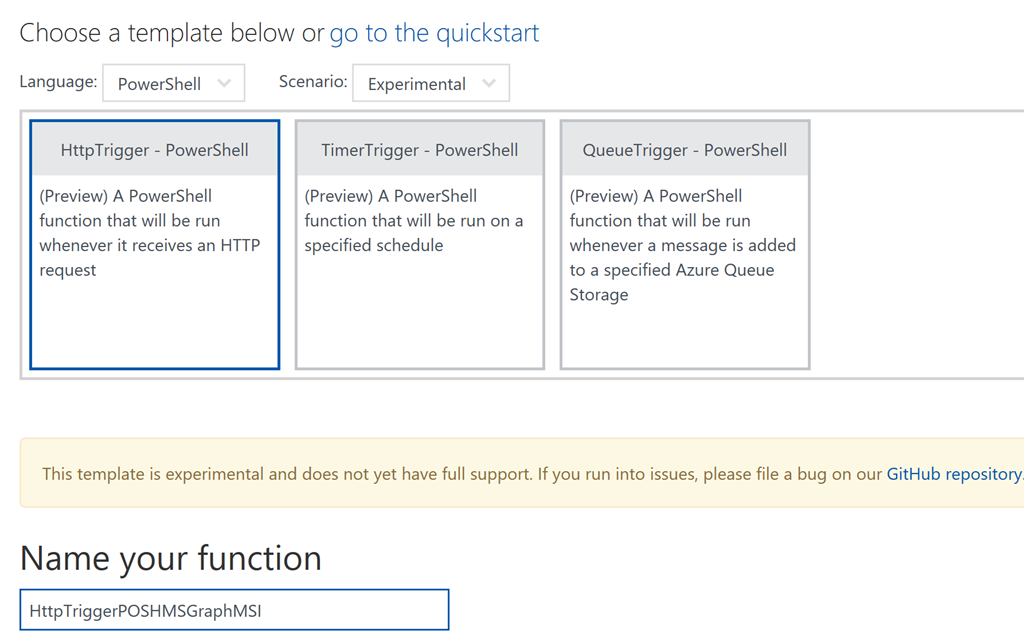
In your Function App, you can now create a new Function, selecting language PowerShell, and in this case I will create it as a HttpTrigger Function:
/uploads/2017/09/image_thumb16.png
image
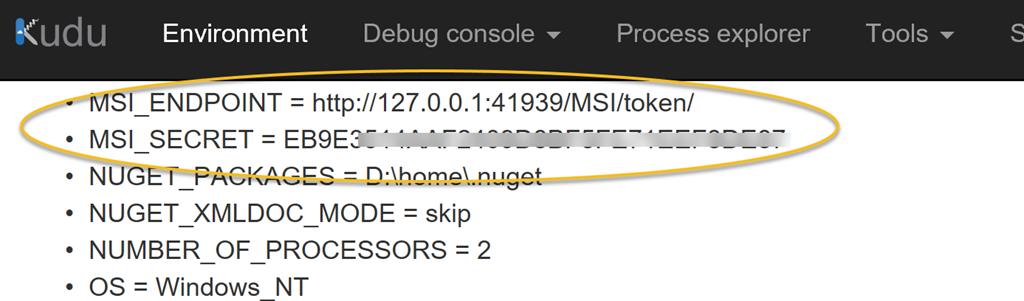
If you have been following the flow of the blog post until now, we can now check if the Function App is ready for using the Managed Service Identity (MSI). Two environment variables will be created, and you can check if they exist by going to Platform features, and then selecting Advanced tools (Kudo). Under environment you would se something like this if everything is ready (it could take a little time, so re-check until its there):
/uploads/2017/09/image_thumb17.png
image
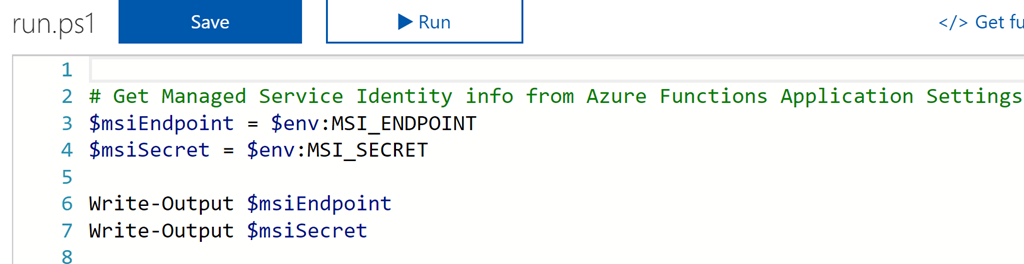
These two environment variables will be needed in the Azure Function, so we will start by getting that:
/uploads/2017/09/image_thumb18.png
image
If I run the Function I can see from the output that I was able to retrieve the environment variables:
/uploads/2017/09/image_thumb19.png
image
Next I will specify some URI and parameters for my authentication request using the managed service identity. I will need to specify the version (currently 2017-09-01 as specified in the documentation ), and since I want to get data from the Microsoft Graph, I will need to specify that as the resource URI. I then build the URI for getting the authentication token:
/uploads/2017/09/image_thumb20.png
image
With that, I can now do an authentication request, which if successful will return an access token I can use as a Bearer token in later queries agains the Microsoft Graph:
/uploads/2017/09/image_thumb21.png
image
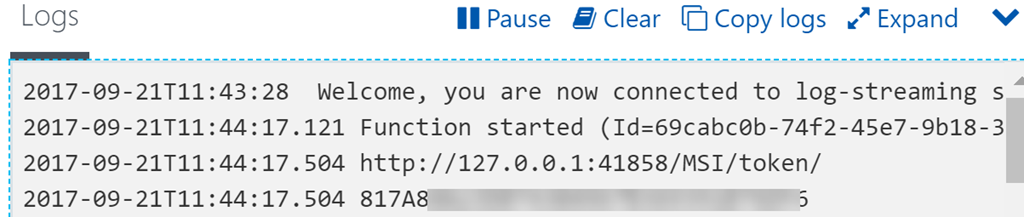
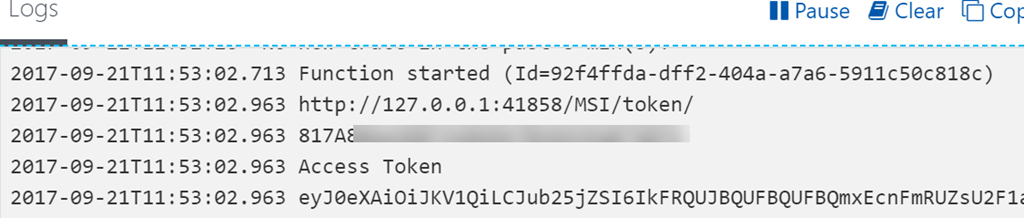
Let’s do another test run and verify that I can get an Access Token:
/uploads/2017/09/image_thumb22.png
image

Querying the Microsoft Graph

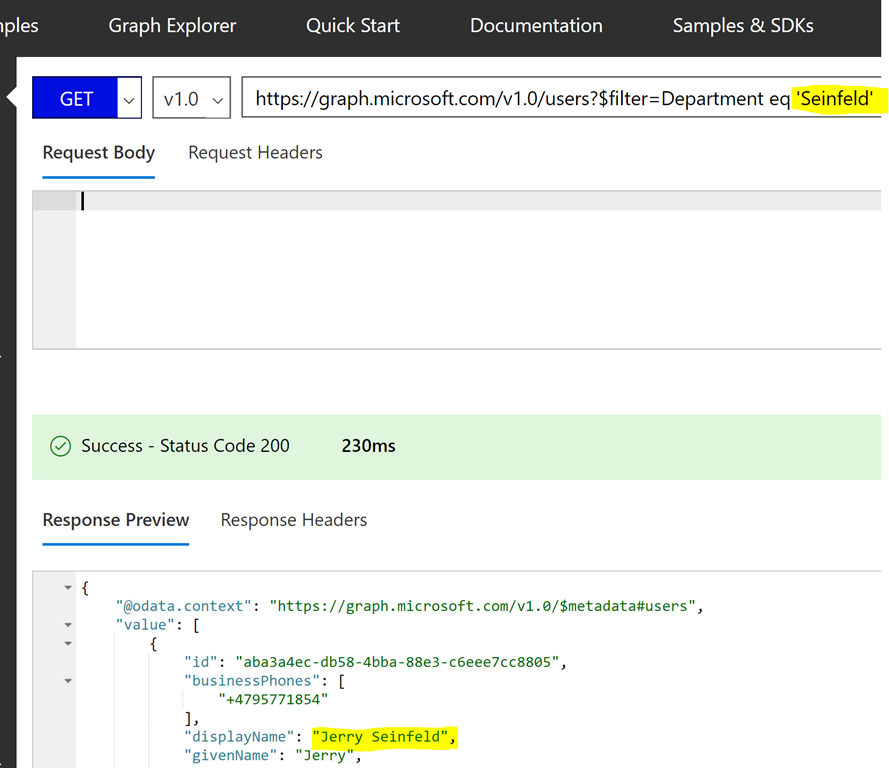
With a valid Access Token, and with the correct permissions for the resources I will want to access, I can now run some Microsoft Graph API queries. In my example I have some test users in my tenant named after the popular Seinfeld show. In fact I have set a “Seinfeld” department attribute value on those. So my query for getting those users would be: https://graph.microsoft.com/v1.0/users?$filter=Department eq ‘Seinfeld’ A great way to test Microsoft Graph Commands is to use the Graph Explorer, https://developer.microsoft.com/en-us/graph/graph-explorer , and if you sign in to your own tenant you can query your own data. As an example, I have showed that here:

/uploads/2017/09/image_thumb23.png
image
In my Azure Function I can define the same query like this (PS! note the escape character before the $filter for it to work):
/uploads/2017/09/image_thumb24.png
image
And with that I can request the user list using Microsoft Graph and a Authorization Header consisting of the Access Token as a Bearer:
/uploads/2017/09/image_thumb25.png
image
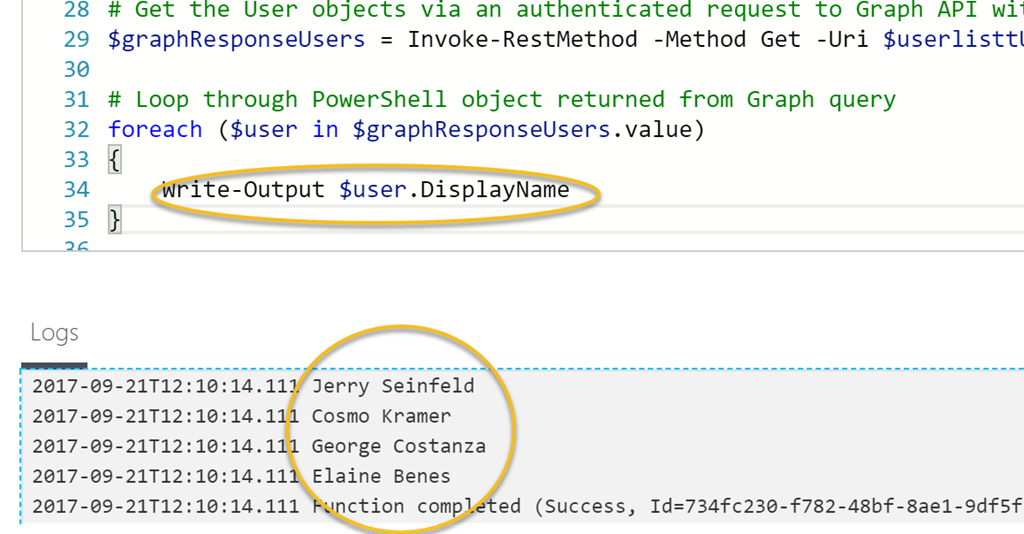
Let’s output some data from that response:
/uploads/2017/09/snaghtmlfb020e_thumb.png
SNAGHTMLfb020e
And there it is! I’m able to successfully query the Microsoft Graph using Managed Service Identity in an Azure Function, without handling any credentials. For reference, I have attached both the Azure AD PowerShell  commands, and the Function PowerShell commands below from my Gist. Enjoy! Azure AD PowerShell SPN commands: https://gist.github.com/skillriver/3e678e408813f8f65f6fa3d0b2784738 Azure Function PowerShell Trigger: https://gist.github.com/skillriver/8886a39957b56af5f34c1acde5e01af7