In a recent announcement at the Enterprise Mobility Blog, https://blogs.technet.microsoft.com/enterprisemobility/2017/08/31/changes-to-the-token-lifetime-defaults-in-azure-ad/
, there will be a change for default settings to the Token Lifetime Defaults in Azure Active Directory for New Tenants only. This change will not affect existing old Tenants.
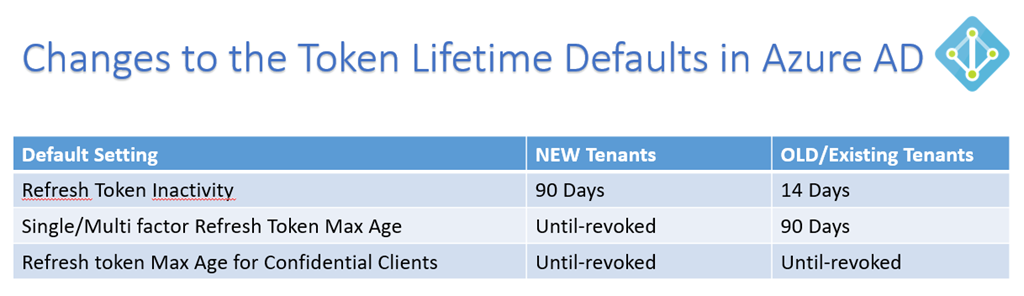
I have summarized the changes in this table:
imageThis is great news for many customers to remove user frustration over authentication prompts when refresh tokens expired after a period of inactivity. For example, if I havent used an App on my mobile phone for 14 days, I have to reauthenticate with my work/school account again to get a new Access Token and Refresh Token. Some Apps I use quite often, like Outlook and OneDrive, and by keeping active the Refresh Token will be continously renewed as well together with the Access Token (which by default is valid for 1 hour). For my existing tenant this would mean that keeping active, and at least using the Refresh Token inside the 14 Days, I will get new Access and Refresh Tokens, but after 90 Days the Single and/or Multi factor Refresh Token Max Age will be reached, and I have to reauthenticate again in my Apps.
Some Apps I will naturally use more rarely, for example Power BI, Flow, PowerApps etc. (this will be different for each user type), but I risk having to reauthenticate every time if I only access these Apps every other week.
So for New Tenants this has now changed, as Refresh Tokens will be valid for 90 Days, and if you use the Refresh Token inside that period, you will get 90 more days. And furthermore, the Max Age for Single/Multi factor Refresh Token will have a new default of Until-revoked, so basically it will never expire.
Keep in mind though, that Azure AD Administrators can revoke any Refresh Token at any time. Refresh Tokens will also be invalid if the authenticated users password changes or expire. It is also nice to be aware of that every time a Refresh Token is used to get a new Access Token, Conditional Access and Identity Protection from Azure AD will be used to check if the User or Device is in a Compliant State with any policies defined.
A few words on the Confidential Clients also. Confidential Clients are typically Web Apps that are able to securely store Tokens and identity itself to Azure AD, so after the User has Authenticated and actively Consented to access specific Resources, the resulting Access and Refresh Tokens can be used until revoked, as long as the Refresh Token are used at least once inside 90 Days (New Tenants) or 14 Days (Old Tenants).
If you want to read more deep dive on configurable Token Lifetimes, you can follow this link: https://docs.microsoft.com/en-us/azure/active-directory/active-directory-configurable-token-lifetimes
.
Azure AD PowerShell examples for changing Token Lifetime Defaults
I have created some Azure AD PowerShell V2 examples for how you can change the Token Lifetime Policy defaults in your organization.
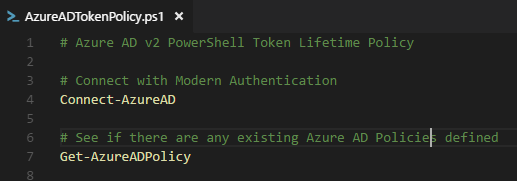
First connect to your Tenant and see if there already are defined any policies (normally there would be nothing):
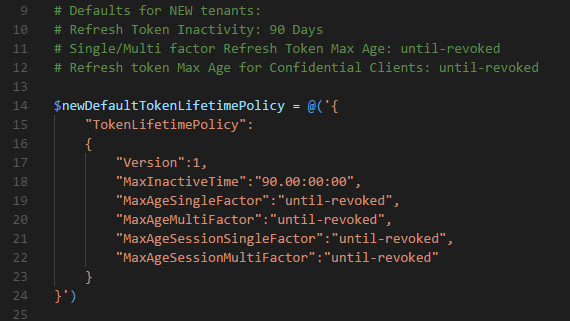
imageThen lets make a definition that reflects the new defaults for New Tenants:
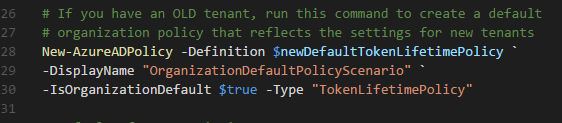
imageSo if you already have an existing old tenant, and you want to change the default policy so that it reflects the new Token Lifetime settings, you can run this command:
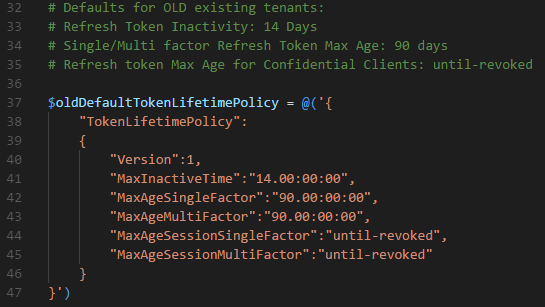
imageA different scenario, lets say I have a New Tenant, and want to use the old default values instead. I will make a definition that reflects that:
imageAnd create a policy using these definitions:
imageLast, I will leave you with commands for changing any existing Azure AD policies:
imageThe complete list of Azure AD PowerShell CmdLets used and examples can be found here at my Gist repository.
https://gist.github.com/skillriver/f05fe5c49ab2f40d5a414e75c2f4e089
Hopefully this has been informative and helpful for Azure AD Administrators and others !
This site uses Google Analytics only when you allow it, to understand traffic and improve the blog.
Read the privacy notice.


 !
!