Category Archives: Azure

Experts and Community unite at last ever #SCU_Europe 2016! #ExpertsLive next

This years SCU Europe 2016, for the first time outside Switzerland in the 4th year running, was held in Berlin at the BCC (Berlin Congress Center) close to the Alexander Platz in the eastern parts of “Berlin Mitte”.


The intro video introducing the Experts:

Let’s begin with the end: at the closing note SCUE general Marcel Zehner announced and with a little bit of emotion that this was the last ever SCU Europe to be held.. You and your organization should be proud of what you have achieved, Marcel, it is one of the best community conferences around, and I have been fortunate to be able to visit all 4 starting with Bern in 2013, Basel in 2014 and 2015, and now Berlin in 2016. It’s only cities with B’s is it? In fact, you never know what twists and turns your career takes, but looking back I’m not sure I would be where I am now in turn of being presenter, MVP and community influencer myself if I had not travelled alone to Bern 4 years ago, that’s where I really started working with and for the Community (with a capitol C)!

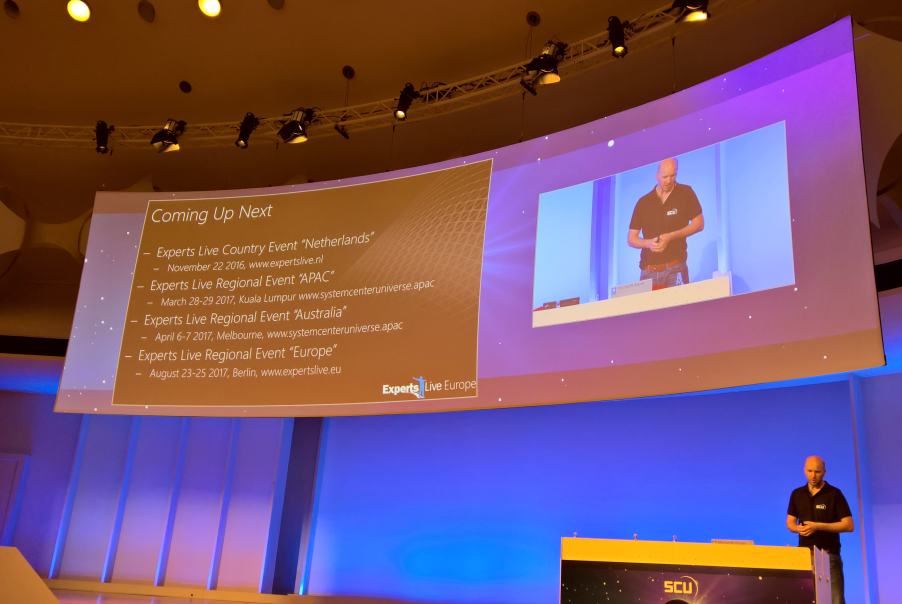
Luckily SCU Europe will continue as Experts Live Europe next year! Same place at BCC, same organization and format, and the same dates only next year it will be: 23rd – 25th of August 2017. A new web page was launched, www.expertslive.eu, and Twitter (@ExpertsLiveEU) and Facebook have been changed to reflect that. The hash tag #SCU_Europe will eventually be inactive and you should now use #ExpertsLive.

image

I think this is a very good decision, there has already been discussion on that the name “System Center Universe” is not really reflecting the content and focus of the conference, now embracing the Cloud, with content areas for Management, Productivity, Security, DevOps, Automation, Data Platform and more. ExpertsLive, originally a 1-day community conference in Netherland running each year back from 2009 and with up to 1200 participants, will now be a network of conferences, ranging from region based (ExpertsLive Europe, but also SCU APAC and SCU Australia will be ExpertsLive APAC and Australia next year), and local, country based ExpertsLive like the one in Netherlands, but more will come.

image

The closing note video announcing Experts Live Europe:

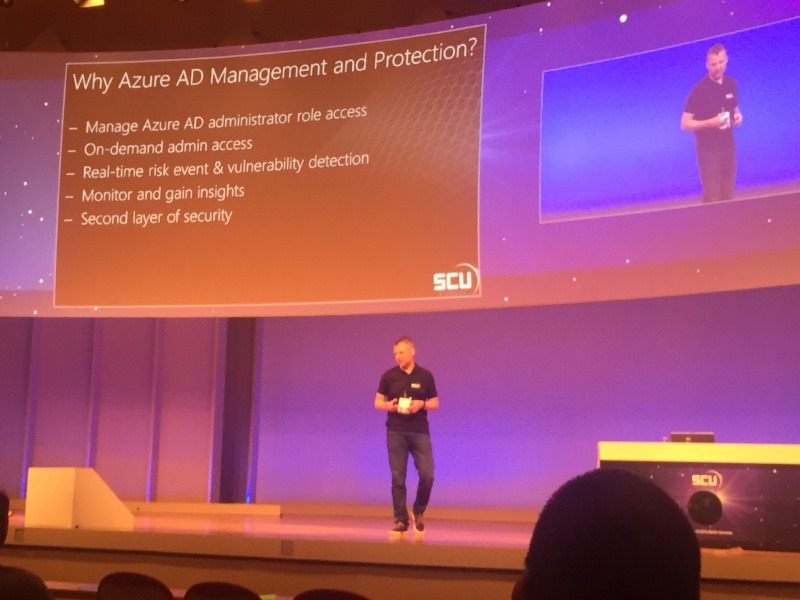
This year at SCU Europe I was one of the Experts and presented two sessions on “Premium Identity Management and Protection with Azure AD” and “Deep Dive: Publishing Applications with Azure AD”. I also took part in a “Ask-the-Experts” area together with Cameron Fuller and Kevin Greene where we took questions on the topic System Center 2016. I participated on a discussion panel on Friday morning with Markus Wilhelm from Microsoft Germany on the subject Defense Strategies and Security, and of course we had the Meet and greet with the Experts at the Networking party. It was a really great experience speaking at this conference, thanks for having me!


The content of the conference this year was great, and for the first time there was 5 tracks, with over 70 sessions presented! All presentations and session recordings will be at Channel 9 in a few weeks time, so make sure you look at anything you missed or want to see again if you where there, or if you weren’t at the conference this year you can look at your sessions of interest.

I was travelling with a group this year, both from my company and some of our customers, in total we were 7 in the group, and also had 3 cancellations the last week before the conference from some customers that could not make it after all. Moving the conference to Berlin is a big part of why it now was easier to attract more Nordic attendance I think. We stayed at the Park Inn by Radisson right by the Alexander Platz and BCC, so it was really central and nice.


In good tradition there are a lot of parties and social networking going on. On the first night there are the Sponsors and Speakers Party, which was held in Mio right by the TV Tower by Alexander Platz, on Thursday we had the attendee Networking Party at the conference center. Later that night our group and some more partners/customers of Squared Up went on to another party at Cosmic Kaspar. It was really hot, so basically the party was at the pavement! On the last day we had the Closing Drinks, sponsored by Cireson and itnetX at Club Carambar, also close to the Alexander Platz. In addition, there are a lot of unofficial gatherings going on, lots of laughs and new and old friends have a good time.


See you next year at Experts Live Europe in Berlin 23-25th August, 2017!

Publish the itnetX ITSM Portal with Azure AD App Proxy and with Conditional Access

Last week at SCU Europe 2016 in Berlin, I presented a session on Application Publishing with Azure AD. In one of my demos I showed how to use Azure AD Application Proxy to publish an internal web application like the itnetX ITSM Portal. The session was recorded and will be available later at itnetX’s Vimeo channel and on Channel 9.

In this blog post I will detail the steps for publishing the portal in Azure AD, and also how to configure Conditional Access for Users and Devices. Device compliance and/or Domain join conditional access recently went into preview for Azure AD Applications, so this will be a good opportunity to show how this can be configured and how the user experience is.

Overview

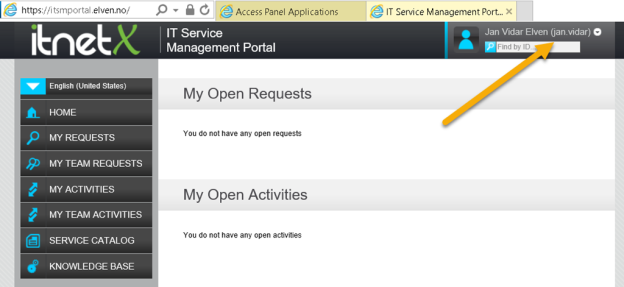
itnetX has recently released a new HTML based ITSM Portal for Service Manager, and later there will be an analyst portal as well.

This should be another good scenario for using the Azure AD Application Proxy, as the ITSM Portal Web Site needs to be installed either on the SCSM Management Server or on a Server that can connect to the Management Server internally.

In this blog article I will describe how to publish the new ITSM Portal Web Site. This will give me some interesting possibilities for either pass-through or pre-authentication and controlling user and device access.

There are two authentication scenarios for publishing the ITMS Portal Web Site with Azure AD App Proxy:

  1. Publish without pre-authentication (pass through). This scenario is best used when ITSM Portal is running Forms Authentication, so that the user can choose which identity they want to log in with.
  2. Publish with pre-authentication. This scenario will use Azure AD authentication, and is best used when ITSM Portal Web Site is running Windows Authentication so that we can have single sign-on with the Azure AD identity. Windows Authentication is also default mode for ITSM Portal installations.

I will go through both authentication scenarios here.

I went through these steps:

Configure the itnetX ITSM Portal Web Site

First I make sure that the portal is available and working internally. I have installed it on my SCSM Management Server, in my case with the URL http://azscsmms2:82.

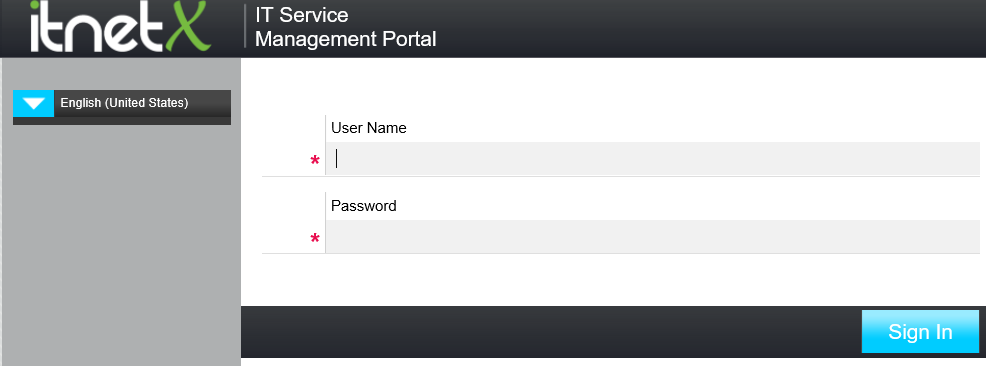
In addition to that, I have configured the ITSM Portal to use Forms Authentication, so when I access the URL I see this:

image

Create the Application in Azure AD

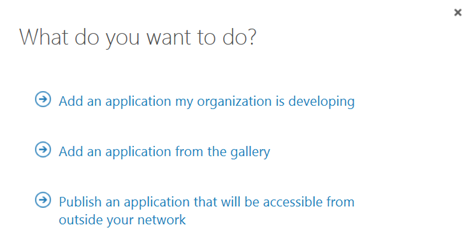
In this next step, I will create the Proxy Application in Azure AD where the ITSM Portal will be published. To be able to create Proxy Applications I will need to have either an Enterprise Mobility Suite license plan, or an Azure AD Basic/Premium license plan. App Proxy require at least Azure AD Basic for end-users accessing applications, and if using Conditional Access you will need a Azure AD Premium license. From the Azure Management Portal and Active Directory, under Applications, I add a new Application and select to “Publish an application that will be accessible from outside your network”:

I will then give a name for my application, specify the internal URL and pre-authentication method. I name my application “itnetX ITSM Portal”, use http://azscsmms2:82/ as internal URL and choose Passthrough as Pre-Authentication method.

After the Proxy Application is added, there are some additional configurations to be done. If I have not already, Application Proxy for the directory have to be enabled. I have created other Proxy Applications before this, so I have already done that.

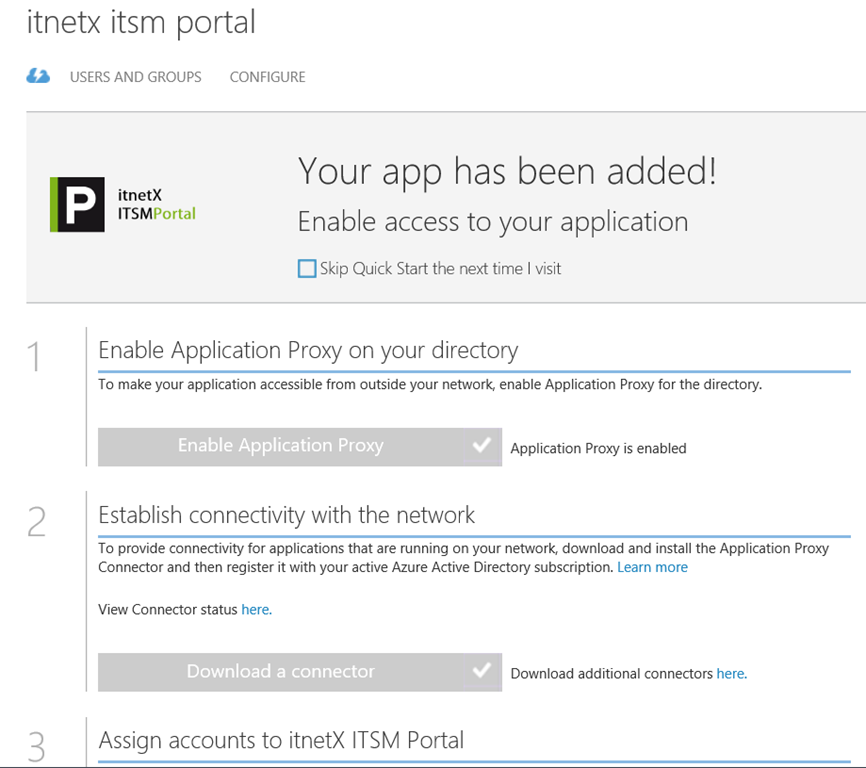
After I have uploaded my own custom logo for the application, I see this status on my quickstart blade for the application:

image

I also need to download the Application Proxy connector, install and register this on a Server that is member of my own Active Directory. The Server that I choose can be either on an On-Premise network, or in an Azure Network. As long as the Server running the Proxy connector can reach the internal URL, I can choose which Server that best fits my needs.

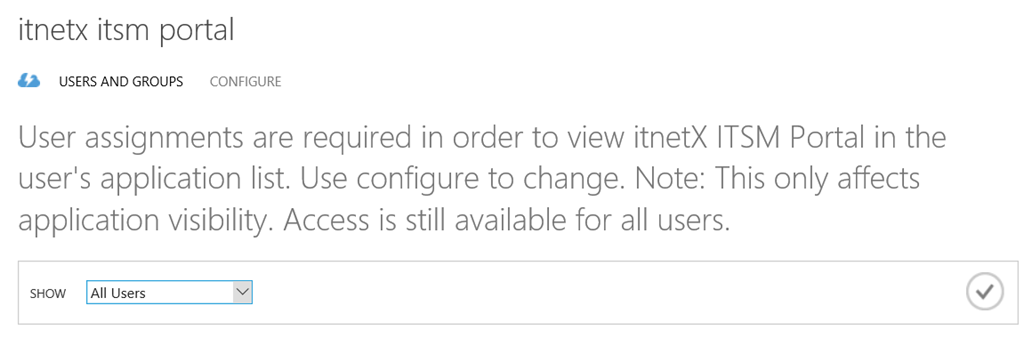
When choosing pass through as authentication method, all users can directly access the Forms Based logon page as long as they know the external URL. Assigning accounts, either users or groups, will only decide which users that will see the application in the Access Panel or My Apps.

image

I now need to make additional configurations to the application, and go to the Configure menu. From here I can configure the name, external URL, pre-authentication method and internal URL, if I need to change something.

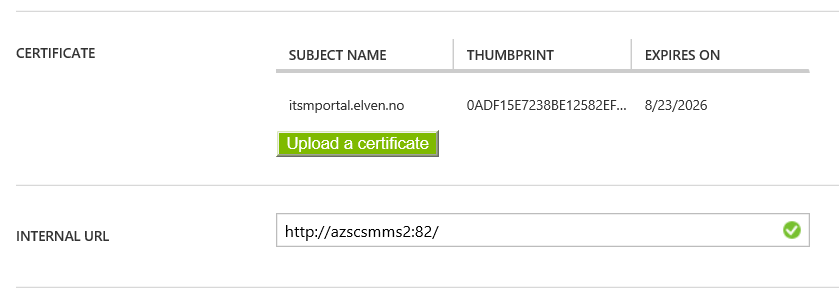
I choose to change the External URL so that I use my custom domain, and note the warning about creating a CNAME record in external DNS. After that I hit Save so that I can configure the Certificate.

image

After that I upload my certificate for that URL, and I can verify the configuration for the external and internal URL:image

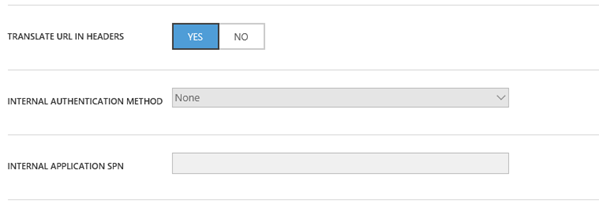
When using passthrough I don’t need to configure any internal authentication method.

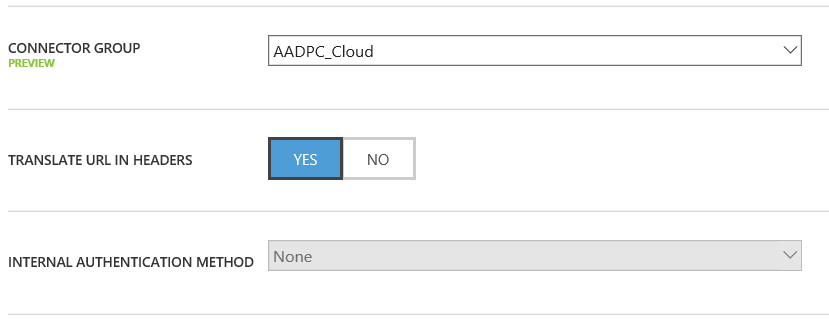
I have to select a connector group, where my installed Azure AD App Proxy Connectors are installed, and choose to have the default setting for URL translation. Internal authentication is not needed when using Pass Through authentication:

image

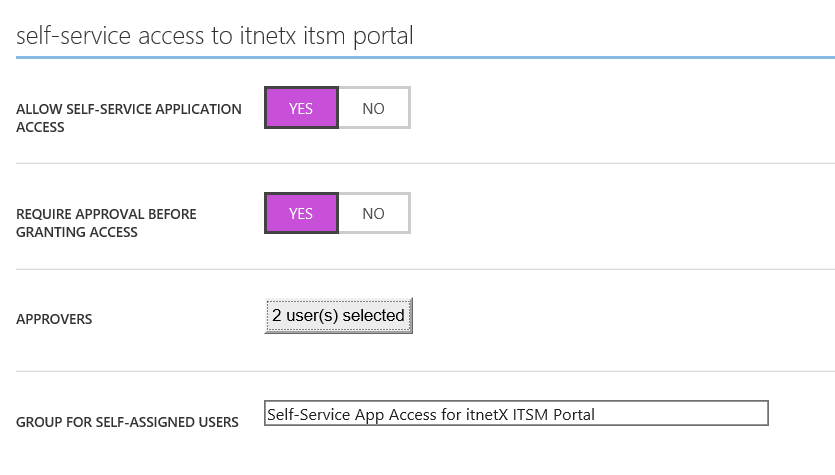
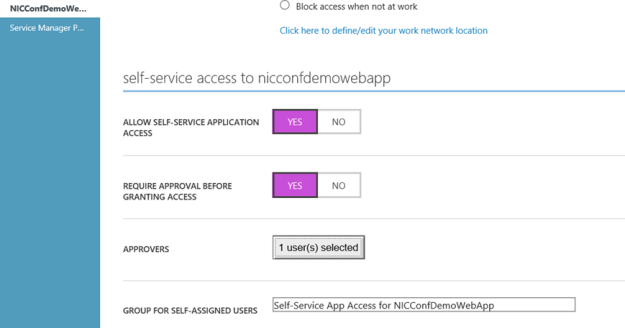
If I want, I can allow Self-Service Access to the published application. I have configured this here, so that users can request access to the application from the Access Panel (https://myapps.microsoft.com). This will automatically create an Azure AD Group for me, which I either can let users join automatically or via selected approvers:

image

After I have configured this, I am finished at this step, and can test the application using pass through.

Testing the application using pass through

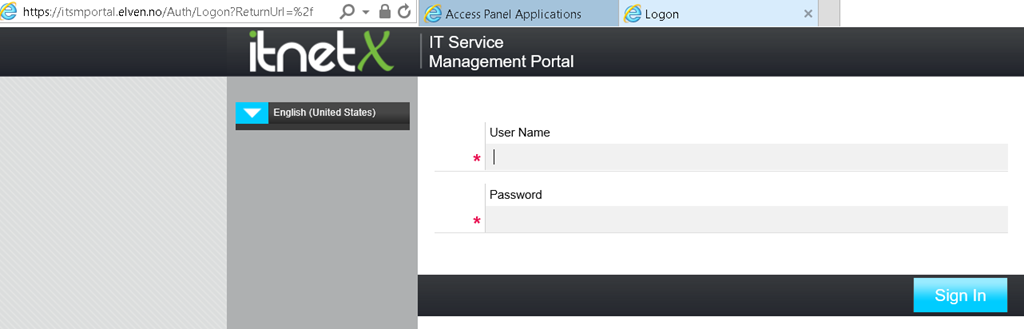
When using Pass through I can go directly to the external URL, which in my case is https://itsmportal.elven.no. And as expected, I can reach the internal Forms Based login page:

image

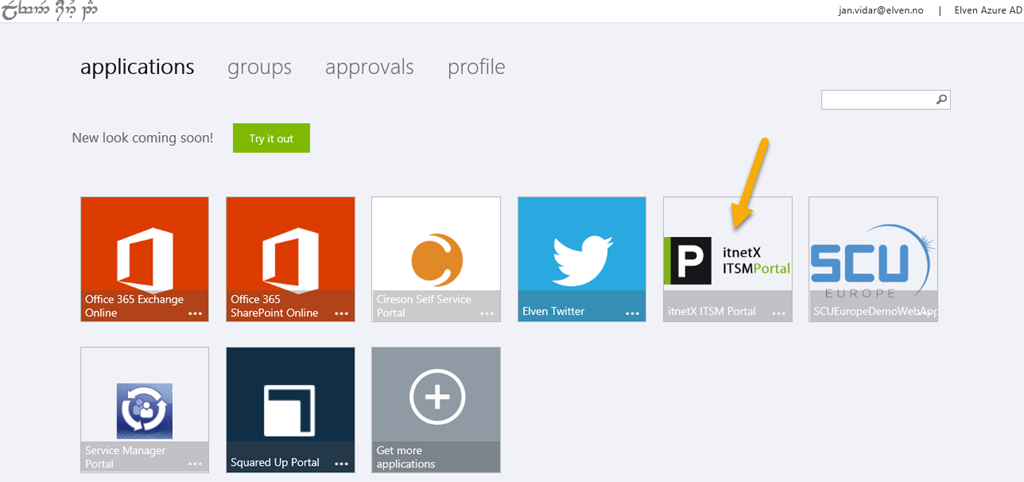
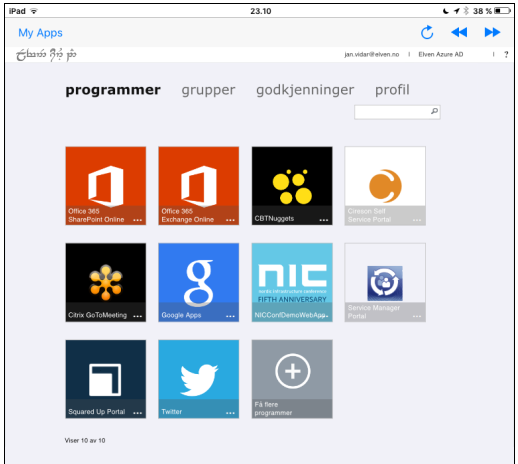
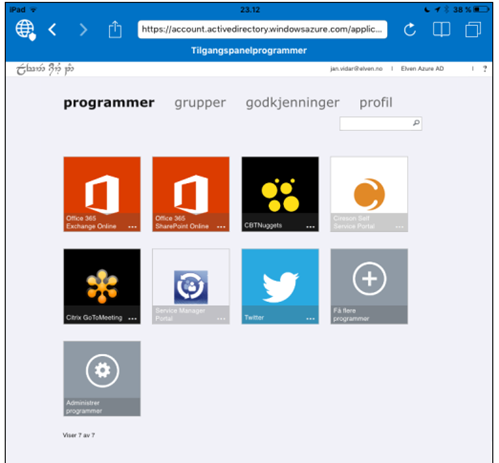
For the users and groups I have assigned access to, they will also see the itnetX ITSM Portal application in the Access Panel (https://myapps.microsoft.com) or in My Apps, this application is linked to the external URL:

image

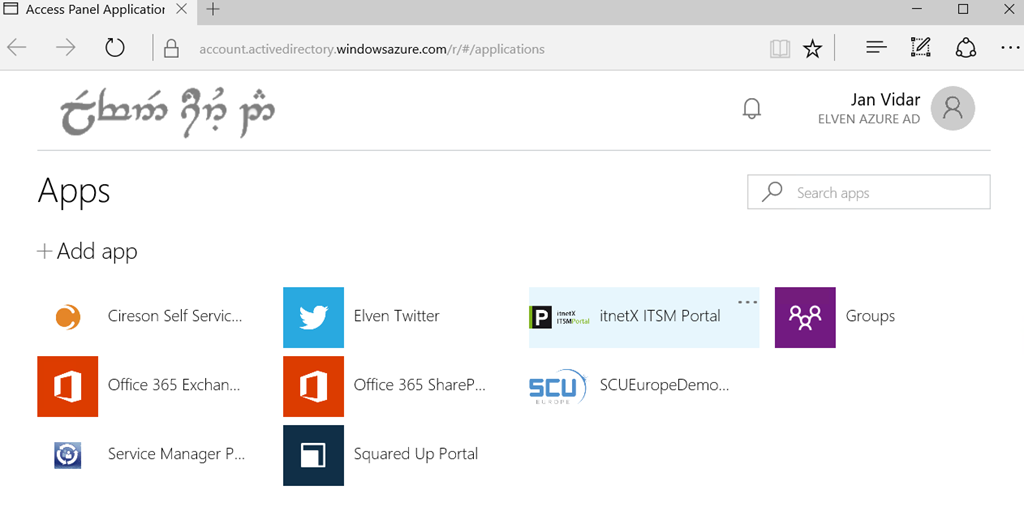
This is how the Access Panel looks in the coming new look:

image

Now I’m ready to do the next step which is change Pre-Authentication and use Azure AD Authentication and Single Sign-On.

Change Application to use Azure AD Authentication as Preauthentication

First I will reconfigure the Azure AD App Proxy Application, by changing the Preauthentication method to Azure Active Directory.

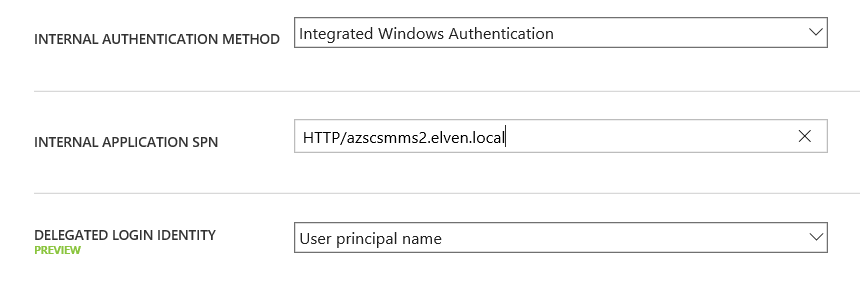
Next I need to configure to use Internal Authentication Method “Windows Integrated Authentication”. I also need to configure the Service Principal Name (SPN). Here I specify HTTP/portalserverfqdn, in my example this is HTTP/azscsmms2.elven.local.

image

PS! A new preview feature is available, to choose which login identity to delegate. I will continue using the default value of User principal name.

Since I now will use pre-authentication, it will be important to remember to assign individual users or groups to the Application. This enables me to control which users who will see the application under their My Apps and who will be able access the application’s external URL directly. If users are not given access they will not be able to be authorized for the application.

Enable Windows Authentication for itnetX ITSM Portal

The itnetX ITSM Portal site is configured for Windows Authentication by the default, but since I reconfigured the site to use Forms Authentication earlier, I just need to reverse that now. See installation and configuration documentation for that.

It is a good idea at this point to verify that Windows Integrated Authentication is working correctly by browsing internally to the ITSM Portal site. Your current logged on user (if permissions are correct) should be logged in automatically.

Configure Kerberos Constrained Delegation for the Proxy Connector Server

I now need to configure so that the Server running the Proxy Connector can impersonate users pre-authenticating with Azure AD and use Windows Integrated Authentication to the Squared Up Server.

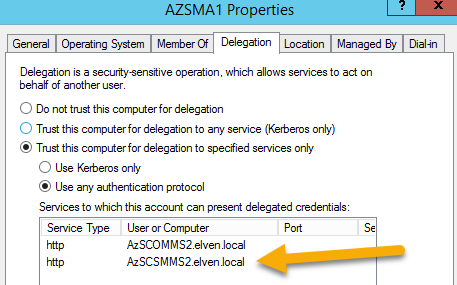
I find the Computer Account in Active Directory for the Connector Server, and on the Delegation tab click on “Trust this computer for delegation to specified services only”, and to “Use any authentication protocol”. Then I add the computer name for the web server that the ITSM Portal is installed on and specify the http service as shown below (I already have an existing delegation set up):

image

This was the last step in my configuration, and I am almost ready to test.

If you, like me, have an environment consisting on both On-Premise and Azure Servers in a Hybrid Datacenter, please allow room for AD replication of these SPN’s and more.

Testing the published application with Azure AD Authentication!

Now I am ready to test the published proxy application with Azure AD Authentication.

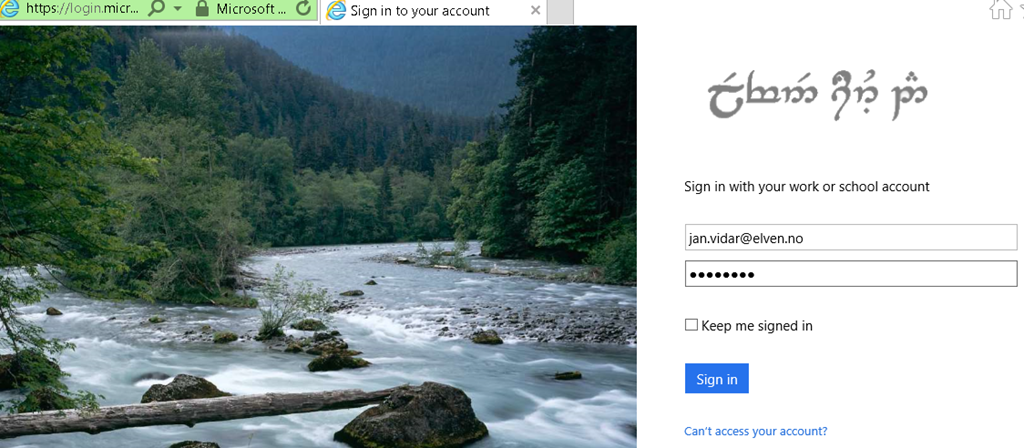
When I go to my external URL https://itsmportal.elven.no, Azure AD will check if I already has an authenticated session, or else I will presented with the customized logon page for my Azure AD:

image

Remember from earlier that I have assigned the application either to a group of all or some users or directly to some pilot users for example.

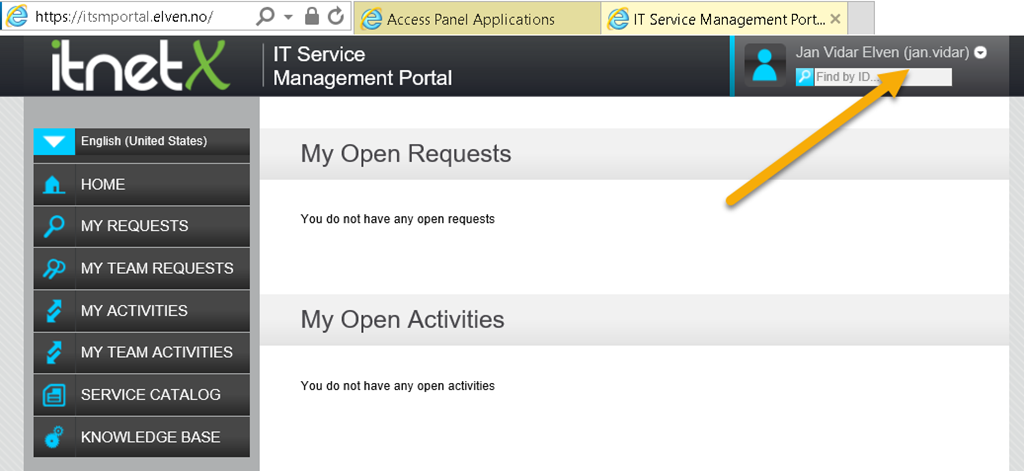
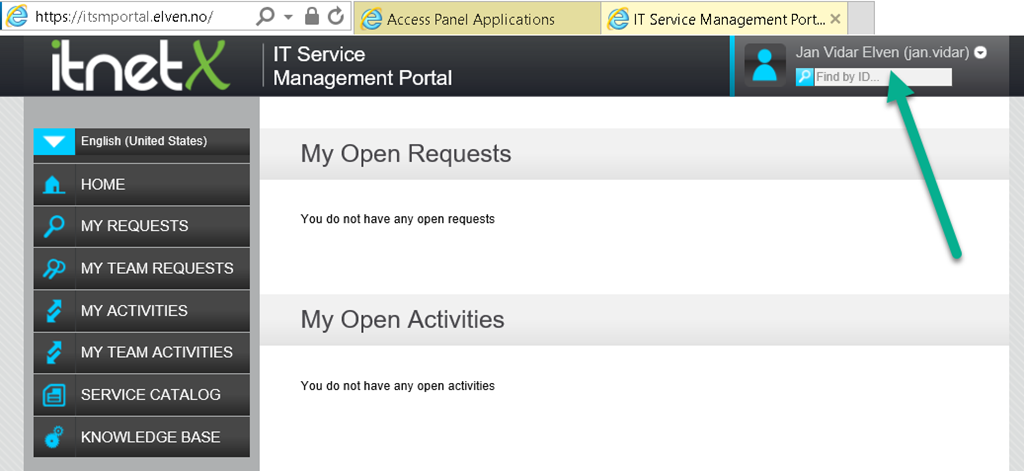
If I log in with an assigned user, I will be directly logged in to the ITSM Portal:

image

However, if I try to log in with an Azure AD account that hasn’t been assigned access to the application, I will see this message:

image

This means that the pre-authentication works and I can control who can access the application via Azure AD.

Conditional Access for Users and Devices

When using Azure AD as preauthentication, I can also configure the application for conditional access for users and devices. Remember this is a Azure AD Premium feature.

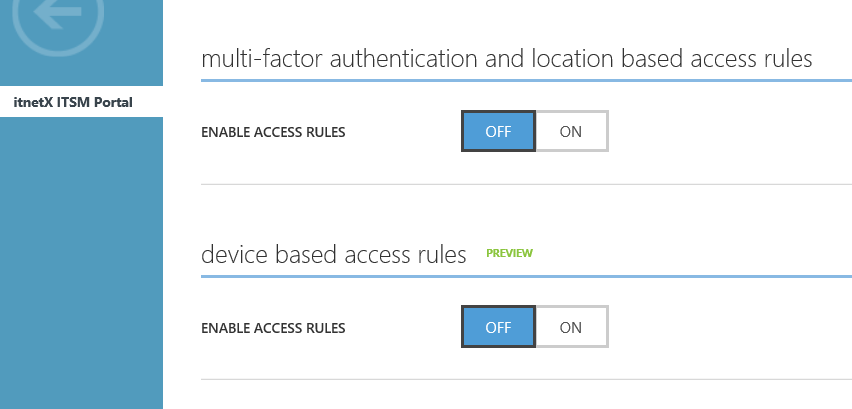
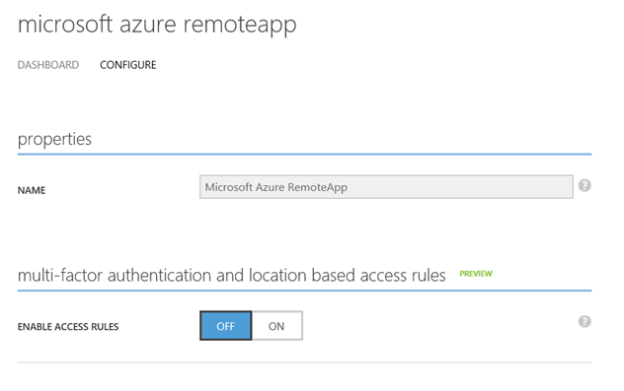
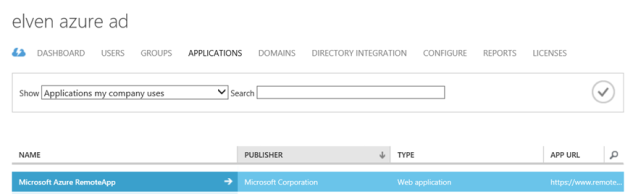
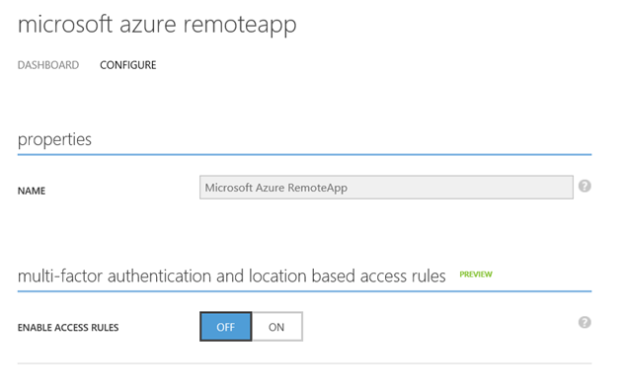
From the the configuration settings for the application I can configure Access Rules via MFA and location, and Access Rules for devices which now is in Preview:

image

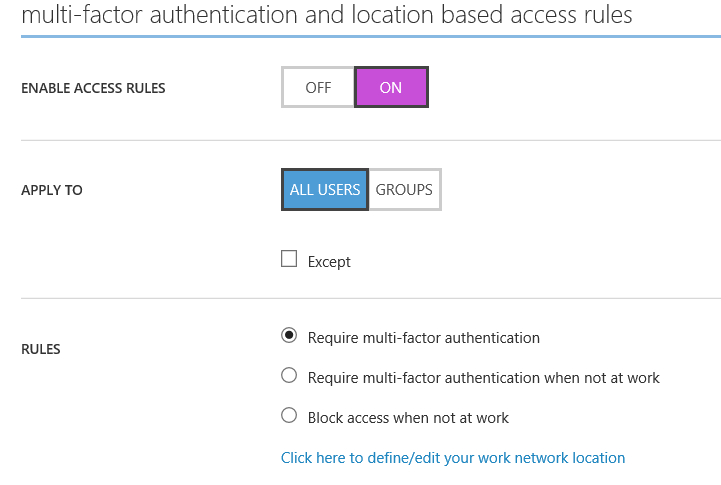
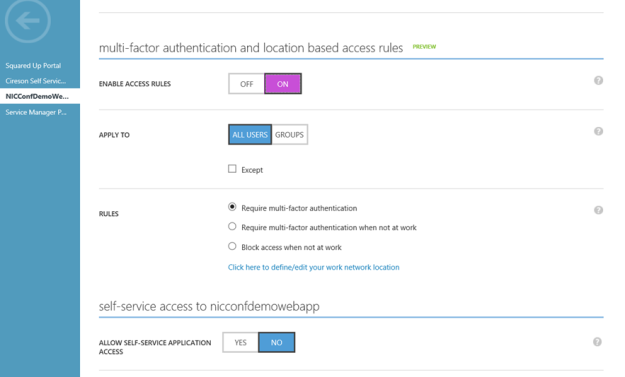
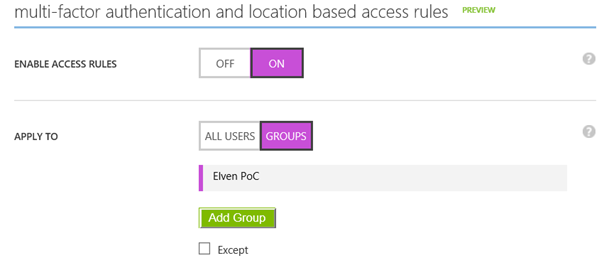
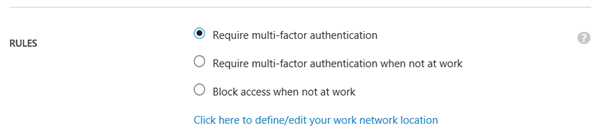
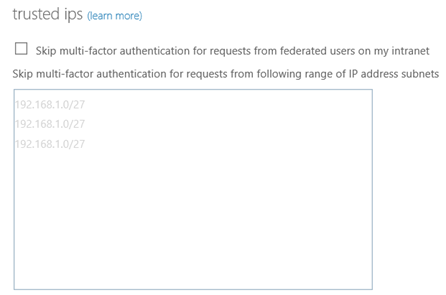
If I enable Access Rules for MFA and location I see the following settings, where I can either for all users or for selected groups require multi-factor authentication, or require multi-factor when not at work, or block access completely from outside work. I have define my network location IP ranges for that to take effect.

image

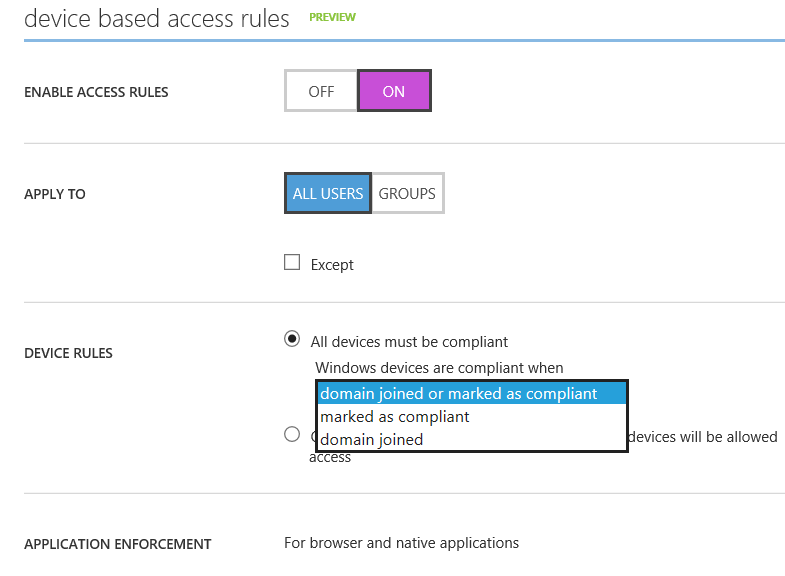
If I enable Access Rules for devices, I see the following settings. I can select for all users or selected groups that will have device based access rules applied (and any exceptions to that).

I can choose between two device rules:

  • All devices must me compliant
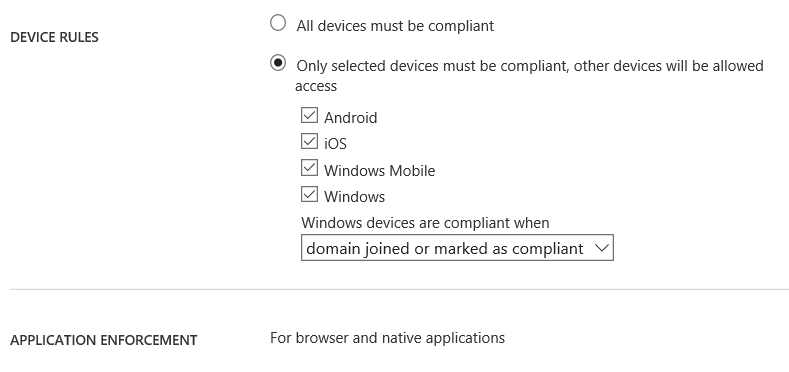
  • Only selected devices must be compliant, other devices will be allowed access

If I select all devices, a sub option for windows devices shows where I need to select between domain joined or marked as compliant, or just marked as compliant or domain joined selectively.

image

If I select the second option, I can even specify which devices will be checked for compliancy:

image

So I can with different access rules for both MFA, location and selected devices, in addition to the Azure AD Preauthentication, apply the needed conditional access for my application.

In this case I will select device rules for compliant/domain joined, and for all the different devices. This will mean that for users to access the ITSM Portal, their device must either be MDM enrolled (iOS, Android, Windows Phone) or in the case of Windows devices either be MDM enrolled, Azure AD Joined, Compliant or Domain Joined. Domain joined computers must be connected to Azure AD via the steps described here: https://azure.microsoft.com/en-us/documentation/articles/active-directory-azureadjoin-devices-group-policy/.

After I’m finished reconfiguring the Azure AD App Proxy Application, I can save and continue and test with my devices.

Testing device based conditional access

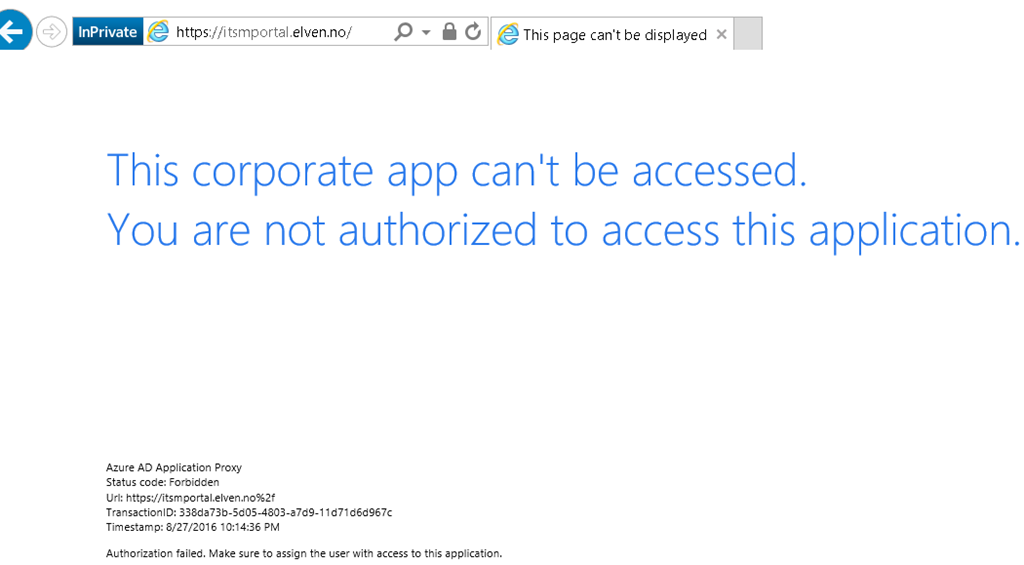
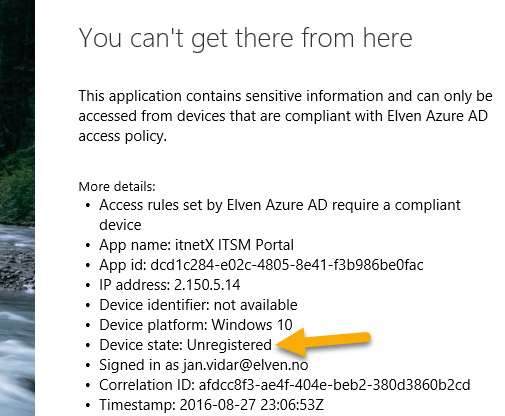
Lets see first when I try to access the ITSM Portal via an unknown device:

image

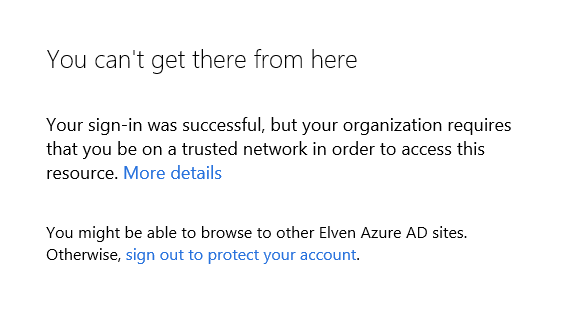
On the details I see that my device is Unregistered, so I will not be able to access the application.

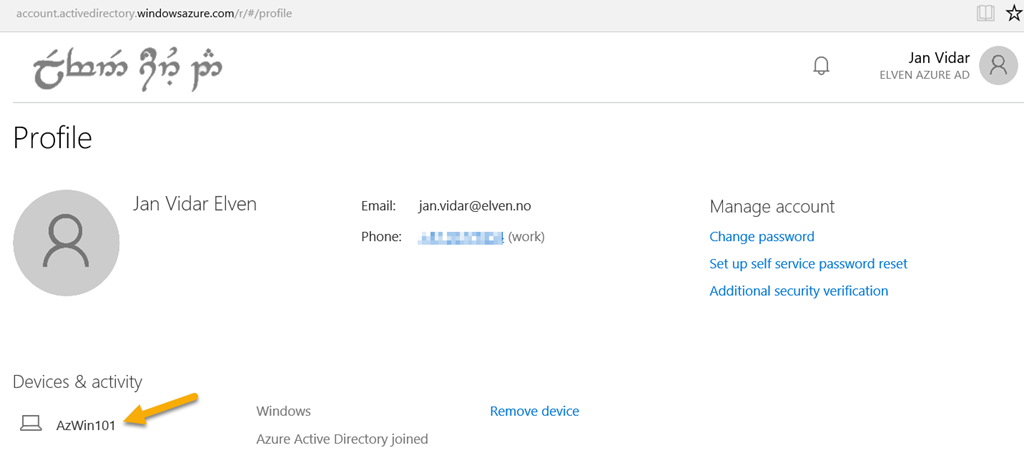
Now, in the next step I can enroll my Windows 10 Device either through MDM or via Azure AD Join. In this scenario I have added my Windows 10 to Azure AD Join:

image

If I look at the Access Panel and Profile I will also se my devices:

image

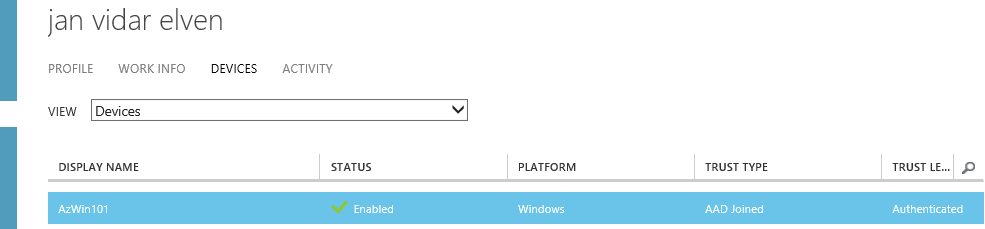
The administrator can see the Device that the user has registered in Azure Active Directory:

image

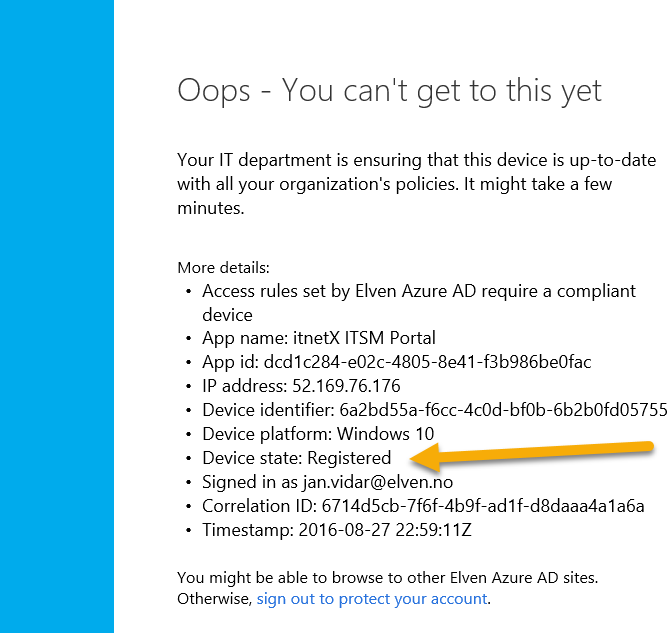
Lets test the published ITSM Portal again:

image

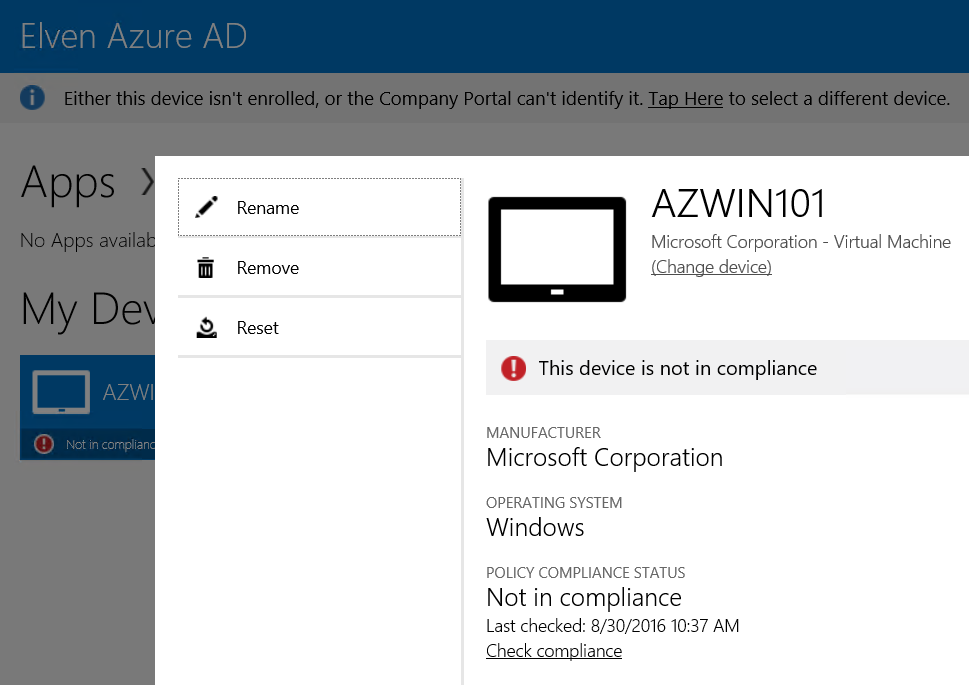
Now I can see that my device has been registered, but that it is not compliant yet, so I still cannot access the ITSM Portal.

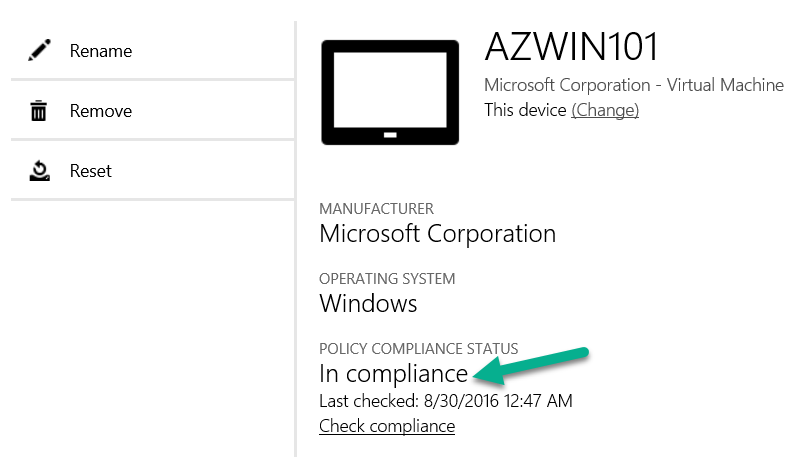
When I log on to the Client Manage Portal (https://portal.manage.microsoft.com), I can see that my Windows 10 Device not yet are Compliant:

image

So when I investigate, fix whatever issues this device has and then re-check compliance, I can successfully verify that I should be compliant and good to go:

image

After that, I’m successfully able to access the ITSM Portal again, this time after my device has been checked for compliance:

image

Summary

In this blog post we have seen have to publish and configure the itnetX ITSM Portal with Azure AD Application Proxy, using both pass-through authentication and Azure AD Preauthentication with Kerberos constrained delegation for single sign-on.

With the additional possibility for conditional access for users and devices, we have seen that we can require either MFA or location requirements, and device compliance for mobile platforms and windows devices.

Hope this has been an informative blog post, thanks for reading!

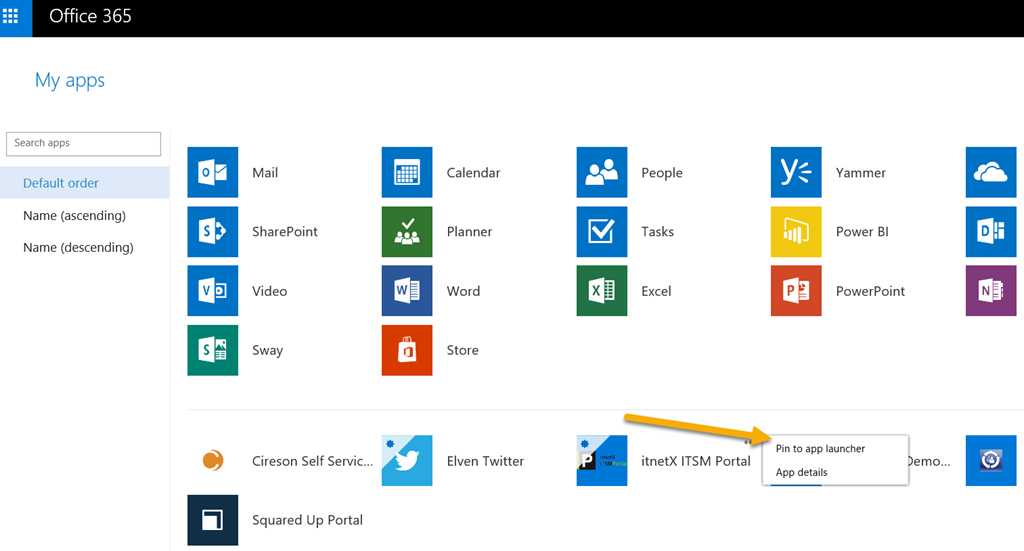
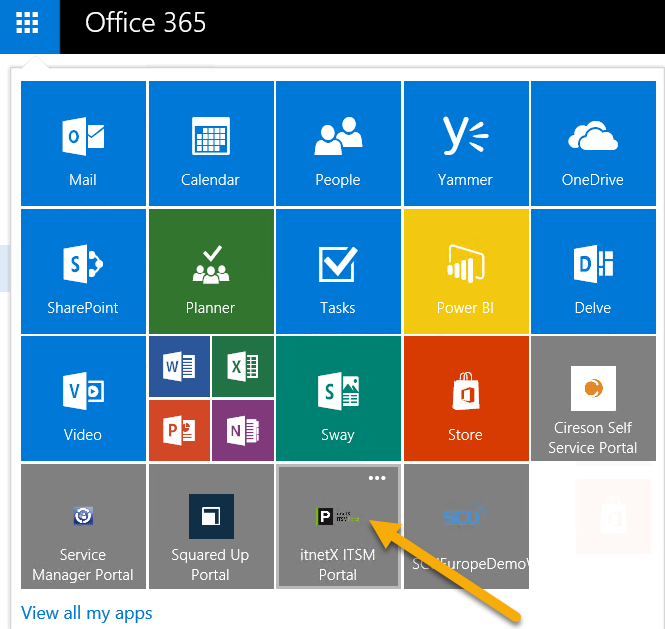
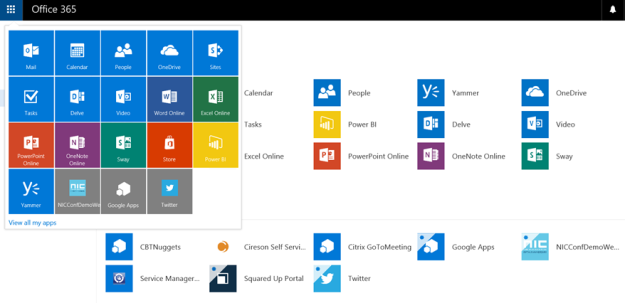
PS! In addition to access the application via the Access Panel (https://myapps.microsoft.com), I can use the App Launcher menu in Office 365 and add the ITSM Portal to the App chooser:

image

This will make it easy for my users to launch the application:

image

Speaking at System Center Universe Europe 2016 – Berlin

I’m really excited that I will have two sessions at this years SCU Europe in Berlin, August 24th – 26th. System Center Universe Europe is a really great community conference that focuses on Cloud, Datacenter and Modern Workplace Management, covering technologies like Microsoft System Center, Microsoft Azure, Office 365 and Microsoft Hyper-V. Read more about SCU Europe here: http://www.systemcenteruniverse.ch/about-scu-europe.html

I have been visiting all SCU Europe Conferences since the inaugural start in Bern 2013. I met some amazing MVPs, sponsors and community leaders already then, in fact it inspired me even more to share more of my own workings and knowledge by blogging, using social media and eventually speaking at technical  and community conferences myself.  The following two years SCU Europe were held in Basel, both the great conference venue at Swissotel and lest not forget Bar Rouge had its fair share of memorable moments 🙂

This years SCU Europe will be held in Berlin from the 24th to the 26th of August. Moving the conference to Berlin is a smart move I think, it will make the conference even more accessible to most European and overseas travelers, and attract the attendance it deserve.

A few months ago I received some great news, I had two sessions accepted for SCU Europe, and received my first Microsoft MVP Award for Enterprise Mobility. I’m really happy to not only go and learn and enjoy the conference sessions and community, but also to contribute myself along with over 40 top, top speakers from all over the world!

My first session will cover “Premium Management and Protection of Identity and Access with Azure AD”:

image

In the session I will focus on Azure AD Identity Protection, Azure AD Privileged Identity Management for controlling role and admin access, how to monitor it all will Azure AD Connect Health, and how Azure Multi-Factor Authentication works with these solutions. The session will cover the recent announcements regarding Enterprise Mobility + Security.

The second session will be a deep dive on “Publish Applications with Azure AD”:

image

In this demo-packed session I will go deep into what you need to get started on publishing the different types of applications, and how to configure and troubleshoot user access to these applications. The session will cover Azure AD Single Sign-On and Password Single Sign-On, integrating Azure AD SSO with your internally developed applications, and publishing applications with Azure AD App Proxy that either use pre-authentication or pass through.

Hope to see you at the conference, and if you haven’t registered yet there is still time: http://www.systemcenteruniverse.ch/registration.html

New look coming to Azure Active Directory Access Panel #AzureAD

A quick update on coming changes to the Azure Active Directory Access Panel at https://myapps.microsoft.com.

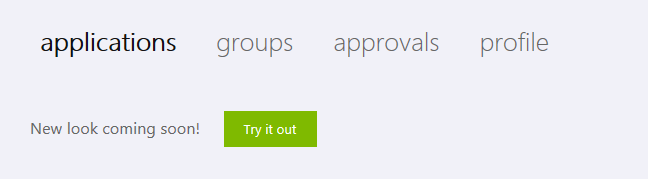
When I log in with my Azure AD work account I see that there is a notification that a new look is coming soon and I can try it out:

image

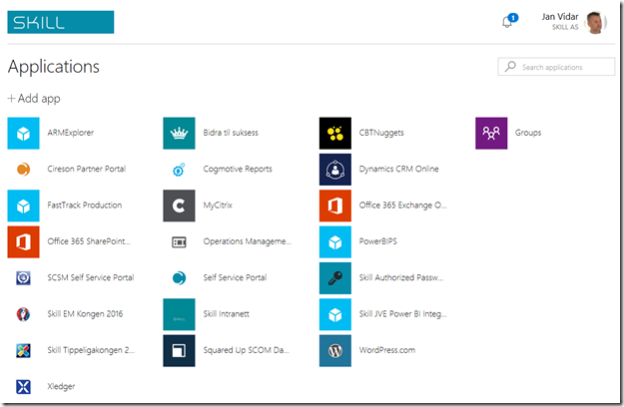
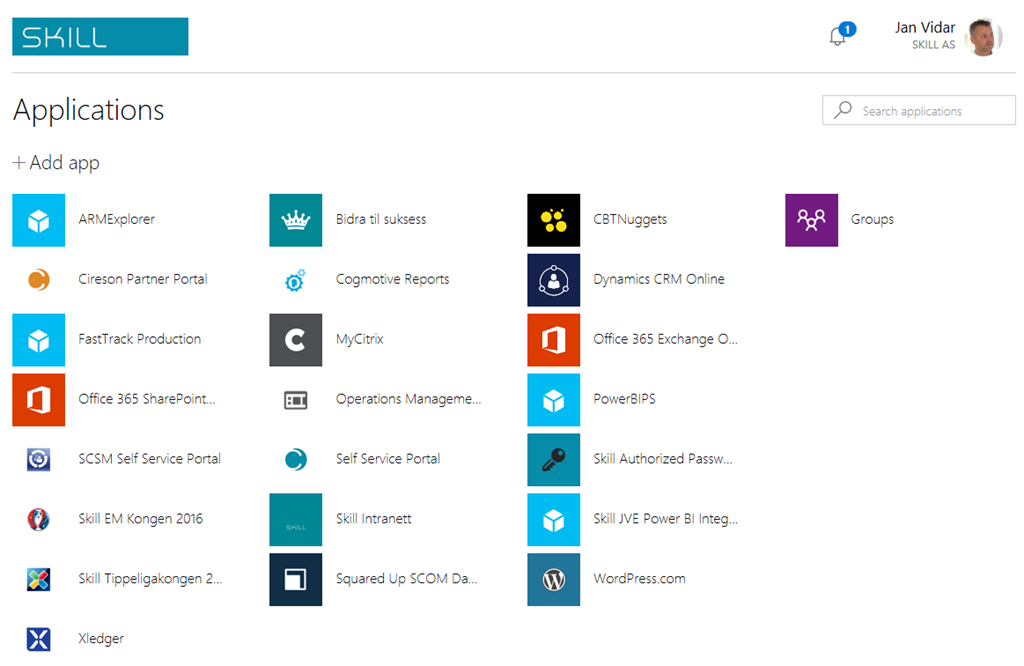
The new applications look:

image

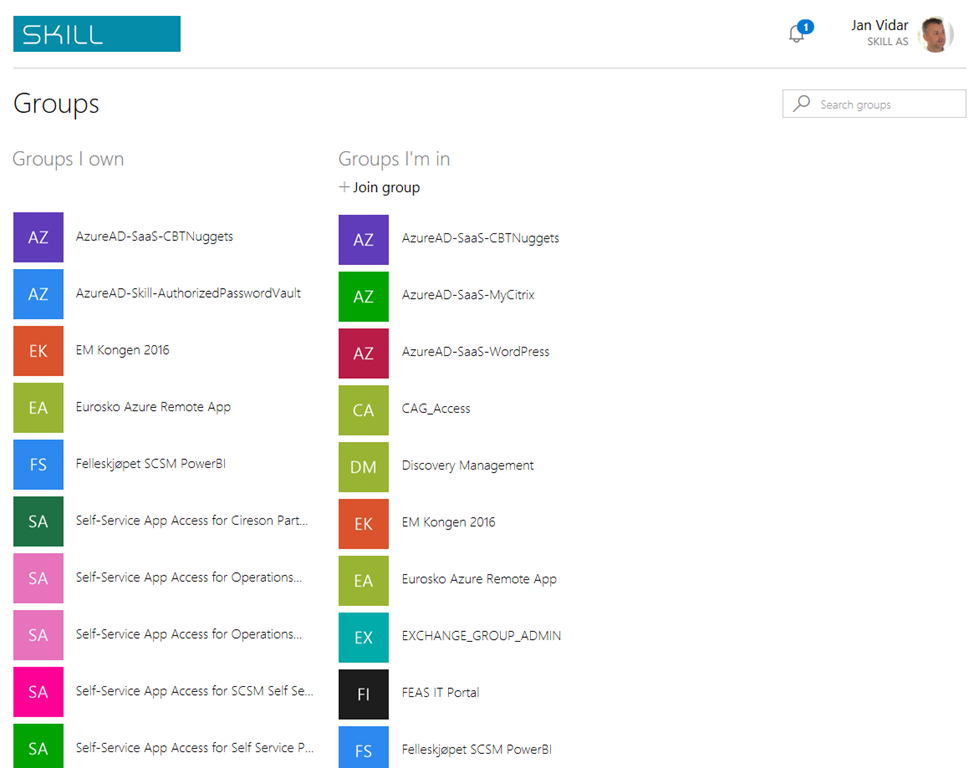
The new groups look, where I can see which groups I own and which I am member of:

image

For groups I can join or leave, change settings for groups I own and see members.

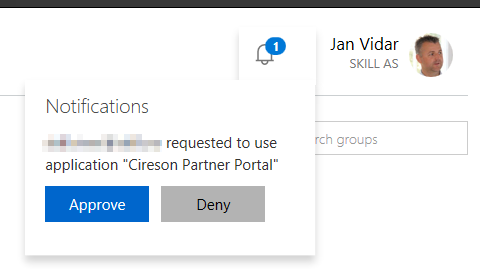
Looking at my logged in user in the right top corner, I see that I have a notification for pending actions, in this case I have an approval waiting to join a group I own:

image

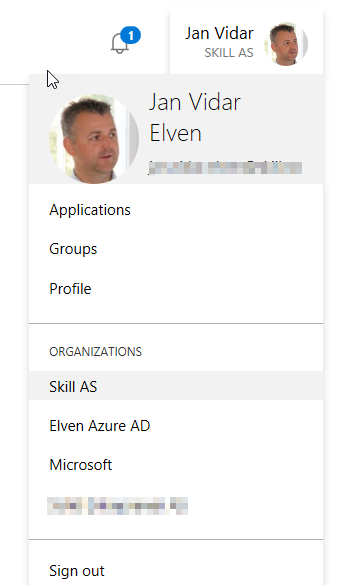
Looking more at my profile I can change my associated Azure AD Organizations, or go to my Profile page:

image

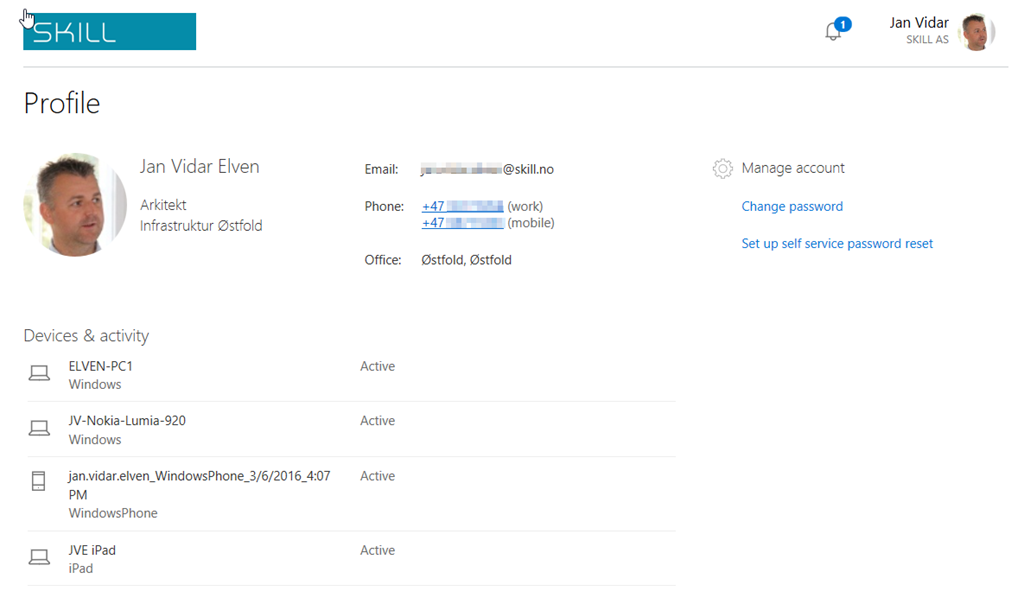
The Profile page has a new look as well, where I can see my information, manage my account with password change or reset setup (depending on Azure AD Premium or EMS license and configurations), and I can view my devices and activity status.

image

This new look seems to be out there for everyone to try out now, and looks great so far.

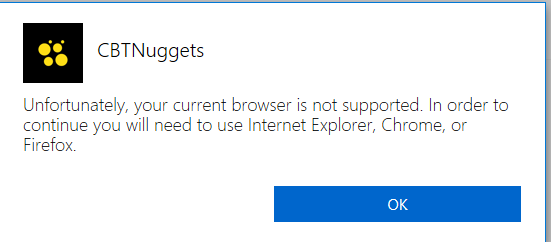
And by the way: There is still no support for Edge browser when trying to run a published application that use Password SSO and require the Access Panel Extension:

image

Trigger Azure AD Connect Sync Scheduler with Azure Automation

In this blog post I will show how you can trigger the Azure AD Connect Sync Scheduler with an Azure Automation Runbook PowerShell Script. Since the Azure AD Connect build 1.1.105.0 was released February 2016, a new scheduler is built-in that per default sync every 30 minutes (previously 3 hours). For more detail on Azure AD Connect Sync Scheduler, see https://azure.microsoft.com/en-us/documentation/articles/active-directory-aadconnectsync-feature-scheduler/.

Normally a sync schedule of 30 minutes is sufficient for most use, but sometimes you will need to do an immediate sync. So I thought it was a good idea to create a PowerShell script that creates a remote session to the Azure AD Connect Server, and then triggers a delta sync.

Now, this PowerShell script can of course be used with any of your favorite automation solutions, for example Orchestrator or SMA on-premises. But why not just use Azure Automation and a Hybrid Worker to run this script. This way you can trigger the script in a number of ways including in the Azure Portal, via Webhooks, remediating alerts in OMS and more.

Requirements

Lets first take a look at the requirements for this solution:

  • You will have to have an Azure Subscription, so that an Azure Automation Account can be created (or use your existing account), and that a runbook script with the related assets can be created.
  • You will need to have an OMS Workspace for the Azure Subscription, and have a Hybrid Worker set up that can communicate with the Azure AD Connect Server. The Hybrid Worker will use a credential asset and variable asset created in the first part.

In the following two parts I will look at these two requirements and how you can set it up to start triggering Azure AD Connect Scheduler with your Azure Automation Runbook.

Part 1 – Set up the Azure Automation Runbook and Assets

To set up the Azure Automation part of the solution, I have created a GitHub Repository  where you can deploy the solution directly from https://github.com/skillriver/Trigger-AzureADSyncScheduler. This repository contains the Azure Resource Manager deployment template and PowerShell script that you need to get started.

You can also click this deploy button directly:


Lets step through what you experience when you click to “Deploy to Azure”. Please make sure that you are logged in to your correct Azure Subscription first.

Deploying with the Template

I will not go through how I created the ARM based JSON templates, but I will quickly show the user experience when doing the deployment.

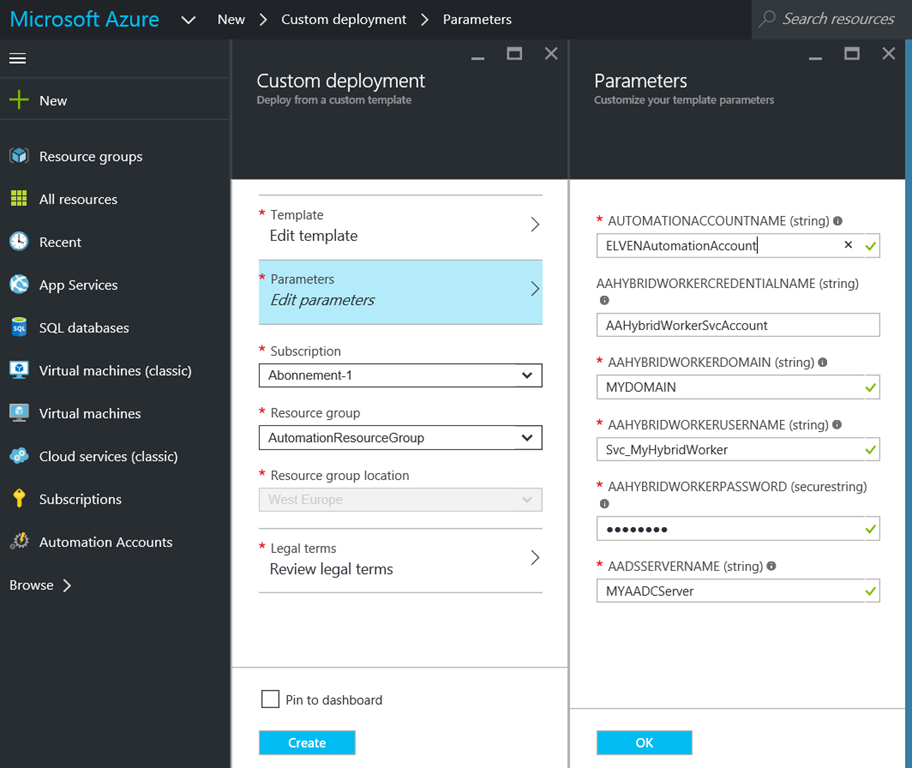
The custom deployment will ask you for some parameter values:

  • AUTOMATIONACCOUNTNAME. If you specify an existing Automation Account, this will be used, or else a new one will be created with the Free pricing tier.
  • AAHYBRIDWORKERCREDENTIALNAME. There is a default value there, this will be used as a Credential Asset in the PowerShell script. You can change the value, but then you must remember to change it in the script as well.
  • AAHYBRIDWORKERDOMAIN. The NETBIOS Domain Name for where the Azure AD Connect Server belongs to.
  • AAHYBRIDWORKERUSERNAME. This is this the user name for the service account or other user account that has permission to connect to the Azure AD Connect Server and trigger the sync schedule.
  • AAHYBRIDWORKERPASSWORD. The password for the user above.
  • AADSSERVERNAME. The server name of the Azure AD Connect Server.

You will have to select the correct subscription, and either create a new Resource Group, or an existing one (please note that Azure Automation is not available in every region).

image

After saving the parameters, and reviewing and accepting legal terms, you are ready to create the custom deployment.

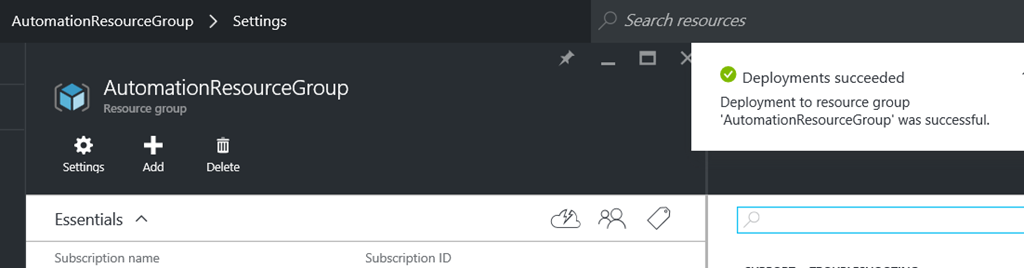
If everything went OK, you should see a confirmation:

image

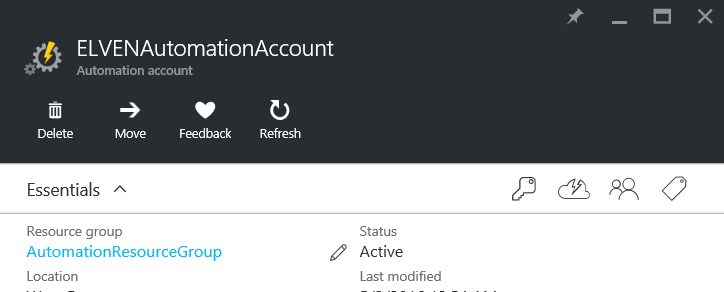
You will have an Automation Account:

image

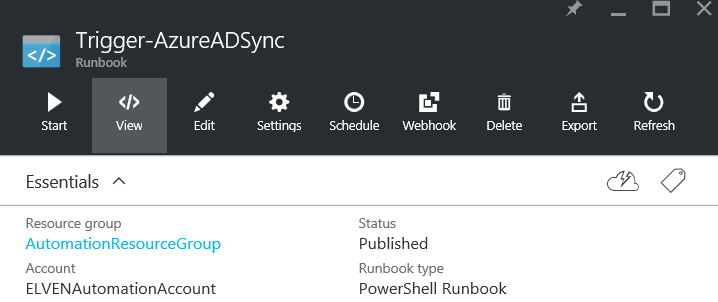
You will have a PowerShell Script Runbook with the name Trigger-AzureADSync:

image

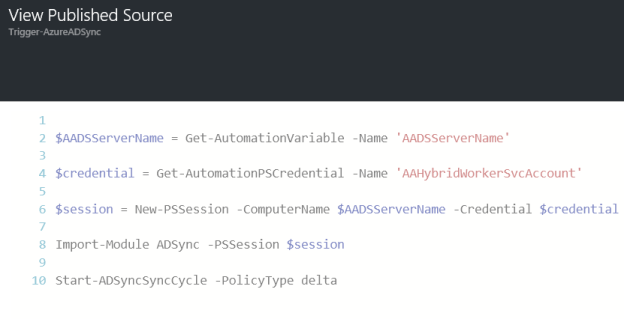
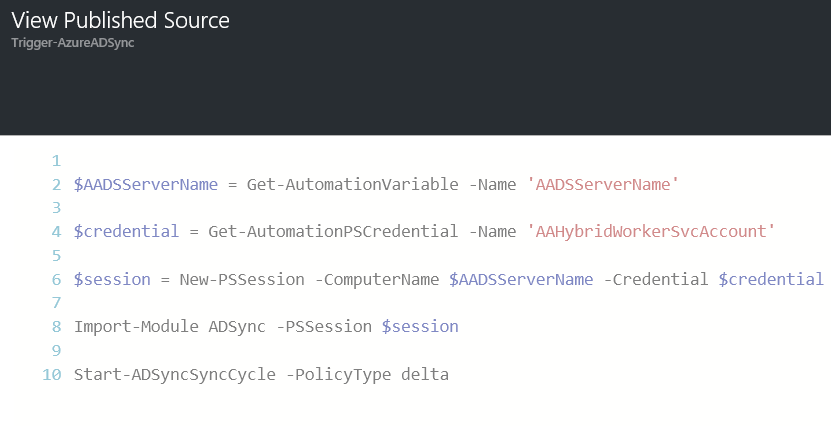
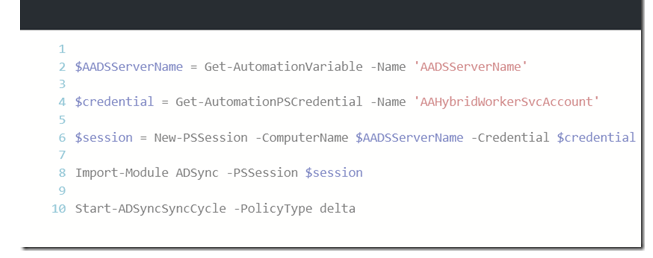
The script can be viewed as shown below. This script is short and simple, it will get the Asset Variable for Azure AD Connect Server name, and get the Credential Asset for the Hybrid Worker Account. It will the create a remote session, and run the delta sync cycle:

image

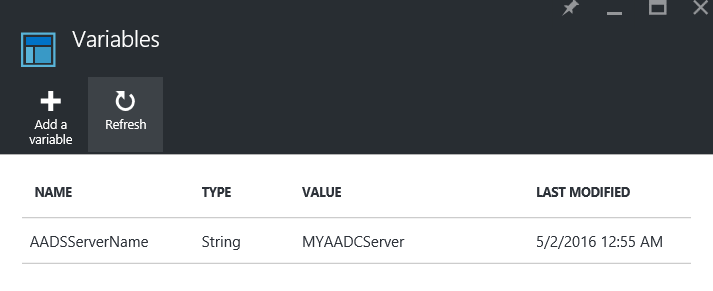
Lets take a look at the Assets created with the deployment as well, the Variable:

image

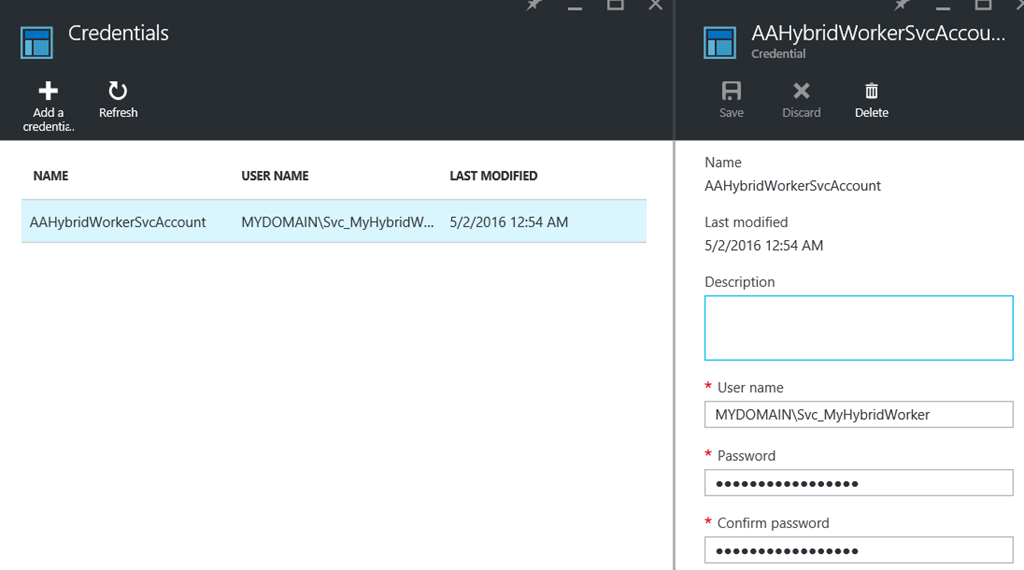
The Credential:

image

That’s the whole solution for this first part. If you for any reason could not or would not deploy the template directly, and would prefer to create this manually, you should be fine just following the images above. Just follow these steps:

  1. Create a Azure Automation Account (Free tier, and in your chosen supported Azure Region).
  2. Create a Variable Asset, with the name of the Azure AD Connect Server.
  3. Create a Credential Asset, with the DOMAIN\UserName of the account you will use to remote session to the Azure AD Connect Server.
  4. Create a new PowerShell Script Runbook, typing the CmdLets from above and using your variable assets.

By now you should be ready for the next step, because you cannot run this Automation Runbook just yet. You have to have in place OMS and a Hybrid Worker first, and that will be shown in the next part.

Part 2 –  Set up the Hybrid Worker and Remote session permission

To be able to run Azure Automation Runbooks in your own datacenter, you will need to have an OMS workspace and at least one Hybrid Worker configured that will be able to execute the Runbook locally and connect to the Azure AD Connect Server.

Hybrid Runbook Worker Components

I will not go through the details here on how to set up an OMS workspace and a Hybrid Worker if you don’t have this from before, you can just follow the documentation here https://azure.microsoft.com/en-us/documentation/articles/automation-hybrid-runbook-worker/.

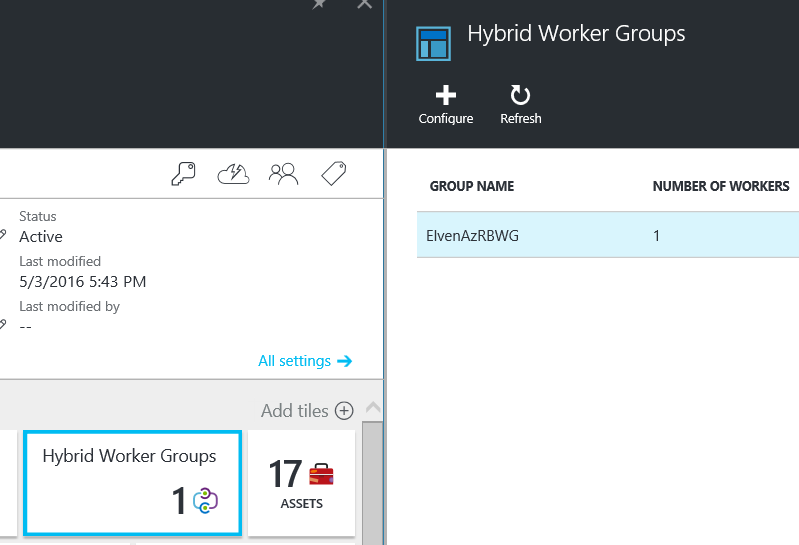
After setting up and registering your Hybrid Worker, you will have a Hybrid Worker Group with at least one Hybrid Worker.

image

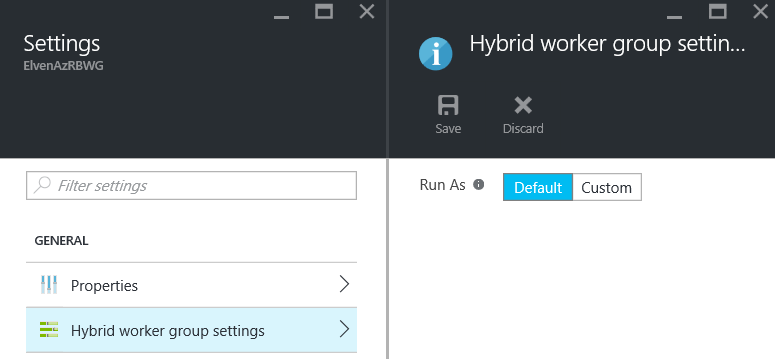
Now, running the Runbook with the right security is going to be essential here, after all the Runbook is going to connect to the Azure AD Connect Server and initiate the sync cycle. Lets first check the settings of the Hybrid Worker Group. We can either select a Default Run As account as I have here:

image

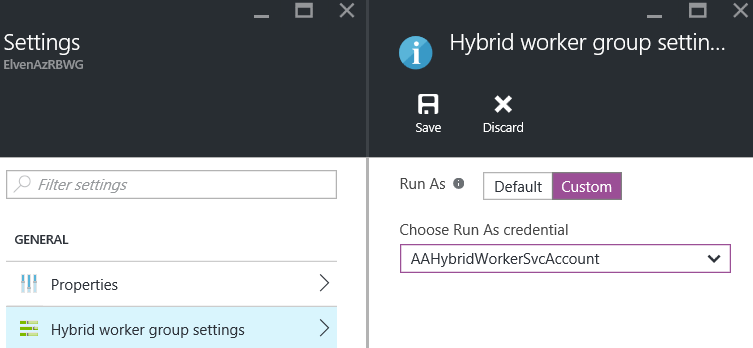
Or you can select a Custom Run As, specifying a credential Asset to use for all Runbooks running on this Hybrid Worker Group:

image

In my example here, I will use the Default Run As Account, because I specify my own credentials in the PowerShell Runbook, as shown earlier in Part 1 of this blog post:

image

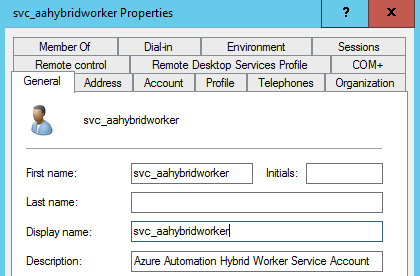
Next, I will have to create a domain account in my local Active Directory. I have created a service account to be used for Azure Automation Hybrid Workers. This is the same account you specified when creating the credential asset in Part 1 in Azure Automation:

image

This account will need permission to remote PowerShell to the Azure AD Connect Server. In Computer Management and Local Users and Groups on the Azure AD Connect Server, add this service account to the Remote Management Users group:

image

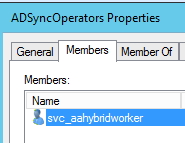
And add the account to the ADSyncOperators group, so that the user has permission to Azure AD Connect operations:

image

That should be it, we are now ready to start the Runbook and verify that it works.

Starting the Runbook

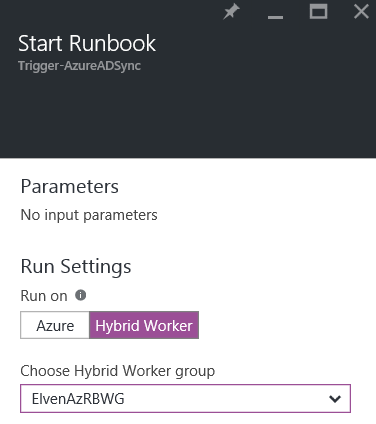
From the Automation Account and the Trigger-AzureADSync Runbook, select Start and under Run Settings select Hybrid Worker and your Hybrid Worker Group:

image

You can verify that the job completed and with no errors:

image

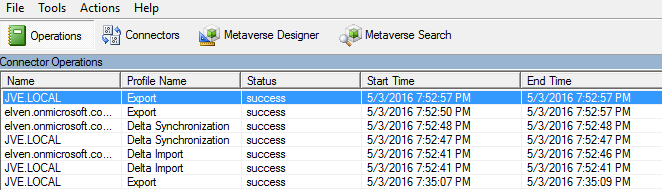
Looking into the Synchronization Service on the Azure AD Connect Server, I can verify that the sync cycle has been running:

image

That concludes this blog article, hope it has been helpful!

Missing groups prevents upgrade of Azure AD Connect

This is just a short blog article on a problem I experienced when upgrading Azure AD Connect from a previous version. This was a small environment where the Azure AD Connect server was running on the Domain Controller.

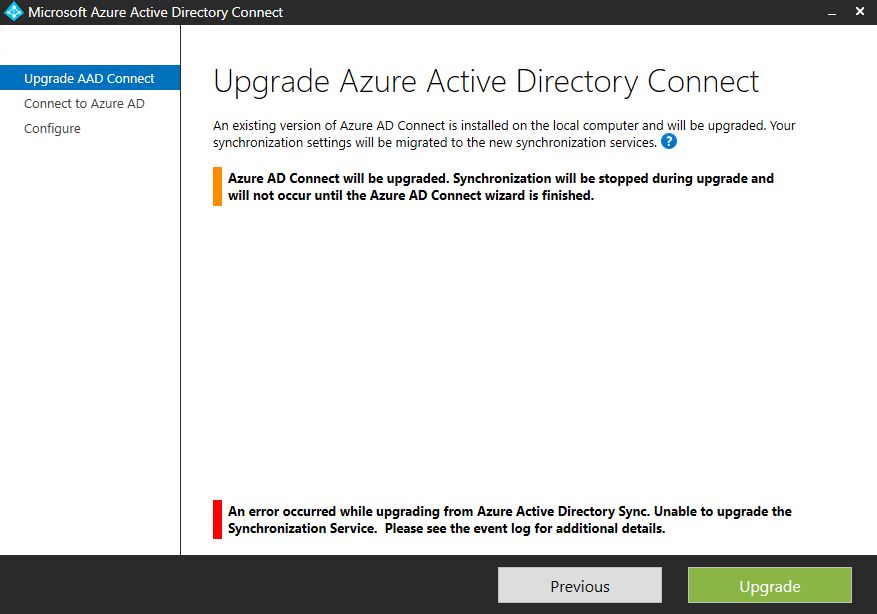
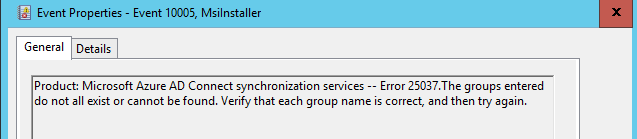
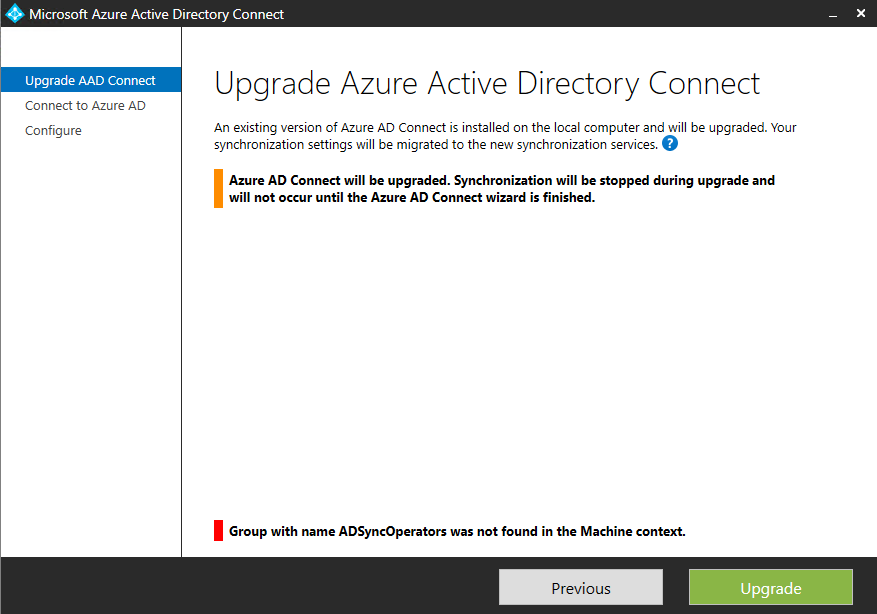
When starting the upgrade process I noticed that a message was displayed that a “Group with name ADSyncAdmins was not found in the Machine context”. When I clicked to Upgrade anyway, an error message was displayed that it was “Unable to upgrade the Synchronization Service”:

image

Looking into the event log, I found this error:

Product: Microsoft Azure AD Connect synchronization services — Error 25037.The groups entered do not all exist or cannot be found. Verify that each group name is correct, and then try again.

image

Since this was a Domain Controller, and there is no Local Users and Groups, I created the ADSyncAdmins group in Active Directory, as a Domain Local Security group. Trying the upgrade again, I got a new group that was missing:

image

So I ended up creating these 4 groups that was missing:

  • ADSyncAdmins
  • ADSyncBrowse
  • ADSyncOperators
  • ADSyncPasswordSet

After that I was able to successfully finish the upgrade of Azure AD Connect.

Displaying Azure Automation Runbook Stats in OMS via Performance Collection and Operations Manager

Wouldn’t it be great to get some more information about your Azure Automation Runbooks in the Operations Management Suite Portal? That’s a rhetorical question, of course the answer will be yes!

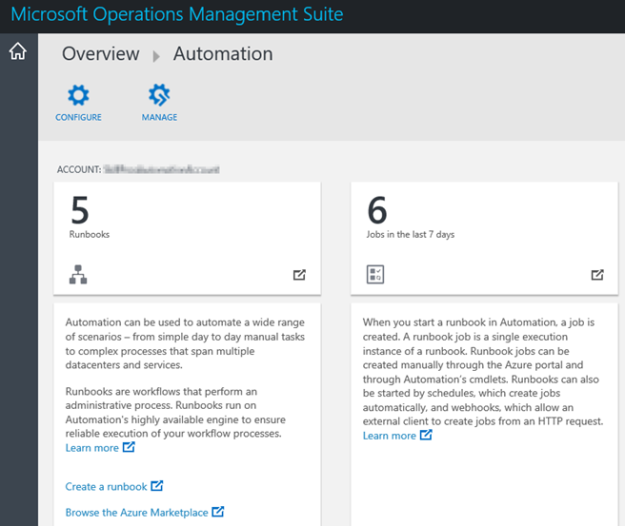
While Azure Automation is a part of the suite of components in OMS, today you only get the following information from the Azure Automation blade:
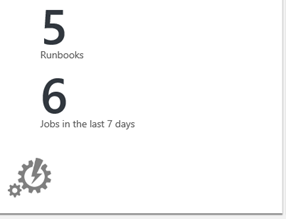
The blade shows the number of runbooks and jobs from the one Automation Account you have configured. You can only configure one Automation Account at a time, and for getting more details you are directed to the Azure Portal.
I wanted to use my OMS-connected Operations Manager Management Group, and use a PowerShell script rule to get some more statistics for Azure Automation and display that in OMS Log Analytics as Performance Data. I will do this using the “Sample Management Pack – Wizard to Create PowerShell script Collection Rules” described in this blog article http://blogs.msdn.com/b/wei_out_there_with_system_center/archive/2015/09/29/oms-collecting-nrt-performance-data-from-an-opsmgr-powershell-script-collection-rule-created-from-a-wizard.aspx.

I will use the AzureRM PowerShell Module for the PowerShell commands that will connect to my Azure subscription and get the Azure Automation Runbooks data.

Getting Ready

Before I can create the PowerShell script rule for gettting the Azure Automation data, I have to do some preparations first. This includes:

  1. Importing the “Sample Management Pack – Wizard to Create PowerShell script Collection Rules” to my Operations Manager environment.
    1. This can be downloaded from Technet Gallery at https://gallery.technet.microsoft.com/Sample-Management-Pack-e48040f7.
  2. Install the AzureRM PowerShell Module (at the chosen Target server for the PowerShell Script Rule).
    1. I chose to install it from the PowerShell Gallery using the instructions here: https://azure.microsoft.com/en-us/documentation/articles/powershell-install-configure/
    2. If you are running Windows Server 2012 R2, which I am, follow the instructions here to support the PowerShellGet module, https://www.powershellgallery.com/GettingStarted?section=Get%20Started.
  3. Choose Target for where to run the AzureRM commands from
    1. Regarding the AzureRM and where to install, I decided to use the SCOM Root Management Server Emulator. This server will then run the AzureRM commands against my Azure Subscription.
  4. Choose account for Run As Profile
    1. I also needed to think about the run as account the AzureRM commands will run under. As we will see later the PowerShell Script Rules will be set up with a Default Run As Profile.
    2. The Default Run As Profile for the RMS Emulator will be the Management Server Action Account, if I had chosen another Rule Target the Default Run As Profile would be the Local System Account.
    3. Alternatively, I could have created a custom Run As Profile with a user account that have permissions to execute the AzureRM cmdlets and connect to and read the required data from the Azure subscription, and configure the PowerShell Script rules to use that.
    4. I decided to go with the Management Server Action Account, in my case SKILL\scom_msaa. This account will execute the AzureRM PowerShell cmdlets, so I need to make sure that I can login to my Azure subscription using that account.
  5. Next, I started PowerShell ISE with “Run as different user”, specifying my scom_msaa account. I run the commands below, as I wanted to save the password for the user I’m going to connect to the Azure subscription and get the Automation data. I also did a test import-module of the AzureRM modules I will need in the main script.
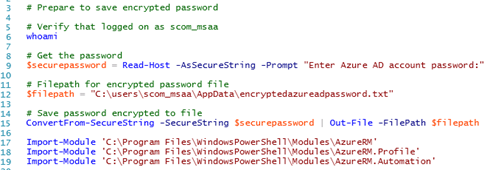
The commands above are here in full:


# Prepare to save encrypted password

# Verify that logged on as scom_msaa
whoami

# Get the password
$securepassword = Read-Host -AsSecureString -Prompt Enter Azure AD account password:

# Filepath for encrypted password file
$filepath = C:\users\scom_msaa\AppData\encryptedazureadpassword.txt

# Save password encrypted to file
ConvertFrom-SecureString -SecureString $securepassword | Out-File -FilePath $filepath

Import-Module C:\Program Files\WindowsPowerShell\Modules\AzureRM
Import-Module C:\Program Files\WindowsPowerShell\Modules\AzureRM.Profile
Import-Module C:\Program Files\WindowsPowerShell\Modules\AzureRM.Automation

At this point I’m ready for the next step, which is to create some PowerShell commands for the Script Rule in SCOM.

Creating the PowerShell Command Script for getting Azure Automation data

First I needed to think about what kind of Azure Automation and Runbook data I wanted to get from my Azure Subscription. I decided to get the following values:

  • Job Count Last Day
  • Job Count Last Month
  • Job Count This Month
  • Job Minutes This Month
  • Runbooks in New State
  • Runbooks in Published State
  • Runbooks in Edit State
  • PowerShell Workflow Runbooks
  • Graphical Runbooks
  • PowerShell Script Runbooks

I wanted to have the statistics for Runbooks Jobs to see the activity of the Runbooks. As I’m running the Free plan of Azure Automation, I’m restricted to 500 minutes a month, so it makes sense to count the accumulated job minutes for the month as well.

In addition to this I want some statistics for the number of Runbooks in the environment, separated on New, Published and Edit Runbooks, and the Runbook type separated on Workflow, Graphical and PowerShell Script.
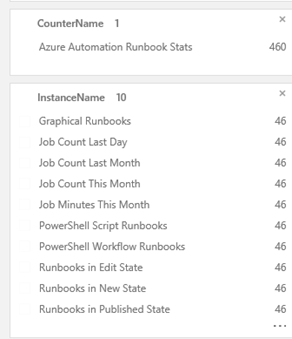
The PowerShell Script Rule for getting these data will be using the AzureRM PowerShell Module, and specifically the cmdlets in AzureRM.Profile and AzureRM.Automation:

To log in and authenticate to Azure, I will use the encrypted password saved earlier, and create a Credential object for the login:
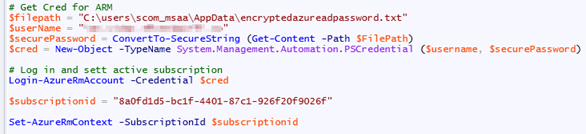
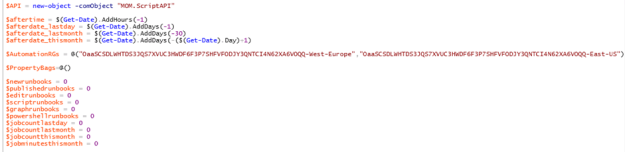
Initializing the script with date filters and setting default values for variables. I decided to create the script so that I can get data from all the Resource Groups I have Automation Accounts in. This way, If I have multiple Automation Accounts, I can get statistics combined for each of them:
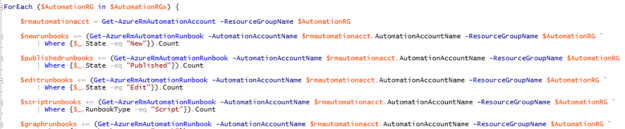
Then, looping through each Resource Group, running the different commands to get the variable data. Since I potentially will loop through multiple Resource Groups and Automation Accounts, the variables will be using += to add to the previous loop value:
After setting each variable and exiting the loop, the $PropertyBag can be filled with the values for the different counters:

The complete script is shown below for how to get those Azure Automation data via SCOM and PowerShell Script Rule to to OMS:


# Debug file
$debuglog = $env:TEMP+\powershell_perf_collect_AA_stats_debug.log

Date | Out-File $debuglog

Who Am I: | Out-File $debuglog -Append
whoami |
Out-File $debuglog -Append

$ErrorActionPreference = Stop

Try {

If (!(Get-Module –Name AzureRM)) { Import-Module C:\Program Files\WindowsPowerShell\Modules\AzureRM }
If (!(Get-Module –Name AzureRM.Profile)) { Import-Module C:\Program Files\WindowsPowerShell\Modules\AzureRM.Profile }
If (!(Get-Module –Name AzureRM.Automation)) { Import-Module C:\Program Files\WindowsPowerShell\Modules\AzureRM.Automation }

# Get Cred for ARM
$filepath = C:\users\scom_msaa\AppData\encryptedazureadpassword.txt
$userName = myAzureADAdminAccount
$securePassword = ConvertTo-SecureString (Get-Content -Path $FilePath)
$cred = New-Object -TypeName System.Management.Automation.PSCredential ($username, $securePassword)

# Log in and sett active subscription
Login-AzureRmAccount -Credential $cred

$subscriptionid = mysubscriptionID

Set-AzureRmContext -SubscriptionId $subscriptionid

$API = new-object -comObject MOM.ScriptAPI

$aftertime = $(Get-Date).AddHours(1)
$afterdate_lastday = $(Get-Date).AddDays(1)
$afterdate_lastmonth = $(Get-Date).AddDays(30)
$afterdate_thismonth = $(Get-Date).AddDays(($(Get-Date).Day)+1)

$AutomationRGs = @(MyResourceGroupName1,MyResourceGroupName2)

$PropertyBags=@()

$newrunbooks = 0
$publishedrunbooks = 0
$editrunbooks = 0
$scriptrunbooks = 0
$graphrunbooks = 0
$powershellrunbooks = 0
$jobcountlastday = 0
$jobcountlastmonth = 0
$jobcountthismonth = 0
$jobminutesthismonth = 0

ForEach ($AutomationRG in $AutomationRGs) {

$rmautomationacct = Get-AzureRmAutomationAccount -ResourceGroupName $AutomationRG

$newrunbooks += (Get-AzureRmAutomationRunbook -AutomationAccountName $rmautomationacct.AutomationAccountName -ResourceGroupName $AutomationRG `
|
Where {$_.State -eq New}).Count

$publishedrunbooks += (Get-AzureRmAutomationRunbook -AutomationAccountName $rmautomationacct.AutomationAccountName -ResourceGroupName $AutomationRG `
|
Where {$_.State -eq Published}).Count

$editrunbooks += (Get-AzureRmAutomationRunbook -AutomationAccountName $rmautomationacct.AutomationAccountName -ResourceGroupName $AutomationRG `
|
Where {$_.State -eq Edit}).Count

$scriptrunbooks += (Get-AzureRmAutomationRunbook -AutomationAccountName $rmautomationacct.AutomationAccountName -ResourceGroupName $AutomationRG `
|
Where {$_.RunbookType -eq Script}).Count

$graphrunbooks += (Get-AzureRmAutomationRunbook -AutomationAccountName $rmautomationacct.AutomationAccountName -ResourceGroupName $AutomationRG `
|
Where {$_.RunbookType -eq Graph}).Count

$powershellrunbooks += (Get-AzureRmAutomationRunbook -AutomationAccountName $rmautomationacct.AutomationAccountName -ResourceGroupName $AutomationRG `
|
Where {$_.RunbookType -eq PowerShell}).Count

$jobcountlastday += (Get-AzureRmAutomationJob -AutomationAccountName $rmautomationacct.AutomationAccountName -ResourceGroupName $AutomationRG `
-StartTime
$afterdate_lastday).Count

$jobcountlastmonth += (Get-AzureRmAutomationJob -AutomationAccountName $rmautomationacct.AutomationAccountName -ResourceGroupName $AutomationRG `
-StartTime
$afterdate_lastmonth).Count

$jobcountthismonth += (Get-AzureRmAutomationJob -AutomationAccountName $rmautomationacct.AutomationAccountName -ResourceGroupName $AutomationRG `
-StartTime
$afterdate_thismonth.ToLongDateString()).Count

$jobsthismonth = Get-AzureRmAutomationJob -AutomationAccountName $rmautomationacct.AutomationAccountName -ResourceGroupName $AutomationRG `
-StartTime
$afterdate_thismonth.ToLongDateString() | Select-Object RunbookName, StartTime, EndTime, CreationTime, LastModifiedTime, @{Name=RunningTime;Expression={[TimeSpan]::Parse($_.EndTime $_.StartTime).TotalMinutes}}, @{Name=Month;Expression={($_.EndTime).Month}}

$jobminutesthismonth += [int][Math]::Ceiling(($jobsthismonth | Measure-Object -Property RunningTime -Sum).Sum)

}

$PropertyBag = $API.CreatePropertyBag()
$PropertyBag.AddValue(Instance, Job Count Last Day)
$PropertyBag.AddValue(Value, [UInt32]$jobcountlastday)
$PropertyBags += $PropertyBag

Job Count Last Day: | Out-File $debuglog -Append
$jobcountlastday | Out-File $debuglog -Append

$PropertyBag = $API.CreatePropertyBag()
$PropertyBag.AddValue(Instance, Job Count Last Month)
$PropertyBag.AddValue(Value, [UInt32]$jobcountlastmonth)
$PropertyBags += $PropertyBag

Job Count Last Month: | Out-File $debuglog -Append
$jobcountlastmonth | Out-File $debuglog -Append

$PropertyBag = $API.CreatePropertyBag()
$PropertyBag.AddValue(Instance, Job Count This Month)
$PropertyBag.AddValue(Value, [UInt32]$jobcountthismonth)
$PropertyBags += $PropertyBag

Job Count This Month: | Out-File $debuglog -Append
$jobcountthismonth | Out-File $debuglog -Append

$PropertyBag = $API.CreatePropertyBag()
$PropertyBag.AddValue(Instance, Job Minutes This Month)
$PropertyBag.AddValue(Value, [UInt32]$jobminutesthismonth)
$PropertyBags += $PropertyBag

Job Minutes This Month: | Out-File $debuglog -Append
$jobminutesthismonth | Out-File $debuglog -Append

$PropertyBag = $API.CreatePropertyBag()
$PropertyBag.AddValue(Instance, Runbooks in New State)
$PropertyBag.AddValue(Value, [UInt32]$newrunbooks)
$PropertyBags += $PropertyBag

Runbooks in New State: | Out-File $debuglog -Append
$newrunbooks | Out-File $debuglog -Append

$PropertyBag = $API.CreatePropertyBag()
$PropertyBag.AddValue(Instance, Runbooks in Published State)
$PropertyBag.AddValue(Value, [UInt32]$publishedrunbooks)
$PropertyBags += $PropertyBag

Runbooks in Published State: | Out-File $debuglog -Append
$publishedrunbooks | Out-File $debuglog -Append

$PropertyBag = $API.CreatePropertyBag()
$PropertyBag.AddValue(Instance, Runbooks in Edit State)
$PropertyBag.AddValue(Value, [UInt32]$editrunbooks)
$PropertyBags += $PropertyBag

Runbooks in Edit State: | Out-File $debuglog -Append
$editrunbooks | Out-File $debuglog -Append

$PropertyBag = $API.CreatePropertyBag()
$PropertyBag.AddValue(Instance, PowerShell Workflow Runbooks)
$PropertyBag.AddValue(Value, [UInt32]$scriptrunbooks)
$PropertyBags += $PropertyBag

PowerShell Workflow Runbooks: | Out-File $debuglog -Append
$scriptrunbooks | Out-File $debuglog -Append

$PropertyBag = $API.CreatePropertyBag()
$PropertyBag.AddValue(Instance, Graphical Runbooks)
$PropertyBag.AddValue(Value, [UInt32]$graphrunbooks)
$PropertyBags += $PropertyBag

Graphical Runbooks: | Out-File $debuglog -Append
$graphrunbooks | Out-File $debuglog -Append

$PropertyBag = $API.CreatePropertyBag()
$PropertyBag.AddValue(Instance, PowerShell Script Runbooks)
$PropertyBag.AddValue(Value, [UInt32]$powershellrunbooks)
$PropertyBags += $PropertyBag

PowerShell Script Runbooks: | Out-File $debuglog -Append
$powershellrunbooks | Out-File $debuglog -Append

$PropertyBags

} Catch {

Error Catched: | Out-File $debuglog -Append
$(
$_.Exception.GetType().FullName) | Out-File $debuglog -Append
$(
$_.Exception.Message) | Out-File $debuglog -Append

}

PS! I have included debugging and logging in the script, be aware though that doing $ErrorActionPreference=Stop will end the script if any errors, for example with logging, so it might be an idea to remove the debug logging when confirmed that everything works.

In the next part I’m ready to create the PowerShell Script Rule.

Creating the PowerShell Script Rule

In the Operations Console, under Authoring, create a new PowerShell Script Rule as shown below:

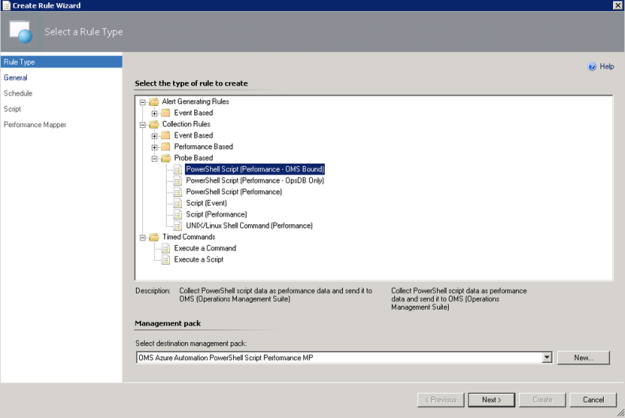
  1. Select the PowerShell Script (Performance – OMS Bound) Rule:I have created a custom destination management pack for this script.
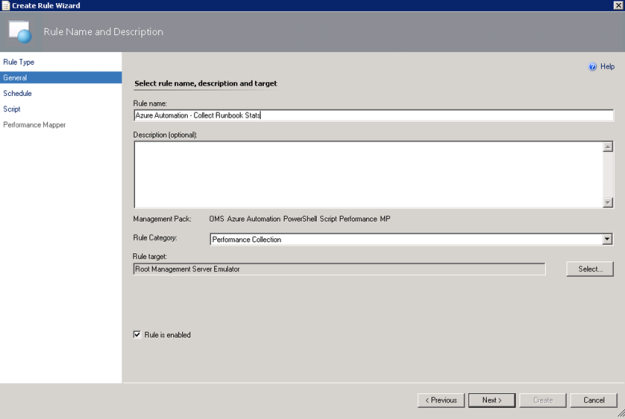
  2. Specifying a Rule name and Rule Category: Performance Collection. As mentioned earlier in this article the Rule target will be the Root Management Server Emulator:
  3. Selecting to run the script every 30 minutes, and at which time the interval will start from:
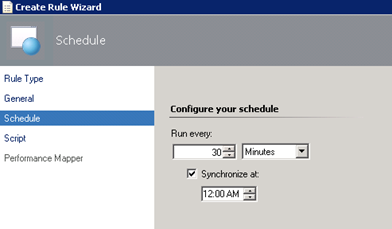
  4. Selecting a name for the script file and timeout, and entering the complete script as shown earlier:
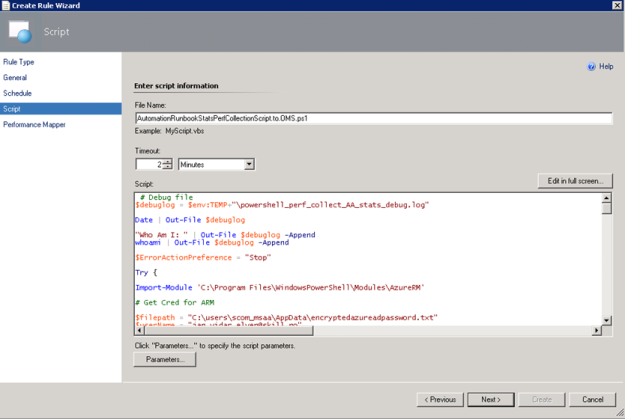
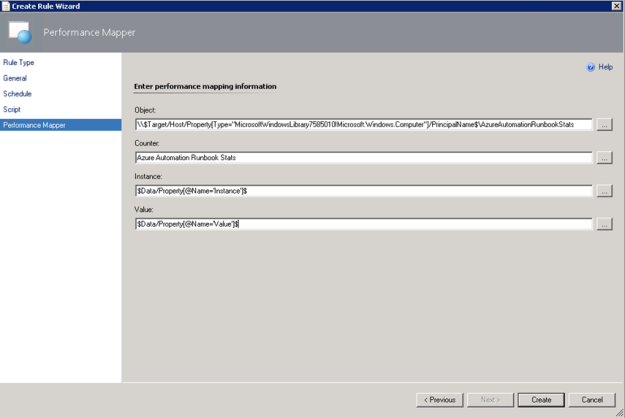
  5. For the Performance Mapping information, the Object name must be in the \\FQDN\YourObjectName format. For FQDN I used the Target variable for PrincipalName, and for the Object Name AzureAutomationRunbookStats, and adding the “\\” at the start and “\” between: \\$Target/Host/Property[Type=”MicrosoftWindowsLibrary7585010!Microsoft.Windows.Computer”]/PrincipalName$\AzureAutomationRunbookStatsI specified the Counter name as “Azure Automation Runbook Stats”, and the Instance and Value are specified as $Data/Property(@Name=’Instance’)$ and $Data/Property(@Name=Value)$. These reflect the PropertyBag instance and value created in the PowerShell script:
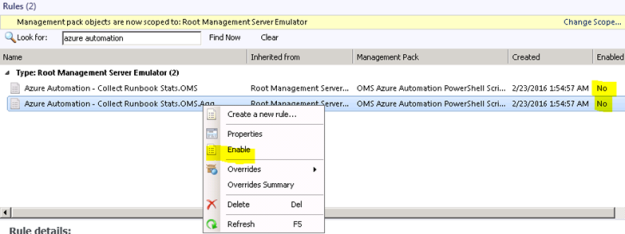
  6. After finishing the Create Rule Wizard, two new rules are created, which you can find by scoping to the Root Management Server Emulator I chose as target. Both Rules must be enabled, as they are not enabled by default:
At this point we are finished configuring the SCOM side, and can wait for some hours to see that data are actually coming into my OMS workspace.

Looking at Azure Automation Runbook Stats Performance Data in OMS

After a while I will start seeing Performance Data coming into OMS with the specified Object and Counter Name, and for the different instances and values.
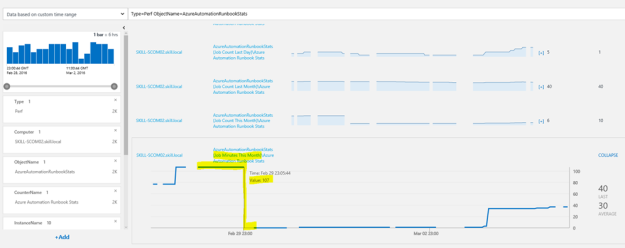
In Log Search, I can specify Type=Perf ObjectName=AzureAutomationRunbookStats, and I will find the Results and Metrics for the specified time frame.

In the example above I’m highlighting the Job Minutes This Month counter, which will steadily increase for each month, and as we can see the highest value was 107 minutes, after when the month changed to March we were back at 0 minutes. After a while when the number of job minutes increases it will be interesting to follow whether this counter will go close to 500 minutes.

This way, I can now look at Azure Automation Runbook stats as performance data, showing different scenarios like how many jobs and runbook job minutes there are over a time period. I can also look at how what type of runbooks I have and what state they are in.

I can also create saved searches and alerts for my search criteria.

Creating OMS Alerts for Azure Automation Runbook Counters

There is one specific scenario for Alerts I’m interested in, and that is when I’m approaching my monthly limit on 500 job minutes.

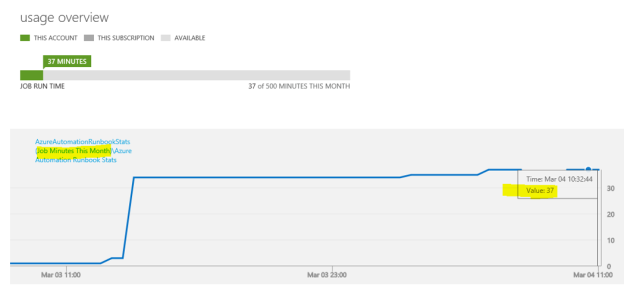
“Job Minutes This Month” is a counter that will get the sum of all job minutes for all runbook jobs across all automation accounts. In the classic Azure portal, you will have a usage overview like this:
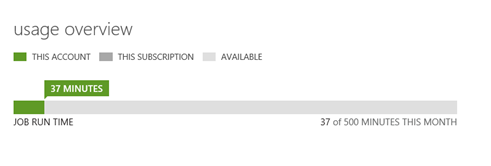
With OMS I would get this information over a time period like this:
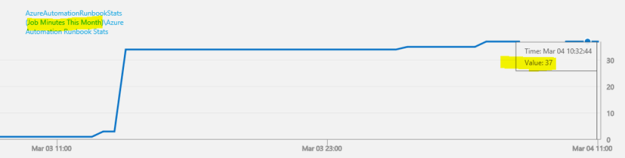
The search query for Job Minutes This Month as I have defined it via the PowerShell Script Rule in OMS is:

Type=Perf ObjectName=AzureAutomationRunbookStats InstanceName=”Job Minutes This Month”

This would give me all results for the defined time period, but to generate an alert I would want to look at the most recent results, for example for the last hour. In addition, I want to filter the results for my alert when the number of job minutes are over the threshold of 450 which means I’m getting close to the limit of 500 free minutes per month. My query for this would be:

Type=Perf ObjectName=AzureAutomationRunbookStats InstanceName=”Job Minutes This Month” AND TimeGenerated>NOW-1HOUR AND CounterValue > 450

Now, in my test environment, this will give med 0 results, because I’m currently at 37 minutes:

Let’s say, for sake of testing an Alert, I add criteria to include 37 minutes as well, like this:
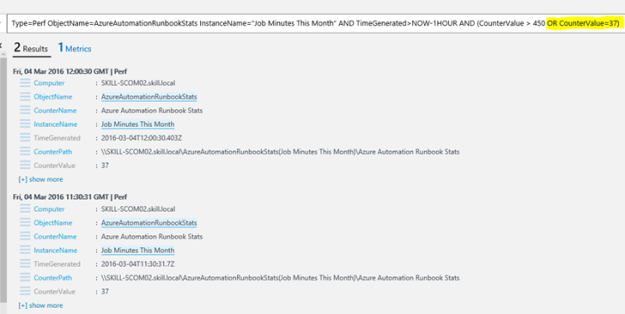
This time I have 2 results. Let’s create an alert for this, press the ALERT button:
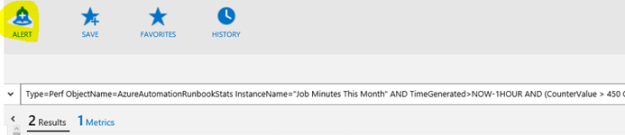
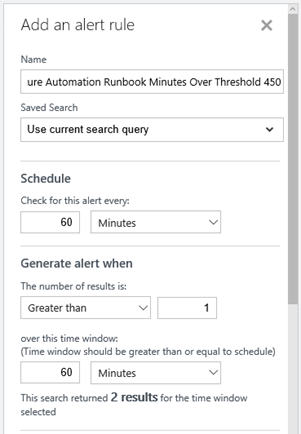
For the alert I give it a name and base it on the search query. I want to check every 60 minutes, and generate alert when the number of results is greater than 1 so that I make sure the passing of the threshold is consistent and not just temporary.
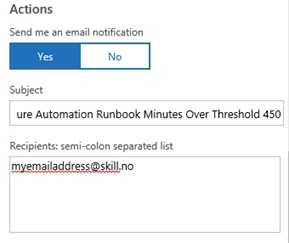
For actions I want an email notification, so I type in a Subject and my recipients.
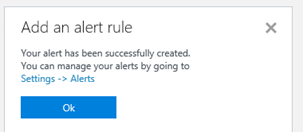
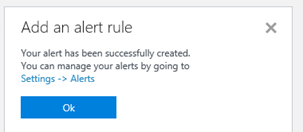
I Save the alert rule, and verify that it was successfully created.
Soon I get my first alert on email:
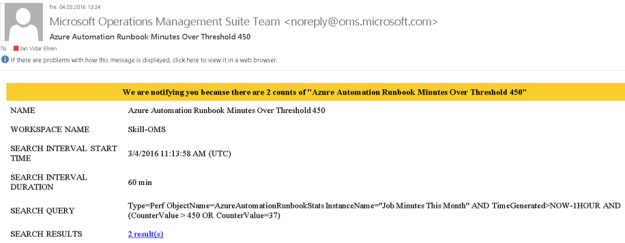
Now, that it works, I can remove the Alert and create a new one without the OR CounterValue=37, this I leave to you 😉

With that, this blog post is concluded. Thanks for reading, I hope this post on how to get more insights on your Azure Automation Runbook Stats in OMS and getting data via NRT Perfomance Collection has been useful 😉


Displaying Service Manager Service Requests Stats in OMS via Performance Collection and Operations Manager

Following up on my previous blog article on how to collect Service Manager and Incident statistics via Operations Manager to OMS, https://systemcenterpoint.wordpress.com/2016/02/19/collecting-service-manager-incident-stats-in-oms-via-powershell-script-performance-collection-in-operations-manager/, this blog article will show how to get statistics for Service Requests and display that as Performance Data in OMS.

Getting Ready

Please see the link above for the first article on getting SCSM data to OMS, and instructions for configuring your Operations Manager environment and SMLets PowerShell module. I will use that same setup as basis for this article.

Creating the PowerShell Command Script for getting SCSM Service Request data

First I needed to think about what kind of Service Request data I wanted to get from SCSM. I decided to get the following values:

  • Submitted Service Requests
  • In Progress Service Requests
  • Completed Service Requests
  • Failed Service Requests
  • Cancelled Service Requests
  • Closed Service Requests
  • Service Requests Opened Last Day
  • Service Requests Opened Last Hour
  • Service Requests Completed Last Day
  • New Service Requests

Now, first some thoughts on why I chose these data to get for Service Requests (SR). When New Service Requests are created, they are quickly changed to a status of either Submitted (no activities in the template the Service Request was created from) or In Progress (where there are one or more activities). SR’s with no activities are manually set to Completed by the analyst when finished, or Cancelled if the SR will not be delivered. SR’s with activities gets the status Completed when all activities are completed as well, but might also get the status of Failed if any activities fails as well, for example runbook automation activities that might fail. Finally, when SR’s are completed, they will eventually be Closed.

So it makes sense to track all these statuses as performance data. You might ask why look at New status for SR’s, when this is only an intermittent status quickly changing to either Submitted or In Progress? Well, if there is a problem with the Workflow service at the Service Manager Management Server, SR’s can be stuck in New status. This is something I would want to be able to see in OMS, and even create an Alert for.

In addition to tracking the individual status values, I also want to see data on how many SR’s are created the last day, last hour, and also how many SR’s are Completed the last day. These will be nice performance indicators.

These Service Request values will be retrieved by the Get-SCSMObject cmdlet in SMLets, using different criteria. Unlike Get-SCSMIncident which query directly for Incident Records, I have to create the PowerShell command a little bit different, by specifying the Class Object (via Get-SCSMClass) and also filter Status Enumeration Id for Service Requests via Get-SCSMEnumeration. For example to get all SR’s with a status of In Progress, I use the following command:

The complete script is shown below for how to get those SR data via SCOM to OMS:

# Debug file
$debuglog = $env:TEMP+\powershell_perf_collect_SR_stats_debug.log

Date | Out-File $debuglog

Who Am I: | Out-File $debuglog -Append
whoami |
Out-File $debuglog -Append

$ErrorActionPreference = Stop

Try {

Import-Module C:\Program Files\WindowsPowerShell\Modules\SMLets

$API = new-object -comObject MOM.ScriptAPI

$scsmserver = az-scsm-ms01

$beforetime = $(Get-Date).AddHours(1)
$beforedate = $(Get-Date).AddDays(1)

$PropertyBags=@()

$inprogressrequests = 0
$inprogressrequests = @(Get-SCSMObject -Computername $scsmserver –Class (Get-SCSMClass -ComputerName $scsmserver -Name System.WorkItem.ServiceRequest$) -Filter (Status -eq ‘ + (Get-SCSMEnumeration -ComputerName $scsmserver ServiceRequestStatusEnum.InProgress$).Id +)).Count
$PropertyBag = $API.CreatePropertyBag()
$PropertyBag.AddValue(Instance, In Progress Service Requests)
$PropertyBag.AddValue(Value, [UInt32]$inprogressrequests)
$PropertyBags += $PropertyBag

In Progress Service Requests: | Out-File $debuglog -Append
$inprogressrequests | Out-File $debuglog -Append

$completedrequests = 0
$completedrequests = @(Get-SCSMObject -Computername $scsmserver –Class (Get-SCSMClass -ComputerName $scsmserver -Name System.WorkItem.ServiceRequest$) -Filter (Status -eq ‘ + (Get-SCSMEnumeration -ComputerName $scsmserver ServiceRequestStatusEnum.Completed$).Id +)).Count
$PropertyBag = $API.CreatePropertyBag()
$PropertyBag.AddValue(Instance, Completed Service Requests)
$PropertyBag.AddValue(Value, [UInt32]$completedrequests)
$PropertyBags += $PropertyBag

Completed Service Requests: | Out-File $debuglog -Append
$completedrequests | Out-File $debuglog -Append

$submittedrequests = 0
$submittedrequests = @(Get-SCSMObject -Computername $scsmserver –Class (Get-SCSMClass -ComputerName $scsmserver -Name System.WorkItem.ServiceRequest$) -Filter (Status -eq ‘ + (Get-SCSMEnumeration -ComputerName $scsmserver ServiceRequestStatusEnum.Submitted$).Id +)).Count
$PropertyBag = $API.CreatePropertyBag()
$PropertyBag.AddValue(Instance, Submitted Service Requests)
$PropertyBag.AddValue(Value, [UInt32]$submittedrequests)
$PropertyBags += $PropertyBag

Submitted Service Requests: | Out-File $debuglog -Append
$submittedrequests | Out-File $debuglog -Append

$cancelledrequests = 0
$cancelledrequests = @(Get-SCSMObject -Computername $scsmserver –Class (Get-SCSMClass -ComputerName $scsmserver -Name System.WorkItem.ServiceRequest$) -Filter (Status -eq ‘ + (Get-SCSMEnumeration -ComputerName $scsmserver ServiceRequestStatusEnum.Canceled$).Id +)).Count
$PropertyBag = $API.CreatePropertyBag()
$PropertyBag.AddValue(Instance, Cancelled Service Requests)
$PropertyBag.AddValue(Value, [UInt32]$cancelledrequests)
$PropertyBags += $PropertyBag

Cancelled Service Requests: | Out-File $debuglog -Append
$cancelledrequests | Out-File $debuglog -Append

$failedrequests = 0
$failedrequests = @(Get-SCSMObject -Computername $scsmserver –Class (Get-SCSMClass -ComputerName $scsmserver -Name System.WorkItem.ServiceRequest$) -Filter (Status -eq ‘ + (Get-SCSMEnumeration -ComputerName $scsmserver ServiceRequestStatusEnum.Failed$).Id +)).Count
$PropertyBag = $API.CreatePropertyBag()
$PropertyBag.AddValue(Instance, Failed Service Requests)
$PropertyBag.AddValue(Value, [UInt32]$failedrequests)
$PropertyBags += $PropertyBag

Failed Service Requests: | Out-File $debuglog -Append
$failedrequests | Out-File $debuglog -Append

$closedrequests = 0
$closedrequests = @(Get-SCSMObject -Computername $scsmserver –Class (Get-SCSMClass -ComputerName $scsmserver -Name System.WorkItem.ServiceRequest$) -Filter (Status -eq ‘ + (Get-SCSMEnumeration -ComputerName $scsmserver ServiceRequestStatusEnum.Closed$).Id +)).Count
$PropertyBag = $API.CreatePropertyBag()
$PropertyBag.AddValue(Instance, Closed Service Requests)
$PropertyBag.AddValue(Value, [UInt32]$closedrequests)
$PropertyBags += $PropertyBag

Closed Service Requests: | Out-File $debuglog -Append
$closedrequests | Out-File $debuglog -Append

$newrequests = 0
$newrequests = @(Get-SCSMObject -Computername $scsmserver –Class (Get-SCSMClass -ComputerName $scsmserver -Name System.WorkItem.ServiceRequest$) -Filter (Status -eq ‘ + (Get-SCSMEnumeration -ComputerName $scsmserver ServiceRequestStatusEnum.New$).Id +)).Count
$PropertyBag = $API.CreatePropertyBag()
$PropertyBag.AddValue(Instance, New Service Requests)
$PropertyBag.AddValue(Value, [UInt32]$newrequests)
$PropertyBags += $PropertyBag

New Service Requests: | Out-File $debuglog -Append
$newrequests | Out-File $debuglog -Append

$requestsopenedlasthour = 0
$requestsopenedlasthour = @(Get-SCSMObject -Computername $scsmserver –Class (Get-SCSMClass -ComputerName $scsmserver -Name System.WorkItem.ServiceRequest$) -Filter (CreatedDate -gt ‘ + $beforetime +)).Count
$PropertyBag = $API.CreatePropertyBag()
$PropertyBag.AddValue(Instance, Service Requests Opened Last Hour)
$PropertyBag.AddValue(Value, [UInt32]$requestsopenedlasthour)
$PropertyBags += $PropertyBag

Service Requests Opened Last Hour: | Out-File $debuglog -Append
$requestsopenedlasthour | Out-File $debuglog -Append

$requestsopenedlastday = 0
$requestsopenedlastday = @(Get-SCSMObject -Computername $scsmserver –Class (Get-SCSMClass -ComputerName $scsmserver -Name System.WorkItem.ServiceRequest$) -Filter (CreatedDate -gt ‘ + $beforedate +)).Count
$PropertyBag = $API.CreatePropertyBag()
$PropertyBag.AddValue(Instance, Service Requests Opened Last Day)
$PropertyBag.AddValue(Value, [UInt32]$requestsopenedlastday)
$PropertyBags += $PropertyBag

Service Requests Opened Last Day: | Out-File $debuglog -Append
$requestsopenedlastday | Out-File $debuglog -Append

$requestscompletedlastday = 0
$requestscompletedlastday = @(Get-SCSMObject -Computername $scsmserver –Class (Get-SCSMClass -ComputerName $scsmserver -Name System.WorkItem.ServiceRequest$) -Filter (CompletedDate -gt ‘ + $beforedate +)).Count
$PropertyBag = $API.CreatePropertyBag()
$PropertyBag.AddValue(Instance, Service Requests Completed Last Day)
$PropertyBag.AddValue(Value, [UInt32]$requestscompletedlastday)
$PropertyBags += $PropertyBag

Service Requests Completed Last Day: | Out-File $debuglog -Append
$requestscompletedlastday | Out-File $debuglog -Append

$PropertyBags

} Catch {

Error Catched: | Out-File $debuglog -Append
$(
$_.Exception.GetType().FullName) | Out-File $debuglog -Append
$(
$_.Exception.Message) | Out-File $debuglog -Append

}


PS! I have included debugging and logging in the script, be aware though that doing $ErrorActionPreference=Stop will end the script if any errors, for example with logging, so it might be an idea to remove the debug logging when confirmed that everything works.

In the next part I’m ready to create the PowerShell Script Rule.

Creating the PowerShell Script Rule

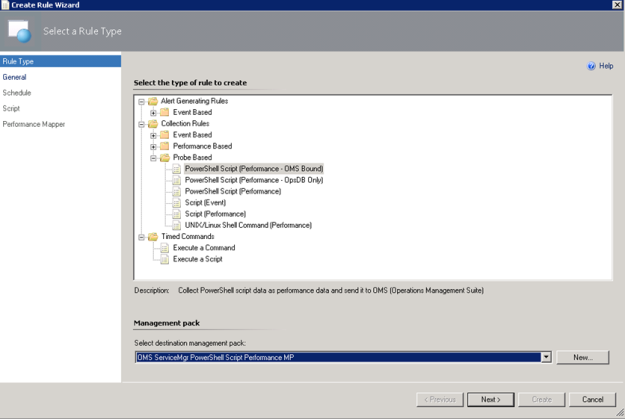
In the Operations Console, under Authoring, create a new PowerShell Script Rule as shown below:

    1. Select the PowerShell Script (Performance – OMS Bound) Rule:I have created a custom destination management pack for this script.
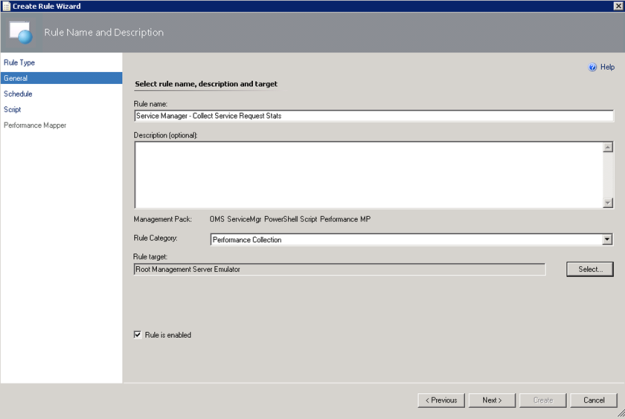
    2. Specifying a Rule name and Rule Category: Performance Collection. As mentioned earlier in this article the Rule target will be the Root Management Server Emulator:
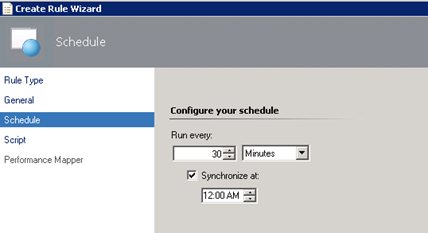
    3. Selecting to run the script every 30 minutes, and at which time the interval will start from:
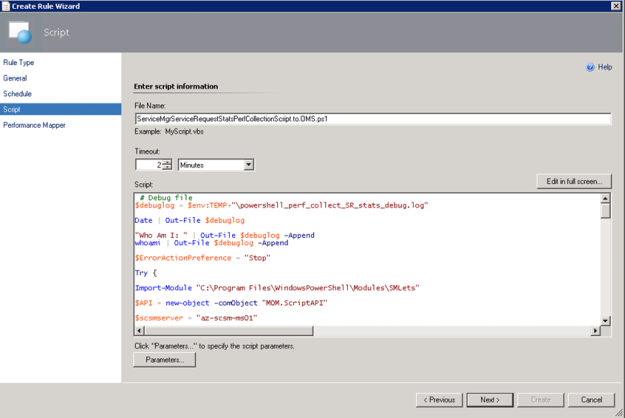
    4. Selecting a name for the script file and timeout, and entering the complete script as shown earlier:
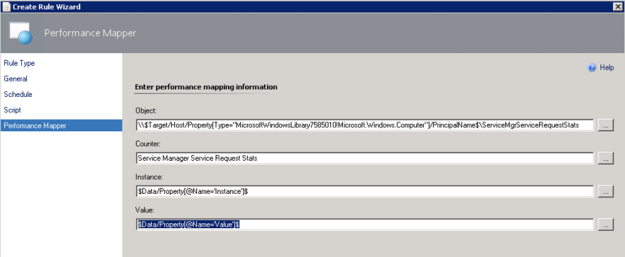
    5. For the Performance Mapping information, the Object name must be in the \\FQDN\YourObjectName format. For FQDN I used the Target variable for PrincipalName, and for the Object Name ServiceManagerServiceRequestStats, and adding the “\\” at the start and “\” between: \\$Target/Host/Property[Type=”MicrosoftWindowsLibrary7585010!Microsoft.Windows.Computer”]/PrincipalName$\ServiceMgrServiceRequestStatsI specified the Counter name as “Service Manager Service Request Stats”, and the Instance and Value are specified as $Data/Property(@Name=’Instance’)$ and $Data/Property(@Name=Value)$. These reflect the PropertyBag instance and value created in the PowerShell script:
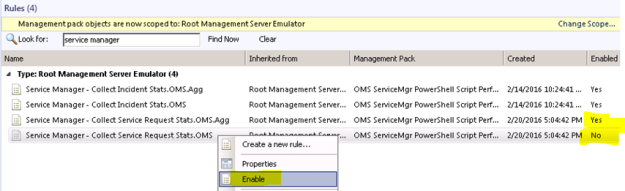
    6. After finishing the Create Rule Wizard, two new rules are created, which you can find by scoping to the Root Management Server Emulator I chose as target. Both Rules must be enabled, as they are not enabled by default:


At this point we are finished configuring the SCOM side, and can wait for some hours to see that data are actually coming into my OMS workspace.

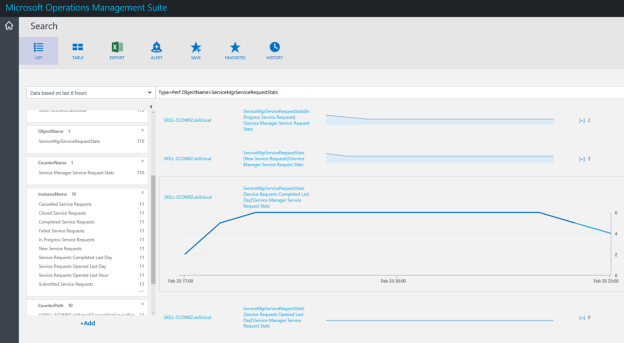
Looking at Service Manager Service Request Performance Data in OMS

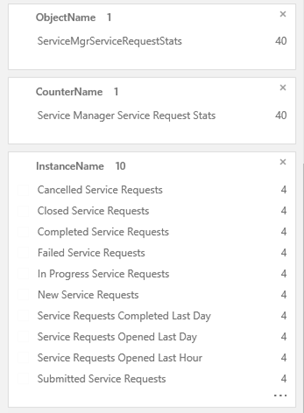
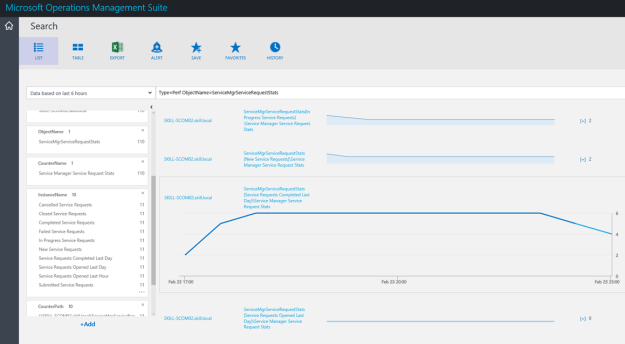
After a while I will start seeing Performance Data coming into OMS with the specified Object and Counter Name, and for the different instances and values.

In Log Search, I can specify Type=Perf ObjectName=ServiceMgrServiceRequestStats, and I will find the Results and Metrics for the specified time frame.

I can now look at Service Manager stats as performance data, showing different scenarios like how many active, pending, resolved and closed incidents there are over a time period. I can also look at how many incidents are created by each hour or by each day.

I can also create saved searches and alerts for my search criteria.

Creating OMS Alerts for Service Request Counters

A couple of scenarios are interesting for Alerts when some of the Service Request counters pass a threshold.

Failed Service Requests is a status that will be set when an Activity in the SR fails, for example a Runbook Automation Activity. Normally you would expect that analysts would follow up on requests that fails directly in Service Manager, but it could make sense to generate an alert if the number of failed requests increases over a predefined threshold.

The search query for Failed Service Requests in OMS is:

Type=Perf ObjectName=ServiceMgrServiceRequestStats InstanceName=”Failed Service Requests”

This would give me all results for the defined time period, but to generate an alert I would want to look at the most recent results, for example for the last hour. In addition, I want to filter the results for my alert when the number of failed requests are over the threshold of 10. My query for this would be:

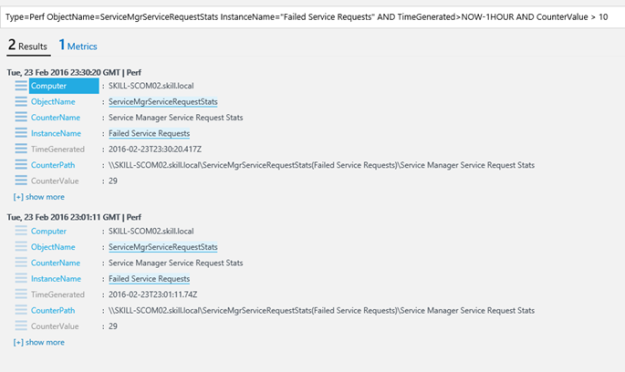
Type=Perf ObjectName=ServiceMgrServiceRequestStats InstanceName=”Failed Service Requests” AND TimeGenerated>NOW-1HOUR AND CounterValue > 10

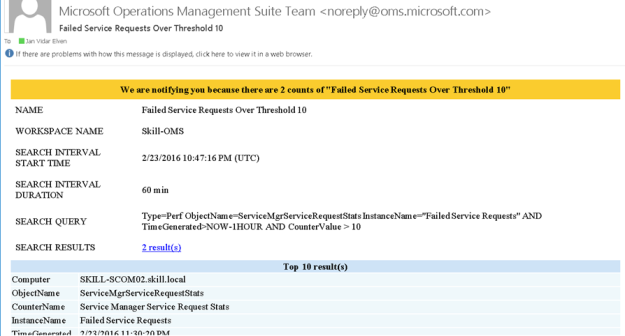
In my test environment, this gives me the following result, showing that I have a total of 29 failed requests:

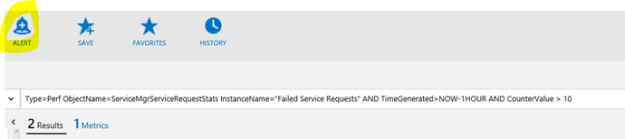
Ok, 29 failed requests are a lot, but as this is a test environment and a lot of these are old requests, I would need to do some cleaning up. I want to create an alert for this, so I press the Alert button:

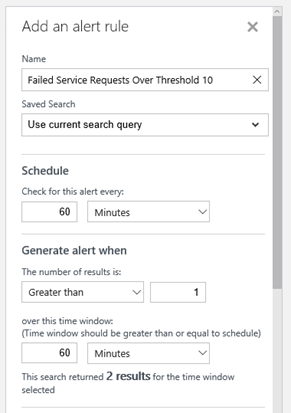
For the alert I give it a name and base it on the search query. I want to check every 60 minutes, and generate alert when the number of results is greater than 1 so that I make sure the passing of the threshold is consistent and not just temporary.

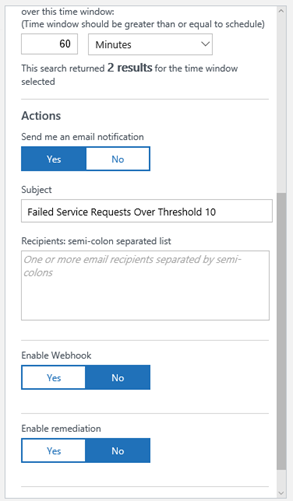
For actions I want an email notification, so I type in a Subject and my recipients.

I Save the alert rule, and verify that it was successfully created.

Soon I get my first alert on email:

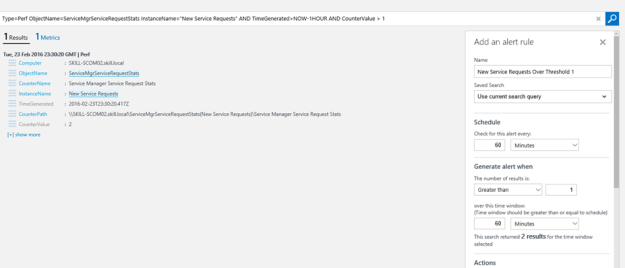
There is also a second scenario for an alert, and that is when Service Requests get stuck in a New status. Normally this would be when Service Manager workflows are not running, so it will be important to get notified on that.

The following search query, using countervalue > 1 will provide the results for my alert as I want to get notified as soon there is more than one value in the results:

Type=Perf ObjectName=ServiceMgrServiceRequestStats InstanceName=”New Service Requests” AND TimeGenerated>NOW-1HOUR AND CounterValue > 1

And I can create my alert as the following image:

With that, this blog post is concluded. Thanks for reading, I hope the posts on OMS and getting SCSM data via NRT Perfomance Collection has been useful 😉
Session Recap – Nordic Infrastructure Conference (NIC) 2016 – Publishing Azure AD Applications

This week I had the pleasure of not only revisiting Nordic Infrastructure Conference (www.nicconf.com), but also presenting a session myself: Deep Dive – Publishing Applications with Azure AD. My session was about how you with Azure AD can publish applications from a SaaS Gallery, your organization’s own applications, or internal applications that will be accessible outside with Azure AD Application Proxy.

This was the 5th anniversary of NIC, held in Oslo, Norway and the venue of Oslo Spektrum. NIC has been established as a premium event for IT-professionals, attracting internationally renowned speakers and MVPs, SMEs and Partners.

In this blog post I will do a recap of my session, for both attendees that was there and others that couldn’t be. I will also expand on some of the things we went through in the session as there were some limits to the time we could use on several demos.

Proud Speaker

The presentation and session recording will later be available at the www.nicconf.com webpage. At the end of this blog post, there is also a link to where you can download the presentation and other code samples and files that where used in the session.

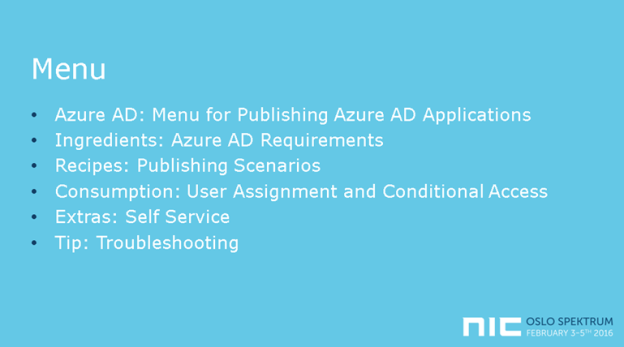
Session Menu

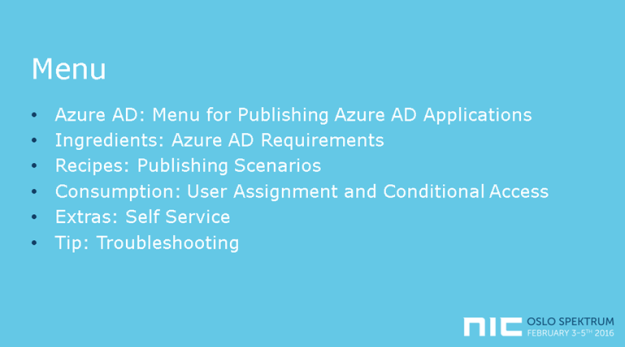
The theme for the presentation was to present a menu for publishing Azure AD Applications with Azure AD. The menu would consist of required ingredients, recipes for publishing scenarios, consumption of the published applications from the users’ perspective, and some extras and tip for self-servicing and troubleshooting.

I started with pointing to the key features of Azure AD as an Identity and Access Management Solution, for both Cloud and On-Premise Solutions, an enabler for true Enterprise Mobility and Business Everywhere, with one common, hybrid identity. There are some important Business Value for Organizations such as controlling access to applications, single sign-on, conditional access, hybrid identity and self-servicing.

Ingredients

It is no surprise that you need Azure AD as a key ingredient 😉 But what edition of Azure AD should you use? Free, Basic or Premium? In the session I covered the most important differences relevant for Publishing Applications, where you would need at least Basic to be able to publish internal applications with Azure AD App Proxy, and Premium Edition if you want to cover all the self-servicing scenarios and advanced reporting. For all details, refer to https://azure.microsoft.com/en-us/documentation/articles/active-directory-editions/.
In addition to the application you want to publish, you will need an Azure AD identity, either a cloud based identity or a hybrid identity synchronized with Azure AD Connect.

In the first demo of the session we looked into configuring and verifying that your Azure AD tenant is ready for publishing applications.
Recipes

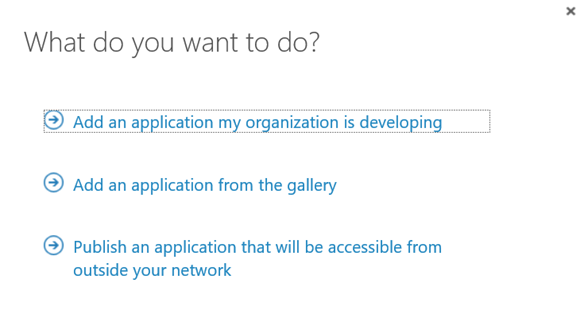
The publishing scenarios we looked at in the session was from the following menu of three alternatives in Azure AD:

Add an application from the gallery

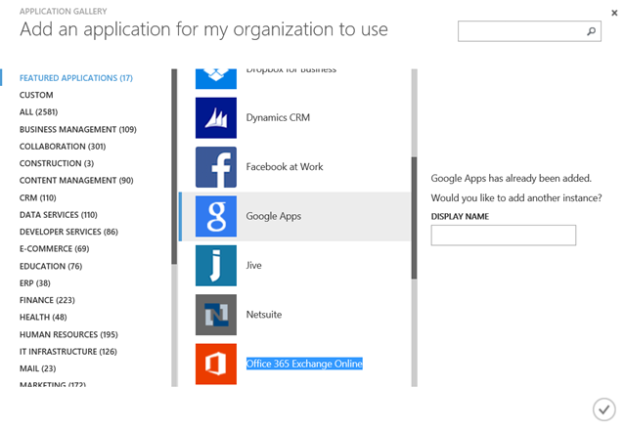
The first publishing scenario we looked at in the session was publishing applications from the SaaS gallery of applications. The gallery contains over 2500 different SaaS applications, many offering both true Single Sign-On (SSO) with Azure AD and provisioning/de-provisioning of users and groups. Other applications provide password-based same sign-on.

The demos in the session used two different SaaS apps as example; Twitter and Google Apps.

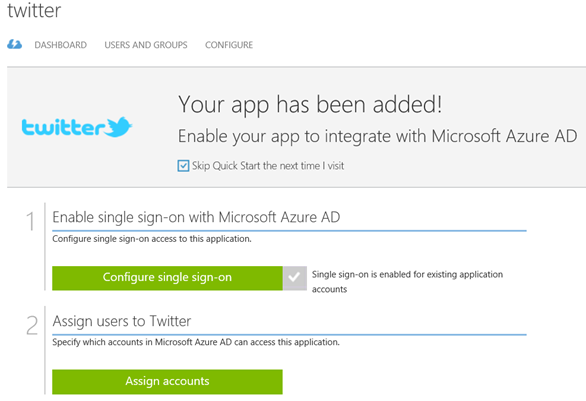
Twitter is a good example of a SaaS application using password same sign on.

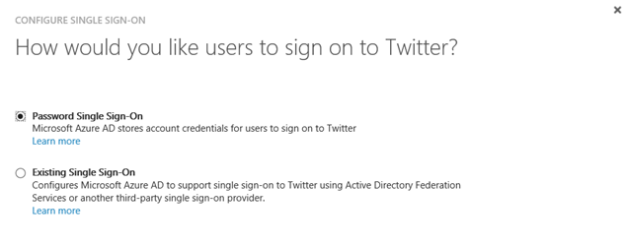
When configuring single sign-on for Twitter, we don’t have the option of using Azure AD Single Sign-On. Some applications can maybe support one of the federation protocols implemented in a local ADFS or a third-party provider, but that is dependent on the application. So for Twitter we will typically use Password Single Sign-On.

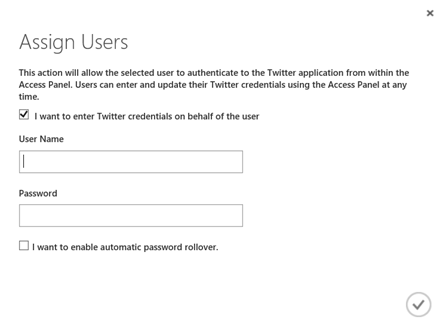
After configuring Password Single Sign-On, the next step is to assign account to the application. When assigning accounts, you can select that the users enter passwords themselves in the Access Panel. Or you can enter the credentials on behalf of the user.

This opens up a very interesting scenario: Consider you have a company based social media account on Twitter, Facebook, Instagram or other. All the users in the marketing department should have access to that/those application/applications, so you start handing out the username and password to the shared account. This is a risk, as users can lose the password and it can get on wrong hands, or maybe previous employees that are no longer in the company still have the username and password to the application.

With Azure AD, by entering the Twitter credentials on behalf of the user, they are never given the logon details directly. And when they leave the organization after removing the user from Azure AD, they will no longer have access. You can even apply conditional access policies for the application.

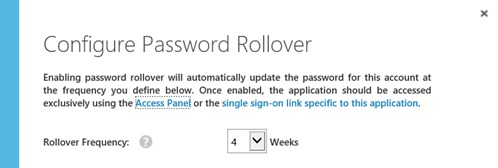
You can even configure automatic password rollover to update the password at a defined frequency:

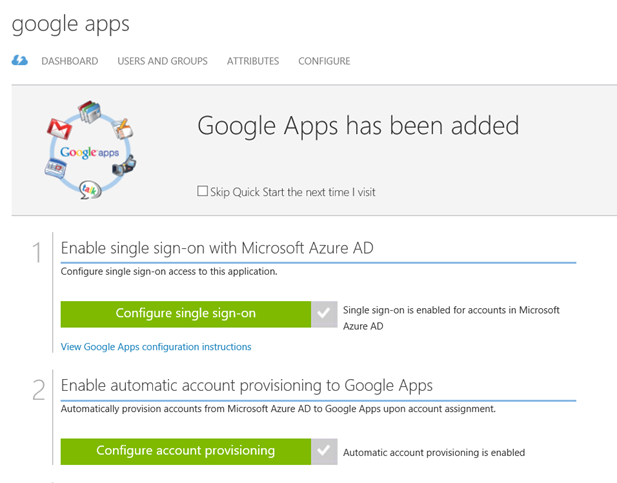
The other part of the demo focused on Google Apps. I had an existing subscription for Google Apps, which I configured to use Azure AD Single Sign-On and account provisioning for.

There is a complete tutorial for configuring SSO and provisioning for Google Apps at https://azure.microsoft.com/en-us/documentation/articles/active-directory-saas-google-apps-tutorial/.

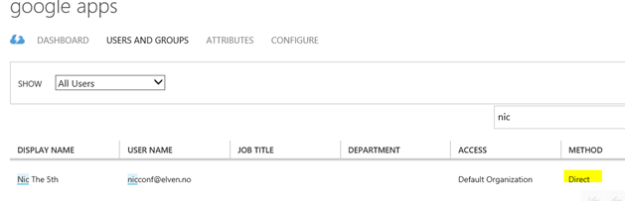
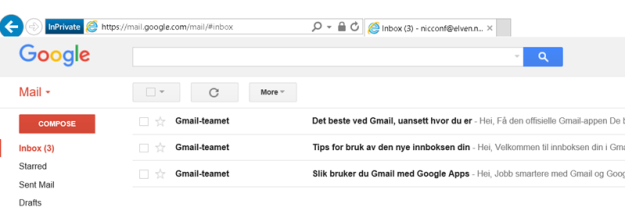
In the demo I created a test user named [email protected], and assigned that user to the Google Apps application.

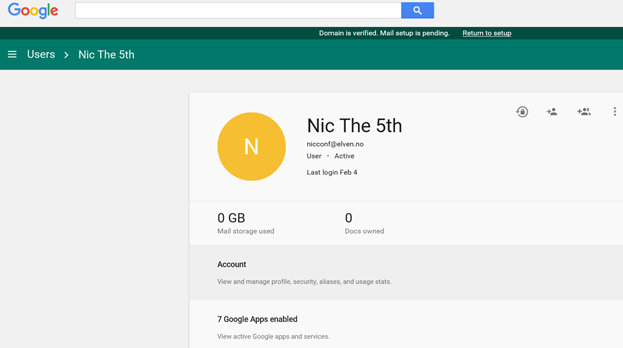
I showed that the user didn’t exist in the Google Apps user directory for my organization, and after a while (new user accounts are provisioned ca every 10 minutes), the user appeared in the Google Apps directory via Azure AD.

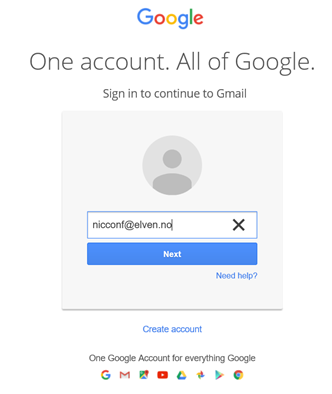
The new user can now use Azure AD SSO when logging into Google:

I’m redirected to my Azure AD tenant for signin in:

And then the user is logged in to Google:

Add an application my organization is developing

The next part of the publishing scenarios was adding applications that my organization is developing. Most times these applications will be Web Applications or Web API, but it’s possible to publish native client applications also.

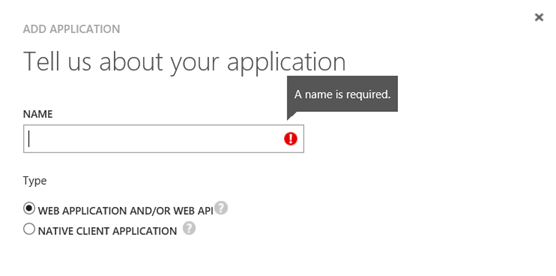
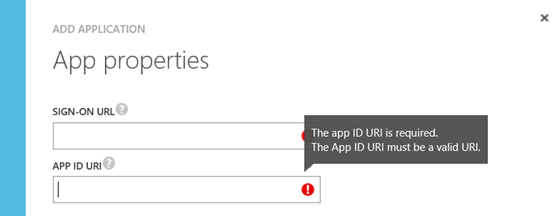
When creating a web application you give it a name, and a sign-on url and unique app id uri:

Keep in mind that creating a web application here only does the publishing part of it, you still would need to create the actual application somewhere, for example as an App Service in an Azure Subcstiption.

You can have the web applications do their own authentication, for example integrating with on-premise Active Directory Federation Services, or you can have the application use Azure Active Directory as SSO provider.

In the session demo we looked at how we could quickly create a Web Application, integrate it with Azure AD for authentication and publish it. These are the main steps:

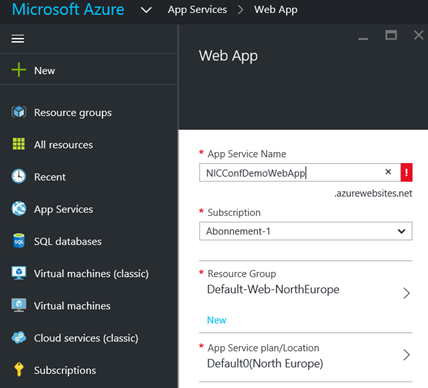
  1. Create a new Web App in you Azure Subscription. In the new Azure Portal for your subscription, under App Services create a new Web App. The Service Name must be unique, and you select either an existing resource group or create a new, and specify an App Service plan.
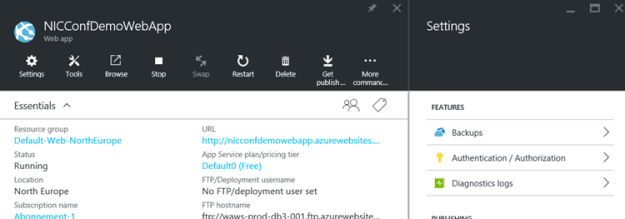
  2. After the Web App is created, open the application properties and under Settings find Features and Authentication / Authorization:
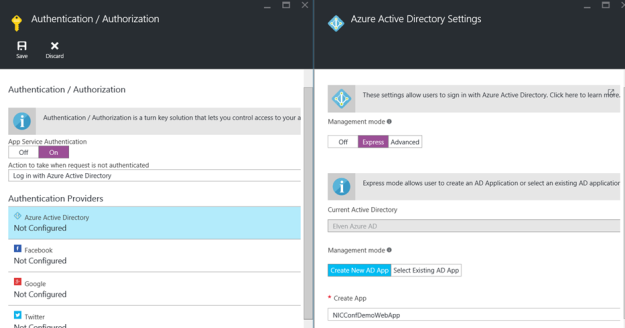
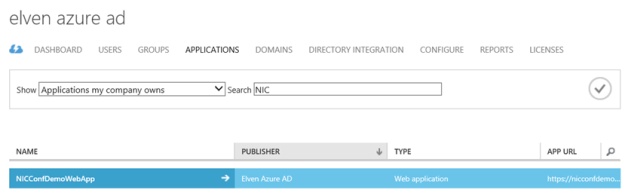
  3. Enable App Service Authentication and log in action. Enable Azure Active Directory as authentication provider and configure Express settings. PS! Here we can create and publish a new AD App (or select an existing one) also. We created a new one for our demo:
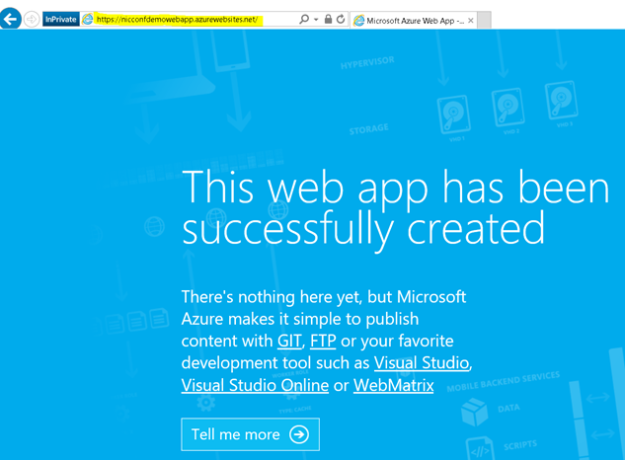
  4. Remember to save the Web App and the first part of the demo is done. A this point you can go to http://nicconfdemowebapp.azurewebsites.net, and be prompted to sign in with a Azure AD account from the directory the application was configured for. There is no content in the application, and every user in the Azure AD directory can access the application as long as they authenticate:
  5. The next part of this demo was to change some configuration settings for the published web application which is now published to Azure AD:
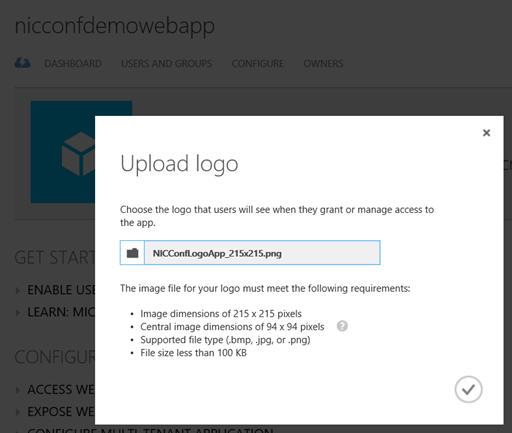
  6. I want to upload a custom logo, and configure the application so that only assigned users/groups can access it. First upload a logo:
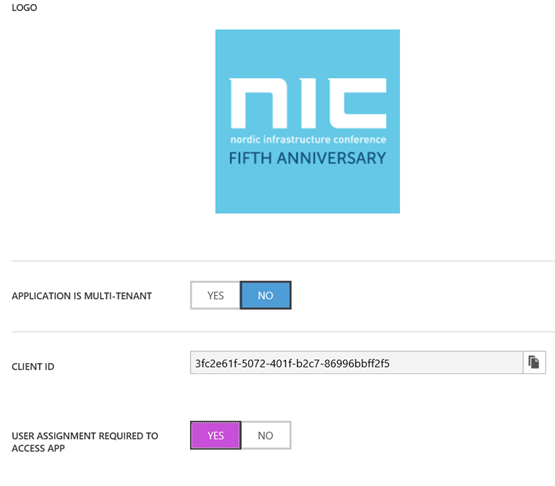
  7. Then at the Configure page, I select that user assignment is required to access the App:
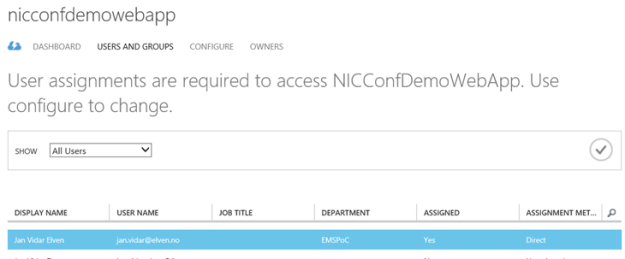
  8. Then after saving, I go to the Users and Groups page, and select to assign the users I want:

    If you assign individual users the assignment method will be Direct, if you assign Groups the members will assigned by inheritance.

  9. Now, if I start a new session to the Web App and log in with a user that has not been assigned, I will get this message:
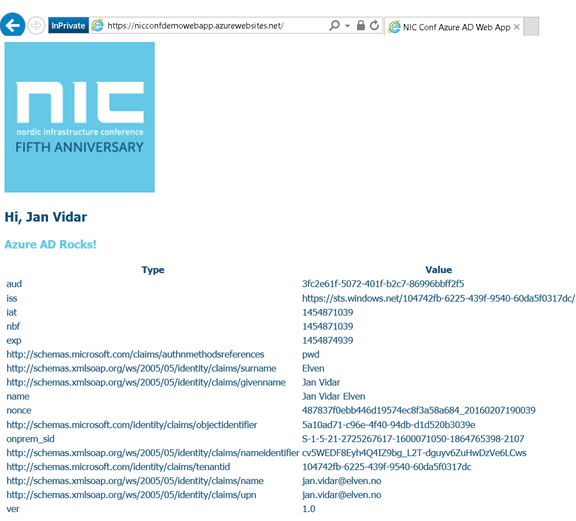
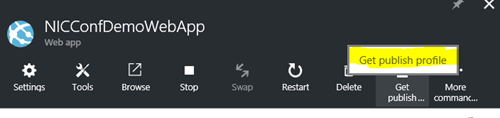
  10. The final steps of this demo showed how you can create some content in that Web App via Visual Studio. There are several development tools you can use, I have been using Visual Studio 2015, and you can download a Community Edition that is free if you don’t have a license. In my example I created a VB.NET Web App Project, and by using a Publish Profile file and some custom code I was able to show the logged in users claim properties.You can even create App Services directly from Visual Studio, and create and publish Azure AD Web Apps from there. But if you download this file from the Web App:


    And import it to the Visual Studio project, you can publish your changes directly.

  11. This is the result for the demo web application, the code is included at the end of this blog post:

Publish an application that will be accessible from outside your network

The third scenario for publishing applications with Azure AD is the applications you want to be available from outside your network. These applications are internal web applications like SharePoint, Exchange Outlook Web Access or other internal web sites, you can even publish Remote Desktops and Network Device Enrollment Services (NDES) with Azure AD Application Proxy.

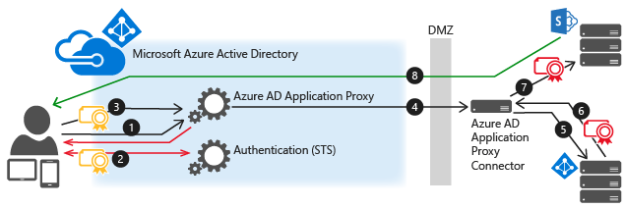
Azure AD App Proxy uses Connector Servers and Connector Groups inside the on premise infrastructure that must be able to connect to the internal URLs. These Connector Servers also can perform Kerberos Constrained Delegation for Windows Authentication, so that you can use Azure AD Single Sign-On to those internal applications.

A sample diagram showing the communication flow is shown below:

In the demo we looked at how you could install and configure a Connector installation, and organize Connector Servers in Groups for the applications to use. Here are some of the steps required:

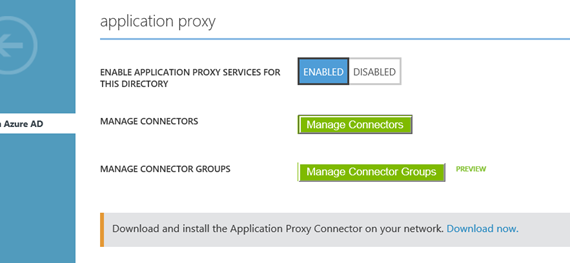
  1. First the setting for enabling Application Proxy Services for the Azure AD Directory must be enabled, and Connectors downloaded for installation.
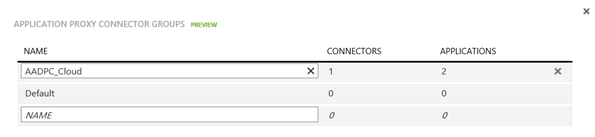
  2. You create and manage connector groups:
  3. And organize the installed connectors in those groups:
  4. When these requirements are in place you can start publishing your internal web applications.

For each internal published web application, you can configure authentication method, custom domain names, conditional access and self-servicing options. For details on how to do these different configurations, see previous blog posts I have published on this subject:

Consumption, Self Service and Troubleshooting

The last part of the session focused on the user experience for accessing the different published Azure AD applications.

User can access Azure AD published applications via:

  • Access Panel, https://myapps.microsoft.com
  • My Apps (iOS, Google Play)
  • App Launcher in Office 365
  • Managed Browser App with My Apps
  • Directly to URL

The Access Panel is a web-based portal that allows an end user with an organizational account in Azure AD to view and launch applications to which they have been assigned access. The Edge browser in Windows 10 is not fully supported yet, so you need to use either Internet Explorer, Chrome or Firefox for all supported scenarios. In addition, an Access Panel Extension needs to be installed for accessing Password SSO Applications.

The Access Panel is also where users can view account details, change or reset password, edit multi-factor authentication settings and preferences, and if you are using Azure AD Premium self-manage Groups.

The Access Panel via Internet Explorer:

The Access Panel via My Apps and Managed Browser Apps:

If the user is licensed for Office 365, the published applications are available via the App Launcher and URL https://portal.office.com/myapps:

Conditional Access, which is an Azure AD Premium licensed feature, can be configured for each published Azure AD Application. These settings consist of enabling Access Rules for All Users or selected Groups, and optionally with exceptions to those users/groups. The access rules settings are requiring multi-factor authentication, require MFA when not at work, or block access when not at work. For the location based rules to work there must be configured IP addresses/subnets for the company’s known IP address ranges.

Instead of Assigning Users and Groups you could also let users manage self-service access to the published applications. When configured a group will be automatically created that application, and optionally you could configure 1 or more Approvers:

The end user will access this self-servicing via the Access Panel:

The session was wrapped up with some links to troubleshooting and more resources:

Presentation and files downloads

The presentation and files used in the demos can be downloaded from this link: http://1drv.ms/1Q429rh

Thank you for attending my session and/or reading this recap!

How to enable Conditional Access for Azure RemoteApp Programs

Last week I published a blog article on how to publish the System Center Service Manager and Operations Manager Consoles as Azure RemoteApp Programs. (See https://systemcenterpoint.wordpress.com/2016/02/02/publish-operations-and-service-manager-consoles-as-azure-remoteapp-programs/)

One great feature if you are using Azure AD Premium is that you can enable Conditional Access for your Azure RemoteApp Programs. Conditional Access will enable your organization to require Multi-Factor Authentication or required that the programs only can be accessed when at work. In this blog post I will show how this can be configured.

Requirements for Conditional Access for Azure RemoteApp Programs

The following requirements must be met to enable Conditional Access for Azure RemoteApp Programs:

  • Conditional Access are an Azure AD Premium feature, so your organization must be licensed for that
  • You must have created at least one Azure RemoteApp Collection
  • At least one user/group must be assigned to a Program in the Azure RemoteApp Collection

If all these requirements are met, you will see this “Microsoft Azure RemoteApp” Application in your Azure AD:

Configuring Conditional Access for Microsoft Azure RemoteApp

Select the Microsoft Azure RemoteApp Application and go to the Configure tab:

When enabling Access Rules, you can select to enable it for All Users, or for selected Groups. Both options can have exceptions for groups that you don’t want to have Access Rules:

For the Rules you have 3 options for Conditional Access:

You can require Multi-Factor Authentication for the groups/users you selected above, every time they launch a RemoteApp Program Session. I

Another scenario, if you define your work network locations, you can require MFA when not at work, or block the application completely.

To configure trusted IPs, click on the link to get to the MFA Service Settings:

User Experience for Azure RemoteApp Conditional Access

So, how does this look for the user when accessing Azure RemoteApp Programs?

Require Multi-Factor Authentication

I launch my selected Azure RemoteApp Client, and clicking on a RemoteApp Program:

When launching the program, I’m prompted for MFA as expected:

If I sign in with the Azure RemoteApp HTML5 Preview client, https://www.remoteapp.windowsazure.com/web, the Multi-Factor Authentication will be performed before you see your Work Resources.

Block access when not at work

If I selected the Access Rule for Blocking Access when not at work, I will get this message if I’m not on a trusted network:

Conclusion

Meeting the requirements, we can verify that Conditional Access can be enabled for selected groups of users, and it will apply to all the Azure RemoteApp Programs you have published. Note that you cannot enable this specifically for selected Azure RemoteApp Programs, it will be for all the RemoteApp Programs or none.