Author Archives: Jan Vidar Elven

Unknown's avatar

About Jan Vidar Elven

Microsoft MVP Security. Senior Architect Cloud Platform & Security.

Awarded MVP Enterprise Mobility! Introducing myself to the community.

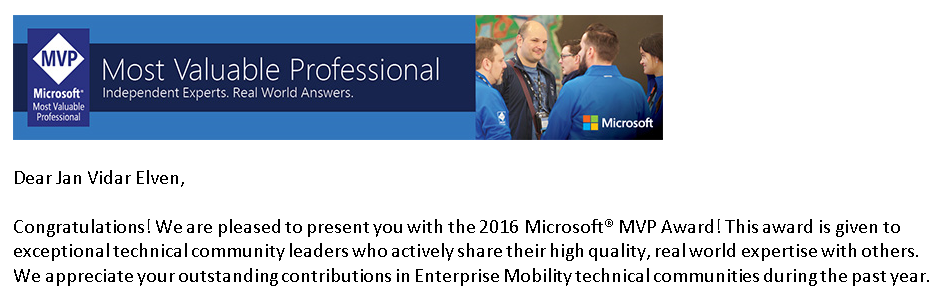
On Friday April 1th I got one of the best e-mails in my professional IT career so far, Awarded MVP for Enterprise Mobility for 2016!

image

This is my first MVP Award, and I’m incredibly proud and honored to be part of such as amazing community and network of professionals.

I thought this was a good opportunity to introduce myself to the community, so in this blog post I will write a little more about myself and what I do.

Some personal info

I’m from Norway, a town called Sarpsborg some 100 kilometers south of Oslo. I work as a Architect for Cloud and Datacenter solutions at Skill AS, a Microsoft Partner with offices in both Oslo and Sarpsborg. My company has received numerous partner prizes and finalist awards over the last years, embracing the Cloud and Microsoft especially.

I’m born in 1971, at an age where I’m old enough to know how and when to use my experience when I need to, and young enough to eagerly learn new stuff and use technology to solve challenges and use solutions creatively. When I’m not working I spend time with my family, I’m married and have two boys at the age of 10 and 12. Its all about football (soccer) in the spare time, and at least 3 of us are huge Arsenal fans. You can guess who 😉 We also spend a lot of time in our cabin in the mountains, where we ski (cross country) a lot. This is where we recharge our batteries, a very needed window of family quality time in a mostly hectic work and activity filled weeks.

Work and career

I’ve been in the IT industry for over 20 years now. When I started I did IT support on IBM OS/2 machines, my first internet e-mail experience was using 3270 terminals and if I remember correctly something called Office Vision. I wrote documents using Lotus Ami Pro, Later I achieved my first Microsoft MCP certifications on Windows 95 and Word 6.0. From there on it has been mainly Microsoft products and solutions for me!

A large part of my first career I spent at a private educational institution, and was an instructor for Microsoft Official Curriculum courses. I kept my Microsoft Certified Trainer certification from 1997-2012. I have spent thousands of hours teaching students and business IT pros on MCSE certifications for NT 4.0, Windows 2000, 2003 and beyond. For a few years I was even a Citrix Certified Instructor. While working as an instructor I started to get more in to consulting as well, working at customer sites and presenting company seminars.

I remember that I could hold the BackOffice 4.5 CD folder in my hand, and say that I had knowledge of all Microsoft management, productivity and server solutions! Try to say that today 😉 The first “System Center” product I worked on was SMS 2.0, later I started working with Microsoft Operation Manager (MOM) from 2000 and up, I have been working with e-mail and productivity from Microsoft Mail via Exchange 5.0 to todays Exchange Online and Office 365, identity solutions from “User Manager of Domains” to Azure Active Directory. It has really been a great journey, but nothing compares to how rapid Microsoft and Cloud solutions evolve these days,

After leaving the educational institution, I worked for a few years as a consultant and freelance training, before I worked some years at an Application Service Provider. I was working with the Datacenter and Infrastructure, moving into virtualization slowly by using Virtual Server 2005! Exchange 2007 was my first meeting with PowerShell, love at first sight, and offered Hosted Exchange as a Service. If only we had something called Office 365 and Azure Stack etc.. 😉

In 2010 and till today I have been with my current employer, Skill. In these years I have been working more and more with Azure, Office 365, Enterprise Mobility Suite and System Center, while at the same time been working closely with Microsoft, being a P-TSP for Cloud OS and Datacenter management.

Community

Over the last years I have been more and more engaged in the community of IT-professionals, visiting conferences, using social media, blogging and networking with other MVP’s and other community influencers. I have also been a speaker at local events and at conferences like Experts Live, Nordic Infrastructure Conference and will also be speaker at this years System Center Universe in Berlin, August.

It is with huge pride my contributions has led me to receiving the MVP award, and I can only look forward to contributing more in the years to come. While Enterprise Mobility and especially Azure AD is an area I focus greatly on, I will also continue to contribute in areas related to Azure, Cloud and Datacenter Management (CDM) with OMS, Service Manager, Operations Manager and more as these are solutions I work a lot with in my daily work as well. I will especially look for contributions where EMS, CDM and Azure can work together and play to each others strengths 🙂

Thanks for reading, looking forward to engage with you all. In addition to this blog, you can follow me at social media using:

Twitter: @skillriver

LinkedIn: linkedin.com/in/jvelven

Notifying End Users that Incident is Closed When They Reply by Exchange Connector

A common challenge by using Exchange Connector and Service Manager is that when the Incident is set to status Closed, users still can reply to the Incident Record by using E-mail. Even though the Incident is Read-Only when Closed, it is still possible to create related End User Comments via the Exchange Connector.

While the Exchange Connector cannot be configured in a way that it will not create those End User Comments based on Status, it would be nice to at least inform the user that the Incident is now Closed, and that they must create a new Incident record either via E-mail or the HTML portal.

There have been some solutions to this in the community. Some use different Incident Templates that sets the Incident to Active whenever users reply, and the re-Close them with another template (https://itblog.no/3192). Some extends the Incident Work Item Class by adding an UpdatedByEndUser property, and use that to control their notification subscriptions (http://www.scsm.se/?p=564).

I have been using another solution for a while at different implementations, and it seems to work fine. So I thought I would write a short blog post on that.

Overview

My solution will use a periodic notification subscription, targeting the Incident class, and using some criteria that will check that:

  • The Incident Status is Closed
    AND
  • The End User Comment Entered Date is >= Incident Closed Date

    AND

  • Incident Closed Date >= yyyy-MM-ddThh:mm:ss

I will get more into why I use these criteria later in the post.

In addition to this notification subscription, I also have “normal” subscriptions like sending e-mails to End Users when the Incident is created and resolved, as well as sending e-mails to End User when the Assigned User provides Analysts Comments, and sending e-mails to Assigned User when the End User Comments. I will not get into those here.

So let’s start to set this up.

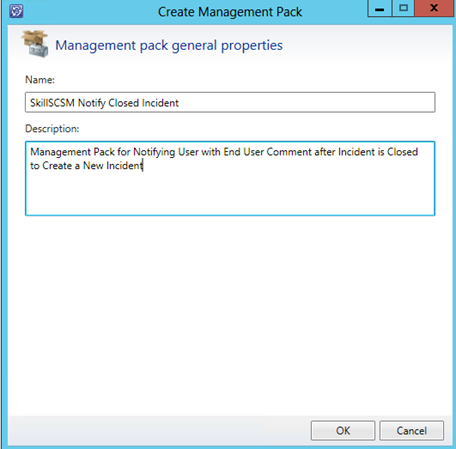
Creating a New Management Pack

I will create a new Management Pack to store this notification subscription and the e-mail template I will use.

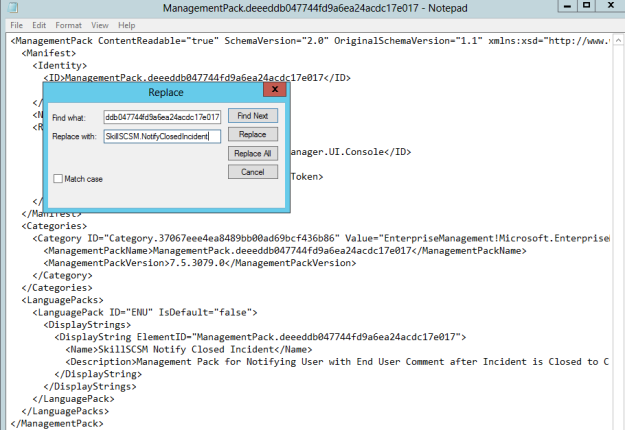
After creating the Management Pack, I export it and give it a more meaningful ID and file name.

Usually I do this by using search and replace on the generated ID with my own ID name as shown below:

After, save the MP as SkillSCSM.NotifyClosedIncident.xml, and delete the original MP and re-import this one.

Closed Incident E-Mail Notification Template

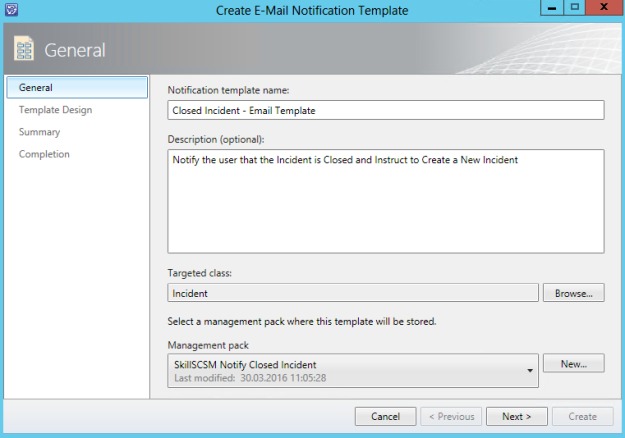
Next I will create the E-Mail Notification Template that will be used by the subscription to notify end users that the Incident is Closed and instruct them to create a new Incident.

This Notification Template will target the Incident Class, and I will use my new MP:

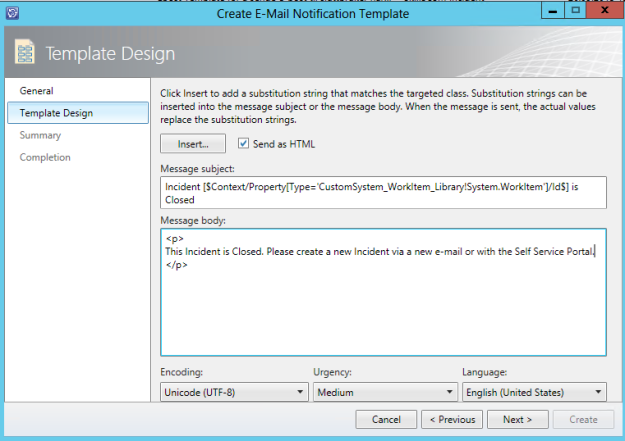
I specify a subject and HTML body:

After this I am ready to start creating the subscription.

Notification Subscription for End User Comments on Closed Incidents

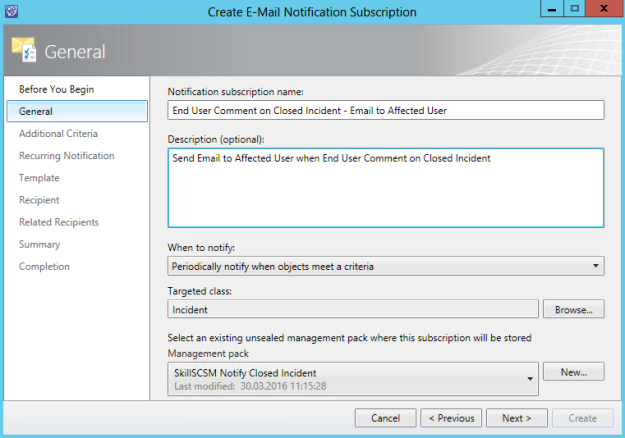
I will create the Notification Subscription by specifying to “Periodically notify when object meet a criteria” and target the class to Incident.

By using this periodic subscription, there are some risks, that I will mitigate with my criteria. The risks are that this will backtrack and fire for all old incidents from before the subscription was created, and that changes to the criteria later could mean that it will send out notifications once more to users that already have received it. But, as long as the criteria is defined correctly, this should not be a problem.

When specifying criteria, there are something I cannot achieve with the wizard and have to do in the XML later.

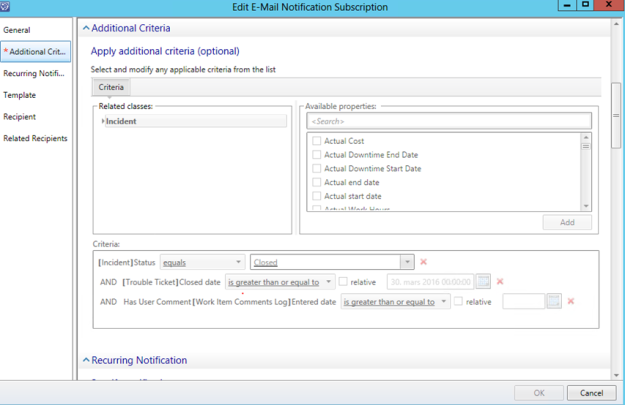
For now, you would have to add these criteria via the wizard:

  • [Incident] Status equals Closed
    AND
  • [Trouble Ticket] Closed Date greater than or equal to (your date today)
    AND
  • Has User Comment [Work Item Comments Log] Entered date greater than or equal to (your date today)

For testing purposes, you could also add criteria for ID so that you set it to a fixed Incident ID while you are testing.

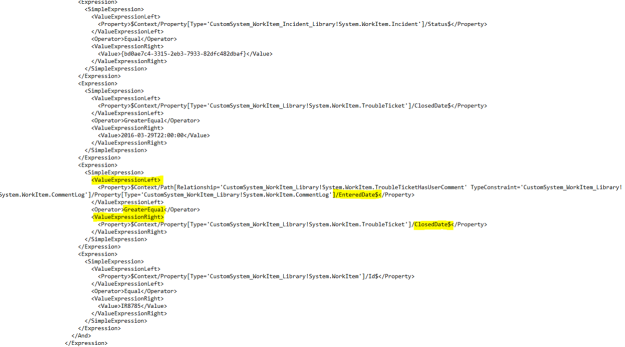
Later, in the XML I will change one of the criteria so that: Has User Comment Entered date >= Trouble Ticket Closed Date.

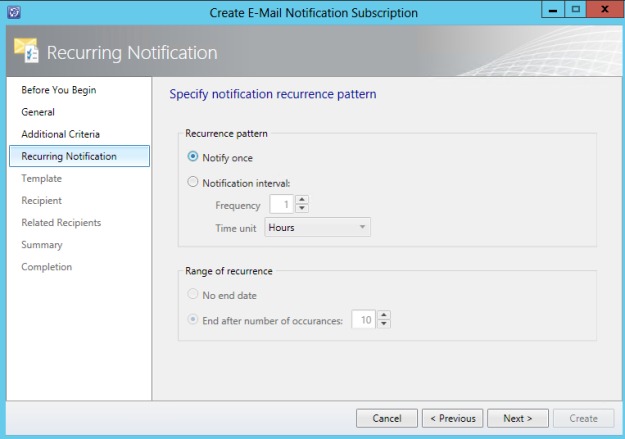
I will select to Notify once:

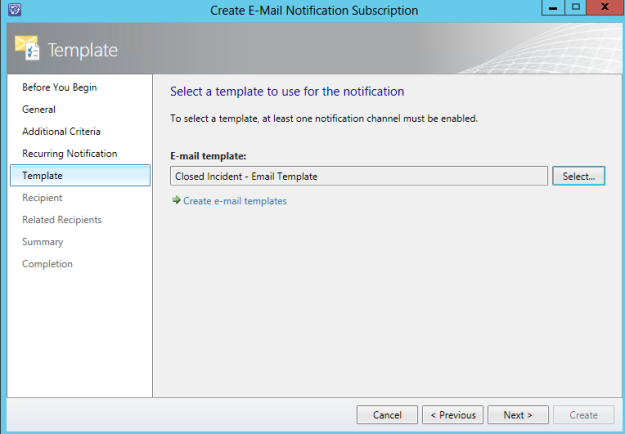
Specify my E-Mail Notification Template:

Finish and Create.

Editing the Management Pack XML

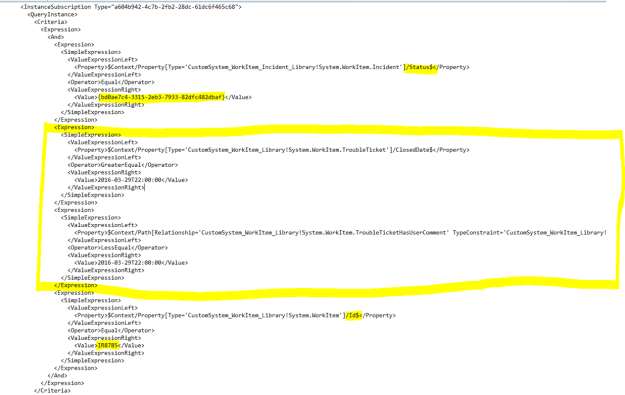
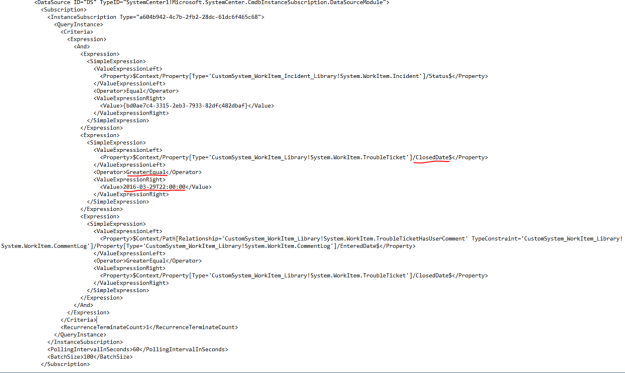
Exporting my MP XML I now can see the following criteria in the image below:

  • First, Status are set to Equal the Enumeration GUID for Closed
  • The second and third expressions are the ClosedDate and Comment EnteredDate, which are set to static. I will change these to evaluate to each other in the next step
  • The fourth expression is just for testing, as I have specified a single Incident ID, this I will remove later.

In the XML, edit the 3rd expression, to an expression like this. I want the EnteredDate for the End User Comment to be later (GreaterEqual) than the Incident ClosedDate. Note also that I keep the manual ClosedDate to today’s date. This is because I don’t want this rule to affect old Incidents, as when I import this MP, all incidents will be evaluated!

After this change, I can reimport the MP XML, and wait for it to start processing.

Verifying and Testing

At the Administration Pane in Service Manager Console, under Workflows and Status, I can find the workflow in question. I can see that it has triggered for an Incident where there has been an End User Comment on the Closed Incident:

The Affected User gets this email:

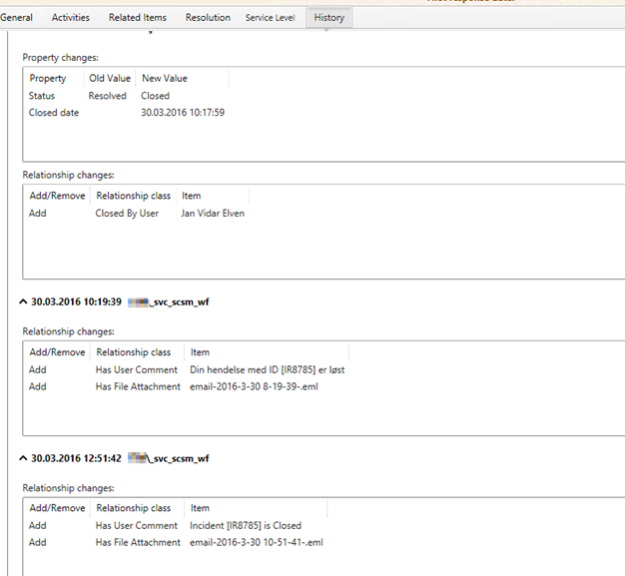
Let’s try to reply once more with an End User Comment by replying to this email again. From the History I can see that after the Incident was closed, there are two End User Comments. But the Notification will only occur once per Incident. So after the first time I send emails with End User Comments to the Closed Incident, I will get only one notification.

Setting the solution from Test to Production

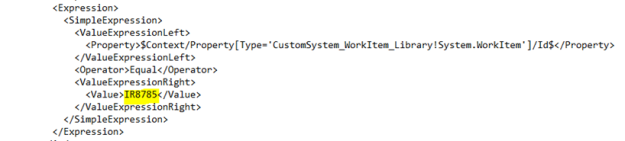
The next step is to set this solution into production. In my XML I had a criteria for just one Incident ID:

I will remove that now and re-import the XML MP. On the other hand, I will keep the fixed ClosedDate expression. The reason is of course to not send notifications for old Incidents that have had comments after their closed dates.

To summarize, my criteria expressions will be:

  • Status Equal Closed (Enum GUID)
  • ClosedDate GreaterEqual (Date) (This Fixed Date should be the date you import the Management Pack, and updated every time you do maintenance on the MP XML)
  • (Comment) EnteredDate GreaterEqual (TroubleTicket) ClosedDate

Maintenance and important things to note

There are some situations that are important to note with this solution. As this is a periodic notification subscription, with an “only once” recurrence, Service Manager will keep track of which Incidents for which the workflow engine sends Closed Incident notifications based on the criteria defined.

But there is an important exception to be aware of:

  • Changing and re-importing the MP XML. When you do that you risk that all subscriptions will run again. Therefore, remember to update the Fixed Date criteria, so that older Incidents that are closed are not sending out notifications to the users that have commented.

For example, changing my MP XML above resulted in a second notification to the end user:

Editing the Notification Subscription must now be done in XML from now on. Trying to edit it in the Console will result in a greyed out dialog:

To summarize, I now have a solution for sending out e-mails to End Users that send comments to Incidents after it is Closed. They will only get that notification once, not every time they comment on Closed Incidents.

Thanks for reading, hope it has been helpful!

Displaying Azure Automation Runbook Stats in OMS via Performance Collection and Operations Manager

Wouldn’t it be great to get some more information about your Azure Automation Runbooks in the Operations Management Suite Portal? That’s a rhetorical question, of course the answer will be yes!

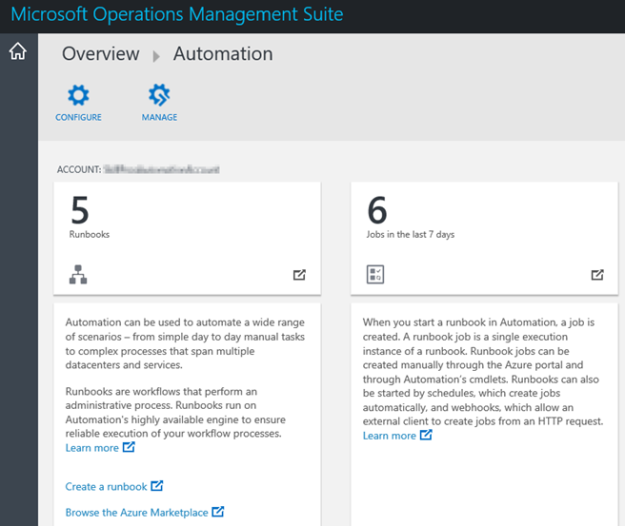
While Azure Automation is a part of the suite of components in OMS, today you only get the following information from the Azure Automation blade:
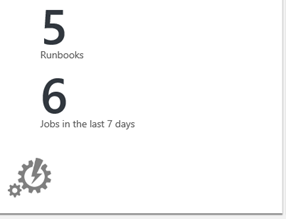
The blade shows the number of runbooks and jobs from the one Automation Account you have configured. You can only configure one Automation Account at a time, and for getting more details you are directed to the Azure Portal.
I wanted to use my OMS-connected Operations Manager Management Group, and use a PowerShell script rule to get some more statistics for Azure Automation and display that in OMS Log Analytics as Performance Data. I will do this using the “Sample Management Pack – Wizard to Create PowerShell script Collection Rules” described in this blog article http://blogs.msdn.com/b/wei_out_there_with_system_center/archive/2015/09/29/oms-collecting-nrt-performance-data-from-an-opsmgr-powershell-script-collection-rule-created-from-a-wizard.aspx.

I will use the AzureRM PowerShell Module for the PowerShell commands that will connect to my Azure subscription and get the Azure Automation Runbooks data.

Getting Ready

Before I can create the PowerShell script rule for gettting the Azure Automation data, I have to do some preparations first. This includes:

  1. Importing the “Sample Management Pack – Wizard to Create PowerShell script Collection Rules” to my Operations Manager environment.
    1. This can be downloaded from Technet Gallery at https://gallery.technet.microsoft.com/Sample-Management-Pack-e48040f7.
  2. Install the AzureRM PowerShell Module (at the chosen Target server for the PowerShell Script Rule).
    1. I chose to install it from the PowerShell Gallery using the instructions here: https://azure.microsoft.com/en-us/documentation/articles/powershell-install-configure/
    2. If you are running Windows Server 2012 R2, which I am, follow the instructions here to support the PowerShellGet module, https://www.powershellgallery.com/GettingStarted?section=Get%20Started.
  3. Choose Target for where to run the AzureRM commands from
    1. Regarding the AzureRM and where to install, I decided to use the SCOM Root Management Server Emulator. This server will then run the AzureRM commands against my Azure Subscription.
  4. Choose account for Run As Profile
    1. I also needed to think about the run as account the AzureRM commands will run under. As we will see later the PowerShell Script Rules will be set up with a Default Run As Profile.
    2. The Default Run As Profile for the RMS Emulator will be the Management Server Action Account, if I had chosen another Rule Target the Default Run As Profile would be the Local System Account.
    3. Alternatively, I could have created a custom Run As Profile with a user account that have permissions to execute the AzureRM cmdlets and connect to and read the required data from the Azure subscription, and configure the PowerShell Script rules to use that.
    4. I decided to go with the Management Server Action Account, in my case SKILL\scom_msaa. This account will execute the AzureRM PowerShell cmdlets, so I need to make sure that I can login to my Azure subscription using that account.
  5. Next, I started PowerShell ISE with “Run as different user”, specifying my scom_msaa account. I run the commands below, as I wanted to save the password for the user I’m going to connect to the Azure subscription and get the Automation data. I also did a test import-module of the AzureRM modules I will need in the main script.
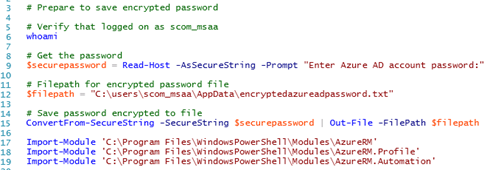
The commands above are here in full:


# Prepare to save encrypted password

# Verify that logged on as scom_msaa
whoami

# Get the password
$securepassword = Read-Host -AsSecureString -Prompt Enter Azure AD account password:

# Filepath for encrypted password file
$filepath = C:\users\scom_msaa\AppData\encryptedazureadpassword.txt

# Save password encrypted to file
ConvertFrom-SecureString -SecureString $securepassword | Out-File -FilePath $filepath

Import-Module C:\Program Files\WindowsPowerShell\Modules\AzureRM
Import-Module C:\Program Files\WindowsPowerShell\Modules\AzureRM.Profile
Import-Module C:\Program Files\WindowsPowerShell\Modules\AzureRM.Automation

At this point I’m ready for the next step, which is to create some PowerShell commands for the Script Rule in SCOM.

Creating the PowerShell Command Script for getting Azure Automation data

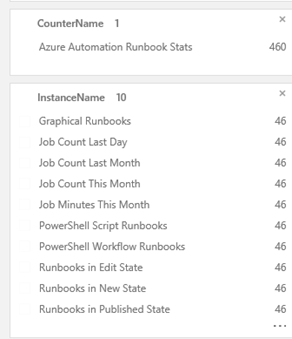
First I needed to think about what kind of Azure Automation and Runbook data I wanted to get from my Azure Subscription. I decided to get the following values:

  • Job Count Last Day
  • Job Count Last Month
  • Job Count This Month
  • Job Minutes This Month
  • Runbooks in New State
  • Runbooks in Published State
  • Runbooks in Edit State
  • PowerShell Workflow Runbooks
  • Graphical Runbooks
  • PowerShell Script Runbooks

I wanted to have the statistics for Runbooks Jobs to see the activity of the Runbooks. As I’m running the Free plan of Azure Automation, I’m restricted to 500 minutes a month, so it makes sense to count the accumulated job minutes for the month as well.

In addition to this I want some statistics for the number of Runbooks in the environment, separated on New, Published and Edit Runbooks, and the Runbook type separated on Workflow, Graphical and PowerShell Script.
The PowerShell Script Rule for getting these data will be using the AzureRM PowerShell Module, and specifically the cmdlets in AzureRM.Profile and AzureRM.Automation:

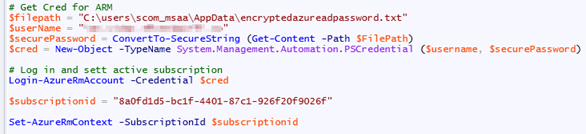
To log in and authenticate to Azure, I will use the encrypted password saved earlier, and create a Credential object for the login:
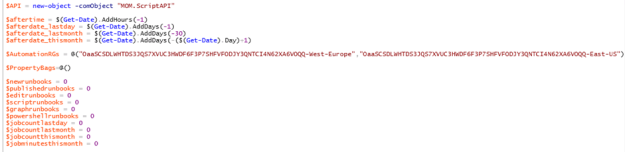
Initializing the script with date filters and setting default values for variables. I decided to create the script so that I can get data from all the Resource Groups I have Automation Accounts in. This way, If I have multiple Automation Accounts, I can get statistics combined for each of them:
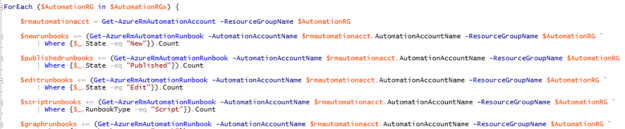
Then, looping through each Resource Group, running the different commands to get the variable data. Since I potentially will loop through multiple Resource Groups and Automation Accounts, the variables will be using += to add to the previous loop value:
After setting each variable and exiting the loop, the $PropertyBag can be filled with the values for the different counters:

The complete script is shown below for how to get those Azure Automation data via SCOM and PowerShell Script Rule to to OMS:


# Debug file
$debuglog = $env:TEMP+\powershell_perf_collect_AA_stats_debug.log

Date | Out-File $debuglog

Who Am I: | Out-File $debuglog -Append
whoami |
Out-File $debuglog -Append

$ErrorActionPreference = Stop

Try {

If (!(Get-Module –Name AzureRM)) { Import-Module C:\Program Files\WindowsPowerShell\Modules\AzureRM }
If (!(Get-Module –Name AzureRM.Profile)) { Import-Module C:\Program Files\WindowsPowerShell\Modules\AzureRM.Profile }
If (!(Get-Module –Name AzureRM.Automation)) { Import-Module C:\Program Files\WindowsPowerShell\Modules\AzureRM.Automation }

# Get Cred for ARM
$filepath = C:\users\scom_msaa\AppData\encryptedazureadpassword.txt
$userName = myAzureADAdminAccount
$securePassword = ConvertTo-SecureString (Get-Content -Path $FilePath)
$cred = New-Object -TypeName System.Management.Automation.PSCredential ($username, $securePassword)

# Log in and sett active subscription
Login-AzureRmAccount -Credential $cred

$subscriptionid = mysubscriptionID

Set-AzureRmContext -SubscriptionId $subscriptionid

$API = new-object -comObject MOM.ScriptAPI

$aftertime = $(Get-Date).AddHours(1)
$afterdate_lastday = $(Get-Date).AddDays(1)
$afterdate_lastmonth = $(Get-Date).AddDays(30)
$afterdate_thismonth = $(Get-Date).AddDays(($(Get-Date).Day)+1)

$AutomationRGs = @(MyResourceGroupName1,MyResourceGroupName2)

$PropertyBags=@()

$newrunbooks = 0
$publishedrunbooks = 0
$editrunbooks = 0
$scriptrunbooks = 0
$graphrunbooks = 0
$powershellrunbooks = 0
$jobcountlastday = 0
$jobcountlastmonth = 0
$jobcountthismonth = 0
$jobminutesthismonth = 0

ForEach ($AutomationRG in $AutomationRGs) {

$rmautomationacct = Get-AzureRmAutomationAccount -ResourceGroupName $AutomationRG

$newrunbooks += (Get-AzureRmAutomationRunbook -AutomationAccountName $rmautomationacct.AutomationAccountName -ResourceGroupName $AutomationRG `
|
Where {$_.State -eq New}).Count

$publishedrunbooks += (Get-AzureRmAutomationRunbook -AutomationAccountName $rmautomationacct.AutomationAccountName -ResourceGroupName $AutomationRG `
|
Where {$_.State -eq Published}).Count

$editrunbooks += (Get-AzureRmAutomationRunbook -AutomationAccountName $rmautomationacct.AutomationAccountName -ResourceGroupName $AutomationRG `
|
Where {$_.State -eq Edit}).Count

$scriptrunbooks += (Get-AzureRmAutomationRunbook -AutomationAccountName $rmautomationacct.AutomationAccountName -ResourceGroupName $AutomationRG `
|
Where {$_.RunbookType -eq Script}).Count

$graphrunbooks += (Get-AzureRmAutomationRunbook -AutomationAccountName $rmautomationacct.AutomationAccountName -ResourceGroupName $AutomationRG `
|
Where {$_.RunbookType -eq Graph}).Count

$powershellrunbooks += (Get-AzureRmAutomationRunbook -AutomationAccountName $rmautomationacct.AutomationAccountName -ResourceGroupName $AutomationRG `
|
Where {$_.RunbookType -eq PowerShell}).Count

$jobcountlastday += (Get-AzureRmAutomationJob -AutomationAccountName $rmautomationacct.AutomationAccountName -ResourceGroupName $AutomationRG `
-StartTime
$afterdate_lastday).Count

$jobcountlastmonth += (Get-AzureRmAutomationJob -AutomationAccountName $rmautomationacct.AutomationAccountName -ResourceGroupName $AutomationRG `
-StartTime
$afterdate_lastmonth).Count

$jobcountthismonth += (Get-AzureRmAutomationJob -AutomationAccountName $rmautomationacct.AutomationAccountName -ResourceGroupName $AutomationRG `
-StartTime
$afterdate_thismonth.ToLongDateString()).Count

$jobsthismonth = Get-AzureRmAutomationJob -AutomationAccountName $rmautomationacct.AutomationAccountName -ResourceGroupName $AutomationRG `
-StartTime
$afterdate_thismonth.ToLongDateString() | Select-Object RunbookName, StartTime, EndTime, CreationTime, LastModifiedTime, @{Name=RunningTime;Expression={[TimeSpan]::Parse($_.EndTime $_.StartTime).TotalMinutes}}, @{Name=Month;Expression={($_.EndTime).Month}}

$jobminutesthismonth += [int][Math]::Ceiling(($jobsthismonth | Measure-Object -Property RunningTime -Sum).Sum)

}

$PropertyBag = $API.CreatePropertyBag()
$PropertyBag.AddValue(Instance, Job Count Last Day)
$PropertyBag.AddValue(Value, [UInt32]$jobcountlastday)
$PropertyBags += $PropertyBag

Job Count Last Day: | Out-File $debuglog -Append
$jobcountlastday | Out-File $debuglog -Append

$PropertyBag = $API.CreatePropertyBag()
$PropertyBag.AddValue(Instance, Job Count Last Month)
$PropertyBag.AddValue(Value, [UInt32]$jobcountlastmonth)
$PropertyBags += $PropertyBag

Job Count Last Month: | Out-File $debuglog -Append
$jobcountlastmonth | Out-File $debuglog -Append

$PropertyBag = $API.CreatePropertyBag()
$PropertyBag.AddValue(Instance, Job Count This Month)
$PropertyBag.AddValue(Value, [UInt32]$jobcountthismonth)
$PropertyBags += $PropertyBag

Job Count This Month: | Out-File $debuglog -Append
$jobcountthismonth | Out-File $debuglog -Append

$PropertyBag = $API.CreatePropertyBag()
$PropertyBag.AddValue(Instance, Job Minutes This Month)
$PropertyBag.AddValue(Value, [UInt32]$jobminutesthismonth)
$PropertyBags += $PropertyBag

Job Minutes This Month: | Out-File $debuglog -Append
$jobminutesthismonth | Out-File $debuglog -Append

$PropertyBag = $API.CreatePropertyBag()
$PropertyBag.AddValue(Instance, Runbooks in New State)
$PropertyBag.AddValue(Value, [UInt32]$newrunbooks)
$PropertyBags += $PropertyBag

Runbooks in New State: | Out-File $debuglog -Append
$newrunbooks | Out-File $debuglog -Append

$PropertyBag = $API.CreatePropertyBag()
$PropertyBag.AddValue(Instance, Runbooks in Published State)
$PropertyBag.AddValue(Value, [UInt32]$publishedrunbooks)
$PropertyBags += $PropertyBag

Runbooks in Published State: | Out-File $debuglog -Append
$publishedrunbooks | Out-File $debuglog -Append

$PropertyBag = $API.CreatePropertyBag()
$PropertyBag.AddValue(Instance, Runbooks in Edit State)
$PropertyBag.AddValue(Value, [UInt32]$editrunbooks)
$PropertyBags += $PropertyBag

Runbooks in Edit State: | Out-File $debuglog -Append
$editrunbooks | Out-File $debuglog -Append

$PropertyBag = $API.CreatePropertyBag()
$PropertyBag.AddValue(Instance, PowerShell Workflow Runbooks)
$PropertyBag.AddValue(Value, [UInt32]$scriptrunbooks)
$PropertyBags += $PropertyBag

PowerShell Workflow Runbooks: | Out-File $debuglog -Append
$scriptrunbooks | Out-File $debuglog -Append

$PropertyBag = $API.CreatePropertyBag()
$PropertyBag.AddValue(Instance, Graphical Runbooks)
$PropertyBag.AddValue(Value, [UInt32]$graphrunbooks)
$PropertyBags += $PropertyBag

Graphical Runbooks: | Out-File $debuglog -Append
$graphrunbooks | Out-File $debuglog -Append

$PropertyBag = $API.CreatePropertyBag()
$PropertyBag.AddValue(Instance, PowerShell Script Runbooks)
$PropertyBag.AddValue(Value, [UInt32]$powershellrunbooks)
$PropertyBags += $PropertyBag

PowerShell Script Runbooks: | Out-File $debuglog -Append
$powershellrunbooks | Out-File $debuglog -Append

$PropertyBags

} Catch {

Error Catched: | Out-File $debuglog -Append
$(
$_.Exception.GetType().FullName) | Out-File $debuglog -Append
$(
$_.Exception.Message) | Out-File $debuglog -Append

}

PS! I have included debugging and logging in the script, be aware though that doing $ErrorActionPreference=Stop will end the script if any errors, for example with logging, so it might be an idea to remove the debug logging when confirmed that everything works.

In the next part I’m ready to create the PowerShell Script Rule.

Creating the PowerShell Script Rule

In the Operations Console, under Authoring, create a new PowerShell Script Rule as shown below:

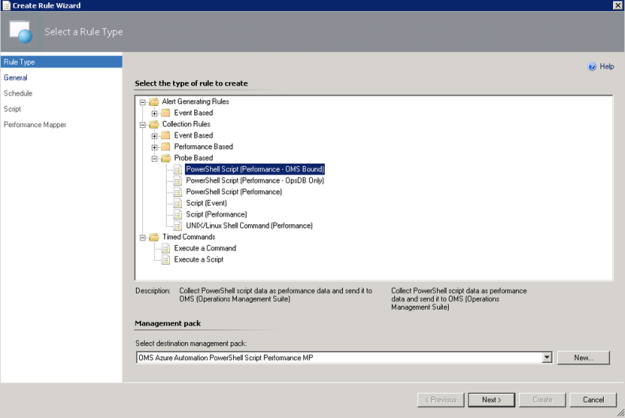
  1. Select the PowerShell Script (Performance – OMS Bound) Rule:I have created a custom destination management pack for this script.
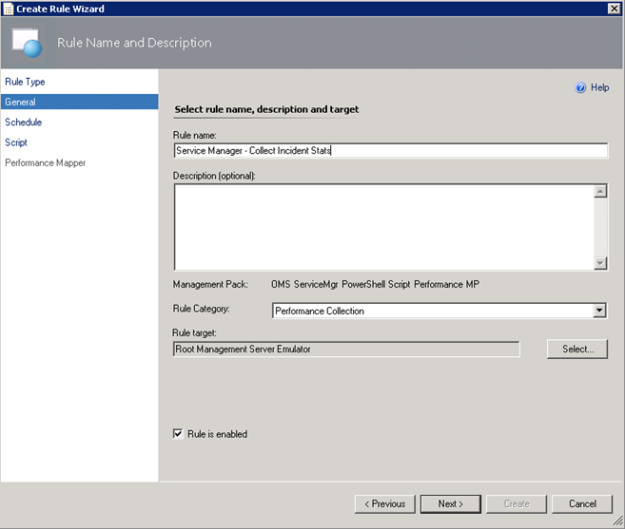
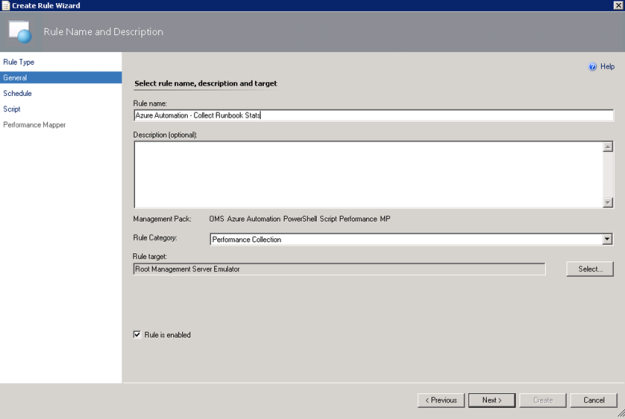
  2. Specifying a Rule name and Rule Category: Performance Collection. As mentioned earlier in this article the Rule target will be the Root Management Server Emulator:
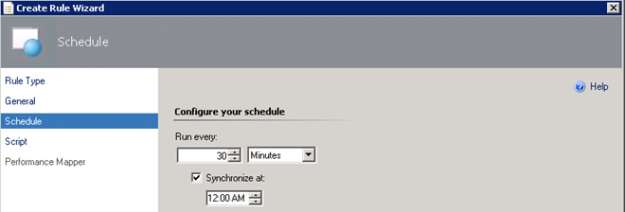
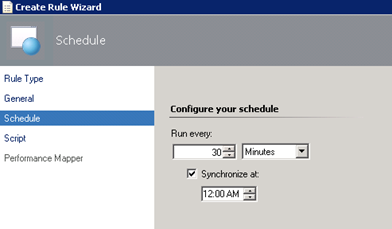
  3. Selecting to run the script every 30 minutes, and at which time the interval will start from:
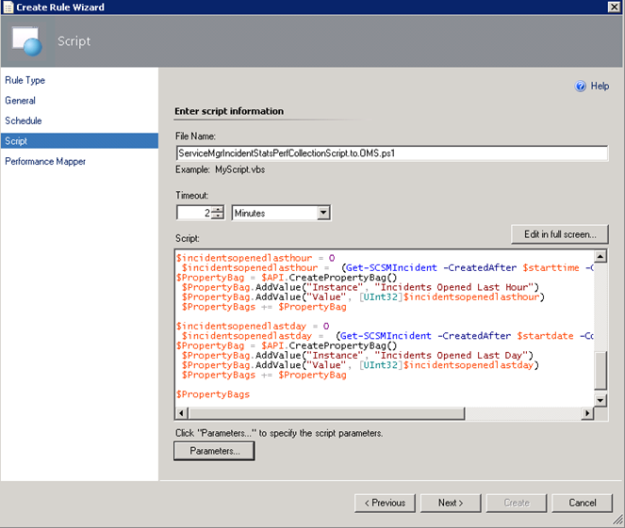
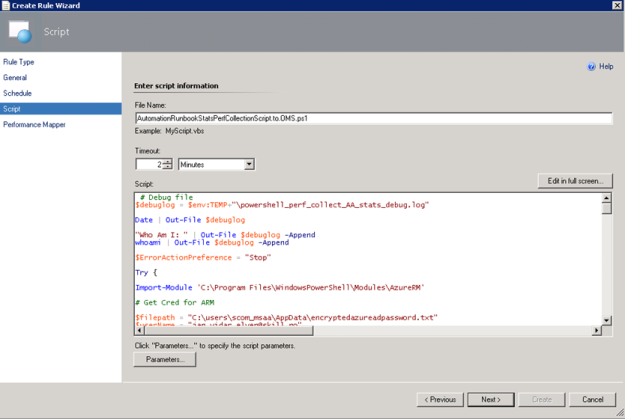
  4. Selecting a name for the script file and timeout, and entering the complete script as shown earlier:
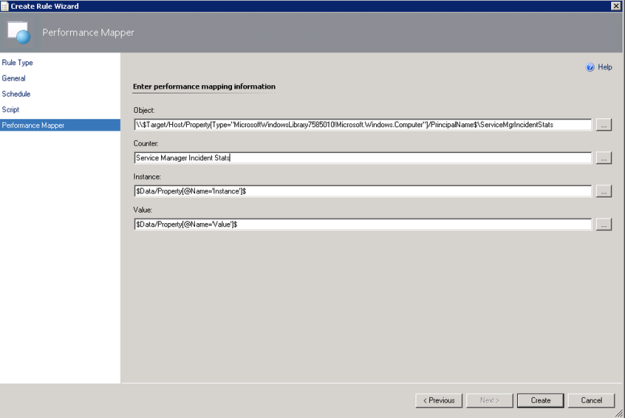
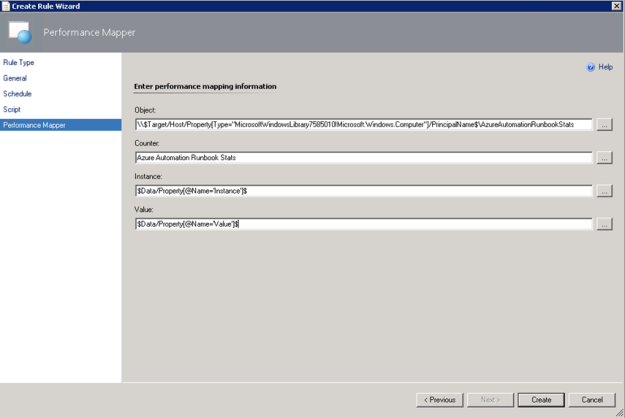
  5. For the Performance Mapping information, the Object name must be in the \\FQDN\YourObjectName format. For FQDN I used the Target variable for PrincipalName, and for the Object Name AzureAutomationRunbookStats, and adding the “\\” at the start and “\” between: \\$Target/Host/Property[Type=”MicrosoftWindowsLibrary7585010!Microsoft.Windows.Computer”]/PrincipalName$\AzureAutomationRunbookStatsI specified the Counter name as “Azure Automation Runbook Stats”, and the Instance and Value are specified as $Data/Property(@Name=’Instance’)$ and $Data/Property(@Name=Value)$. These reflect the PropertyBag instance and value created in the PowerShell script:
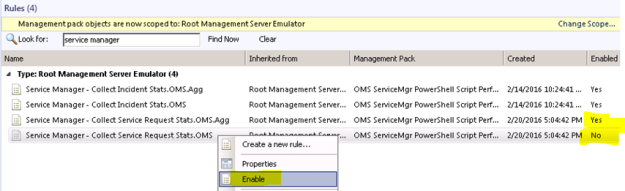
  6. After finishing the Create Rule Wizard, two new rules are created, which you can find by scoping to the Root Management Server Emulator I chose as target. Both Rules must be enabled, as they are not enabled by default:
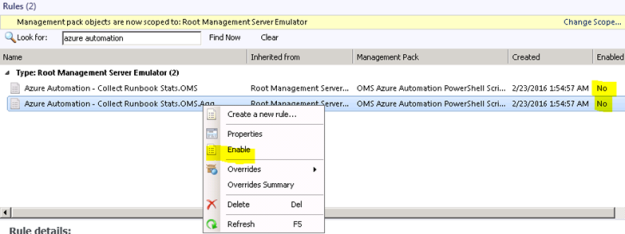
At this point we are finished configuring the SCOM side, and can wait for some hours to see that data are actually coming into my OMS workspace.

Looking at Azure Automation Runbook Stats Performance Data in OMS

After a while I will start seeing Performance Data coming into OMS with the specified Object and Counter Name, and for the different instances and values.
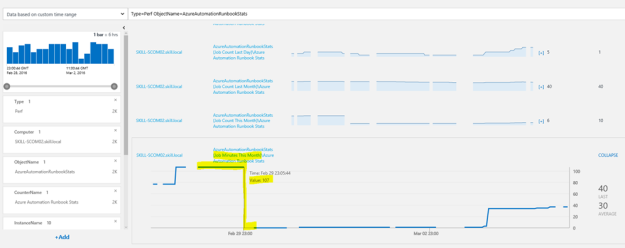
In Log Search, I can specify Type=Perf ObjectName=AzureAutomationRunbookStats, and I will find the Results and Metrics for the specified time frame.

In the example above I’m highlighting the Job Minutes This Month counter, which will steadily increase for each month, and as we can see the highest value was 107 minutes, after when the month changed to March we were back at 0 minutes. After a while when the number of job minutes increases it will be interesting to follow whether this counter will go close to 500 minutes.

This way, I can now look at Azure Automation Runbook stats as performance data, showing different scenarios like how many jobs and runbook job minutes there are over a time period. I can also look at how what type of runbooks I have and what state they are in.

I can also create saved searches and alerts for my search criteria.

Creating OMS Alerts for Azure Automation Runbook Counters

There is one specific scenario for Alerts I’m interested in, and that is when I’m approaching my monthly limit on 500 job minutes.

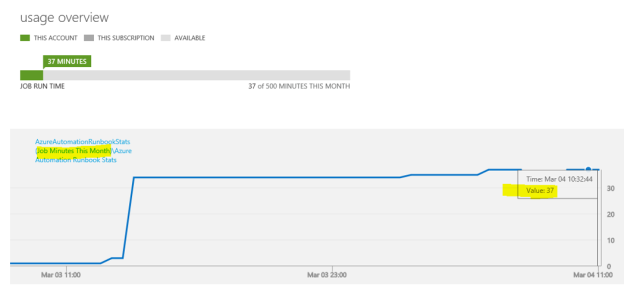
“Job Minutes This Month” is a counter that will get the sum of all job minutes for all runbook jobs across all automation accounts. In the classic Azure portal, you will have a usage overview like this:
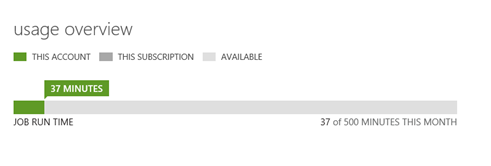
With OMS I would get this information over a time period like this:
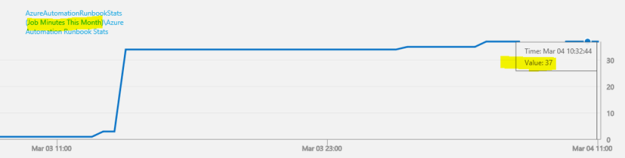
The search query for Job Minutes This Month as I have defined it via the PowerShell Script Rule in OMS is:

Type=Perf ObjectName=AzureAutomationRunbookStats InstanceName=”Job Minutes This Month”

This would give me all results for the defined time period, but to generate an alert I would want to look at the most recent results, for example for the last hour. In addition, I want to filter the results for my alert when the number of job minutes are over the threshold of 450 which means I’m getting close to the limit of 500 free minutes per month. My query for this would be:

Type=Perf ObjectName=AzureAutomationRunbookStats InstanceName=”Job Minutes This Month” AND TimeGenerated>NOW-1HOUR AND CounterValue > 450

Now, in my test environment, this will give med 0 results, because I’m currently at 37 minutes:

Let’s say, for sake of testing an Alert, I add criteria to include 37 minutes as well, like this:
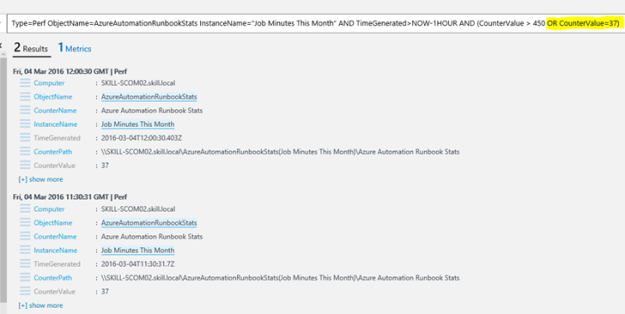
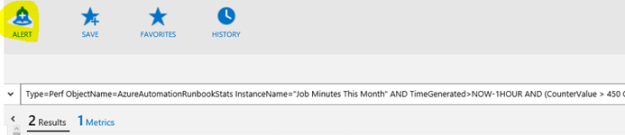
This time I have 2 results. Let’s create an alert for this, press the ALERT button:
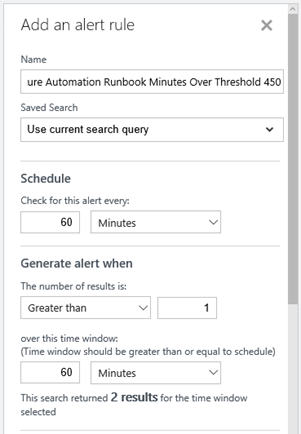
For the alert I give it a name and base it on the search query. I want to check every 60 minutes, and generate alert when the number of results is greater than 1 so that I make sure the passing of the threshold is consistent and not just temporary.
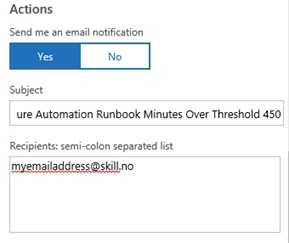
For actions I want an email notification, so I type in a Subject and my recipients.
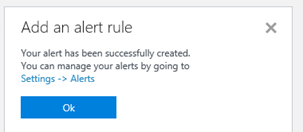
I Save the alert rule, and verify that it was successfully created.
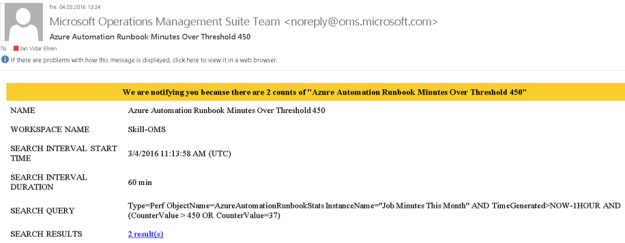
Soon I get my first alert on email:
Now, that it works, I can remove the Alert and create a new one without the OR CounterValue=37, this I leave to you 😉

With that, this blog post is concluded. Thanks for reading, I hope this post on how to get more insights on your Azure Automation Runbook Stats in OMS and getting data via NRT Perfomance Collection has been useful 😉

Displaying Service Manager Service Requests Stats in OMS via Performance Collection and Operations Manager

Following up on my previous blog article on how to collect Service Manager and Incident statistics via Operations Manager to OMS, https://systemcenterpoint.wordpress.com/2016/02/19/collecting-service-manager-incident-stats-in-oms-via-powershell-script-performance-collection-in-operations-manager/, this blog article will show how to get statistics for Service Requests and display that as Performance Data in OMS.

Getting Ready

Please see the link above for the first article on getting SCSM data to OMS, and instructions for configuring your Operations Manager environment and SMLets PowerShell module. I will use that same setup as basis for this article.

Creating the PowerShell Command Script for getting SCSM Service Request data

First I needed to think about what kind of Service Request data I wanted to get from SCSM. I decided to get the following values:

  • Submitted Service Requests
  • In Progress Service Requests
  • Completed Service Requests
  • Failed Service Requests
  • Cancelled Service Requests
  • Closed Service Requests
  • Service Requests Opened Last Day
  • Service Requests Opened Last Hour
  • Service Requests Completed Last Day
  • New Service Requests

Now, first some thoughts on why I chose these data to get for Service Requests (SR). When New Service Requests are created, they are quickly changed to a status of either Submitted (no activities in the template the Service Request was created from) or In Progress (where there are one or more activities). SR’s with no activities are manually set to Completed by the analyst when finished, or Cancelled if the SR will not be delivered. SR’s with activities gets the status Completed when all activities are completed as well, but might also get the status of Failed if any activities fails as well, for example runbook automation activities that might fail. Finally, when SR’s are completed, they will eventually be Closed.

So it makes sense to track all these statuses as performance data. You might ask why look at New status for SR’s, when this is only an intermittent status quickly changing to either Submitted or In Progress? Well, if there is a problem with the Workflow service at the Service Manager Management Server, SR’s can be stuck in New status. This is something I would want to be able to see in OMS, and even create an Alert for.

In addition to tracking the individual status values, I also want to see data on how many SR’s are created the last day, last hour, and also how many SR’s are Completed the last day. These will be nice performance indicators.

These Service Request values will be retrieved by the Get-SCSMObject cmdlet in SMLets, using different criteria. Unlike Get-SCSMIncident which query directly for Incident Records, I have to create the PowerShell command a little bit different, by specifying the Class Object (via Get-SCSMClass) and also filter Status Enumeration Id for Service Requests via Get-SCSMEnumeration. For example to get all SR’s with a status of In Progress, I use the following command:

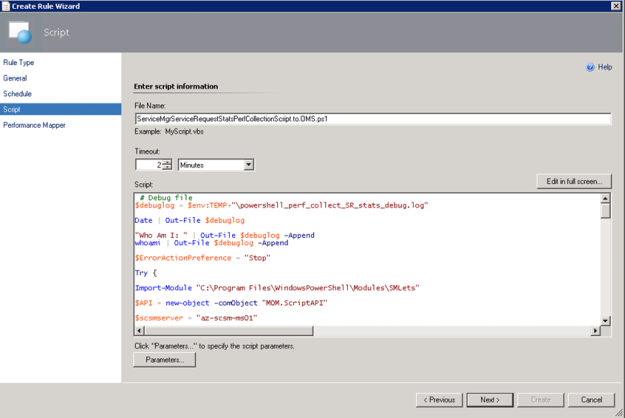
The complete script is shown below for how to get those SR data via SCOM to OMS:

# Debug file
$debuglog = $env:TEMP+\powershell_perf_collect_SR_stats_debug.log

Date | Out-File $debuglog

Who Am I: | Out-File $debuglog -Append
whoami |
Out-File $debuglog -Append

$ErrorActionPreference = Stop

Try {

Import-Module C:\Program Files\WindowsPowerShell\Modules\SMLets

$API = new-object -comObject MOM.ScriptAPI

$scsmserver = az-scsm-ms01

$beforetime = $(Get-Date).AddHours(1)
$beforedate = $(Get-Date).AddDays(1)

$PropertyBags=@()

$inprogressrequests = 0
$inprogressrequests = @(Get-SCSMObject -Computername $scsmserver –Class (Get-SCSMClass -ComputerName $scsmserver -Name System.WorkItem.ServiceRequest$) -Filter (Status -eq ‘ + (Get-SCSMEnumeration -ComputerName $scsmserver ServiceRequestStatusEnum.InProgress$).Id +)).Count
$PropertyBag = $API.CreatePropertyBag()
$PropertyBag.AddValue(Instance, In Progress Service Requests)
$PropertyBag.AddValue(Value, [UInt32]$inprogressrequests)
$PropertyBags += $PropertyBag

In Progress Service Requests: | Out-File $debuglog -Append
$inprogressrequests | Out-File $debuglog -Append

$completedrequests = 0
$completedrequests = @(Get-SCSMObject -Computername $scsmserver –Class (Get-SCSMClass -ComputerName $scsmserver -Name System.WorkItem.ServiceRequest$) -Filter (Status -eq ‘ + (Get-SCSMEnumeration -ComputerName $scsmserver ServiceRequestStatusEnum.Completed$).Id +)).Count
$PropertyBag = $API.CreatePropertyBag()
$PropertyBag.AddValue(Instance, Completed Service Requests)
$PropertyBag.AddValue(Value, [UInt32]$completedrequests)
$PropertyBags += $PropertyBag

Completed Service Requests: | Out-File $debuglog -Append
$completedrequests | Out-File $debuglog -Append

$submittedrequests = 0
$submittedrequests = @(Get-SCSMObject -Computername $scsmserver –Class (Get-SCSMClass -ComputerName $scsmserver -Name System.WorkItem.ServiceRequest$) -Filter (Status -eq ‘ + (Get-SCSMEnumeration -ComputerName $scsmserver ServiceRequestStatusEnum.Submitted$).Id +)).Count
$PropertyBag = $API.CreatePropertyBag()
$PropertyBag.AddValue(Instance, Submitted Service Requests)
$PropertyBag.AddValue(Value, [UInt32]$submittedrequests)
$PropertyBags += $PropertyBag

Submitted Service Requests: | Out-File $debuglog -Append
$submittedrequests | Out-File $debuglog -Append

$cancelledrequests = 0
$cancelledrequests = @(Get-SCSMObject -Computername $scsmserver –Class (Get-SCSMClass -ComputerName $scsmserver -Name System.WorkItem.ServiceRequest$) -Filter (Status -eq ‘ + (Get-SCSMEnumeration -ComputerName $scsmserver ServiceRequestStatusEnum.Canceled$).Id +)).Count
$PropertyBag = $API.CreatePropertyBag()
$PropertyBag.AddValue(Instance, Cancelled Service Requests)
$PropertyBag.AddValue(Value, [UInt32]$cancelledrequests)
$PropertyBags += $PropertyBag

Cancelled Service Requests: | Out-File $debuglog -Append
$cancelledrequests | Out-File $debuglog -Append

$failedrequests = 0
$failedrequests = @(Get-SCSMObject -Computername $scsmserver –Class (Get-SCSMClass -ComputerName $scsmserver -Name System.WorkItem.ServiceRequest$) -Filter (Status -eq ‘ + (Get-SCSMEnumeration -ComputerName $scsmserver ServiceRequestStatusEnum.Failed$).Id +)).Count
$PropertyBag = $API.CreatePropertyBag()
$PropertyBag.AddValue(Instance, Failed Service Requests)
$PropertyBag.AddValue(Value, [UInt32]$failedrequests)
$PropertyBags += $PropertyBag

Failed Service Requests: | Out-File $debuglog -Append
$failedrequests | Out-File $debuglog -Append

$closedrequests = 0
$closedrequests = @(Get-SCSMObject -Computername $scsmserver –Class (Get-SCSMClass -ComputerName $scsmserver -Name System.WorkItem.ServiceRequest$) -Filter (Status -eq ‘ + (Get-SCSMEnumeration -ComputerName $scsmserver ServiceRequestStatusEnum.Closed$).Id +)).Count
$PropertyBag = $API.CreatePropertyBag()
$PropertyBag.AddValue(Instance, Closed Service Requests)
$PropertyBag.AddValue(Value, [UInt32]$closedrequests)
$PropertyBags += $PropertyBag

Closed Service Requests: | Out-File $debuglog -Append
$closedrequests | Out-File $debuglog -Append

$newrequests = 0
$newrequests = @(Get-SCSMObject -Computername $scsmserver –Class (Get-SCSMClass -ComputerName $scsmserver -Name System.WorkItem.ServiceRequest$) -Filter (Status -eq ‘ + (Get-SCSMEnumeration -ComputerName $scsmserver ServiceRequestStatusEnum.New$).Id +)).Count
$PropertyBag = $API.CreatePropertyBag()
$PropertyBag.AddValue(Instance, New Service Requests)
$PropertyBag.AddValue(Value, [UInt32]$newrequests)
$PropertyBags += $PropertyBag

New Service Requests: | Out-File $debuglog -Append
$newrequests | Out-File $debuglog -Append

$requestsopenedlasthour = 0
$requestsopenedlasthour = @(Get-SCSMObject -Computername $scsmserver –Class (Get-SCSMClass -ComputerName $scsmserver -Name System.WorkItem.ServiceRequest$) -Filter (CreatedDate -gt ‘ + $beforetime +)).Count
$PropertyBag = $API.CreatePropertyBag()
$PropertyBag.AddValue(Instance, Service Requests Opened Last Hour)
$PropertyBag.AddValue(Value, [UInt32]$requestsopenedlasthour)
$PropertyBags += $PropertyBag

Service Requests Opened Last Hour: | Out-File $debuglog -Append
$requestsopenedlasthour | Out-File $debuglog -Append

$requestsopenedlastday = 0
$requestsopenedlastday = @(Get-SCSMObject -Computername $scsmserver –Class (Get-SCSMClass -ComputerName $scsmserver -Name System.WorkItem.ServiceRequest$) -Filter (CreatedDate -gt ‘ + $beforedate +)).Count
$PropertyBag = $API.CreatePropertyBag()
$PropertyBag.AddValue(Instance, Service Requests Opened Last Day)
$PropertyBag.AddValue(Value, [UInt32]$requestsopenedlastday)
$PropertyBags += $PropertyBag

Service Requests Opened Last Day: | Out-File $debuglog -Append
$requestsopenedlastday | Out-File $debuglog -Append

$requestscompletedlastday = 0
$requestscompletedlastday = @(Get-SCSMObject -Computername $scsmserver –Class (Get-SCSMClass -ComputerName $scsmserver -Name System.WorkItem.ServiceRequest$) -Filter (CompletedDate -gt ‘ + $beforedate +)).Count
$PropertyBag = $API.CreatePropertyBag()
$PropertyBag.AddValue(Instance, Service Requests Completed Last Day)
$PropertyBag.AddValue(Value, [UInt32]$requestscompletedlastday)
$PropertyBags += $PropertyBag

Service Requests Completed Last Day: | Out-File $debuglog -Append
$requestscompletedlastday | Out-File $debuglog -Append

$PropertyBags

} Catch {

Error Catched: | Out-File $debuglog -Append
$(
$_.Exception.GetType().FullName) | Out-File $debuglog -Append
$(
$_.Exception.Message) | Out-File $debuglog -Append

}


PS! I have included debugging and logging in the script, be aware though that doing $ErrorActionPreference=Stop will end the script if any errors, for example with logging, so it might be an idea to remove the debug logging when confirmed that everything works.

In the next part I’m ready to create the PowerShell Script Rule.

Creating the PowerShell Script Rule

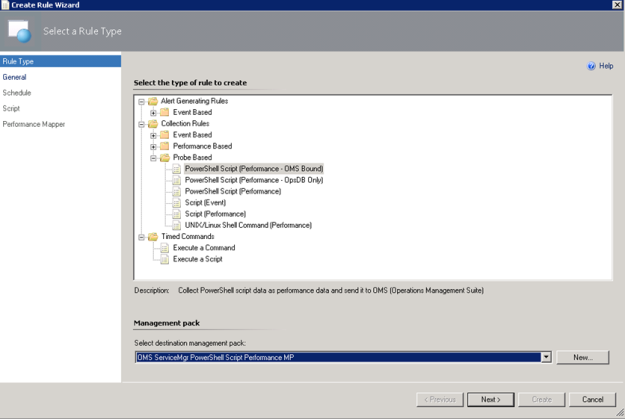
In the Operations Console, under Authoring, create a new PowerShell Script Rule as shown below:

    1. Select the PowerShell Script (Performance – OMS Bound) Rule:I have created a custom destination management pack for this script.
    2. Specifying a Rule name and Rule Category: Performance Collection. As mentioned earlier in this article the Rule target will be the Root Management Server Emulator:
    3. Selecting to run the script every 30 minutes, and at which time the interval will start from:
    4. Selecting a name for the script file and timeout, and entering the complete script as shown earlier:
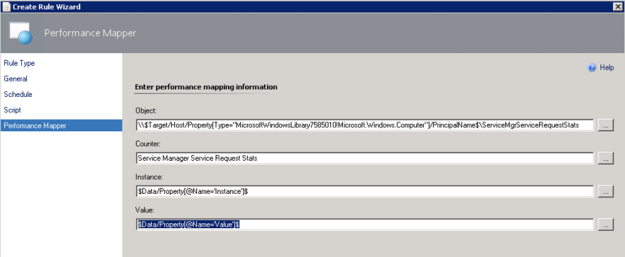
    5. For the Performance Mapping information, the Object name must be in the \\FQDN\YourObjectName format. For FQDN I used the Target variable for PrincipalName, and for the Object Name ServiceManagerServiceRequestStats, and adding the “\\” at the start and “\” between: \\$Target/Host/Property[Type=”MicrosoftWindowsLibrary7585010!Microsoft.Windows.Computer”]/PrincipalName$\ServiceMgrServiceRequestStatsI specified the Counter name as “Service Manager Service Request Stats”, and the Instance and Value are specified as $Data/Property(@Name=’Instance’)$ and $Data/Property(@Name=Value)$. These reflect the PropertyBag instance and value created in the PowerShell script:
    6. After finishing the Create Rule Wizard, two new rules are created, which you can find by scoping to the Root Management Server Emulator I chose as target. Both Rules must be enabled, as they are not enabled by default:


At this point we are finished configuring the SCOM side, and can wait for some hours to see that data are actually coming into my OMS workspace.

Looking at Service Manager Service Request Performance Data in OMS

After a while I will start seeing Performance Data coming into OMS with the specified Object and Counter Name, and for the different instances and values.

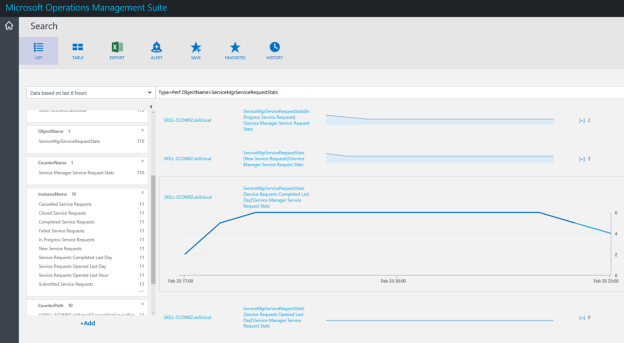
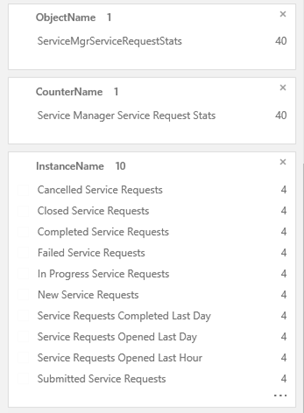
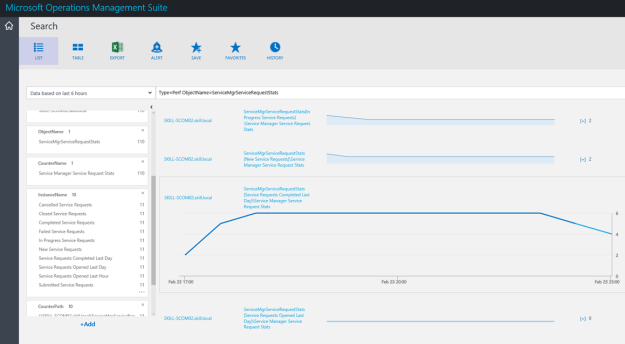
In Log Search, I can specify Type=Perf ObjectName=ServiceMgrServiceRequestStats, and I will find the Results and Metrics for the specified time frame.

I can now look at Service Manager stats as performance data, showing different scenarios like how many active, pending, resolved and closed incidents there are over a time period. I can also look at how many incidents are created by each hour or by each day.

I can also create saved searches and alerts for my search criteria.

Creating OMS Alerts for Service Request Counters

A couple of scenarios are interesting for Alerts when some of the Service Request counters pass a threshold.

Failed Service Requests is a status that will be set when an Activity in the SR fails, for example a Runbook Automation Activity. Normally you would expect that analysts would follow up on requests that fails directly in Service Manager, but it could make sense to generate an alert if the number of failed requests increases over a predefined threshold.

The search query for Failed Service Requests in OMS is:

Type=Perf ObjectName=ServiceMgrServiceRequestStats InstanceName=”Failed Service Requests”

This would give me all results for the defined time period, but to generate an alert I would want to look at the most recent results, for example for the last hour. In addition, I want to filter the results for my alert when the number of failed requests are over the threshold of 10. My query for this would be:

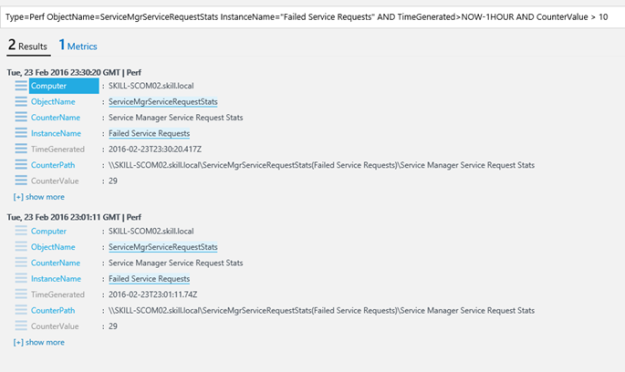
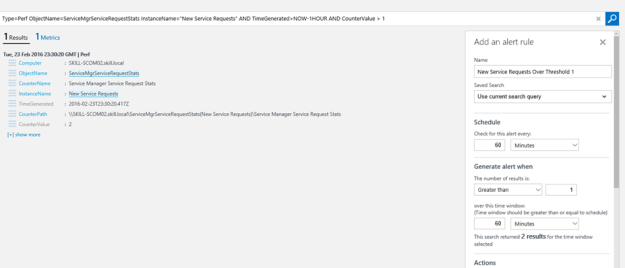
Type=Perf ObjectName=ServiceMgrServiceRequestStats InstanceName=”Failed Service Requests” AND TimeGenerated>NOW-1HOUR AND CounterValue > 10

In my test environment, this gives me the following result, showing that I have a total of 29 failed requests:

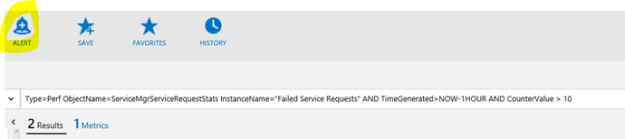
Ok, 29 failed requests are a lot, but as this is a test environment and a lot of these are old requests, I would need to do some cleaning up. I want to create an alert for this, so I press the Alert button:

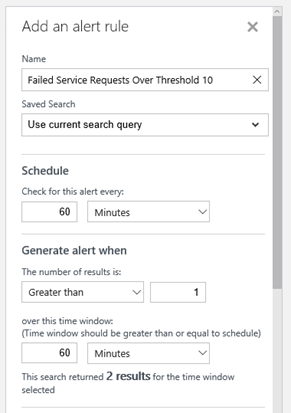
For the alert I give it a name and base it on the search query. I want to check every 60 minutes, and generate alert when the number of results is greater than 1 so that I make sure the passing of the threshold is consistent and not just temporary.

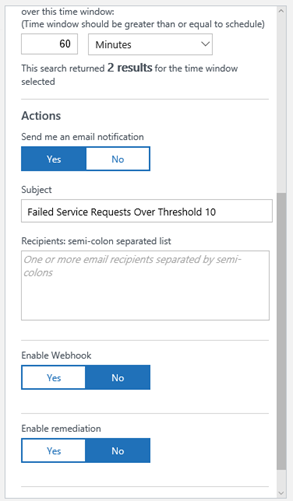
For actions I want an email notification, so I type in a Subject and my recipients.

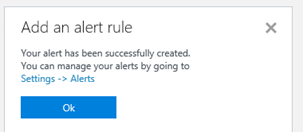
I Save the alert rule, and verify that it was successfully created.

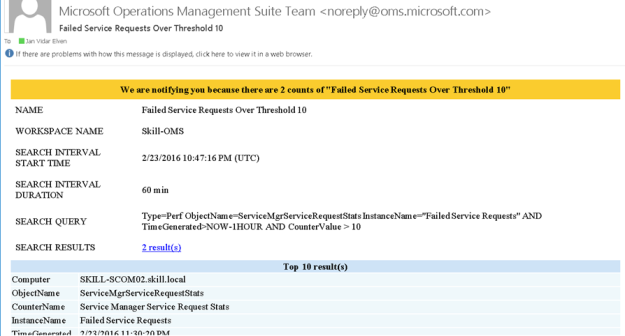
Soon I get my first alert on email:

There is also a second scenario for an alert, and that is when Service Requests get stuck in a New status. Normally this would be when Service Manager workflows are not running, so it will be important to get notified on that.

The following search query, using countervalue > 1 will provide the results for my alert as I want to get notified as soon there is more than one value in the results:

Type=Perf ObjectName=ServiceMgrServiceRequestStats InstanceName=”New Service Requests” AND TimeGenerated>NOW-1HOUR AND CounterValue > 1

And I can create my alert as the following image:

With that, this blog post is concluded. Thanks for reading, I hope the posts on OMS and getting SCSM data via NRT Perfomance Collection has been useful 😉
Collecting Service Manager Incident Stats in OMS via PowerShell Script Performance Collection in Operations Manager

I have been thinking about bringing in some key Service Manager statistics to Microsoft Operations Management Suite. The best way to do that now is to use the NRT Performance Data Collection in OMS and PowerShell Script rule in my Operations Manager Management Group that I have connected to OMS. The key solution to make this happen are the “Sample Management Pack – Wizard to Create PowerShell script Collection Rules” described in this blog article http://blogs.msdn.com/b/wei_out_there_with_system_center/archive/2015/09/29/oms-collecting-nrt-performance-data-from-an-opsmgr-powershell-script-collection-rule-created-from-a-wizard.aspx.

With this solution I can practically get any data I want into OMS via SCOM and PowerShell Script, so I will start my solution for bringing in Service Manager Stats by defining some PowerShell commands to get the values I want. For that I will use the SMLets PowerShell Module for Service Manager.

For this blog article, I will focus on Incident Stats from SCSM. In a later article I will get in some more SCSM data to OMS.

Getting Ready

I have to do some preparations first. This includes:

  1. Importing the “Sample Management Pack – Wizard to Create PowerShell script Collection Rules”
    1. This can be downloaded from Technet Gallery at https://gallery.technet.microsoft.com/Sample-Management-Pack-e48040f7
  2. Install the SMLets for SCSM PowerShell Module (at the chosen Target server for the PowerShell Script Rule).
    1. I chose to install it from the PowerShell Gallery at https://www.powershellgallery.com/packages/SMLets
    2. If you are running Windows Server 2012 R2, which I am, follow the instructions here to support the PowerShellGet module, https://www.powershellgallery.com/GettingStarted?section=Get%20Started.
  3. Choose Target for where to run the SCSM commands from
    1. Regarding the SMLets and where to install, I decided to use the SCOM Root Management Server Emulator. This server will then run the SCSM commands against the Service Manager Management Server.
  4. Choose account for Run As Profile
    1. I also needed to think about the run as account the SCSM commands will run under. As we will see later the PowerShell Script Rules will be set up with a Default Run As Profile.
    2. The Default Run As Profile for the RMS Emulator will be the Management Server Action Account, if I had chosen another Rule Target the Default Run As Profile would be the Local System Account.
    3. Alternatively, I could have created a custom Run As Profile with a SCSM user account that have permissions to read the required data from SCSM, and configured the PowerShell Script rules to use that.
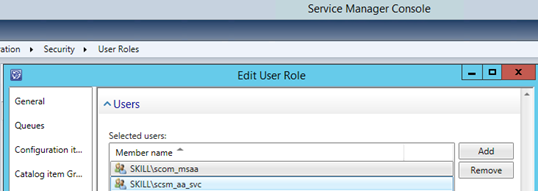
    4. I decided to go with the Management Server Action Account, and make sure that this account is mapped to a Role in SCSM with access to the work items I want to query against, any Operator Role will do but you could chose to scope and restrict more if needed:

At this point I’m ready for the next step, which is to create some PowerShell commands for the Script Rule in SCOM.

Creating the PowerShell Command Script for getting SCSM data

First I needed to think about what kind of Incident data I wanted to get from SCSM. I decided to get the following values:

  • Active Incidents
  • Pending Incidents
  • Resolved Incidents
  • Closed Incidents
  • Incidents Opened Last Day
  • Incidents Opened Last Hour

These values will be retrieved by the Get-SCSMIncident cmdlet in SMLets, using different criteria. The complete script is shown below:

# Debug file
$debuglog = $env:TEMP+\powershell_perf_collect_debug.log

Date | Out-File $debuglog

Who Am I: | Out-File $debuglog -Append
whoami |
Out-File $debuglog -Append

$ErrorActionPreference = Stop

Try {

Import-Module C:\Program Files\WindowsPowerShell\Modules\SMLets

$API = new-object -comObject MOM.ScriptAPI

$scsmserver = MY-SCSM-MANAGEMENTSERVER-HERE

$beforetime = $(Get-Date).AddHours(1)
$beforedate = $(Get-Date).AddDays(1)

$PropertyBags=@()

$activeincidents = 0
$activeincidents = @(Get-SCSMIncident -ComputerName $scsmserver -Status Active).Count
$PropertyBag = $API.CreatePropertyBag()
$PropertyBag.AddValue(Instance, Active Incidents)
$PropertyBag.AddValue(Value, [UInt32]$activeincidents)
$PropertyBags += $PropertyBag

Active Incidents: | Out-File $debuglog -Append
$activeincidents | Out-File $debuglog -Append

$pendingincidents = 0
$pendingincidents = @(Get-SCSMIncident -ComputerName $scsmserver -Status Pending).Count
$PropertyBag = $API.CreatePropertyBag()
$PropertyBag.AddValue(Instance, Pending Incidents)
$PropertyBag.AddValue(Value, [UInt32]$pendingincidents)
$PropertyBags += $PropertyBag

Pending Incidents: | Out-File $debuglog -Append
$pendingincidents | Out-File $debuglog -Append

$resolvedincidents = 0
$resolvedincidents = @(Get-SCSMIncident -ComputerName $scsmserver -Status Resolved).Count
$PropertyBag = $API.CreatePropertyBag()
$PropertyBag.AddValue(Instance, Resolved Incidents)
$PropertyBag.AddValue(Value, [UInt32]$resolvedincidents)
$PropertyBags += $PropertyBag

Resolved Incidents: | Out-File $debuglog -Append
$resolvedincidents | Out-File $debuglog -Append

$closedincidents = 0
$closedincidents = @(Get-SCSMIncident -ComputerName $scsmserver -Status Closed).Count
$PropertyBag = $API.CreatePropertyBag()
$PropertyBag.AddValue(Instance, Closed Incidents)
$PropertyBag.AddValue(Value, [UInt32]$closedincidents)
$PropertyBags += $PropertyBag

Closed Incidents: | Out-File $debuglog -Append
$closedincidents | Out-File $debuglog -Append

$incidentsopenedlasthour = 0
$incidentsopenedlasthour = @(Get-SCSMIncident -CreatedAfter $beforetime -ComputerName $scsmserver).Count
$PropertyBag = $API.CreatePropertyBag()
$PropertyBag.AddValue(Instance, Incidents Opened Last Hour)
$PropertyBag.AddValue(Value, [UInt32]$incidentsopenedlasthour)
$PropertyBags += $PropertyBag

Incidents Opened Last Hour: | Out-File $debuglog -Append
$incidentsopenedlasthour | Out-File $debuglog -Append

$incidentsopenedlastday = 0
$incidentsopenedlastday = @(Get-SCSMIncident -CreatedAfter $beforedate -ComputerName $scsmserver).Count
$PropertyBag = $API.CreatePropertyBag()
$PropertyBag.AddValue(Instance, Incidents Opened Last Day)
$PropertyBag.AddValue(Value, [UInt32]$incidentsopenedlastday)
$PropertyBags += $PropertyBag

Incidents Opened Last Day: | Out-File $debuglog -Append
$incidentsopenedlastday | Out-File $debuglog -Append

$PropertyBags

} Catch {

Error Catched: | Out-File $debuglog -Append
$(
$_.Exception.GetType().FullName) | Out-File $debuglog -Append
$(
$_.Exception.Message) | Out-File $debuglog -Append

}

Some comments about the script. I usually like to include some debug logging in the script when I develop the solution. This way I can keep track of what happens underway in the script or get some exceptions if the script command fails. Be aware though that doing $ErrorActionPreference=Stop will end the script if any errors, so it might be an idea to remove the debug logging when confirmed that everything works.

In the next part I’m ready to create the PowerShell Script Rule.

Creating the PowerShell Script Rule

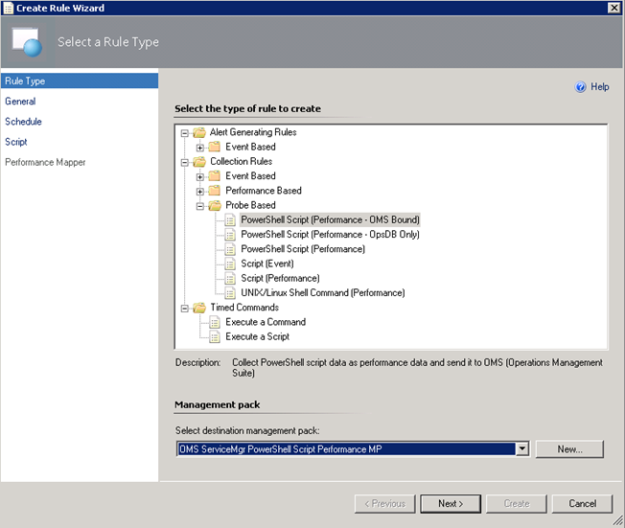
In the Operations Console, under Authoring, create a new PowerShell Script Rule as shown below:

  1. Select the PowerShell Script (Performance – OMS Bound) Rule:I have created a custom destination management pack for this script.
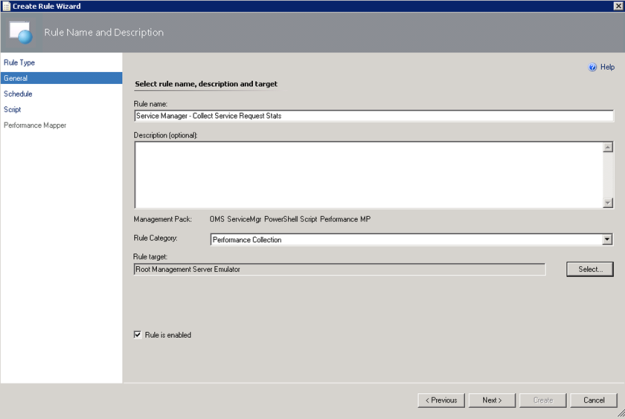
  2. Specifying a Rule name and Rule Category: Performance Collection. As mentioned earlier in this article the Rule target will be the Root Management Server Emulator:
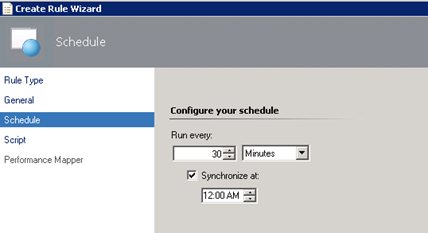
  3. Selecting to run the script every 30 minutes, and at which time the interval will start from:
  4. Selecting a name for the script file and timeout, and entering the complete script as shown earlier:
  5. For the Performance Mapping information, the Object name must be in the \\FQDN\YourObjectName format. For FQDN I used the Target variable for PrincipalName, and for the Object Name ServiceManagerIncidentStats, and adding the “\\” at the start and “\” between: \\$Target/Host/Property[Type=”MicrosoftWindowsLibrary7585010!Microsoft.Windows.Computer”]/PrincipalName$\ServiceMgrIncidentStats I specified the Counter name as “Service Manager Incident Stats”, and the Instance and Value are specified as $Data/Property(@Name=’Instance’)$ and $Data/Property(@Name=Value)$. These reflect the PropertyBag instance and value created in the PowerShell script:

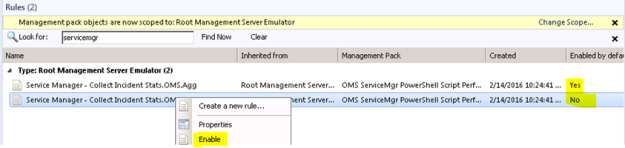
  6. After finishing the Create Rule Wizard, two new rules are created, which you can find by scoping to the Root Management Server Emulator I chose as target. Both Rules must be enabled, as they are not enabled by default:
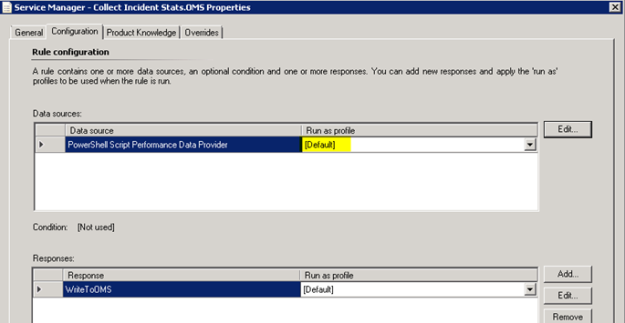
  7. Looking into the Properties of the rules, we can make edits to the PowerShell script, and verify that the Run as profile is the Default. This is where I would change the profile if I wanted to create my own custom profile and run as account for it.
At this point we are finished configuring the SCOM side, and can wait for some hours to see that data are actually coming into my OMS workspace.

Looking at Service Manager Performance Data in OMS

After a while I will start seeing Performance Data coming into OMS with the specified Object and Counter Name, and for the different instances and values.

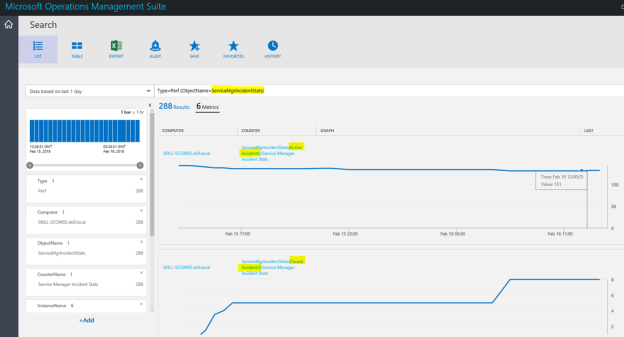
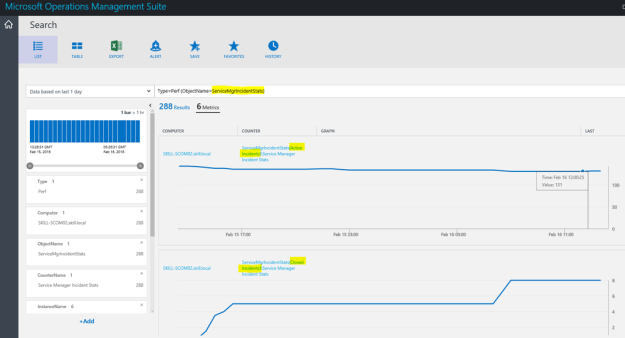
In Log Search, I can specify Type=Perf ObjectName=ServiceMgrIncidentStats, and I will find the Results and Metrics for the specified time frame.

I can now look at Service Manager stats as performance data, showing different scenarios like how many active, pending, resolved and closed incidents there are over a time period. I can also look at how many incidents are created by each hour or by each day.

Finally, I can also create saved searches and alerts that creates for example alerts when the number of incidents for any counters are over a set value.

Thanks for reading, and look for more blog posts on OMS and getting SCSM data via NRT Perfomance Collection in the future 😉

Session Recap – Nordic Infrastructure Conference (NIC) 2016 – Publishing Azure AD Applications

This week I had the pleasure of not only revisiting Nordic Infrastructure Conference (www.nicconf.com), but also presenting a session myself: Deep Dive – Publishing Applications with Azure AD. My session was about how you with Azure AD can publish applications from a SaaS Gallery, your organization’s own applications, or internal applications that will be accessible outside with Azure AD Application Proxy.

This was the 5th anniversary of NIC, held in Oslo, Norway and the venue of Oslo Spektrum. NIC has been established as a premium event for IT-professionals, attracting internationally renowned speakers and MVPs, SMEs and Partners.

In this blog post I will do a recap of my session, for both attendees that was there and others that couldn’t be. I will also expand on some of the things we went through in the session as there were some limits to the time we could use on several demos.

Proud Speaker

The presentation and session recording will later be available at the www.nicconf.com webpage. At the end of this blog post, there is also a link to where you can download the presentation and other code samples and files that where used in the session.

Session Menu

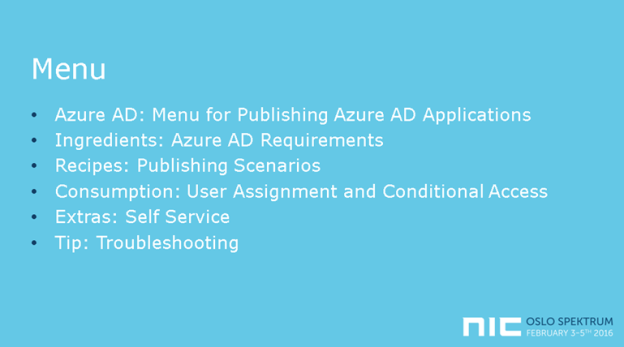
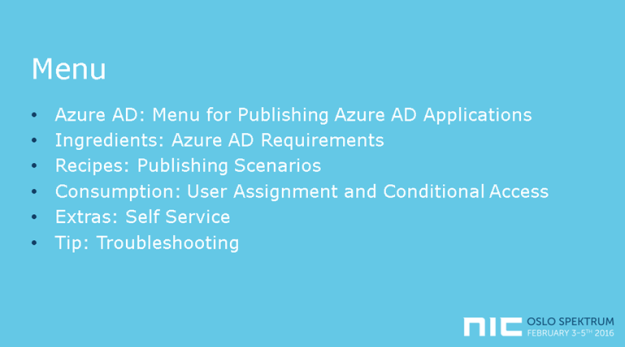
The theme for the presentation was to present a menu for publishing Azure AD Applications with Azure AD. The menu would consist of required ingredients, recipes for publishing scenarios, consumption of the published applications from the users’ perspective, and some extras and tip for self-servicing and troubleshooting.

I started with pointing to the key features of Azure AD as an Identity and Access Management Solution, for both Cloud and On-Premise Solutions, an enabler for true Enterprise Mobility and Business Everywhere, with one common, hybrid identity. There are some important Business Value for Organizations such as controlling access to applications, single sign-on, conditional access, hybrid identity and self-servicing.

Ingredients

It is no surprise that you need Azure AD as a key ingredient 😉 But what edition of Azure AD should you use? Free, Basic or Premium? In the session I covered the most important differences relevant for Publishing Applications, where you would need at least Basic to be able to publish internal applications with Azure AD App Proxy, and Premium Edition if you want to cover all the self-servicing scenarios and advanced reporting. For all details, refer to https://azure.microsoft.com/en-us/documentation/articles/active-directory-editions/.

In addition to the application you want to publish, you will need an Azure AD identity, either a cloud based identity or a hybrid identity synchronized with Azure AD Connect.

In the first demo of the session we looked into configuring and verifying that your Azure AD tenant is ready for publishing applications.

Recipes

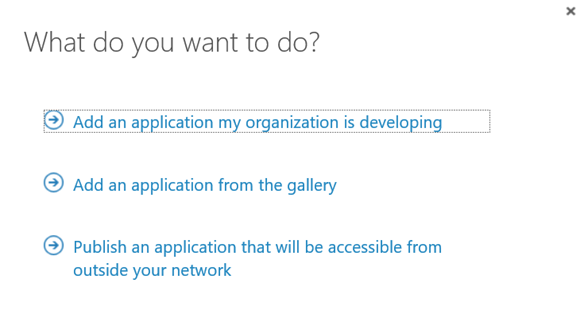
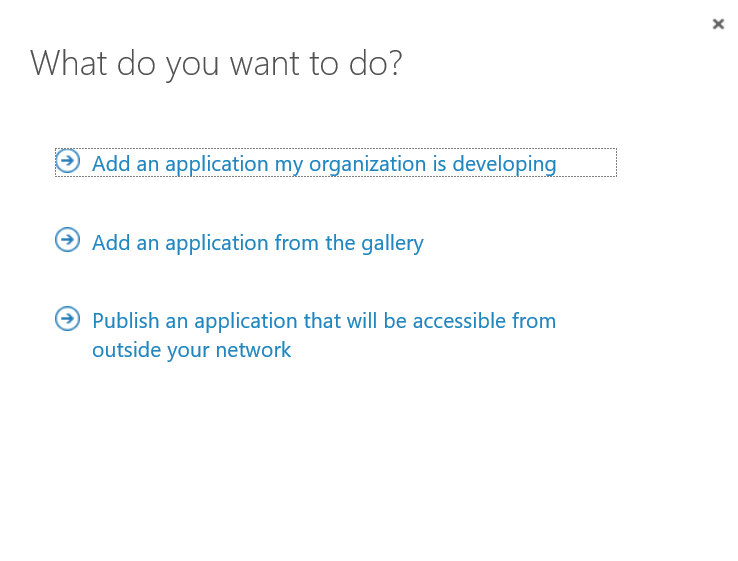
The publishing scenarios we looked at in the session was from the following menu of three alternatives in Azure AD:

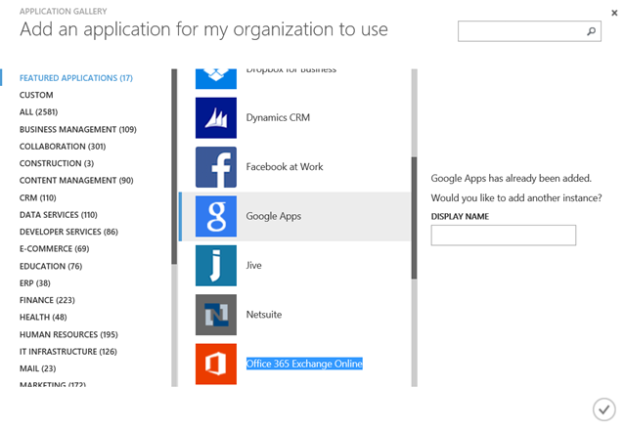
Add an application from the gallery

The first publishing scenario we looked at in the session was publishing applications from the SaaS gallery of applications. The gallery contains over 2500 different SaaS applications, many offering both true Single Sign-On (SSO) with Azure AD and provisioning/de-provisioning of users and groups. Other applications provide password-based same sign-on.

The demos in the session used two different SaaS apps as example; Twitter and Google Apps.

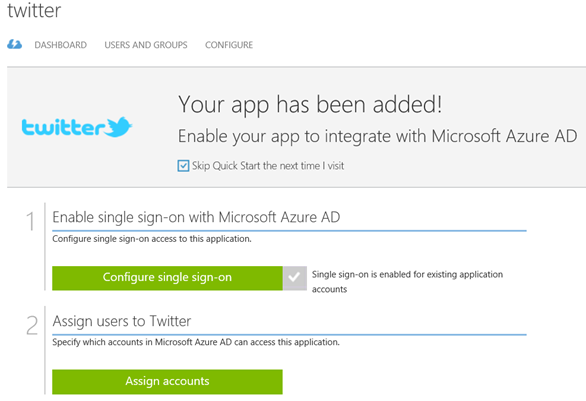
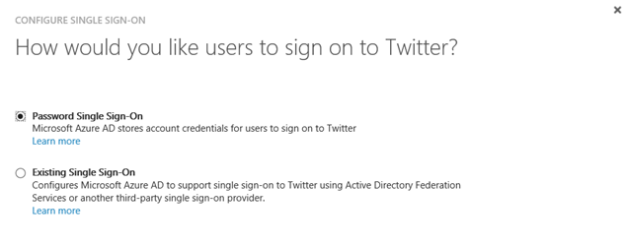
Twitter is a good example of a SaaS application using password same sign on.

When configuring single sign-on for Twitter, we don’t have the option of using Azure AD Single Sign-On. Some applications can maybe support one of the federation protocols implemented in a local ADFS or a third-party provider, but that is dependent on the application. So for Twitter we will typically use Password Single Sign-On.

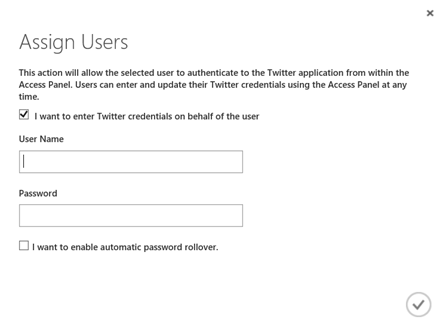
After configuring Password Single Sign-On, the next step is to assign account to the application. When assigning accounts, you can select that the users enter passwords themselves in the Access Panel. Or you can enter the credentials on behalf of the user.

This opens up a very interesting scenario: Consider you have a company based social media account on Twitter, Facebook, Instagram or other. All the users in the marketing department should have access to that/those application/applications, so you start handing out the username and password to the shared account. This is a risk, as users can lose the password and it can get on wrong hands, or maybe previous employees that are no longer in the company still have the username and password to the application.

With Azure AD, by entering the Twitter credentials on behalf of the user, they are never given the logon details directly. And when they leave the organization after removing the user from Azure AD, they will no longer have access. You can even apply conditional access policies for the application.

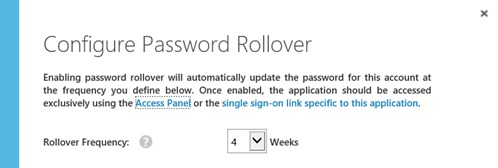
You can even configure automatic password rollover to update the password at a defined frequency:

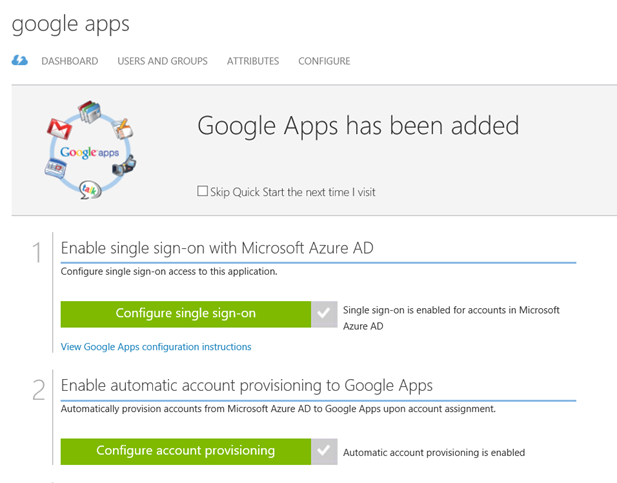
The other part of the demo focused on Google Apps. I had an existing subscription for Google Apps, which I configured to use Azure AD Single Sign-On and account provisioning for.

There is a complete tutorial for configuring SSO and provisioning for Google Apps at https://azure.microsoft.com/en-us/documentation/articles/active-directory-saas-google-apps-tutorial/.

In the demo I created a test user named [email protected], and assigned that user to the Google Apps application.

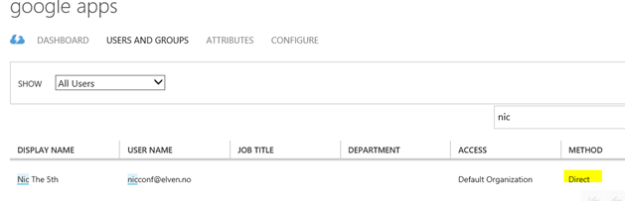
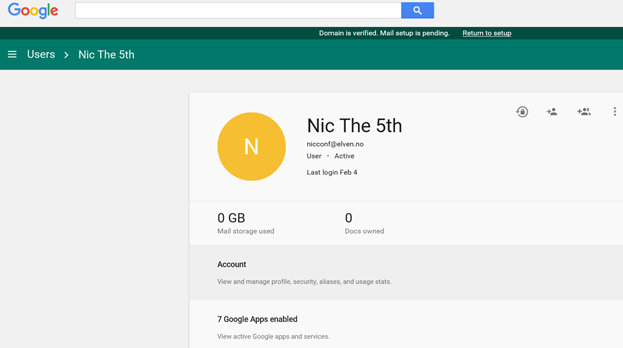
I showed that the user didn’t exist in the Google Apps user directory for my organization, and after a while (new user accounts are provisioned ca every 10 minutes), the user appeared in the Google Apps directory via Azure AD.

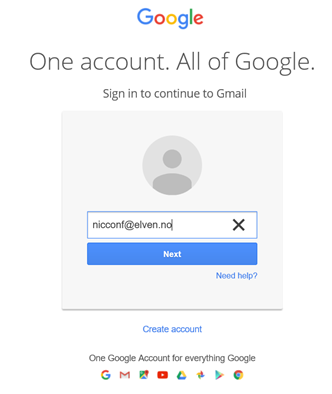
The new user can now use Azure AD SSO when logging into Google:

I’m redirected to my Azure AD tenant for signin in:

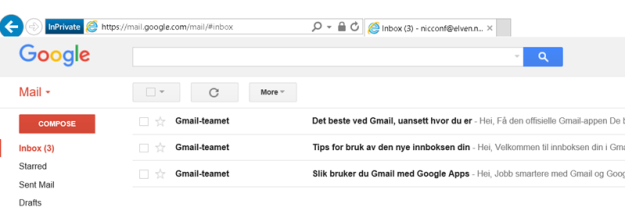
And then the user is logged in to Google:

Add an application my organization is developing

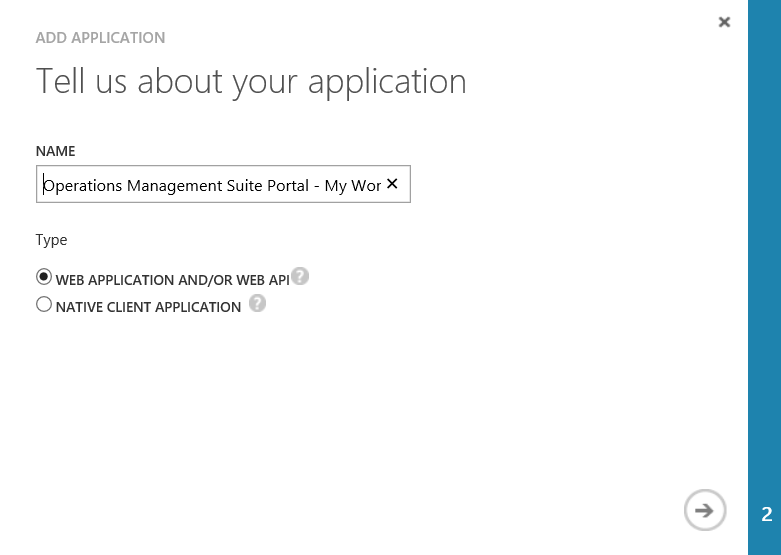
The next part of the publishing scenarios was adding applications that my organization is developing. Most times these applications will be Web Applications or Web API, but it’s possible to publish native client applications also.

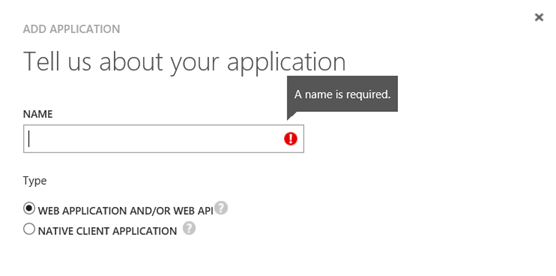
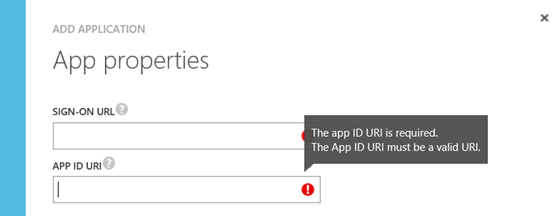
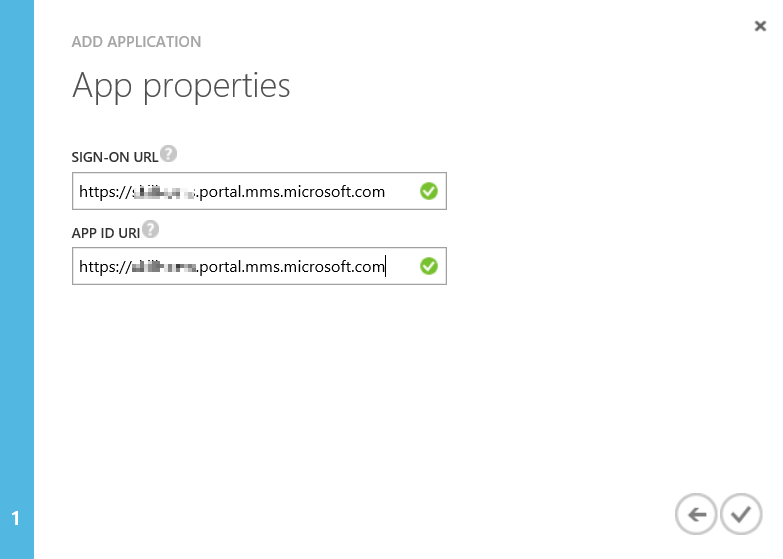
When creating a web application you give it a name, and a sign-on url and unique app id uri:

Keep in mind that creating a web application here only does the publishing part of it, you still would need to create the actual application somewhere, for example as an App Service in an Azure Subcstiption.

You can have the web applications do their own authentication, for example integrating with on-premise Active Directory Federation Services, or you can have the application use Azure Active Directory as SSO provider.

In the session demo we looked at how we could quickly create a Web Application, integrate it with Azure AD for authentication and publish it. These are the main steps:

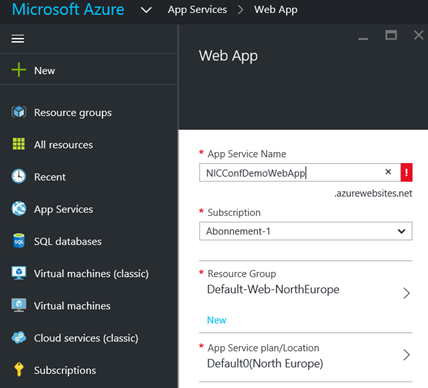
  1. Create a new Web App in you Azure Subscription. In the new Azure Portal for your subscription, under App Services create a new Web App. The Service Name must be unique, and you select either an existing resource group or create a new, and specify an App Service plan.
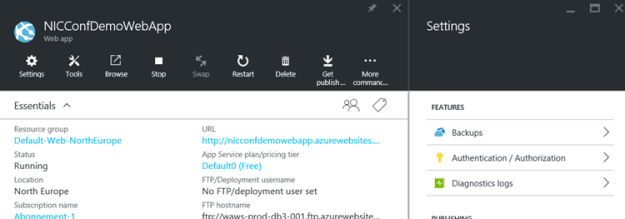
  2. After the Web App is created, open the application properties and under Settings find Features and Authentication / Authorization:
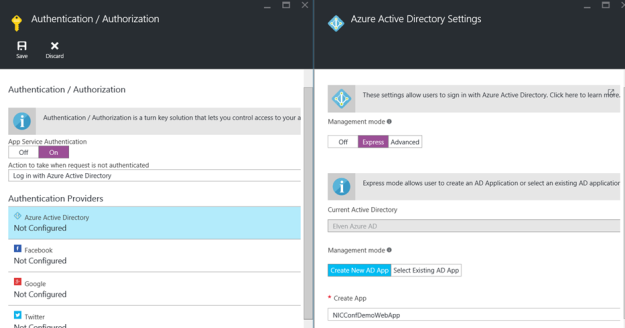
  3. Enable App Service Authentication and log in action. Enable Azure Active Directory as authentication provider and configure Express settings. PS! Here we can create and publish a new AD App (or select an existing one) also. We created a new one for our demo:
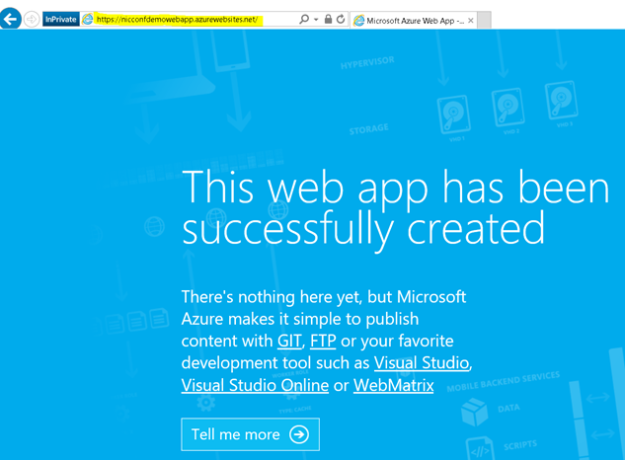
  4. Remember to save the Web App and the first part of the demo is done. A this point you can go to http://nicconfdemowebapp.azurewebsites.net, and be prompted to sign in with a Azure AD account from the directory the application was configured for. There is no content in the application, and every user in the Azure AD directory can access the application as long as they authenticate:
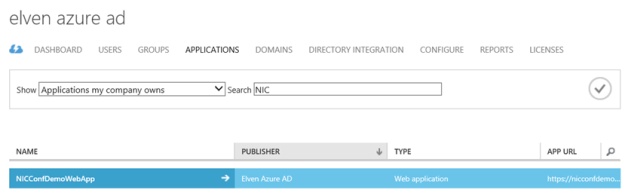
  5. The next part of this demo was to change some configuration settings for the published web application which is now published to Azure AD:
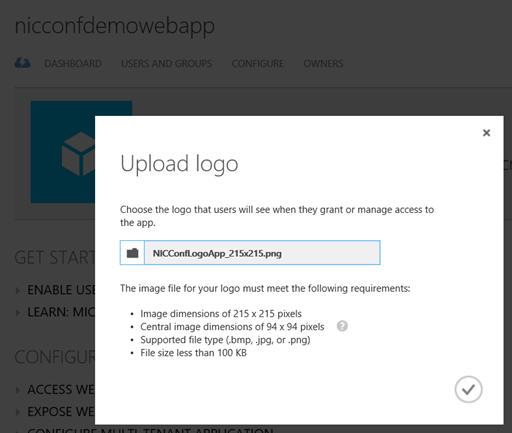
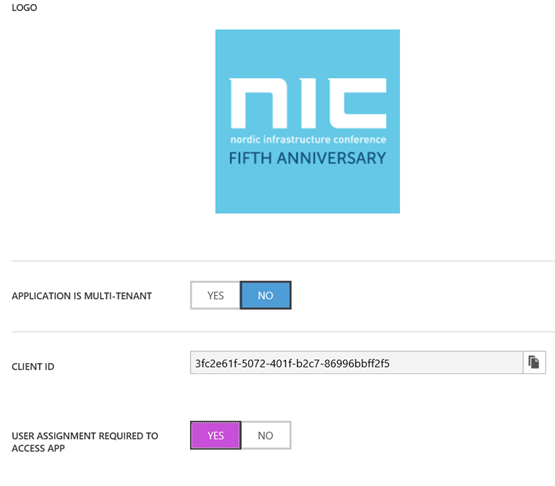
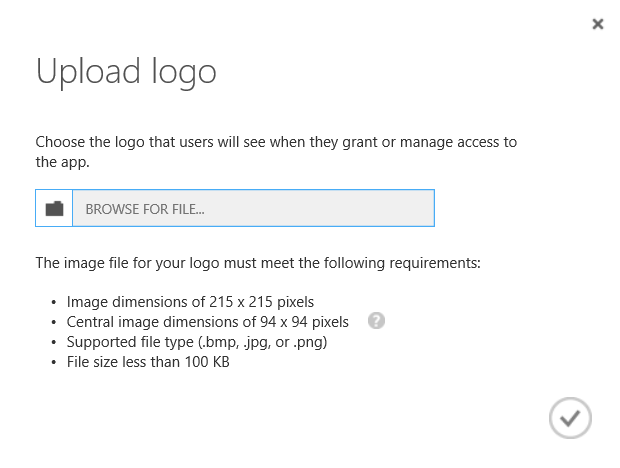
  6. I want to upload a custom logo, and configure the application so that only assigned users/groups can access it. First upload a logo:
  7. Then at the Configure page, I select that user assignment is required to access the App:
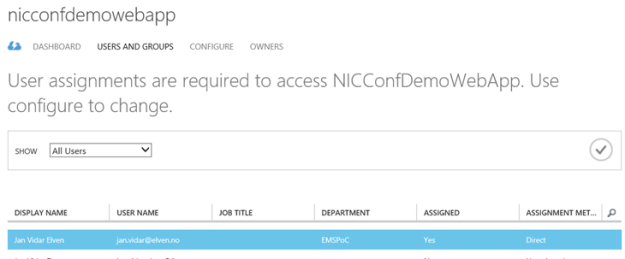
  8. Then after saving, I go to the Users and Groups page, and select to assign the users I want:

    If you assign individual users the assignment method will be Direct, if you assign Groups the members will assigned by inheritance.

  9. Now, if I start a new session to the Web App and log in with a user that has not been assigned, I will get this message:
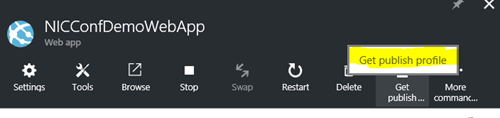
  10. The final steps of this demo showed how you can create some content in that Web App via Visual Studio. There are several development tools you can use, I have been using Visual Studio 2015, and you can download a Community Edition that is free if you don’t have a license. In my example I created a VB.NET Web App Project, and by using a Publish Profile file and some custom code I was able to show the logged in users claim properties.You can even create App Services directly from Visual Studio, and create and publish Azure AD Web Apps from there. But if you download this file from the Web App:


    And import it to the Visual Studio project, you can publish your changes directly.

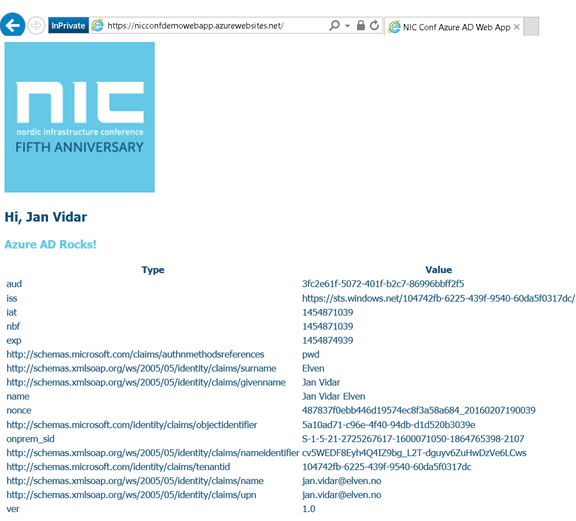
  11. This is the result for the demo web application, the code is included at the end of this blog post:

Publish an application that will be accessible from outside your network

The third scenario for publishing applications with Azure AD is the applications you want to be available from outside your network. These applications are internal web applications like SharePoint, Exchange Outlook Web Access or other internal web sites, you can even publish Remote Desktops and Network Device Enrollment Services (NDES) with Azure AD Application Proxy.

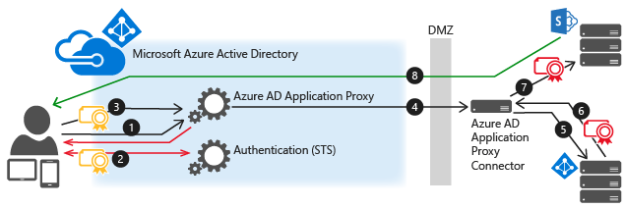
Azure AD App Proxy uses Connector Servers and Connector Groups inside the on premise infrastructure that must be able to connect to the internal URLs. These Connector Servers also can perform Kerberos Constrained Delegation for Windows Authentication, so that you can use Azure AD Single Sign-On to those internal applications.

A sample diagram showing the communication flow is shown below:

In the demo we looked at how you could install and configure a Connector installation, and organize Connector Servers in Groups for the applications to use. Here are some of the steps required:

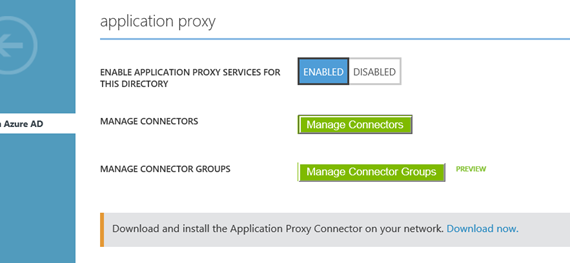
  1. First the setting for enabling Application Proxy Services for the Azure AD Directory must be enabled, and Connectors downloaded for installation.
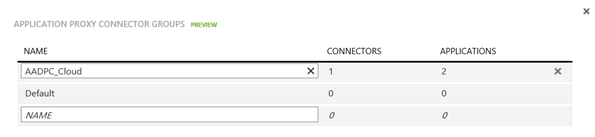
  2. You create and manage connector groups:
  3. And organize the installed connectors in those groups:
  4. When these requirements are in place you can start publishing your internal web applications.

For each internal published web application, you can configure authentication method, custom domain names, conditional access and self-servicing options. For details on how to do these different configurations, see previous blog posts I have published on this subject:

Consumption, Self Service and Troubleshooting

The last part of the session focused on the user experience for accessing the different published Azure AD applications.

User can access Azure AD published applications via:

  • Access Panel, https://myapps.microsoft.com
  • My Apps (iOS, Google Play)
  • App Launcher in Office 365
  • Managed Browser App with My Apps
  • Directly to URL

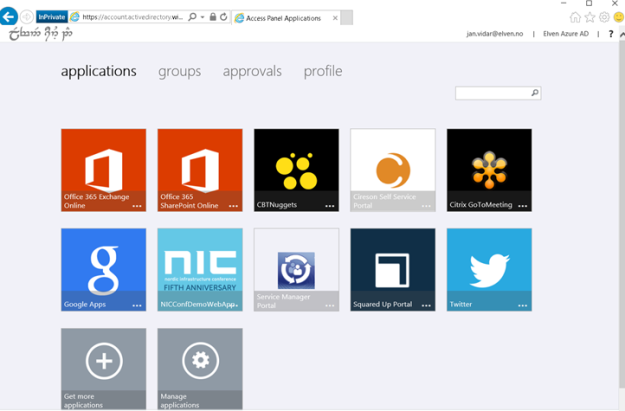
The Access Panel is a web-based portal that allows an end user with an organizational account in Azure AD to view and launch applications to which they have been assigned access. The Edge browser in Windows 10 is not fully supported yet, so you need to use either Internet Explorer, Chrome or Firefox for all supported scenarios. In addition, an Access Panel Extension needs to be installed for accessing Password SSO Applications.

The Access Panel is also where users can view account details, change or reset password, edit multi-factor authentication settings and preferences, and if you are using Azure AD Premium self-manage Groups.

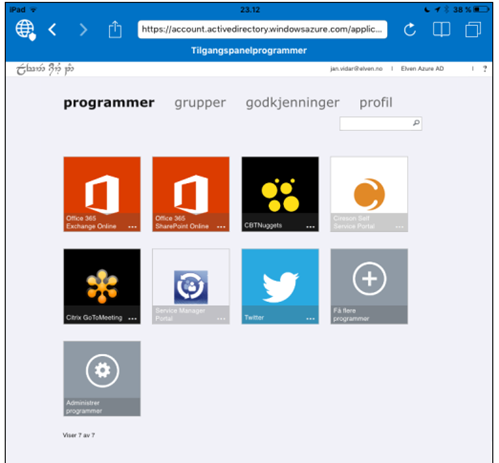
The Access Panel via Internet Explorer:

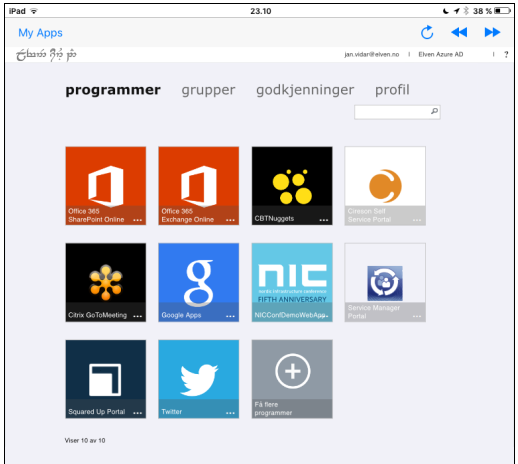
The Access Panel via My Apps and Managed Browser Apps:

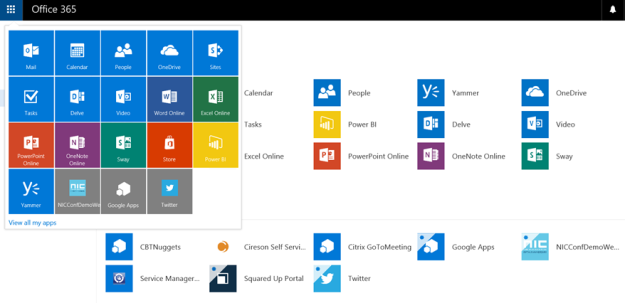
If the user is licensed for Office 365, the published applications are available via the App Launcher and URL https://portal.office.com/myapps:

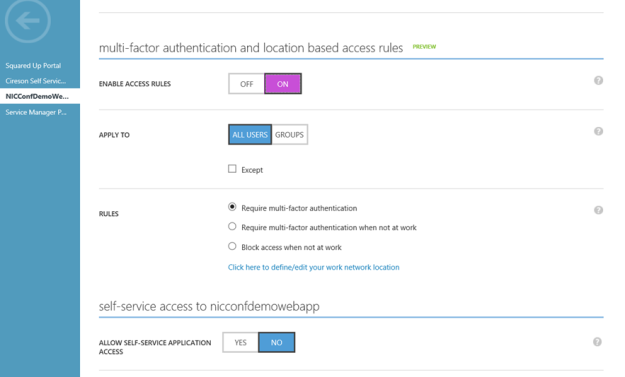
Conditional Access, which is an Azure AD Premium licensed feature, can be configured for each published Azure AD Application. These settings consist of enabling Access Rules for All Users or selected Groups, and optionally with exceptions to those users/groups. The access rules settings are requiring multi-factor authentication, require MFA when not at work, or block access when not at work. For the location based rules to work there must be configured IP addresses/subnets for the company’s known IP address ranges.

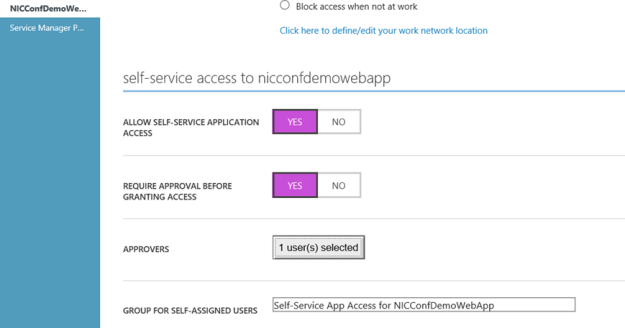
Instead of Assigning Users and Groups you could also let users manage self-service access to the published applications. When configured a group will be automatically created that application, and optionally you could configure 1 or more Approvers:

The end user will access this self-servicing via the Access Panel:

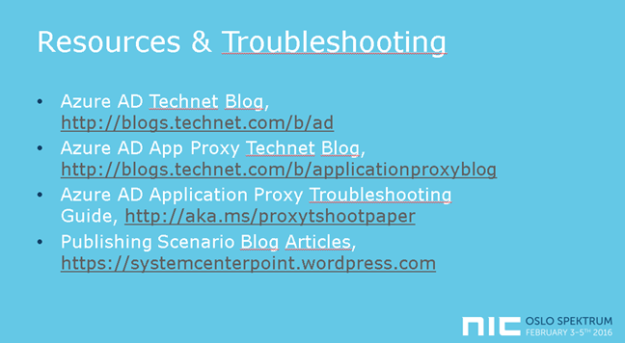
The session was wrapped up with some links to troubleshooting and more resources:

Presentation and files downloads

The presentation and files used in the demos can be downloaded from this link: http://1drv.ms/1Q429rh

Thank you for attending my session and/or reading this recap!

How to enable Conditional Access for Azure RemoteApp Programs

Last week I published a blog article on how to publish the System Center Service Manager and Operations Manager Consoles as Azure RemoteApp Programs. (See https://systemcenterpoint.wordpress.com/2016/02/02/publish-operations-and-service-manager-consoles-as-azure-remoteapp-programs/)

One great feature if you are using Azure AD Premium is that you can enable Conditional Access for your Azure RemoteApp Programs. Conditional Access will enable your organization to require Multi-Factor Authentication or required that the programs only can be accessed when at work. In this blog post I will show how this can be configured.

Requirements for Conditional Access for Azure RemoteApp Programs

The following requirements must be met to enable Conditional Access for Azure RemoteApp Programs:

  • Conditional Access are an Azure AD Premium feature, so your organization must be licensed for that
  • You must have created at least one Azure RemoteApp Collection
  • At least one user/group must be assigned to a Program in the Azure RemoteApp Collection

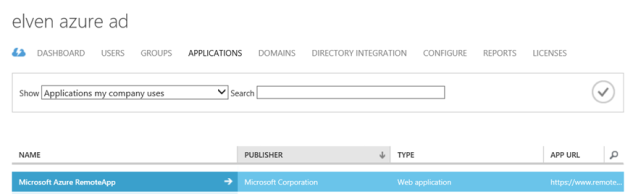
If all these requirements are met, you will see this “Microsoft Azure RemoteApp” Application in your Azure AD:

Configuring Conditional Access for Microsoft Azure RemoteApp

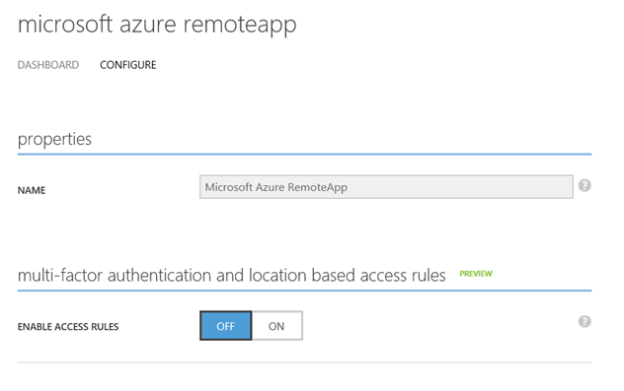
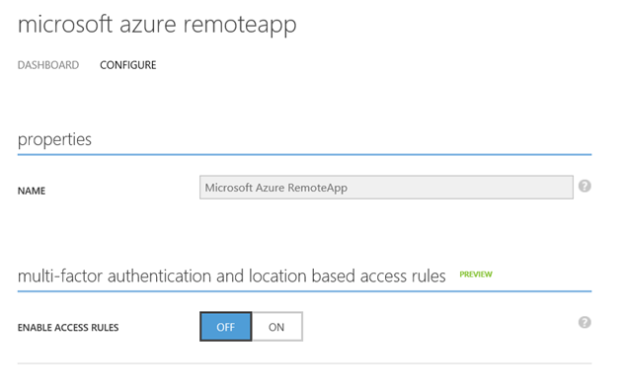
Select the Microsoft Azure RemoteApp Application and go to the Configure tab:

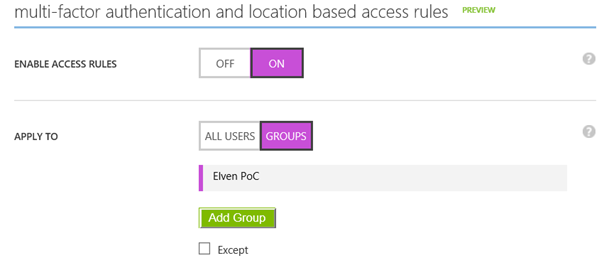
When enabling Access Rules, you can select to enable it for All Users, or for selected Groups. Both options can have exceptions for groups that you don’t want to have Access Rules:

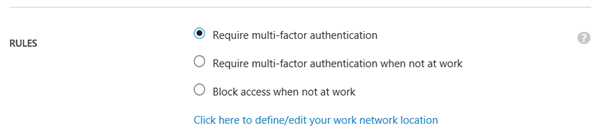
For the Rules you have 3 options for Conditional Access:

You can require Multi-Factor Authentication for the groups/users you selected above, every time they launch a RemoteApp Program Session. I

Another scenario, if you define your work network locations, you can require MFA when not at work, or block the application completely.

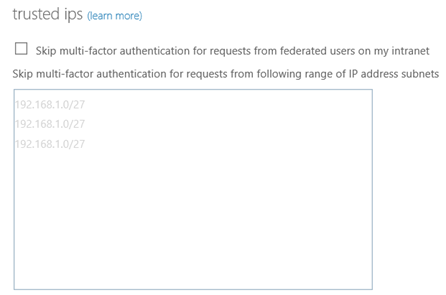
To configure trusted IPs, click on the link to get to the MFA Service Settings:

User Experience for Azure RemoteApp Conditional Access

So, how does this look for the user when accessing Azure RemoteApp Programs?

Require Multi-Factor Authentication

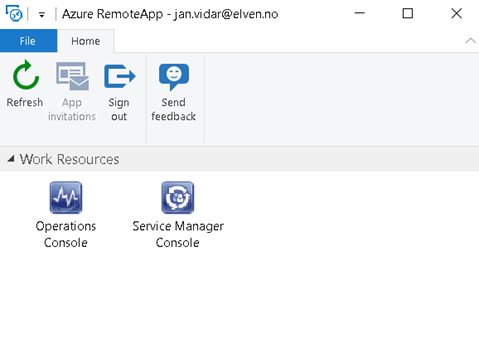
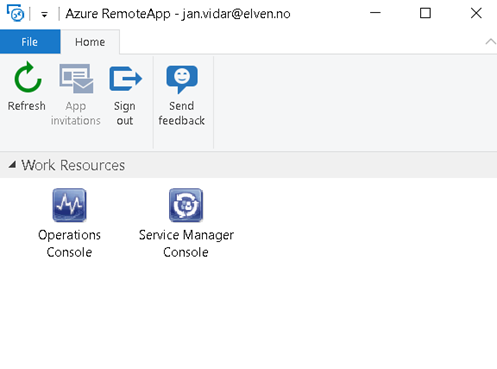
I launch my selected Azure RemoteApp Client, and clicking on a RemoteApp Program:

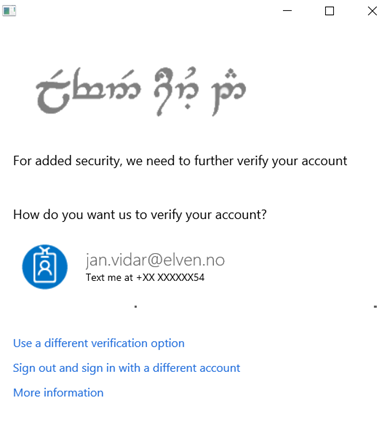
When launching the program, I’m prompted for MFA as expected:

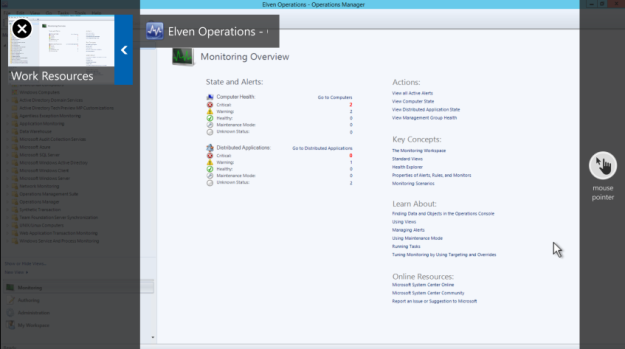
If I sign in with the Azure RemoteApp HTML5 Preview client, https://www.remoteapp.windowsazure.com/web, the Multi-Factor Authentication will be performed before you see your Work Resources.

Block access when not at work

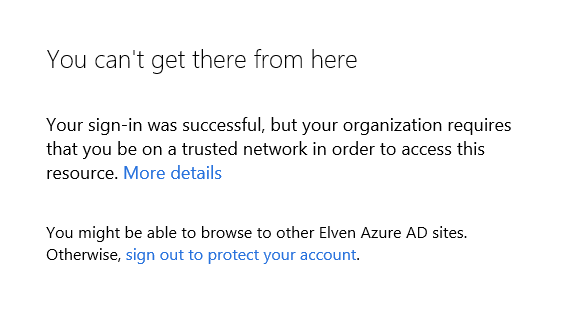
If I selected the Access Rule for Blocking Access when not at work, I will get this message if I’m not on a trusted network:

Conclusion

Meeting the requirements, we can verify that Conditional Access can be enabled for selected groups of users, and it will apply to all the Azure RemoteApp Programs you have published. Note that you cannot enable this specifically for selected Azure RemoteApp Programs, it will be for all the RemoteApp Programs or none.

Publish Operations and Service Manager Consoles as Azure RemoteApp Programs

This blog post will show how you can publish System Center 2012 R2 Management Consoles like the Operations Console and Service Console as Azure Remote Apps.

I already have an environment in Azure that runs Service Manager and Operations Manager 2012 R2. Now I want remote clients and platforms to be able to run these consoles as remote apps.

When planning, I decided to use a Hybrid Collection, and the overall steps was (as documented in https://azure.microsoft.com/en-us/documentation/articles/remoteapp-create-hybrid-deployment/):

  1. Decide what image to use for your collection. You can create a custom image or use one of the Microsoft images included with your subscription.
  2. Set up your virtual network.
  3. Create a collection.
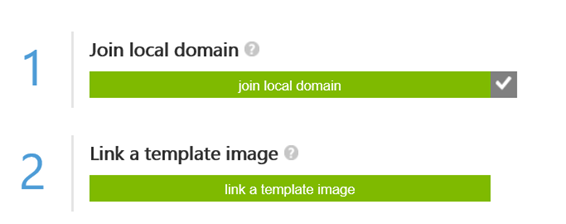
  4. Join your collection to your local domain.
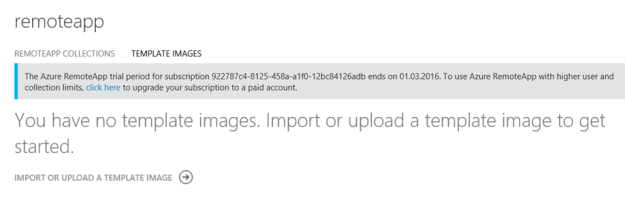
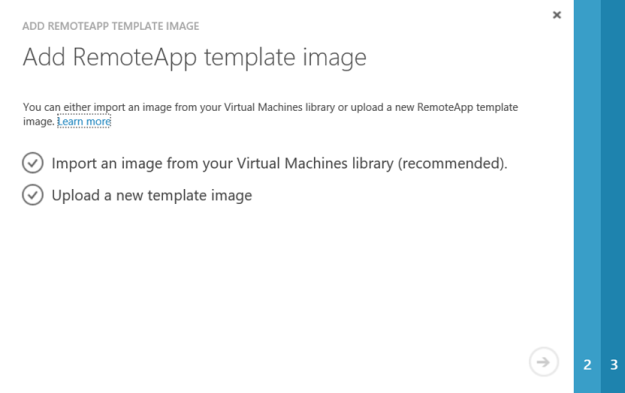
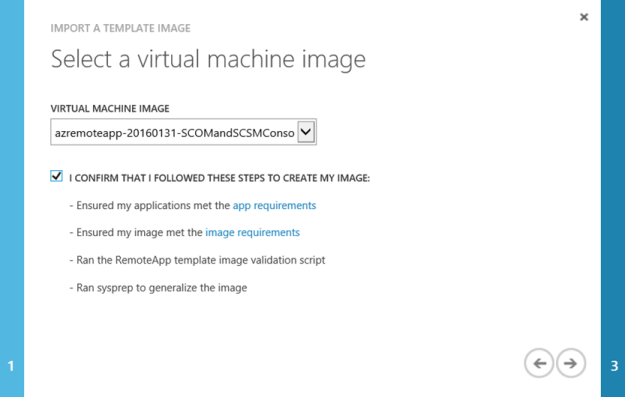
  5. Add a template image to your collection.
  6. Configure directory synchronization. Azure RemoteApp requires that you integrate with Azure Active Directory by either 1) configuring Azure Active Directory Sync with the Password Sync option, or 2) configuring Azure Active Directory Sync without the Password Sync option but using a domain that is federated to AD FS. Check out the configuration info for Active Directory with RemoteApp.
  7. Publish RemoteApp apps.
  8. Configure user access.

Azure Remote App can only be configured in the classic Azure Management Portal (manage.windowsazure.com), it’s on the roadmap for support in the new portal.azure.com and with Azure Resource Manager.

Step 1 – Create Custom Image for Installing Service Manager and Operations Consoles

There are several options available for creating a custom image. As my System Center environment already was set up in Azure, it made sense to create and use an image on an Azure VM, https://azure.microsoft.com/en-us/documentation/articles/remoteapp-image-on-azurevm/.

Create Azure VM for Image

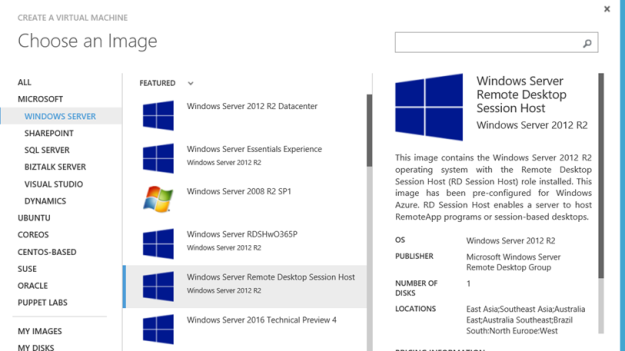
First I created a VM based on template for Remote Desktop Session Host:

The VM template must be configured to run on a VNet that can contact the Domain Controller for the Domain that the System Center Servers are joined to.

After the VM was provisioned, I joined it to my AD Domain and rebooted.

After that I was ready to install and configure the Service Manager and Operations Consoles with all requirements on the image. I also added the most recent Update Rollups for System Center 2012 R2 Consoles (that already are updated on the System Center Servers of course).

A this point I tested the Service Manager and Operations Consoles, and was successful in connecting the Management Servers.

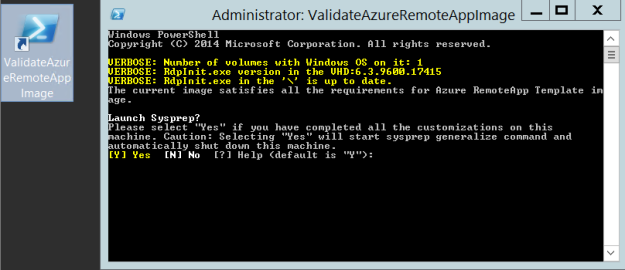
Finally, the Azure VM needed to be Sysprepped. The desktop contains a validation script, it will validate the image for Azure RemoteApp requirements, and ask to launch Sysprep:

Then:

After running Sysprep the VM shuts down and we are ready for capturing the virtual machine.

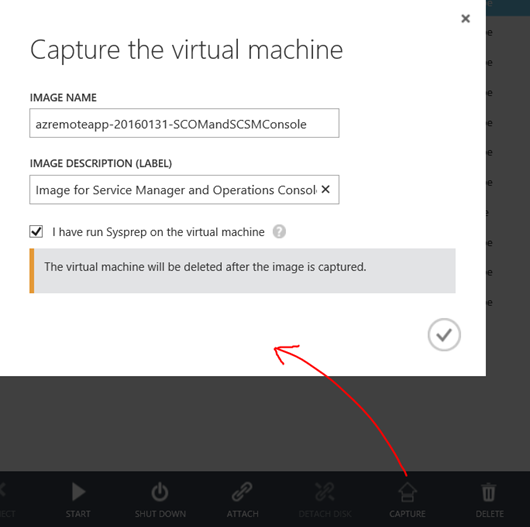
Capture the virtual machine

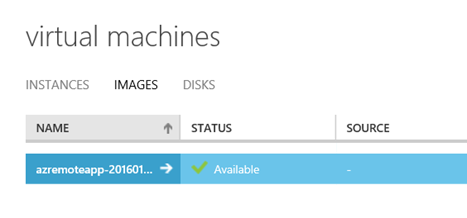
To capture the image follow the instructions as specified here https://azure.microsoft.com/en-us/documentation/articles/virtual-machines-capture-image-windows-server/.

I give the virtual machine an image name and description, and confirm that I have run Sysprep. Note that the VM will be deleted after the image is captured:

When finished, the captured image is deleted from the virtual machines instances, and available under images:

At this point I have a ready image to use. I can create new VM’s based on this image if I want, or I can use it as a RemoteApp image, which I will return to later. Now I’m ready for the next step.

Step 2 – Set up virtual network

Most will already have this in place if you have an existing Azure Subscription with Azure VMs. The requirement is that the Azure RemoteApp collection and image must be able to connect to the existing infrastructure. In this scenario where I want to use Service Manager and Operations Manager Consoles as Azure RemoteApp, I would need to be able to reach the Management Servers. Basically there are 3 scenarios:

  1. The Management Servers and the RemoteApp programs are on the same Azure Virtual Network.
  2. The Management Servers are on on-premise infrastructure, and the Virtual Network must be configured with a VPN to the on-premise infrastructure.
  3. The Management Servers are on another Virtual Network, and these two Virtual Networks must be connected to each other via Azure Site-to-Site VPN.
    1. A variant on the third scenario, where the Management Servers are created in a Resouce Group in ARM (Azure Resource Manager).

And of course, my scenario was the last one, as I have created my System Center 2012 R2 environment in a Resource Group using Azure Resource Manager J.

Since I cannot configure and deploy Azure RemoteApp in ARM, I needed to create a Site-to-Site VPN between my Azure Service Management environment (ASM) and ARM environment.

There are some good guidance on how to do that in this article: https://azure.microsoft.com/en-us/documentation/articles/virtual-networks-arm-asm-s2s/.

Since I already had VNets and VM’s in place I had to tweak a little in the guide, but I was able to make it work successfully. I will not get into details on that here, as I will focus on Azure RemoteApp, but that might be stuff for another blog post later :).

PS! Make sure that the Virtual Network has at least one DNS server to provide name resolution!

Step 3 – Create a collection

At this stage I was ready to create a RemoteApp Collection. I have signed up for a trial as notified in the image below, and selected to create a RemoteApp Collection with a Basic Plan. I specified my Virtual Network and Subnet that has connection to the ARM environment, and select to Join Local Domain.

After creating the RemoteApp Collection, I get a status of Input Required:

At the Quick Start menu, the steps to follow are highlighted:

Step 4 – Join collection to local domain

The next step is to join the local domain.

I specify my Active Directory Domain information, optionally specifying a OU for the RDS hosts that will provide the service. I also need a service account that has permissions to add computers to the domain.

After successfully joining the domain, the first step is acknowledged and I’m ready for the next step:

Step 5 – Add template image to collection

I now need to add the previously created Azure VM image I captured to the RemoteApp Collection.

Import the image into the Azure RemoteApp image library

First I add the image to the RemoteApp library:

I select to import from the Virtual Machines library:

Find my image:

Give it a name for the RemoteApp template and specify a location consistent with my Azure infrastructure:

After that the Upload Pending status will be there for a while, about 15-20 minutes in my case:

And then the RemoteApp image is ready:

Link collection to existing template image

Now I can link the uploaded image to the collection:

Selecting my image template:

And after that provisioning of the collection with the image starts. This will take a while longer:

While its being provisioned, I can see that the status is pending, and that the operation can take up to 1 hour:

Provisioning status:

Finally, after provisioning:

Then we are ready for the last final steps before we can start testing!

Step 6 – Configure directory synchronization

Azure RemoteApp requires that you integrate with Azure Active Directory by either 1) configuring Azure Active Directory Sync with the Password Sync option, or 2) configuring Azure Active Directory Sync without the Password Sync option but using a domain that is federated to AD FS.

This is already in place in this environment, so the users I want to configure access for are already in Azure AD.

Step 7 – Publish RemoteApp apps

I can now publish the Remote App Programs from the provisioned image:

I select the Service Manager Console and Operations Console:

Verify that the RemoteApp programs are published:

Step 8 – Configure user access

Next I need to configure the users that should have access to the RemoteApp Programs:

After that I’m ready for testing!

Testing the RemoteApp Programs

Now I can test the RemoteApp Programs.

HTML5 Remote App Web

First I test with the new HTML5 Remote App Web Client, this is now in Public Preview, and available at the following URL: https://www.remoteapp.windowsazure.com/web.

When logging in I’m presented with the following Work Resources:

I can successfully launch the Service Manager and Operations Consoles. I can also easily switch between them in the top menu bar:

Azure Remote App Desktop App

Next I test with the downloadable Azure RemoteApp Desktop Application. After signing in I can see my work resources and launch them:

The Azure RemoteApp client also seamlessly integrate the RemoteApp Programs at the Start and All Apps Menu in Windows 10:

Windows 10 Mobile Remote Desktop App

There are Remote Desktop Apps for all mobile platforms (Windows Mobile, iPhone, iOS, Android). Here I have tested the Windows 10 Mobile App:

And I can launch the RemoteApp Program on my phone:

Windows 10 Continuum Support

There is a new Remote Desktop Preview App out for Windows 10 Mobile that support Continuum, but this Preview App does not currently support Azure RemoteApp. That will come later down the line though, and when that comes I will update this blog post or create a related post with my experiences on that!

Conclusion

This was quite fun to work with, and the whole process with the 8 steps above worked like a charm. The most challenging thing was to create the Site-to-Site VPN between my ASM and ARM environment in fact. Outside that I never had any errors or problems.

I’m eagerly awaiting Azure RemoteApp support for Azure Resource Manager though!

Getting SCSM Object History using PowerShell and SDK

Some objects in the Service Manager CMDB, does not have the History tab. For example for Active Directory Users:

image

This makes it more difficult to keep track of changes made by either the AD Connector or Relationship Changes.

Some years ago this blog post from Technet showed how you could access object history programmatically using the SDK and a Console Application: http://blogs.technet.com/b/servicemanager/archive/2011/09/16/accessing-object-history-programmatically-using-the-sdk.aspx

I thought I could accomplish the same using PowerShell and the SDK instead, so I wrote the following script based on the mentioned blog article:

# Import module for Service Manager PowerShell CmdLets
$SMDIR    = (Get-ItemProperty 'hklm:/software/microsoft/System Center/2010/Service Manager/Setup').InstallDirectory
Set-Location -Path $SMDIR
If (!(Get-Module –Name System.Center.Service.Manager)) { Import-Module ".\Powershell\System.Center.Service.Manager.psd1" }

# Connect to Management Server
$EMG = New-Object Microsoft.EnterpriseManagement.EnterpriseManagementGroup "localhost"

# Specify Object Class
# In this example AD User
$aduserclass = Get-SCSMClass -DisplayName "Active Directory User"

# Get Instance of Class
$aduser = Get-SCSMClassInstance -Class $aduserclass | Where {$_.UserName -eq 'myusername'}

# Get History of Object Changes
$listhistory = $emg.EntityObjects.GetObjectHistoryTransactions($aduser)

# Loop History and Output to Console
ForEach ($emoht in $listhistory) {

    Write-Host "*************************************************************" -ForegroundColor Cyan
    Write-Host $emoht.DateOccurred `t $emoht.ConnectorDisplayName `t $emoht.UserName -ForegroundColor Cyan
    Write-Host "*************************************************************" -ForegroundColor Cyan

    ForEach ($emoh in $emoht.ObjectHistory) {

        If ($emoh.Values.ClassHistory.Count -gt 0) {
        
            Write-Host "*************************" -ForegroundColor Yellow
            Write-Host "Property Value Changes"  -ForegroundColor Yellow
            Write-Host "*************************"  -ForegroundColor Yellow

            ForEach ($emoch in $emoh.Values.ClassHistory) {
                ForEach ($propertyChange in $emoch.PropertyChanges) {
                    $propertyChange.GetEnumerator() | % {
                        Write-Host $emoch.ChangeType `t $_.Key `t $_.Value.First `t $_.Value.Second -ForegroundColor Yellow
                    }
                }
            }

        }
        
        If ($emoh.Values.RelationshipHistory.Count -gt 0) {

            Write-Host "*************************" -ForegroundColor Green
            Write-Host "Relationship Changes" -ForegroundColor Green
            Write-Host "*************************" -ForegroundColor Green

            ForEach ($emorh in $emoh.Values.RelationshipHistory) {

                $mpr = $emg.EntityTypes.GetRelationshipClass($emorh.ManagementPackRelationshipTypeId)
                Write-Host $mpr.DisplayName `t $emorh.ChangeType `t (Get-SCSMClassInstance -Id $emorh.SourceObjectId).DisplayName `t (Get-SCSMClassInstance -Id $emorh.TargetObjectId).DisplayName -ForegroundColor Green
            
            }

        }

    }

}


Running the script outputs the source of the changes, and any Property or Relationship changes, as shown in the below sample image:

image

Publish Operations Management Suite Portal with Azure AD

To be able to access the Operations Management Suite Portal for your OMS workspace, you will need to have an account with either administrator or user access to the workspace.

This could be a Microsoft Account, or if you have added an Azure Active Directory Organization to your OMS workspace, you can add Azure users or groups to your workspace.

add organization

When users from your Azure AD has been granted either administrator or user access to the OMS workspace, you can notify them that they can log on to the portal.

But, where should they go to log in? The simplest way could be to tell them to go to http://www.microsoft.com/oms, and hit the Sign In link at the top. After signing in they will be instructed to choose the OMS workspace and then be directed to the OMS portal.

Another method is to tell them the workspace url for the portal directly. This would be something like: https://<workspaceid>.portal.mms.microsoft.com/#Workspace/overview/index

You will find the Workspace ID under Settings, and sometimes you can also use the Workspace Name in the above URL as well.

image

So you can communicate to users in your organization one of the methods above on how to access the portal. Chances are that most users will forget this info after a short while. They will either search after your e-mail, or ask you again at some time.

In this blog post I will show how you can publish the Operations Management Suite Portal as an Azure AD Application, utilizing Single Sign-On, so that users can access it easily with My Apps or the App Launcher in Office 365!

Step 1 – Add Organizational User or Group Accounts to OMS Workspace

First you will need to add the Azure AD User or Group Account to your OMS Workspace. Select account type Organizational Account, and if they should be users or administrators. In the Choose User/Group type in and search for the users or groups you want to add:

image

Step 2 – Creating the Azure AD Application

Next, log on as an Azure AD Global Administrator to the classic Azure management portal (manage.windowsazure.com). Under Active Directory, select your Azure AD, and then select Applications. Select Add to start adding a new Application. Select to Add an application my organization is developing:

image

Next, specify a name for the application, and type of web application:

image

Specify URL for SIGN-ON and APP ID UR. This will be the OMS Portal url. using either workspace name or ID which you have discovered before:

image

Finishing that and the Application has been added to Azure AD:

image

Step 3 – Adding Users and Groups to the Application

Next I need to add which Users or Groups that will see the published application. At the Users and Groups page for my application, I’m notified that user assignment are not currently required to access Operations Management Suite Portal. That is correct, because users can access the portal directly if they know the URL or sign in at the Microsoft OMS site.

Adding Users or Groups here will enable the application to be visible for the users at the My Apps / App Launcher:

image

I search for and select to Assign the Groups (or Users) I want to have the application visible for.

Step 4 – Logo and optional configuration

After adding users, the application is ready to test, but first I would want to add my own logo.

image

In this example I’m using a transparent png image with dimensions 215×215, and a central image dimension of 94×94.

image

image

At the Configure page, other settings can be set such as requiring user assignment, access rules with Multi-Factor Authentication and Self-Service access for users that has not been specifically assigned access.

I this scenario I only wanted to get the application published to users, so I will not configure any more settings. We are ready to test.

Part 5 – User Access to the Published Application

Users can now access My Apps at https://myapps.microsoft.com. When logging in with the Azure AD User a list of published applications will be visible, and I can see the OMS Portal Application:

image

And, logged in to Office 365, I can select the App Launcher and show all my apps at https://portal.office.com/myapps.

image

I can pin the application to the App Launcher if I want for quicker access.

image

So to conclude this blog post, users now have a quickly accessible shortcut to the Operations Management Suite Portal using single sign-on with Azure AD.