Configure Azure AD Authentication for Project Honolulu version 1803
Just a few days ago a new version of Project Honolulu, technical preview 1830, was released for Windows Server Insiders, https://blogs.windows.com/windowsexperience/2018/03/13/announcing-project-honolulu-technical-preview-1803-and-rsat-insider-preview-for-windows-10/ . One of the major updates to that version was the support for changing access control from local group/Active Directory to Azure AD Authentication. Configuring Azure AD Authentication will provide the ability to pre-authenticate users with their Azure AD credentials, as well as restrict access to selected users or even integrate with Azure AD Conditional Access. In this blog post I will provide some steps, examples and screenshots for how I did that configuration in my own environment. This scenario builds on the previous installation I have made with Windows Server 1709 (Server Core) and Project Honolulu, see blog article for how my setup is: http://gotoguy.blog/2018/02/13/installing-windows-server-version-1709-on-intel-nuc-skull-canyon-and-configure-hyper-v-for-remote-management/
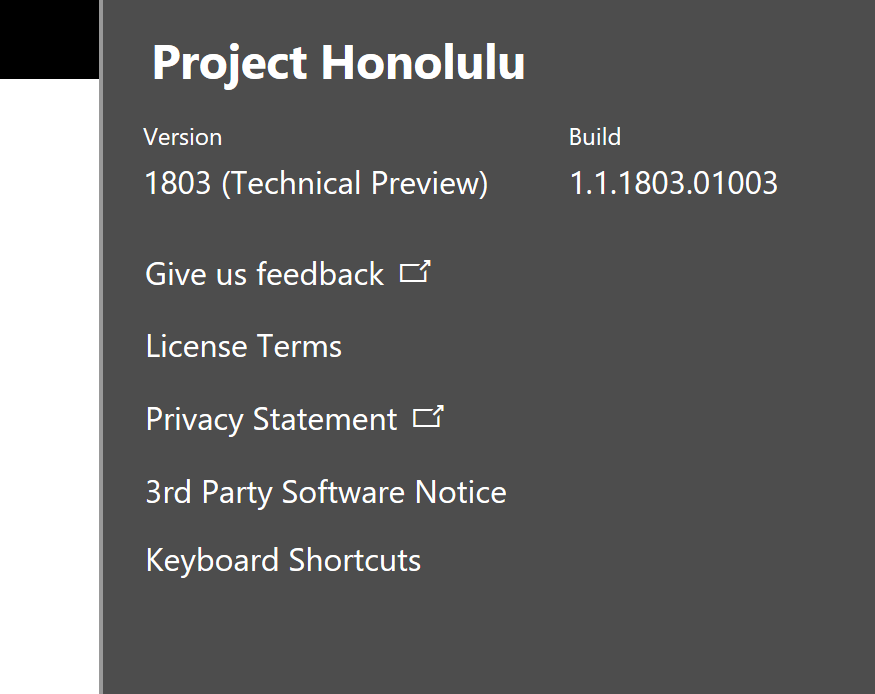
Update existing version of Project Honolulu to version 1803
Since I had an existing installation of Project Honolulu on this server ELVEN-NUC-HV1.nuc.group, I downloaded the 1803 installation file, connected to the server and ran the following command to silently install and update the existing installation:
msiexec /i HonoluluTechnicalPreview1803.msi /qn /L*v log1803.txt SME_PORT=443 SSL_CERTIFICATE_OPTION=generate
After that I navigated to the https://elven-nuc-hv1.nuc.group
url from my client machine, and verified that I could sign in and see that the Project Honolulu website was updated.
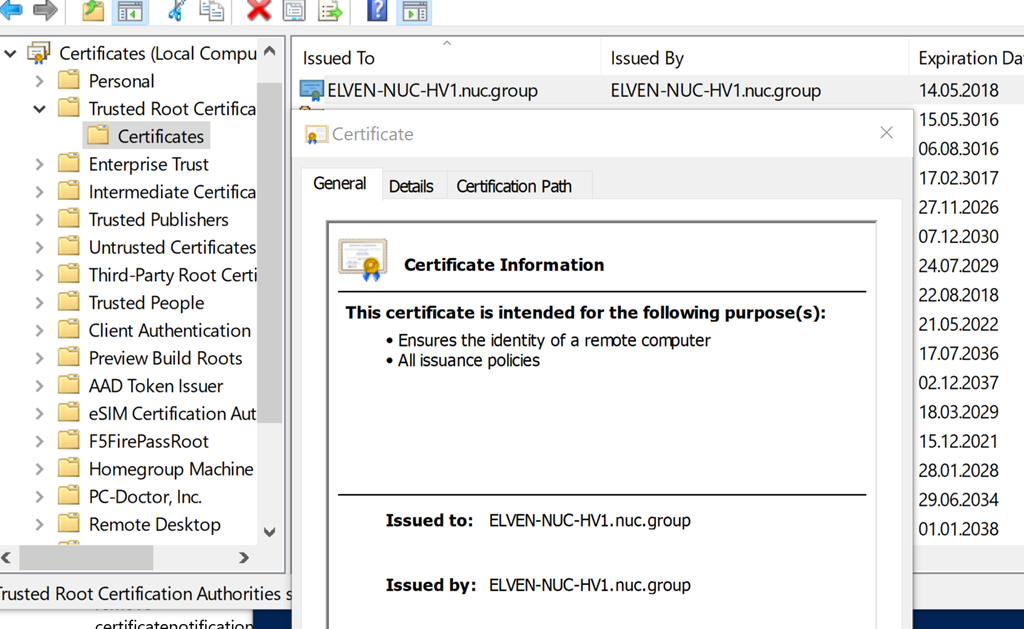
Export and trust self signed certificate
First, start a PowerShell session on the Honolulu Gateway Server, and then run the command:
| |
This will return any certificates in the machine store. As I have previously installed and generated a self signed certificate for Project Honolulu gateway server, I see 2 certificates now, and can note the thumbprint for the most recent one:
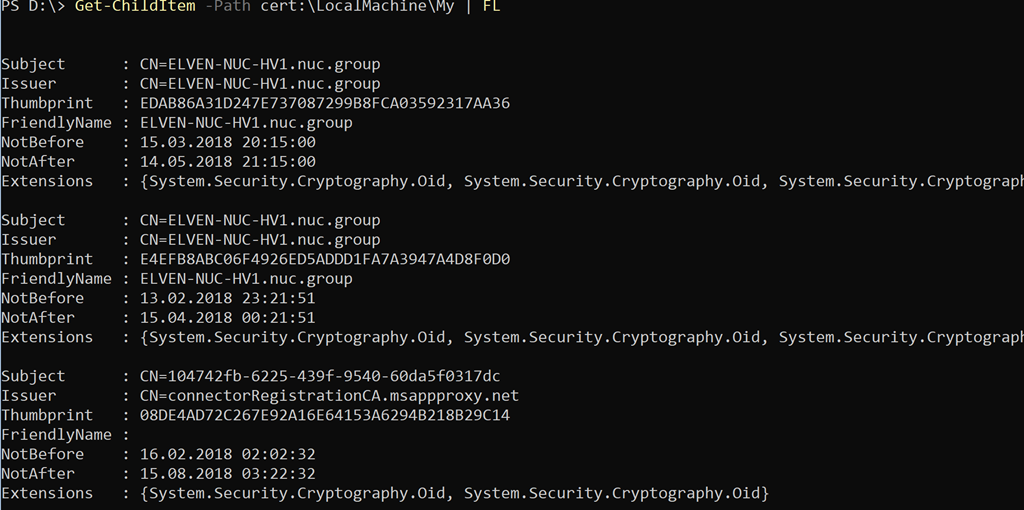
| |
| |
In my enviroment I ran the following: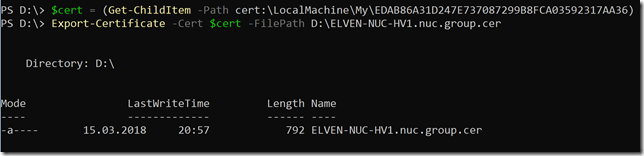
| |
| |
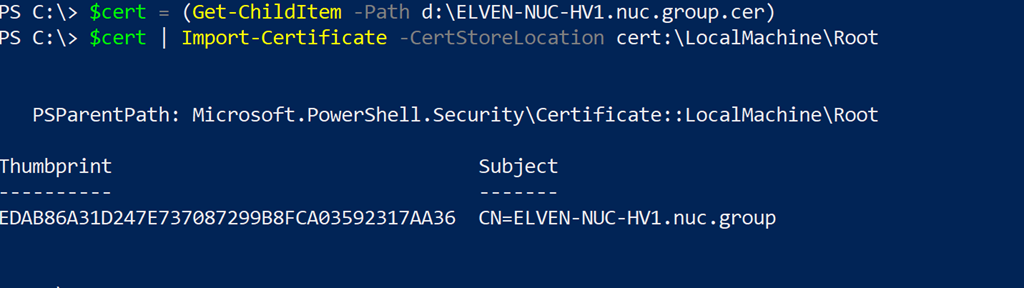
In my enviroment this looked like this (from an elevated PowerShell window):
Change Access Control to Azure AD
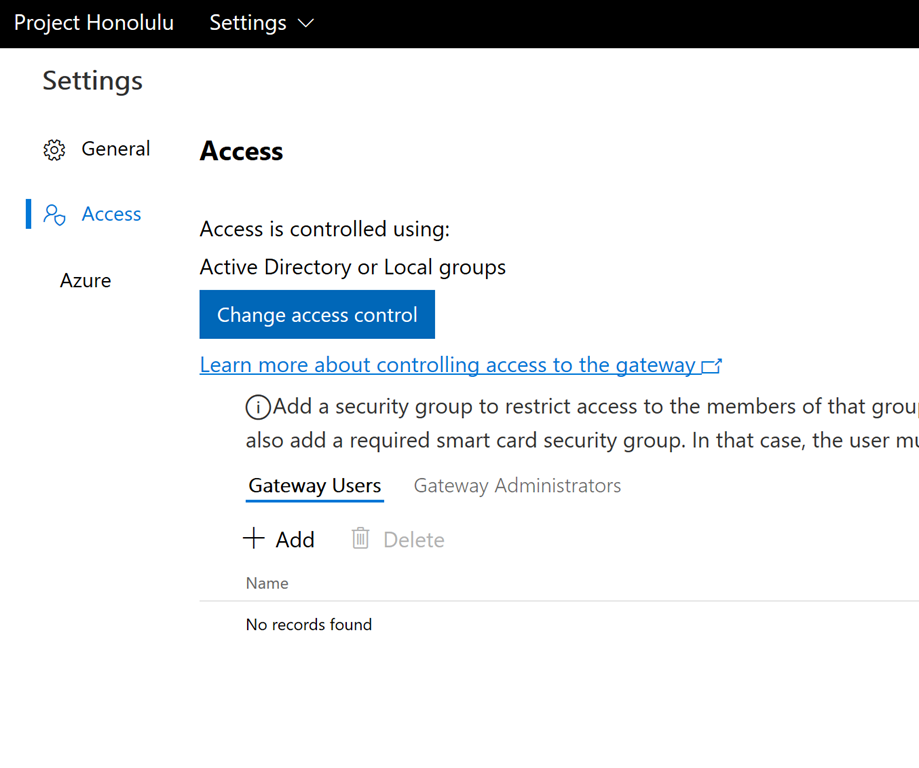
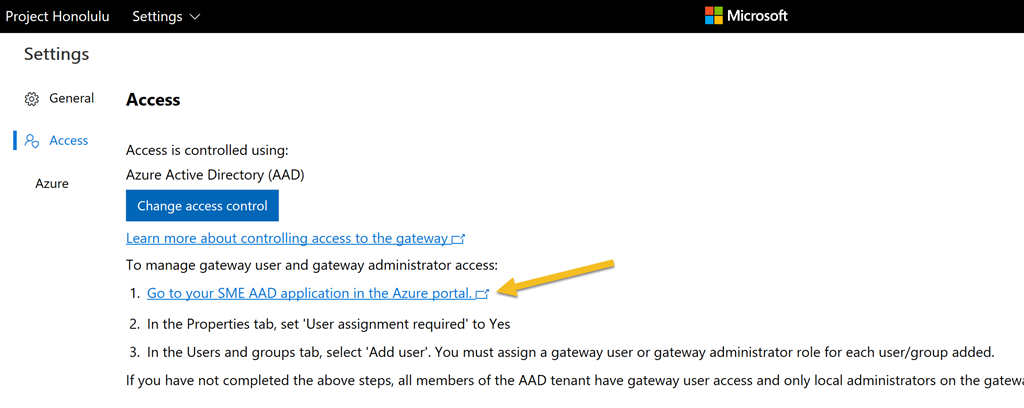
Now I am ready to change access control in Project Honolulu. Click on the Settings cogwheel, and under Settings click Access.
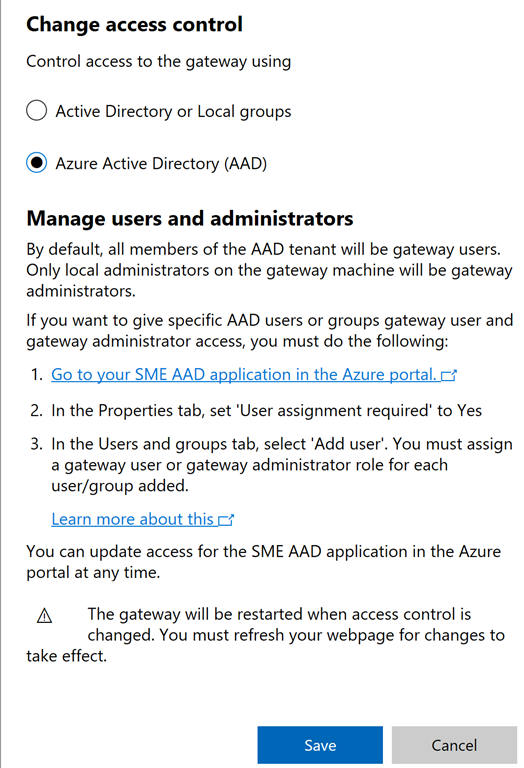
My current settings are set to Active Directory or Local groups, so I click on Change access control:
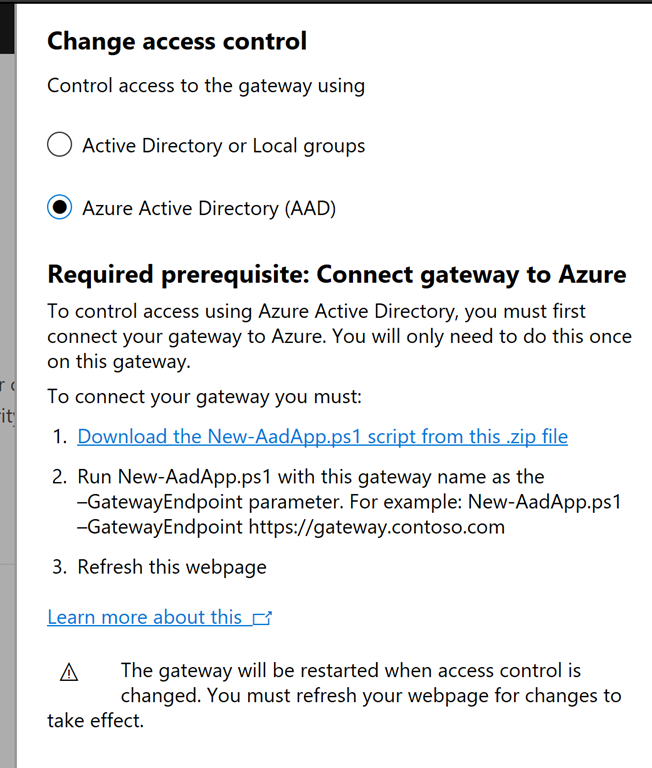
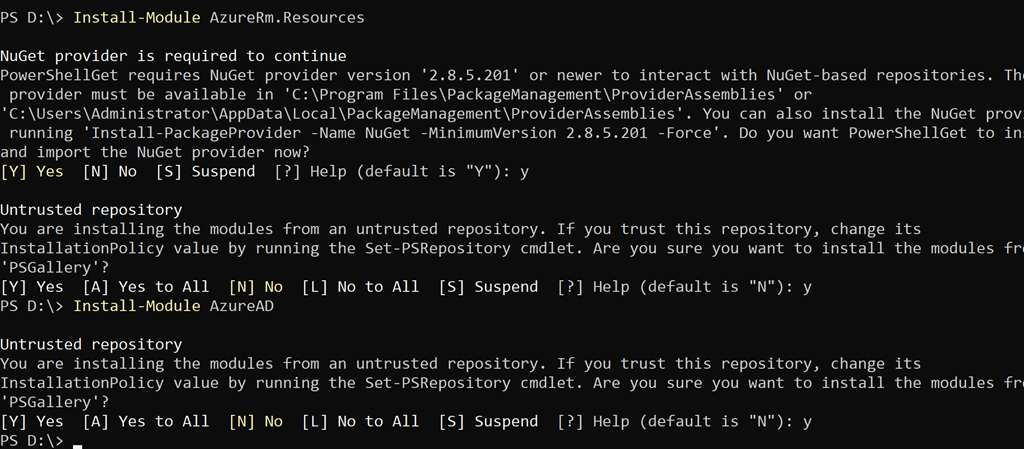

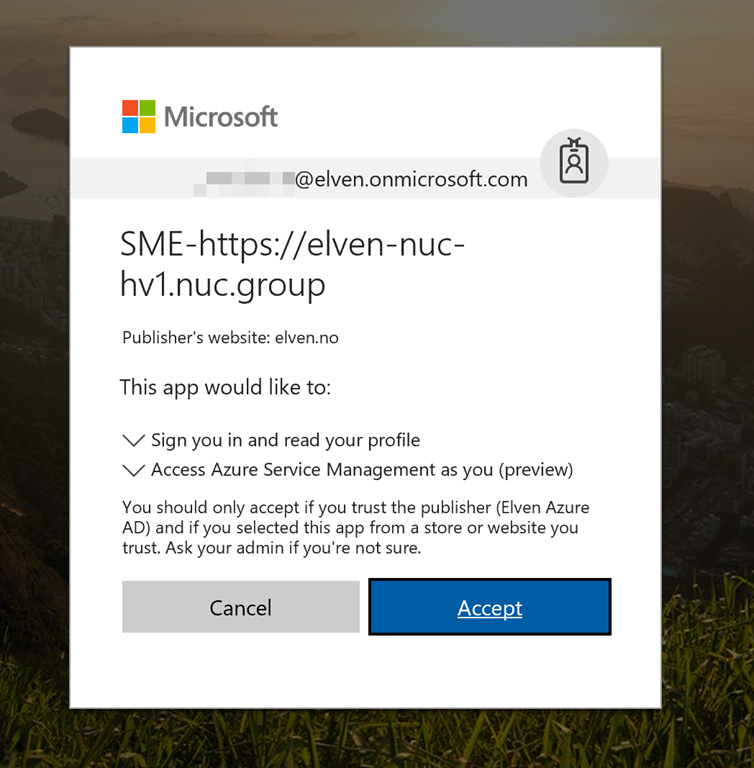
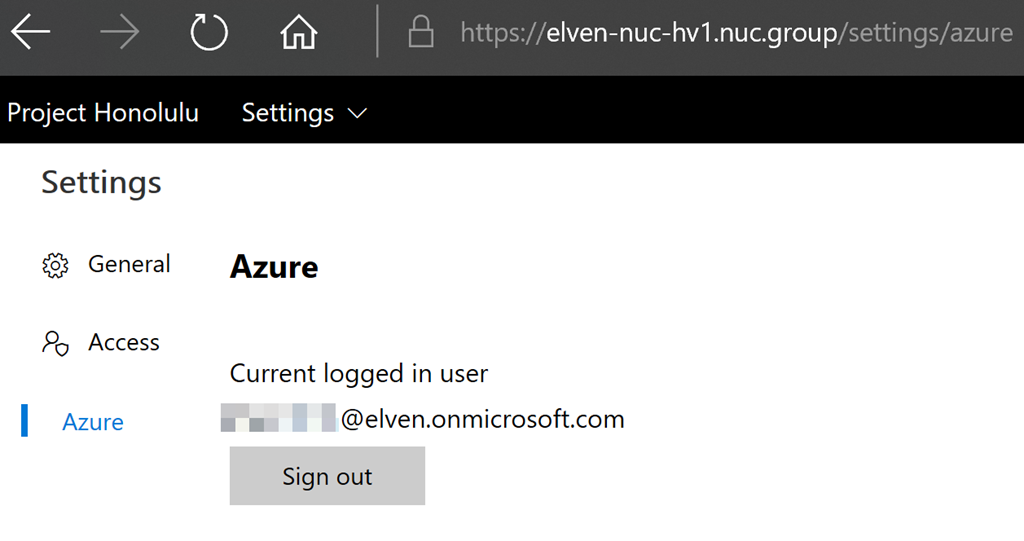
Logging on with other users from the tenant
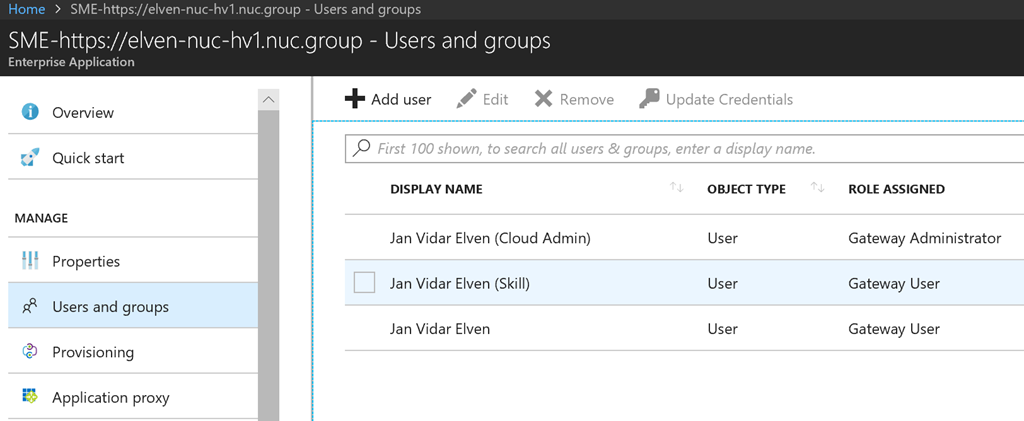
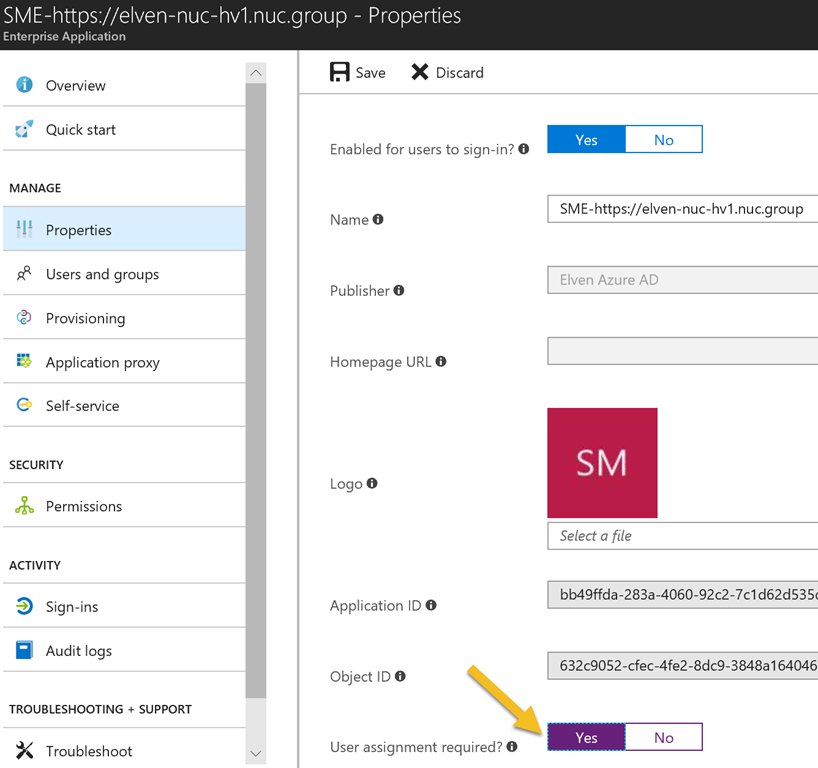
Remember by default all members of the Azure AD tenant will have user access to the Honolulu gateway service. That includes any B2B Guest Users!
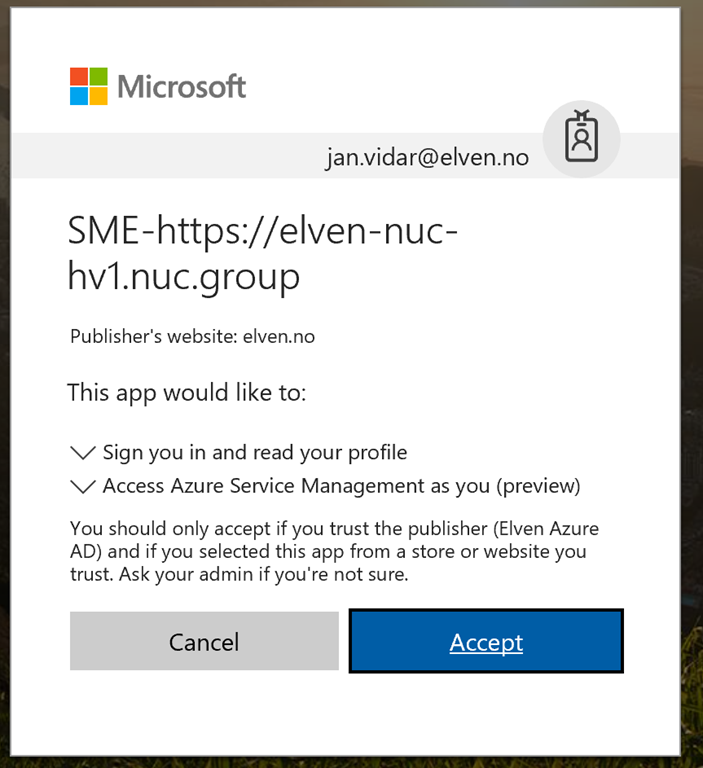
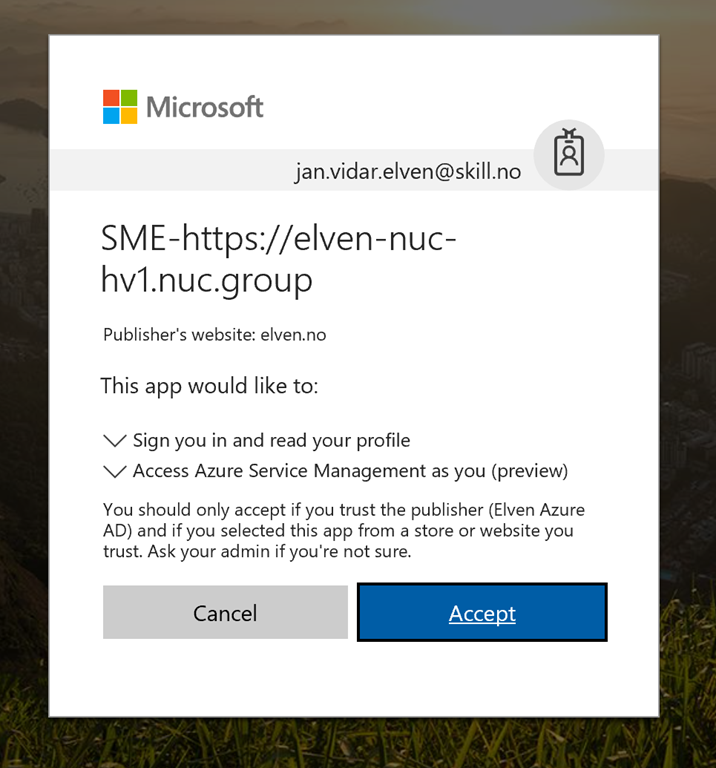
Each user logging in need to first time consent to permissions, in the following screenshots I have logged on with a normal user account and then a B2B guest account:
Summary and next steps
In this blog post I have shown a first look for enabling Azure AD Authentication for Project Honolulu version 1803 technical preview. The next step is to look into configuring Azure AD Conditional Access for this application, that will come in a later update to this blog article, stay tuned! A couple of issues is also on my list:
- I’m prompted to log on with local admin credentials in addition to the Azure AD credentials
- When I follow the link from Access Control settings I’m able to find the Azure AD App, but I cannot see it by just browsing the Enterprise Applications list. Based on the documentation I this should have work. This means for now I cannot add that App to any Conditional Access policies as it is not browseable.
- The .\New-AadApp1803.1.ps1 script cannot be run on the Windows Server 1709 core version, as there is no GUI and I get iframe errors, it could be that this is related to the issue above, as I ran the script on my client instead.
I will also look into these issues in an update to this blog post. Please comment below if you are seeing similar issues or have any other experiences. Thanks for reading :)