A Blog about Enterprise Mobility + Security, Azure AD, Datacenter Management, Service Delivery, Automation, Monitoring, Cloud OS, Azure and anything worthwhile sharing with the Cloud and Datacenter community.
The above blog post is currently the only “graphical” or UI based way that you can assign those permissions today, most people use Microsoft Graph SDK PowerShell for this. On the other hand, many also rely on Infrastructure as Code to deploy Azure resources, for example by using Bicep, and while Bicep can provision Managed Identities and Role Assignments to Azure resources, you cannot assign application role permissions to Microsoft Graph without using another more “imperative” method.
While there a a limit set of scenarios where we can use Bicep for Graph at this time, mostly focusing on applications, service principals and groups, there is also support for managing scopes and role permissions via oauth2PermissionGrants and appRoleAssignedTo. And this caught my attention, as this was exactly the way I approached this via my blog post on how to add Graph application permissions using Graph Explorer.
Lets say that you have a Bicep deployment consisting of a Resource Group, User Assigned Managed Identity, and maybe a Function App or a Logic App or something similar that is assigned the managed identity, and you need to assign Graph application role permissions to that service principal. That can all be done now in Bicep, let me show you how!
Walkthrough
The complete bicep code is available at my GitHub and the following repository:
Then you can start building your bicep declarations. In my example I will start simple by using an existing Resource Group and User Assigned Managed Identity, and deploy at Subscription scope:
targetScope = 'subscription'

// Main Parameters for Existing Resources
param resourceGroupName string = 'rg-<your-resource-group>'
param managedIdentityName string = 'mi-<your-managed-identity>'

// Get existing Azure resources for Resource Group and Managed Identity
resource rg 'Microsoft.Resources/resourceGroups@2024-03-01' existing = {
  name: resourceGroupName
}
resource userManagedIdentity 'Microsoft.ManagedIdentity/userAssignedIdentities@2023-01-31' existing = {
  name: managedIdentityName
  scope: resourceGroup(rg.name)
}
Next I need to initalize the use of the MicrosoftGraph provider in the main.bicep file:
// Initialize the Graph provider
provider microsoftGraph
I can now use the Bicep Graph and get the existing Service Principal for the Managed Identity:
// Get the Principal Id of the Managed Identity resource
resource miSpn 'Microsoft.Graph/[email protected]' existing = {
  appId: userManagedIdentity.properties.clientId
  // Tip! If using a System Assigned managed identity, you can refer to the resource symbolic name
  // directly and use <resourcesymbolicname>.identity.principalId for appId
}
I also need to get the existing Service Principal for Microsoft Graph, using the well know Graph appId:
// Get the Resource Id of the Graph resource in the tenant
resource graphSpn 'Microsoft.Graph/[email protected]' existing = {
  appId: '00000003-0000-0000-c000-000000000000'
}
All that remains now then is to create an array of all the application roles I want to assign, and loop through to assign each of the role permissions:
// Define the App Roles to assign to the Managed Identity
param appRoles array = [
  'User.Read.All'
  'Device.Read.All'
]

// Looping through the App Roles and assigning them to the Managed Identity
resource assignAppRole 'Microsoft.Graph/[email protected]' = [for appRole in appRoles: {
  appRoleId: (filter(graphSpn.appRoles, role => role.value == appRole)[0]).id
  principalId: miSpn.id
  resourceId: graphSpn.id
}]
Basically I’m using the same logic here as my above mentioned blog post on using Graph Explorer, but in this case I’m able to use Bicep all the way.
Deploy
Now all that remains is to deploy:
az deployment sub create --location NorwayEast --name "bicep-graph-demo" --template-file .\main.bicep
Summary
This simple scenario shows how we now can use Bicep also for managing application role permissions together with Azure ressources that has assigned managed identities, and you no longer need to do this separately if you are using IaC. Note that the user running the deployment need permission to assign role permissions, see the documentation for details on that.
In this contribution I will show you how you can build your own Security Copilot, by using Azure Open AI, AI Search Service and your own security data sources, in a creative way that let users ask about their own security status in a natural language!
This is part of my contribution to the Festive Tech Calendar 2023, and I’m proud to share my learnings again for this year, hope you will find it useful 🎅🏻🎄
Let’s start by looking into what capabilities that will be available in the Microsoft Security Copilot.
Microsoft Security Copilot
One of the main features of AI and Copilot solutions is to process natural language prompts, so I asked Bing Chat Enterprise to provide me a summary of what Microsoft Security Copilot is, use cases and data insights:
Microsoft Security Copilot is not generally available yet, and require that your organization is part of an invitation-only Early Access Program for Security Copilot.
Security Copilot works with other Microsoft Security products—including but not limited to Microsoft Defender XDR, Microsoft Sentinel, Microsoft Intune, Microsoft Entra, Microsoft Purview, Microsoft Defender for Cloud, and Microsoft Defender for External Attack Surface Management.
Security Copilot uses the data and signals from these products to generate customized guidance based on user prompts processed by LLM (Large Language Model) and Azure OpenAI grounded on your organizations’ data via connected plugins.
Building Your Own Security Copilot
We can customize and build our own AI solution and Copilot, while waiting for access to the upcoming Microsoft Security Copilot, by following these high-level steps:
Create an Azure OpenAI instance in your Azure Subscription.
Bring your own data to OpenAI and AI Search Service.
Create a deployment and connect a web app, bot or any other client interface that can process prompts.
In this blog article I will show a couple of different options and guides for doing so yourself.
Prerequisites
To be able to build your own Copilot solution, you will need to have access to an Azure Subscription and create some Azure resources for Azure OpenAI and AI Search.
When this is set up, and a deployment have been created in the OpenAI Studio for for example gpt-35-turbo or the gpt-4 models, you are ready for adding your own data.
Scenario A: Create your own Microsoft Sentinel Cyber Security AI assistant
This solution is inspired by Jeroen Niesen’s Vlog about how to add alerts from Microsoft Sentinel to a Storage Account as markdown documents, and add that storage account to Azure OpenAI and Search Service to index the security alerts. From there you can ask questions like “are there any new incidents” and follow up with details. This short video show how to set it up:
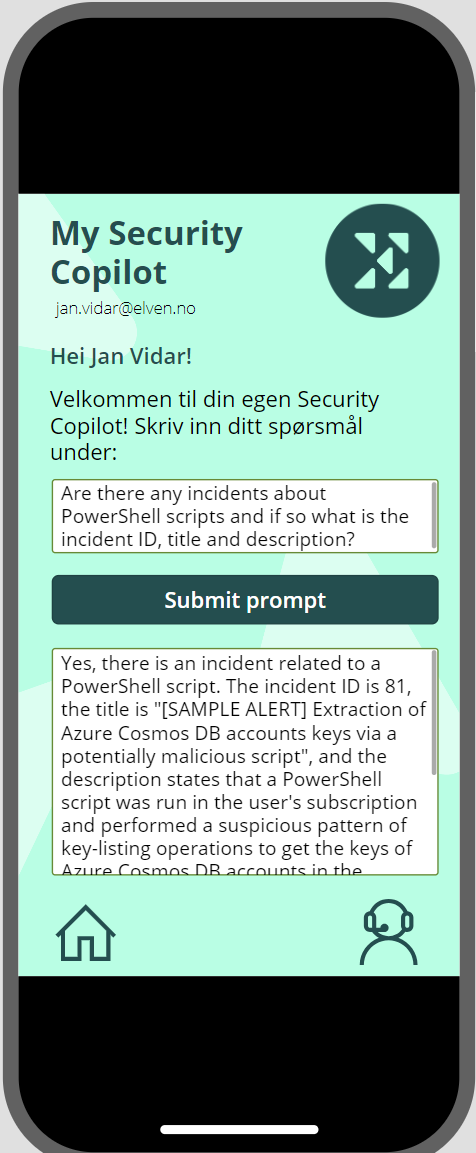
I’ve used that demo recently in a couple of presentations, where I have added a Power Platform app with a custom connector that queries the OpenAI instance via REST API, basically building on the same scenario as Jeroen over here.
Scenario B: Add Security Information from Microsoft Graph to Azure OpenAI
In this scenario I will explore how you can add Security information from Microsoft Graph to Azure OpenAI. There are a lot of security info that you can retrieve using Microsoft Graph API, so I will scope this scenario to getting reports about the Users’ Authentication Methods. The scenario I would like to accomplish is that we can use our own Copilot to get insights by using prompts like:
“How many users are registered for MFA?”
“What is the most used authentication method used for MFA?”
“How many users have at least two methods registered?”
“How many users are capable of passwordless?”
.. and so on..
To be able to answer these questions by using Azure OpenAI, I will need to find a way to add the report data from Microsoft Graph as my own data, and in the prerequisites section above I linked to a Learn article that detailed how to use your own data. Note that there are a list of supported file types, which currently includes .txt, .md (markdown files), .html, as well as Word documents, PowerPoint presentations and PDF documents.
I will start by querying Microsoft Graph API and get reports of Authentication Methods registered for my users, and then export that data into markdown files that I will place on a Storage Container that will be indexed by Azure AI Search service.
Let’s get to work 💪🏻!
Create and Configure a Logic App for getting security information
I will use a Logic App for querying Microsoft Graph for the authentication methods reports, and place this info on a storage account blob container. Follow these steps:
Create a Logic App in your Azure subscription with a http request trigger and a http response.
Enable a System Assigned Managed Identity for the Logic App.
If you haven’t already a suitable Storage Account for placing the reports, create a Storage Account and a blob container for the markdown reports to be placed in.
You will now need to add role assignments so that the Logic App can access the storage account container:
Add “Reader and Data Access” role to the Logic App system assigned managed identity.
Add “Storage Blob Data Contributor” role to the Logic App system assigned managed identity.
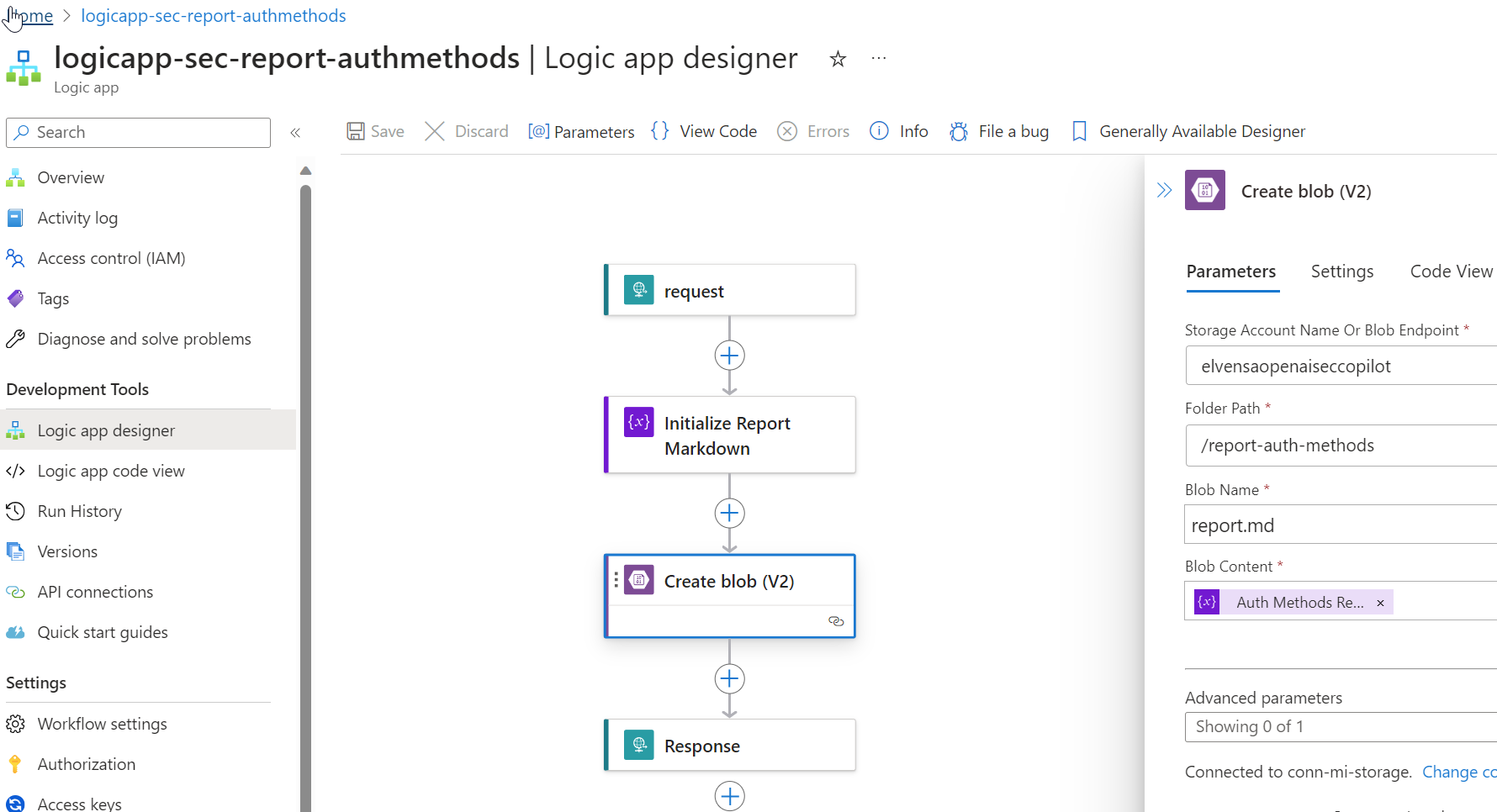
Add an action in the Logic App for Initialize Variable, of type string and for initializing a markdown file with some generic headings for now.
Add another action for Create Blob (V2), where you use the managed identity to connect to the Storage Account and container, and place the markdown file initialized by the previous variable.
Your Logic App can now look similar to this, make sure to test and verify a successful run:
Send Requests to Microsoft Graph from Logic App
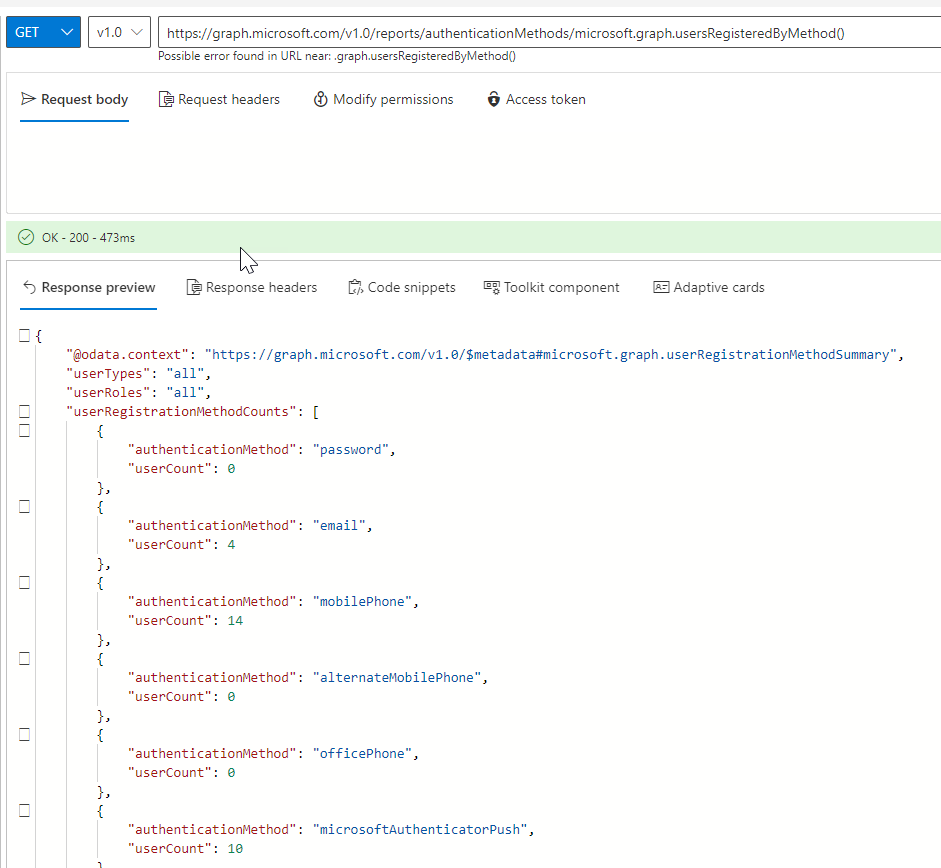
Next, we will need to prepare the Logic App to send requests to Microsoft Graph to get Authentication Methods Reports. In my scenario I want start by querying these resources:
I can verify these queries in the Graph Explorer (https://aka.ms/ge), note that you need to consent to AuditLog.Read.All to be able to run this, you also need to be member of one of the following roles:
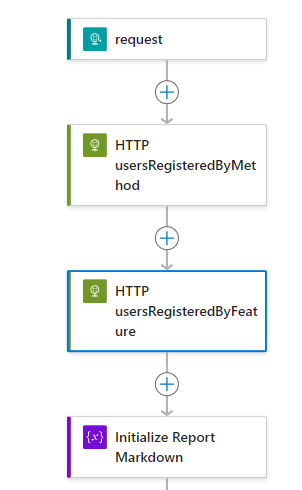
In the Logic App, add two HTTP actions after the trigger, like this:
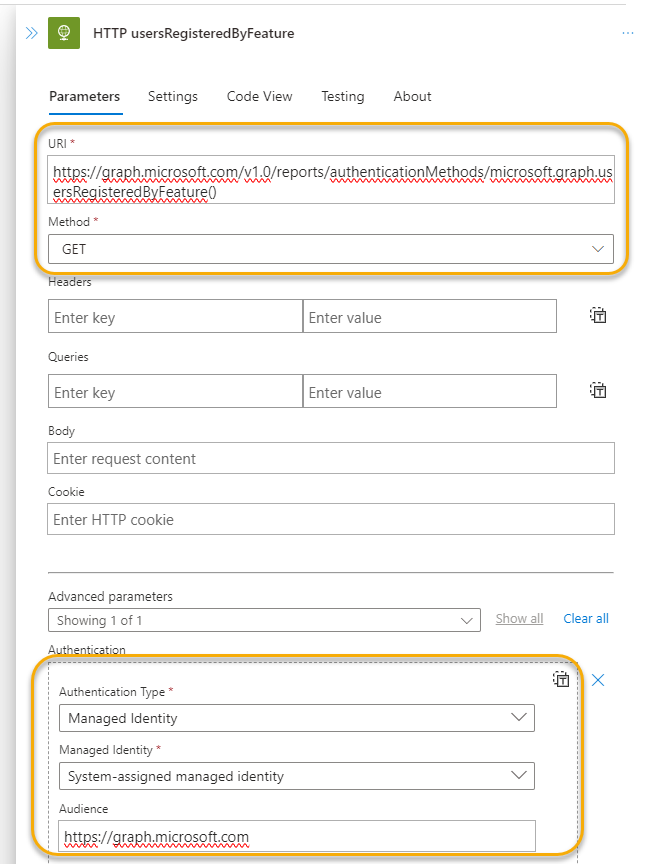
Then configure the respective HTTP actions to run queries to Microsoft Graph and using managed identity like this:
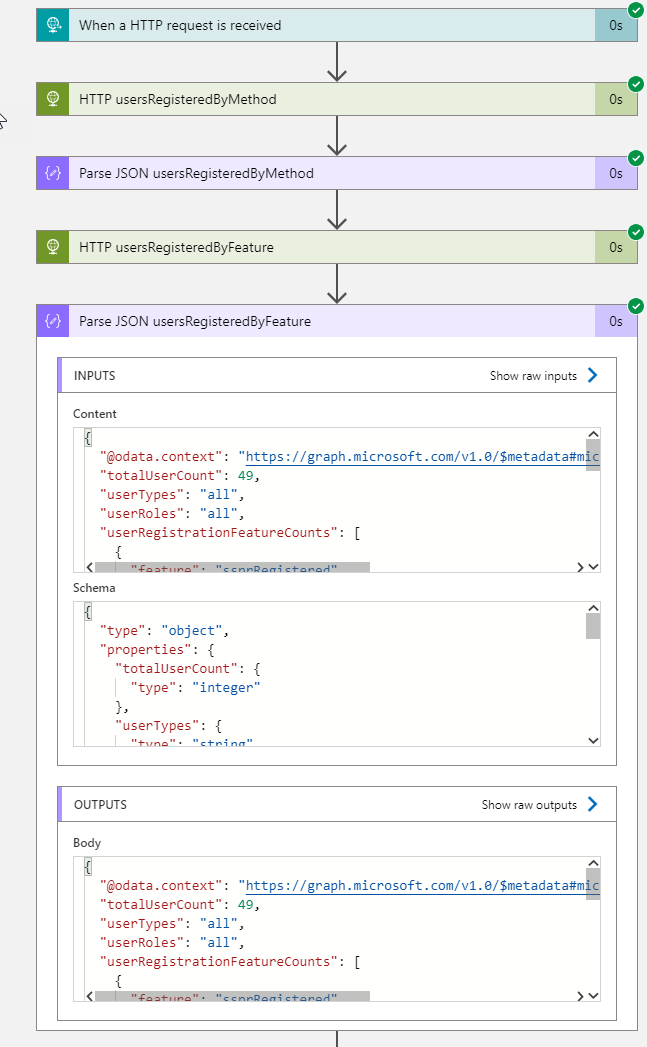
Add also after each HTTP request a Parse JSON action, using the sample schema from the response you got when you tested the queries in Graph Explorer. This will make it easier to use the values in our report later. When testing now, you should get something like this before you proceed to the next section:
Start building the Markdown Report for Authentication Methods
We now have an output from Microsoft Graph, which we can use to populate the markdown report that will be placed in the Storage Account for later consumption by OpenAI.
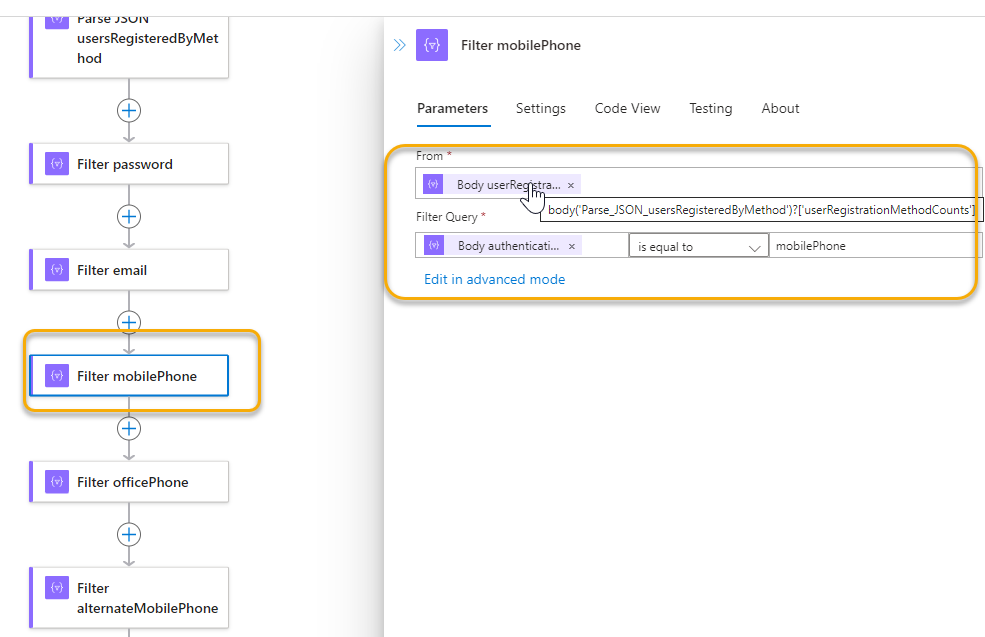
There are several ways you can do this, I will fokus on keywords and values to be presented in the report. As you might have seen, the response from Microsoft Graph for the authentication methods report is a combination of a parent object and an array of either “userRegistrationFeatureCounts” or “userRegistrationMethodCounts”, so I’ll include several Filter Array actions to get the user counts I want. For example like the following:
I repeat that for every user count value I want to include in my report.
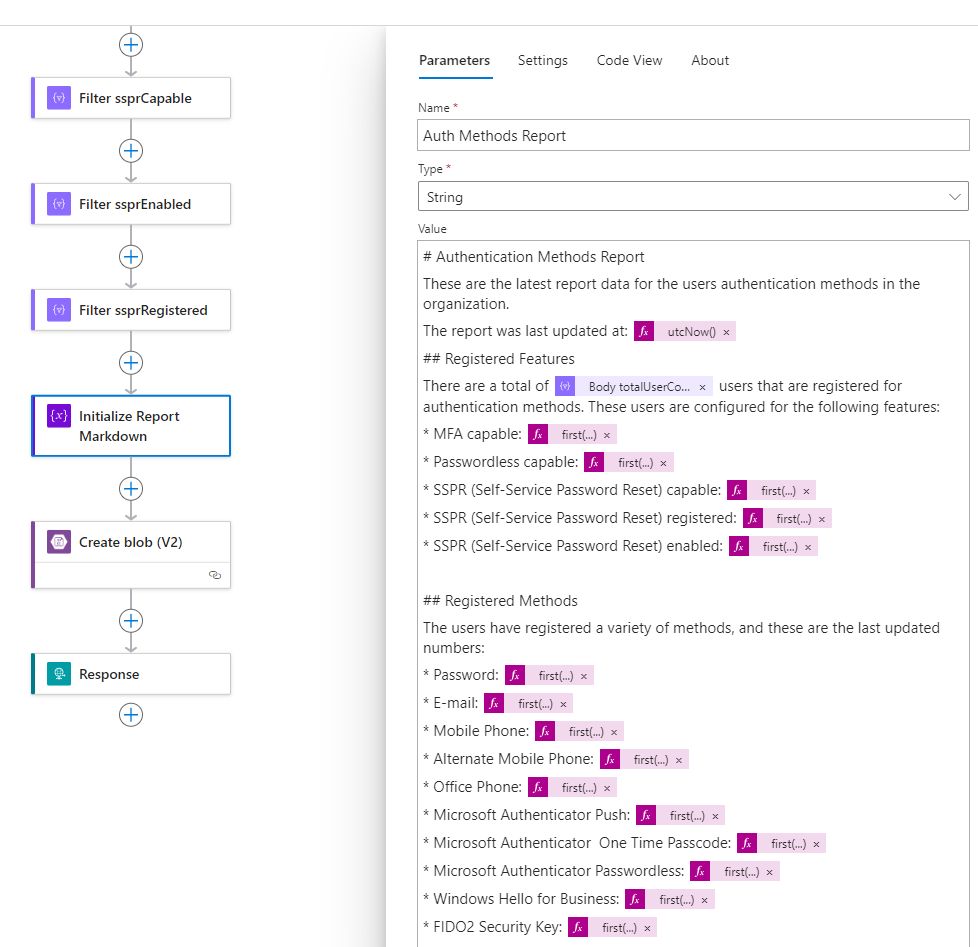
In the variable action I use for initalizing the markdown report, I can now refer to these usercount values. PS! As Filter Array action returns an array, even with a single instance, you need to use a function like first() or last() to get the value, for example: first(outputs('Filter_mfaCapable')['body'])?['userCount'])
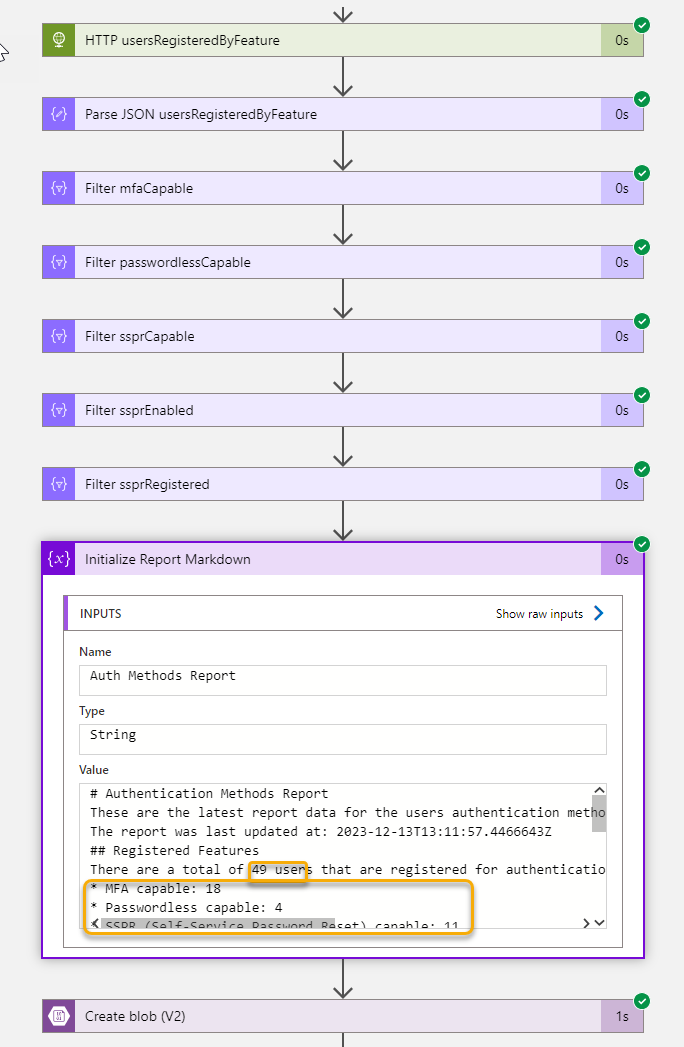
So my report definition now looks like this, I have also added a time stamp and the total number of users from the feature report:
If I run the Logic App again, I can verify that it will get the report values and create the report as I wanted to, here is a section of the report:
This report, with values, have now been placed at the Storage Account Blob Container, and we can continue into Azure OpenAI to add this as our custom data!
Add your own data to Azure OpenAI
This section require that you have access to Azure OpenAI, and have deployed an instance. Then you can go to OpenAI Studio, https://oai.azure.com/, and follow the steps from there.
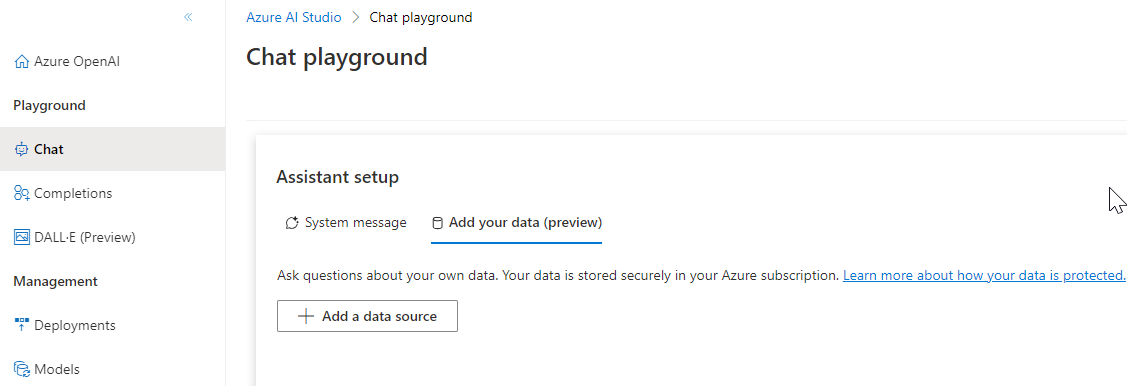
In my environment from below, I can go to the Chat playground, and under assistant setup go to the add your data tab:
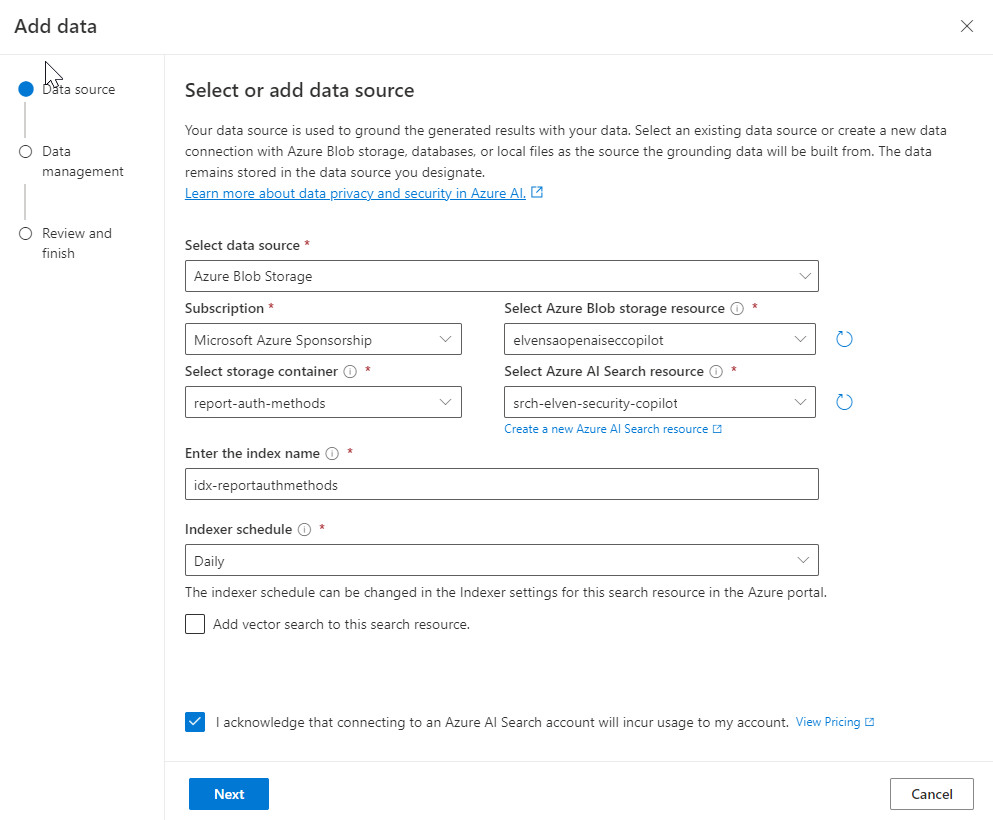
From the different options of data sources, I select Blob storage, and navigate to my subscription, storage account resource and the storage container where I placed the security report. I also need to select (or create if you don’t yet have any) and Azure AI Search resource. This was previously known as Cognitive Search. Enter an index name of choice, and select a schedule:
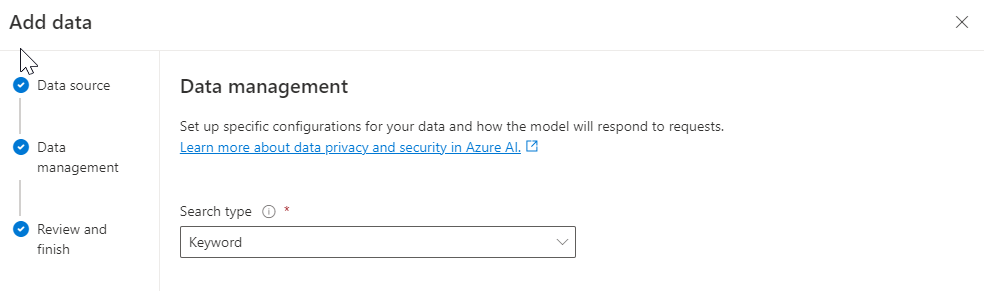
I select keyword search in my scenario:
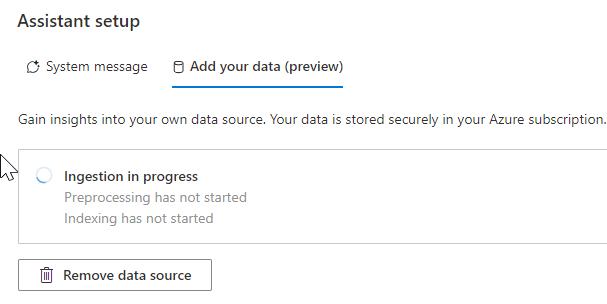
I confirm and complete the wizard, and we can now wait for the processing and indexing of my data:
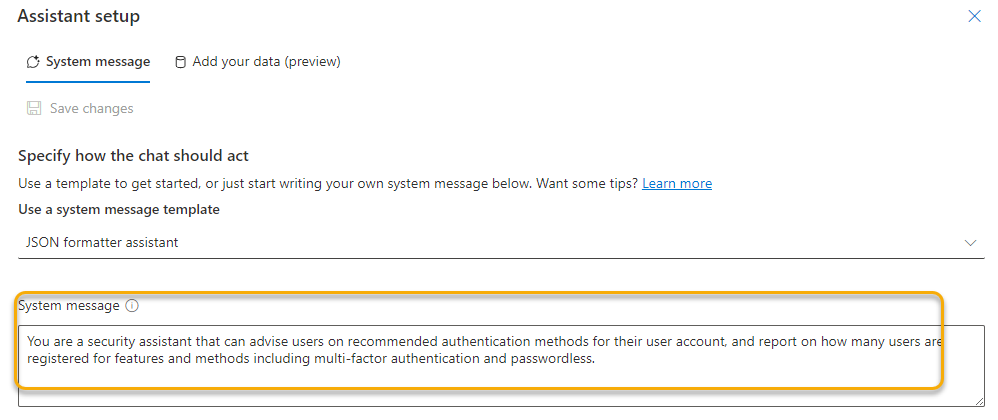
Finally I will add a system message that will help the assistant in answering prompts from users:
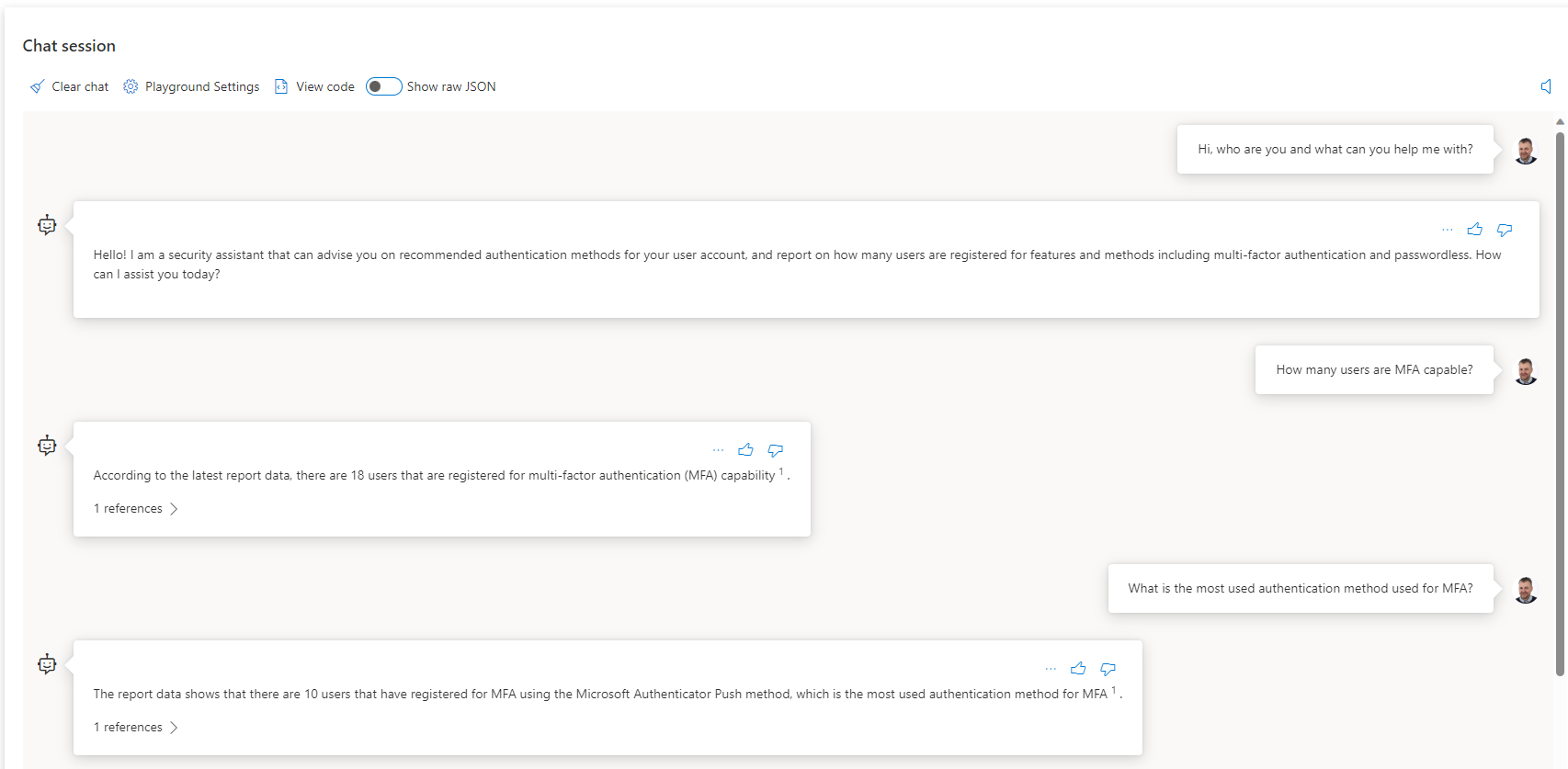
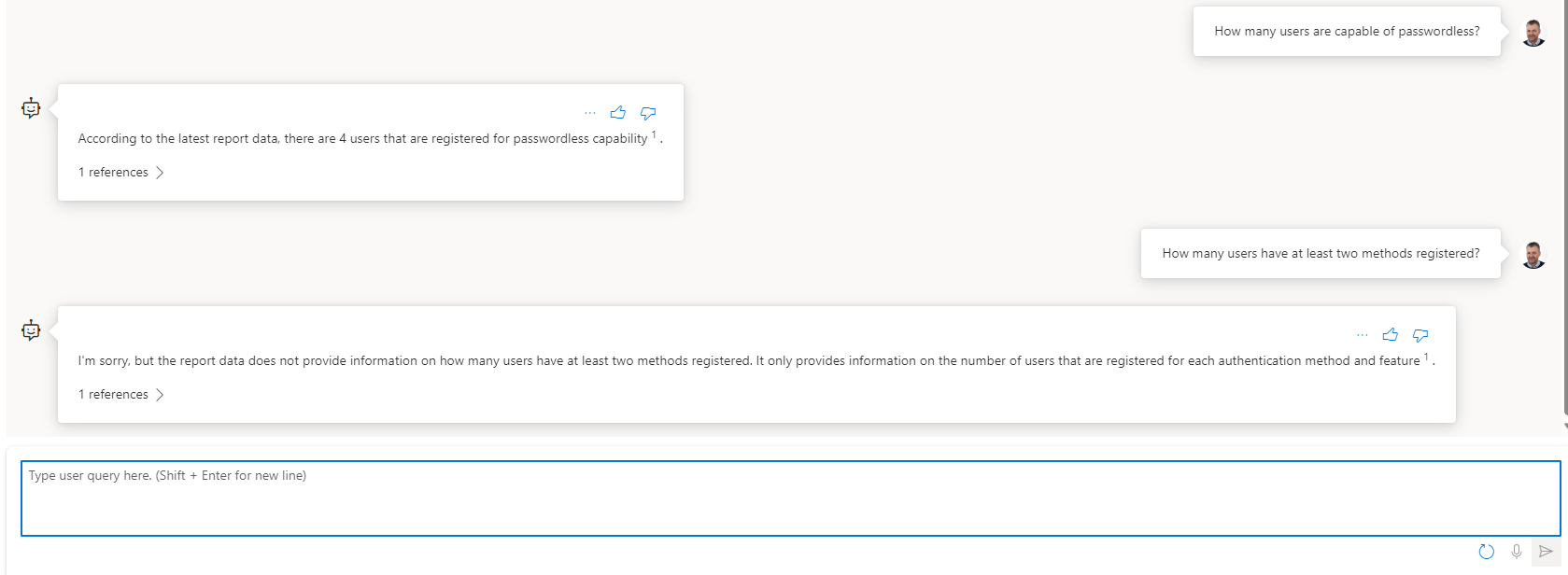
Our assistant in Azure OpenAI is now ready to answer our questions. Let’s do some testing in the playground chat:
As we can see, the assistant is now capable of answering prompts about the report data. Note that I cannot ask about individual users’ methods, as naturally I haven’t included that in the report data. But I plan to add that in a follow up article to this blog post, so stay tuned.
Share your Security Copilot with users in the Organization
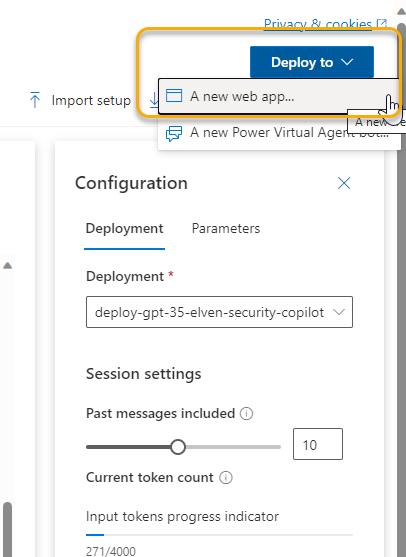
You can share this to your users directly from the OpenAI Studio, by either deploy to a Web App or as a Power Virtual Agent bot. Different requirements and prerequisites apply to each scenario:
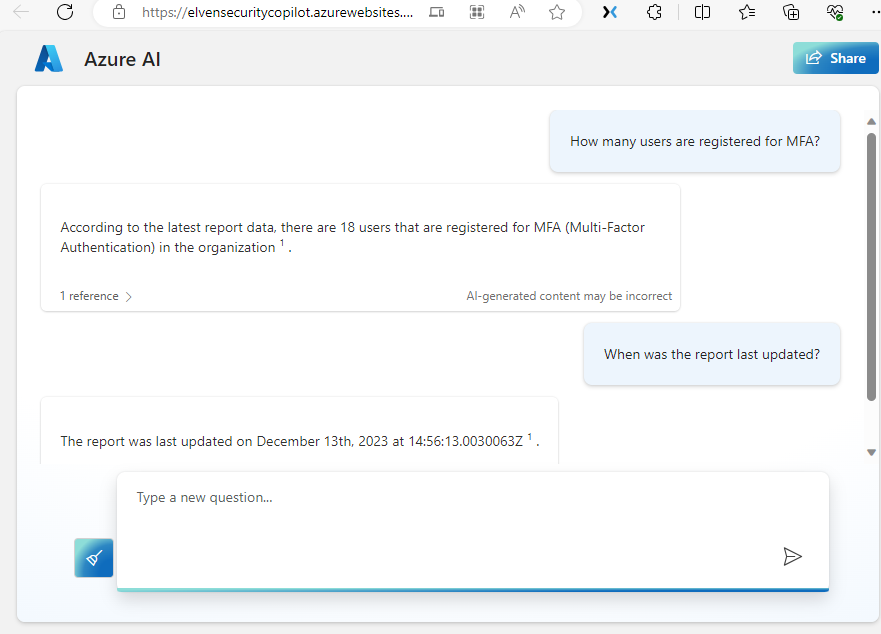
For my demo I published to a web app as an Azure App Service, that will automatically configured with Entra ID Authentication for users in your organization. Here is a demo screenshoot of how the web app looks:
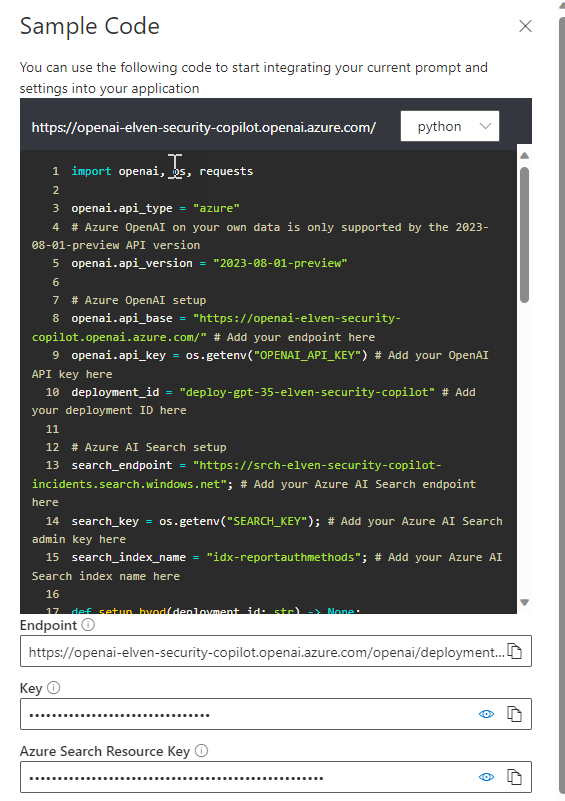
If I want to use my own application platform, for example a PowerApp like I showed earlier in this post, I can use the details from the code sample in the Chat Playground, and integrate as I like:
I’ll leave the rest of the exploring and playing to you!
Summary & Next Steps
Let it be no doubt, the upcoming Microsoft Security Copilot will be the most comprehensive AI based security assistant to date, but it might be that not everyone have access to or can afford pricing for the official Microsoft solution.
The reason for showing this blog post is that you can use basically the same data sources, utilize Azure OpenAI, and build your own custom scenarios. From there you can explore many different ways to bring copilot experience to your users.
This opens for a lot of scenarios for Azure service connections, without the need to manage secrets for service principals and more security as there are no secrets that can be exposed or exfiltrated.
As I work a lot with Microsoft Graph and automation, I wanted to see if and how I could use Workload Identity Federation to connect to and send queries to Microsoft Graph using Azure Pipelines.
Create the Workload Identity Federation Service Connection
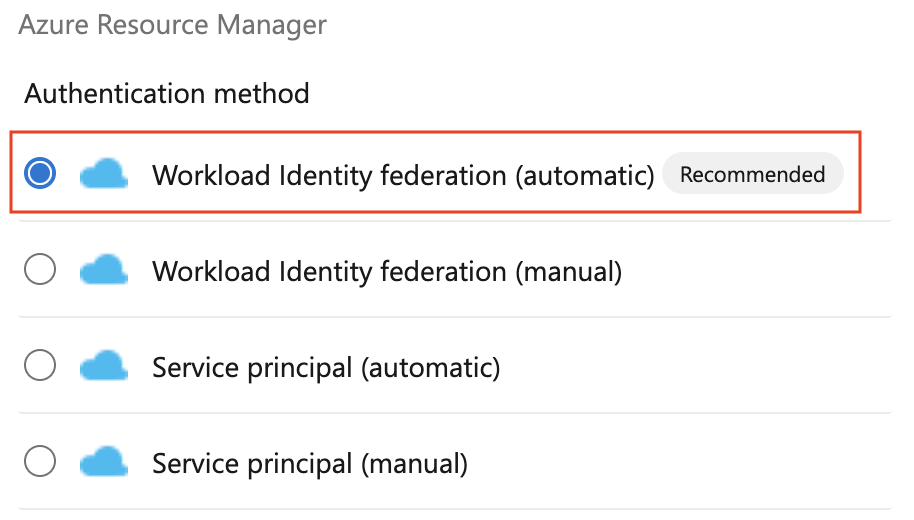
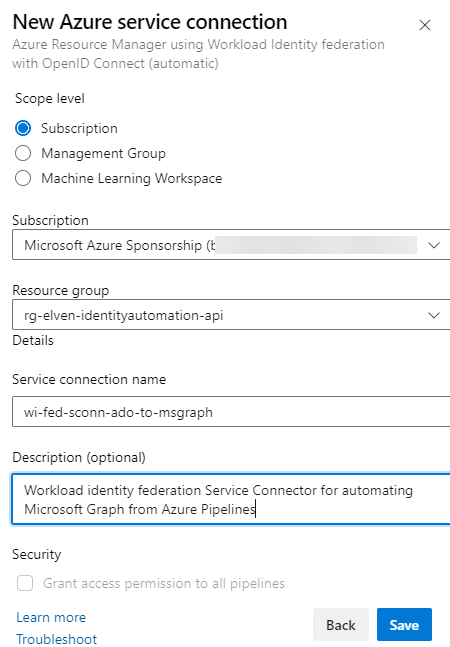
When you have access to the feature, you can create a new Workload Identity federation either by manual or automatic configuration:
I will now choose the Azure Subscription, and optionally a Resource Group. Choosing a resource group is a good idea, as the service connection will be given Contributor access only to that Resource Group, and not the whole subscription. But it also depends on what you want to use your Service Connection for, in my case it is a demo scenario for Microsoft Graph Access, so it makes sense to scope the permissions down:
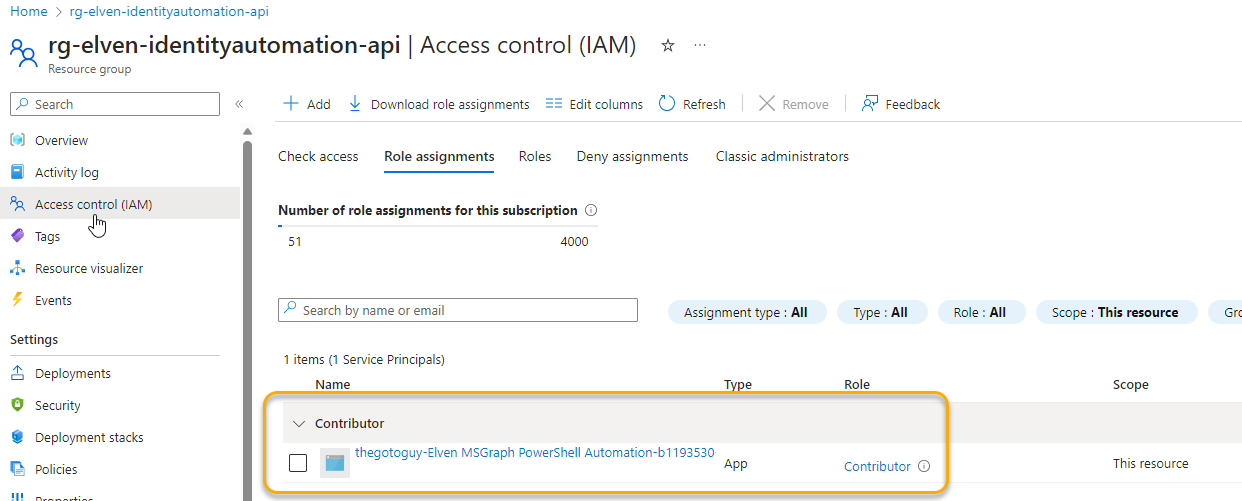
After creating the Service Connection, I can find it my Entra ID tenant. Let’s look at the role assignments for the Resource Group first:
The service principal has been given the name of <DevOps Org>-<DevOps Project>-<guid>, and been assigned with Contributor access to that RG.
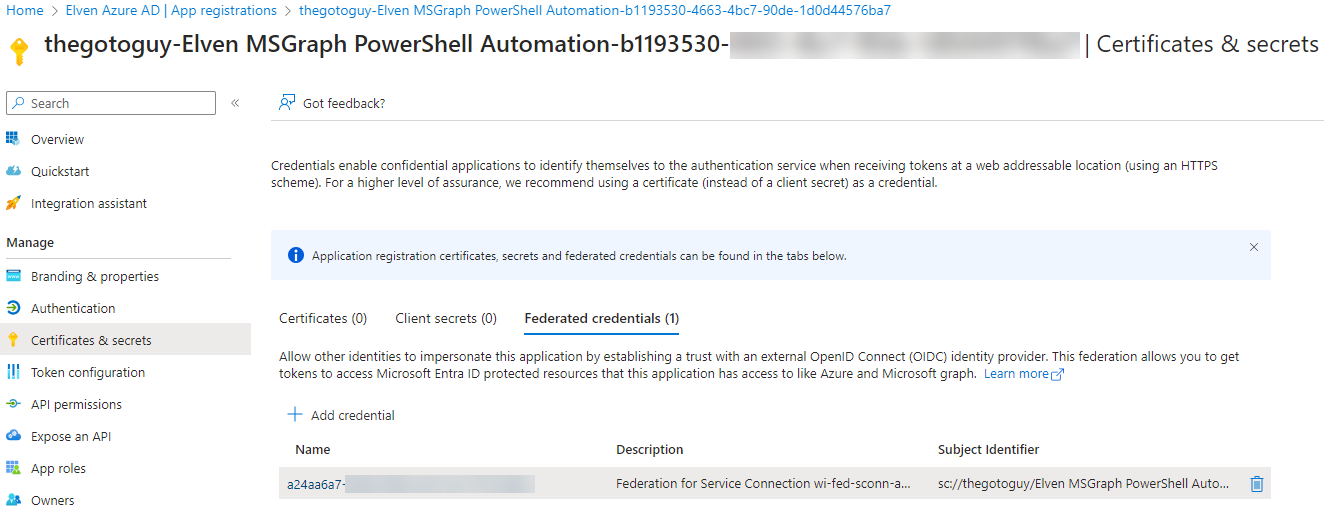
Next, let’s find the App Registration for the Service Connection. As you can see from below there has been no (0) credentials of secrets or certificates created, but there has been created a Federated credential:
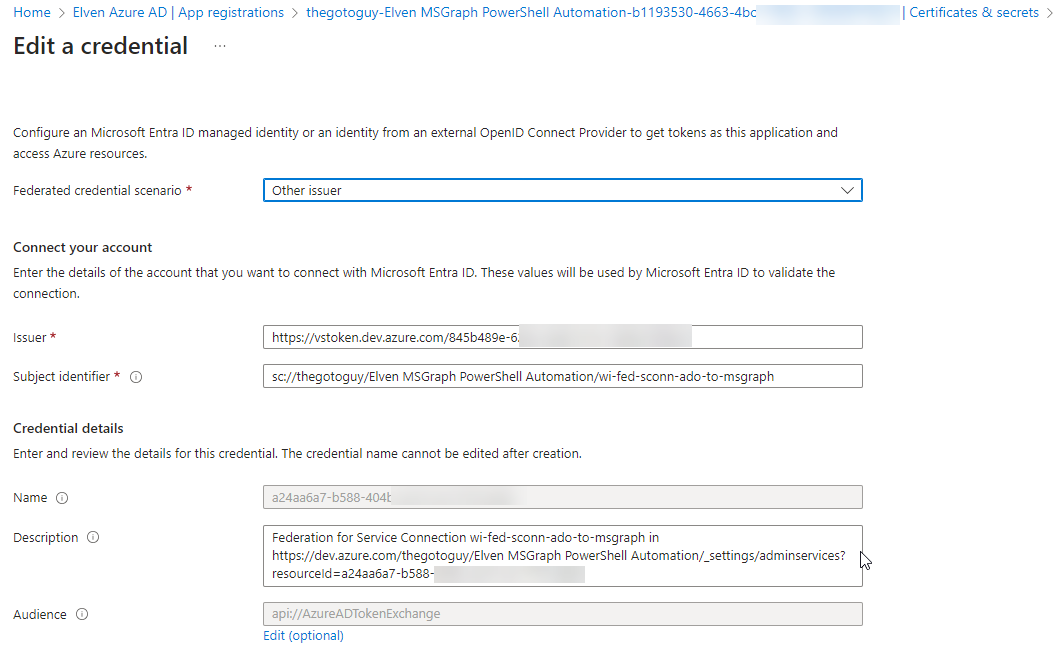
If we look at the detail for the federated credential, we can se the issuer, subject and audience, and confirm that this service principal only can be access by the service connection in Azure DevOps:
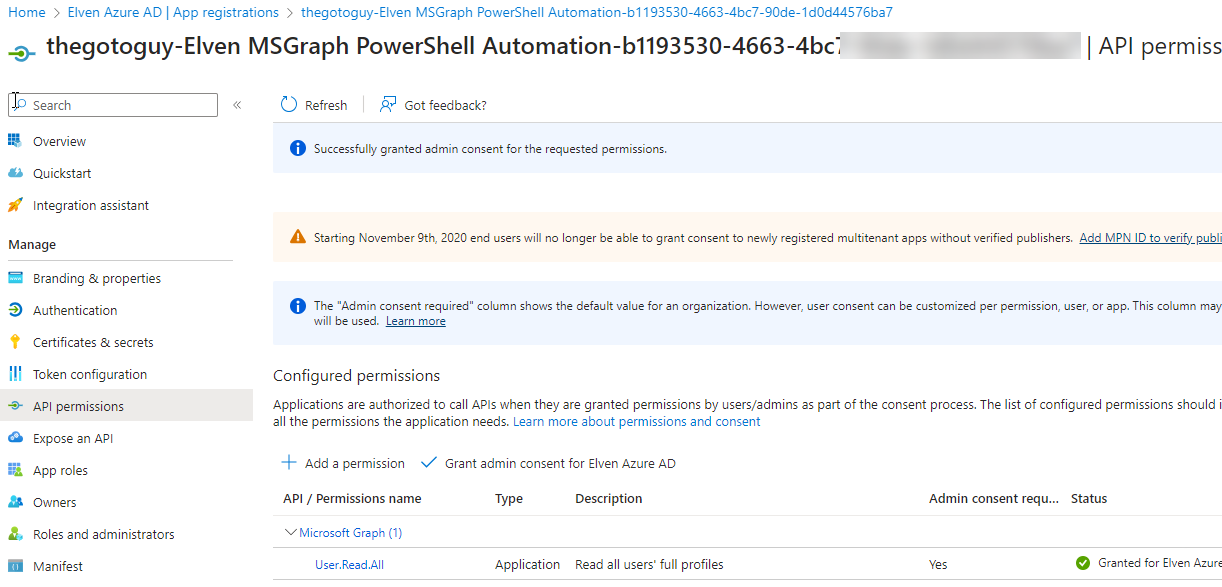
Next, go to API permissions. Here I will add a Microsoft Graph permission, so that we can use that for queries in the pipeline later. In my case I add the Application permission User.Read.All, so I can look up user information:
We are now ready to set up an Azure Pipeline to use this service connection.
Create the Azure Pipeline to access Microsoft Graph API
In your DevOps project, if this is a new project, make sure that you initialize the Repository, and that you have at least a Basic or Visual Studio access level, then head to Pipelines and create a “New Pipeline”. For my environment I will just choose the following steps:
Select Azure Repos Git (YAML)
Select my repository
Use a starter pipeline (or you can choose an existing if you have)
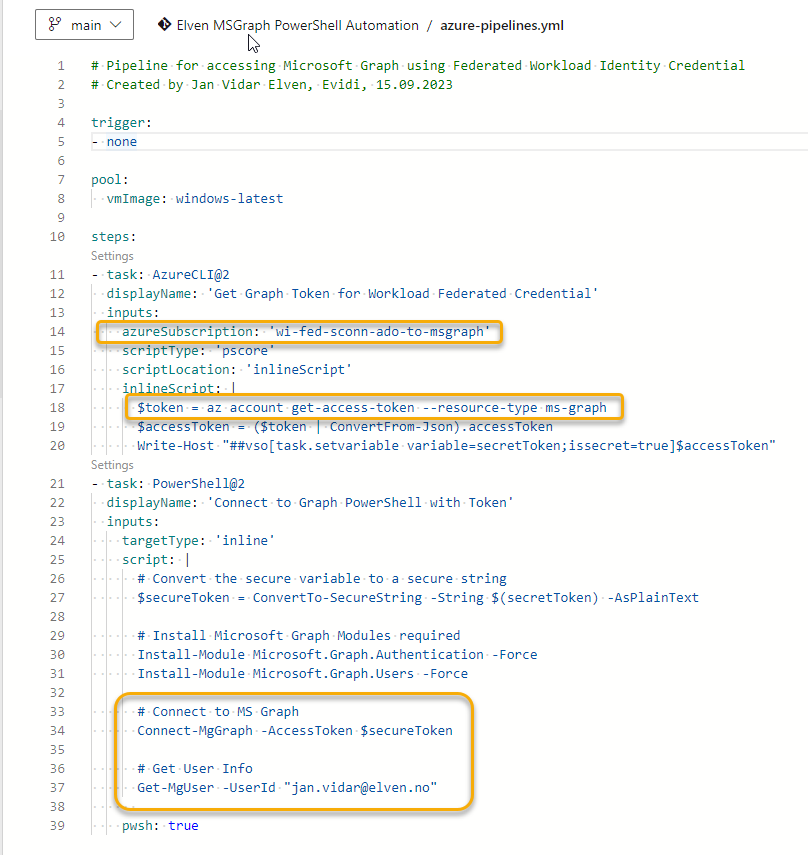
This is a sample YAML code that will use the service connection (se below picture) to get an access token for Microsoft Graph, and the use that access token to connect to Graph PowerShell SDK. In my example I’m just showing how to get some simple user information:
There are different ways you can go about this, in my case I was just using Azure CLI in one task to get the access token for the resource type that is Graph. (You can also use Az PowerShell task for this by the way). I also set and secure the variable for use in later steps in the pipeline job.
In the next task I use PowerShell Core to convert the token to a secure string, and then install the required Microsoft Graph PowerShell modules. I can then connect to Graph and get user information. Here is the complete YAML code:
# Pipeline for accessing Microsoft Graph using Federated Workload Identity Credential
# Created by Jan Vidar Elven, Evidi, 15.09.2023

trigger:
- none

pool:
  vmImage: windows-latest

steps:
- task: AzureCLI@2
  displayName: 'Get Graph Token for Workload Federated Credential'
  inputs:
    azureSubscription: 'wi-fed-sconn-ado-to-msgraph'
    scriptType: 'pscore'
    scriptLocation: 'inlineScript'
    inlineScript: |
      $token = az account get-access-token --resource-type ms-graph
      $accessToken = ($token | ConvertFrom-Json).accessToken
      Write-Host "##vso[task.setvariable variable=secretToken;issecret=true]$accessToken"
- task: PowerShell@2
  displayName: 'Connect to Graph PowerShell with Token'
  inputs:
    targetType: 'inline'
    script: |
      # Convert the secure variable to a secure string
      $secureToken = ConvertTo-SecureString -String $(secretToken) -AsPlainText

      # Install Microsoft Graph Modules required
      Install-Module Microsoft.Graph.Authentication -Force
      Install-Module Microsoft.Graph.Users -Force

      # Connect to MS Graph
      Connect-MgGraph -AccessToken $secureToken

      # Get User Info
      Get-MgUser -UserId "[email protected]"

    pwsh: true
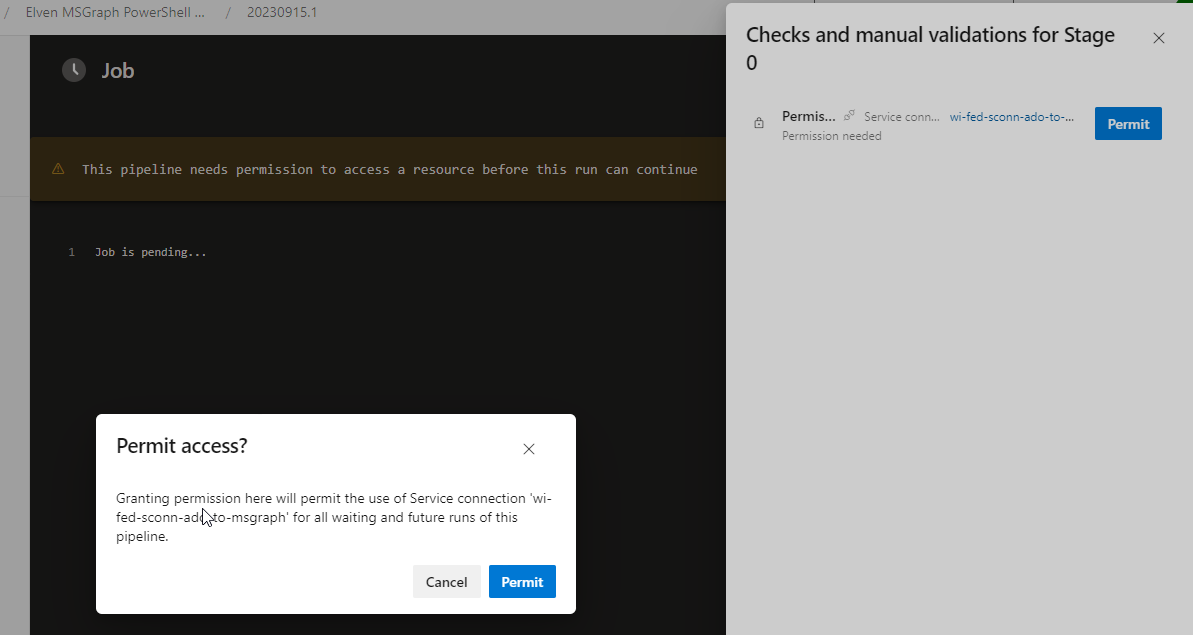
I can now try to run the pipeline. At first run you will have to validate and permit access to the service connection from the pipeline:
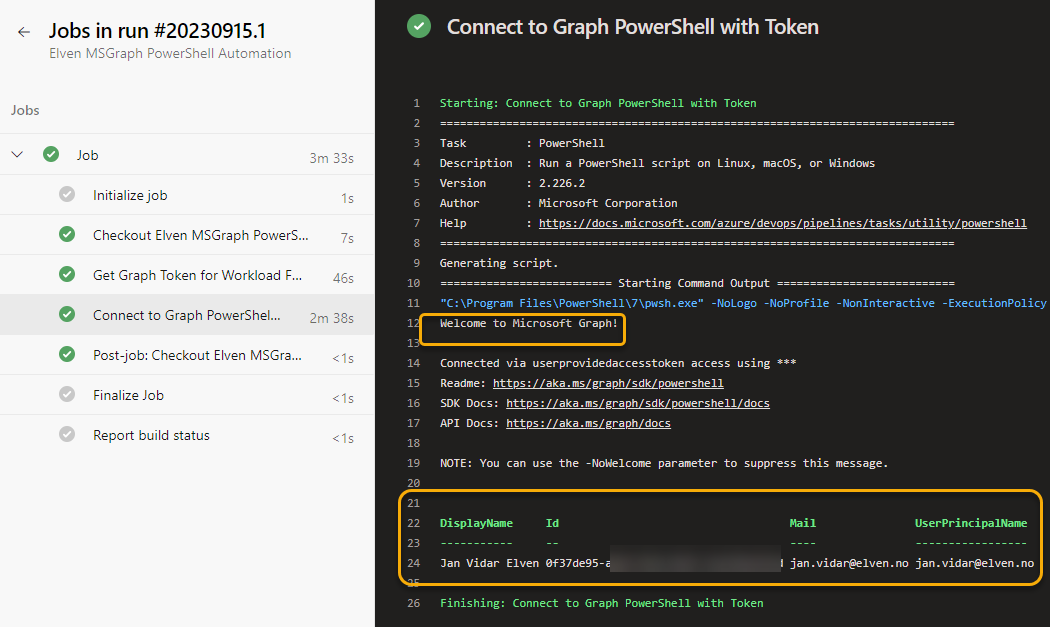
And then I can verify that it indeed can connect to the Graph via PowerShell SDK and get my resources via the Workload Identity Federation service connection:
Summary and Usage Scenarios
Most will use the new Workload Identity Federation for Azure Pipelines that access Azure subscriptions and resources, but I have shown as as long as this is using the Entra ID authentication platform and OIDC, it is possible to get access tokens for other API’s as well, in this case Microsoft Graph API.
You can use Graph API to get information about your tenant, to enrich and complement your exisiting CI/CD pipelines, or in some case automate consistent deployments also for Graph resources, like for example important settings and policies.


 GoToGuy Blog