
I recently performed upgrades of a Service Manager 2012 SP1 environment at a customer and our own environment, from SP1 to Service Manager 2012 R2.
While following the pre-upgrade and upgrade steps as specified in http://technet.microsoft.com/en-us/library/dn520902.aspx, including disabling the Data Warehouse Jobs, both upgrades were successful but when enabling the Data Warehouse Jobs some of the jobs and job modules started failing.
The jobs that was failing in both environment were:
- Transform.Common
- Load.Common
- Load.OMDWDataMart
- Load.CMDWDataMart
Upon examine the jobs more closely I found that not all job modules failed, only a subset of the job modules. For example:
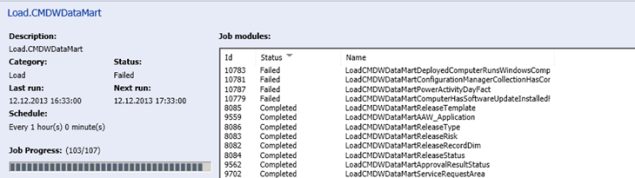
At the Data Warehouse server I would find a lot of these events in the Operations Manager log:
Error Event ID 33502, Source Data Warehouse:
ETL Module Execution failed:
ETL process type: Load
Batch ID: 136704
Module name: LoadCMDWDataMartPowerActivityDayFact
Message: UNION ALL view ‘CMDWDataMart.dbo.PowerActivityDayFactvw’ is not updatable because a primary key was not found on table ‘[CMDWDataMart].[dbo].[PowerActivityDayFact_2013_Jun]’.
..and..
Warning Event ID 33503, Source Data Warehouse:
An error countered while attempting to execute ETL Module:
ETL process type: Load
Batch ID: 136704
Module name: LoadCMDWDataMartPowerActivityDayFact
Message: UNION ALL view ‘CMDWDataMart.dbo.PowerActivityDayFactvw’ is not updatable because a primary key was not found on table ‘[CMDWDataMart].[dbo].[PowerActivityDayFact_2013_Jun]’.
Each of the the transform and load jobs would generate these error messages.
I started examining the Data Warehouse SQL Databases, and found that the error messages was correct, the primary key constraint really was missing on the table that the error message referred to.
So what to do?
Well, luckily I know my way around SQL Server and T-SQL commands. I found that not all Fact tables were missing the primary key (PK). For example, the primary key constraint was missing from dbo.PowerActivityDayFact_2013_Jun, but it was in place for dbo.PowerActivityDayFact_2013_Jul (and the other months for the fact).
So all I needed to do was to script the PK for the correct table, and update the table name and PK name and run the T-SQL command to create the missing primary key.
A little more information step-by-step:
- First of all, I disabled all the Data Warehouse Jobs.
- After that I began with resuming the Transform.Common job.
- I examined the event log and found the tables that were missing the primary key.
- I scripted the primary key for the table where it was present, changed the table name and PK name, and run the script on the database to create it on the table where it was missing. The database for the tables updated via the Transform.Common job is DWRepository.
- In my environment there were only two tables that was missing primary key in the DWRepository table.
- I ran the Transform.Common job again, this time successfully.
I repeated this process for each of the other jobs. These jobs also used different databases, and had different numbers of tables where the primary key was missing:
-
Load.Common
- Database DWDataMart, 59 tables with primary key missing (puh!)
-
Load.OMDWDataMart
- Database OMDWDataMart, 7 tables with primary key missing
-
Load.CMDWDataMart
- Database CMDWDataMart, 9 tables with primary key missing
So it took a while to read through the event logs and find all the tables, but in the end every job was able to run successfully and I could enable the job schedules again.
How to script the primary key and create the missing on the table?
I recommend that you really know your way around SQL Server to do these things, and most importantly: Do a full backup of the affected databases first!
This is the process I used to script and create primary keys, each step repeated for each table:
- For example dbo.EntityManagedTypeFact_2013_Jun was missing the primary key, but it was present on the next month; dbo.EntityManagedTypeFact_2013_Jul.
- In SQL Management Studio, expand the database and the table in question. Expand Keys and right click. Select Script Key as, CREATE To and New Query Editor Window:

- The script would then be shown as:
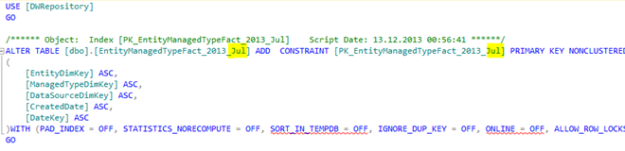
- Since the primary key was missing on the ..Fact_2013_Jun, I updated the script so that Jun replaced Jul (marked yellow above).
- And then I executed the script to create the missing primary key.
What about the other environment?
I found that basically the same tables which missed the primary key in the first environment, also missed the primary key in the second environment.
The only difference was that in the first environment, it was always “Jun” tables that were missing the PK. And in the second environment it was “Jan” (and a few “Feb”), but exactly the same tables in the same databases! In fact, I collected all script commands in one main script for each database from the first environment, and after a quick find and replace of month I was able to run the exact same script in the second environment.
One other thing I noted was that also these fact table months was the oldest ones in the database (Jun or Jan/Feb) respectively.
Why does this happen?
I don’t know really. I would like to think I followed the upgrade steps methodically. I will at a later time upgrade other enviroments from SP1 to R2, and will update this blog if I learn more.
The strange thing is I have experienced something similar to this at another time when upgrading another environment (not these) from 2012 RTM to SP1. But that time the problem was that the MP sync job failed because of already existing primary keys. The solution at that time was to DELETE primary keys, which then would be recreated automatically with the MP sync job.
Hope this can be helpful for others, please comment or get in touch if you have any questions.
 GoToGuy Blog