Azure AD B2B Users and Access to Azure AD Application Proxy Apps
The purpose of this blog post is to show a practical approach and some guidelines for publishing Azure AD App Proxy applications to guest users using Azure AD B2B. To keep this blog post short and to the point, I will make the following assumptions:
- You have an on-premises AD and Azure AD Connect set up for synchronizing users and groups to Azure AD.
- You have already set up Application Proxy connectors and connector groups (if you want a walkthrough on this, see this blog post http://gotoguy.blog/2017/09/24/secure-access-to-project-honolulu-with-azure-ad-app-proxy-and-conditional-access/
- You have published one or more Azure AD App Proxy applications.
- Your tenant is configured for allowing Azure AD B2B users and you have invited one or more guests.
Demo scenario
I will first give a quick overview over the demo scenario for this blog post:
- I will use my tenant elven.onmicrosoft.com, where I have configured a custom domain elven.no.
- I have invited an external user: [email protected] to the elven.onmicrosoft.com tenant. This user has accepted the invitation and can access resources that will be shared.
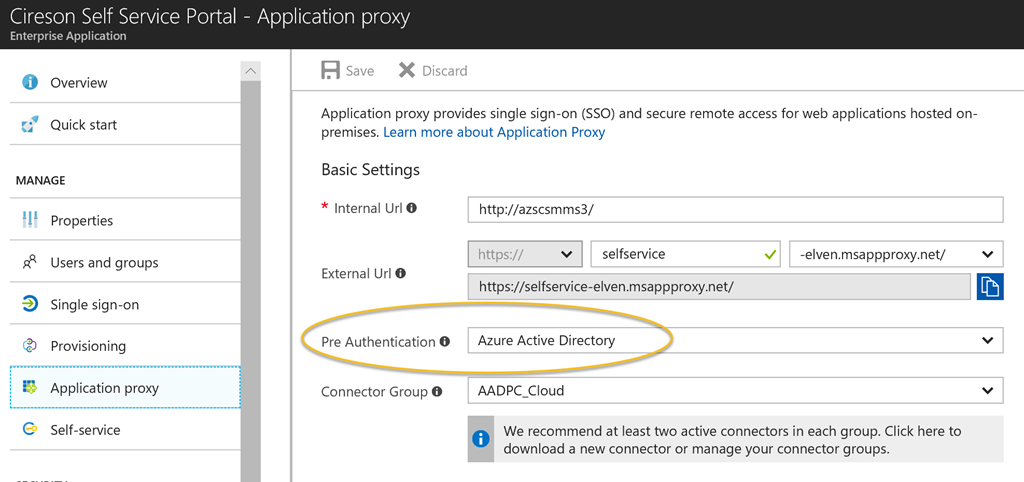
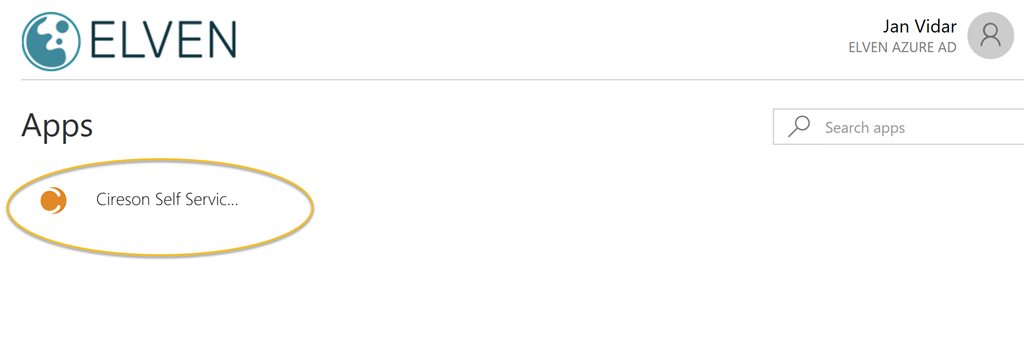
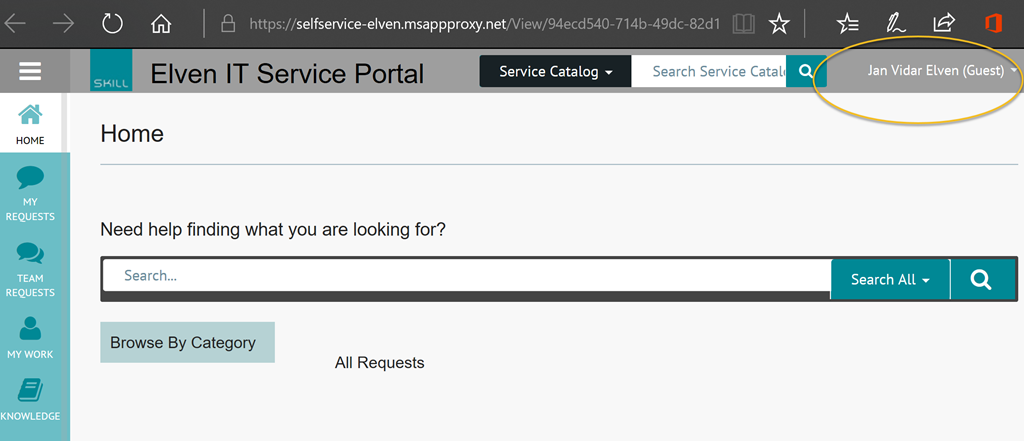
- I have published some App Proxy applications, and in this scenario I will use Cireson Portal, which is a Self Service Portal for SCSM.
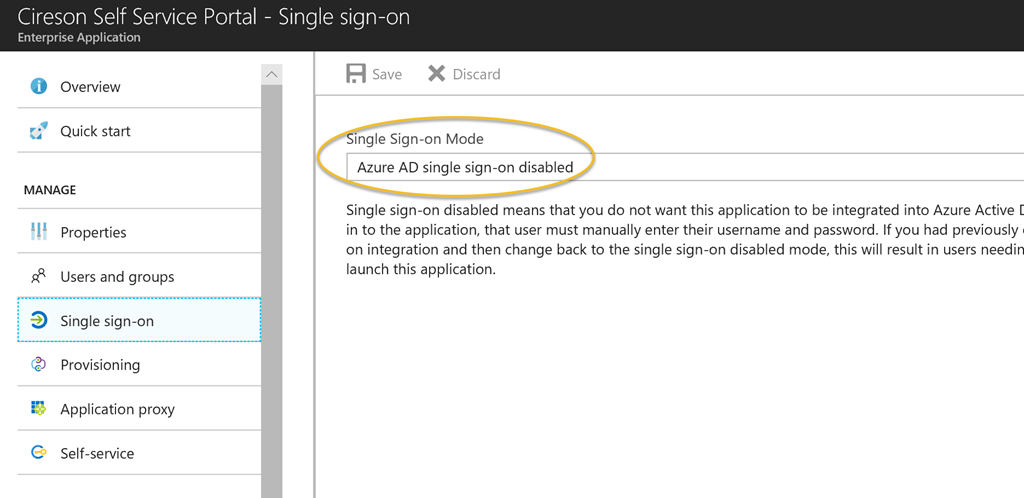
In this blog post I will use both single sign-on disabled with forms based authentication, and single sign-on with windows integrated authentication for this guest user, but lets first verify that the guest user can log on to my application panel.
Using Azure AD Access Panel as Guest User
When I log on to the Azure AD Access Panel at https://myapps.microsoft.com
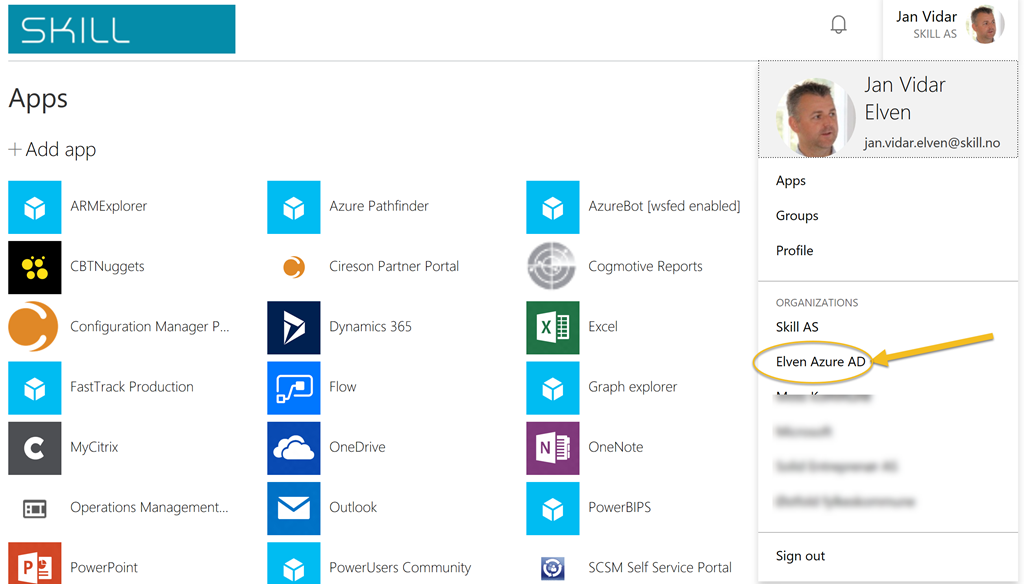
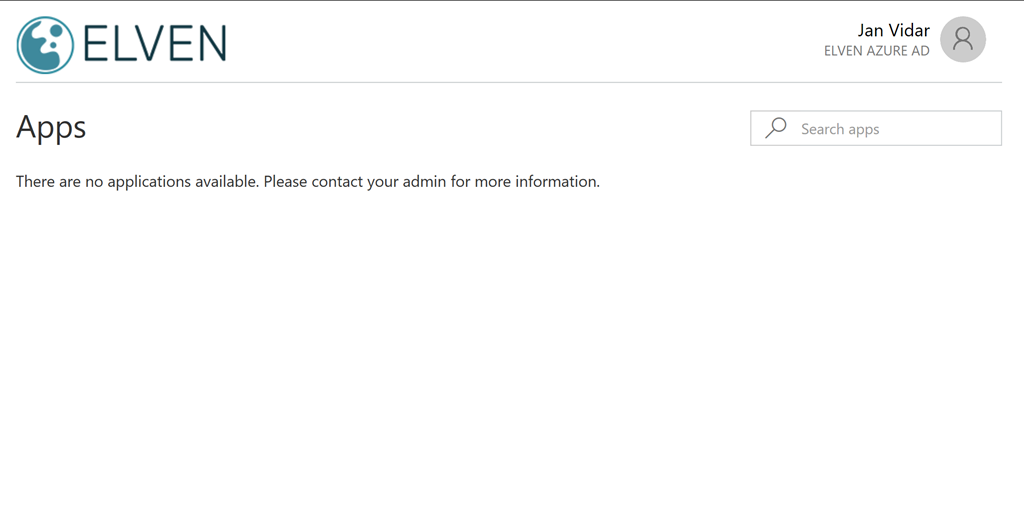
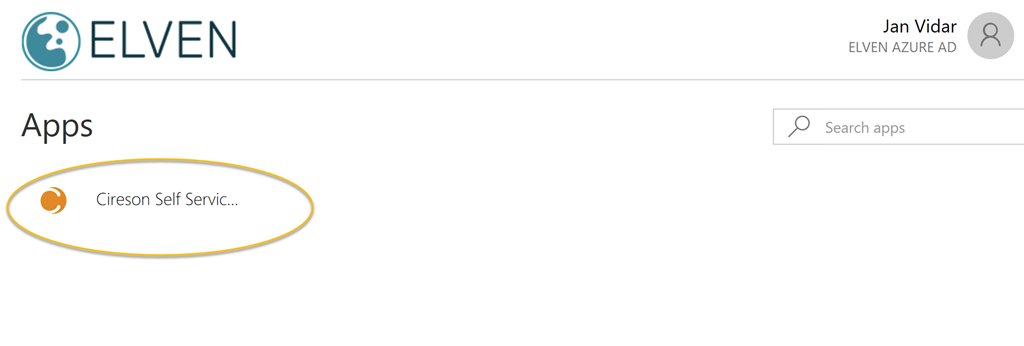
as external account I will se all my published applications at my company Skill AS, and since I have been added as a Azure AD B2B guest to the Elven Azure AD tenant, I can switch to that tenant like this:
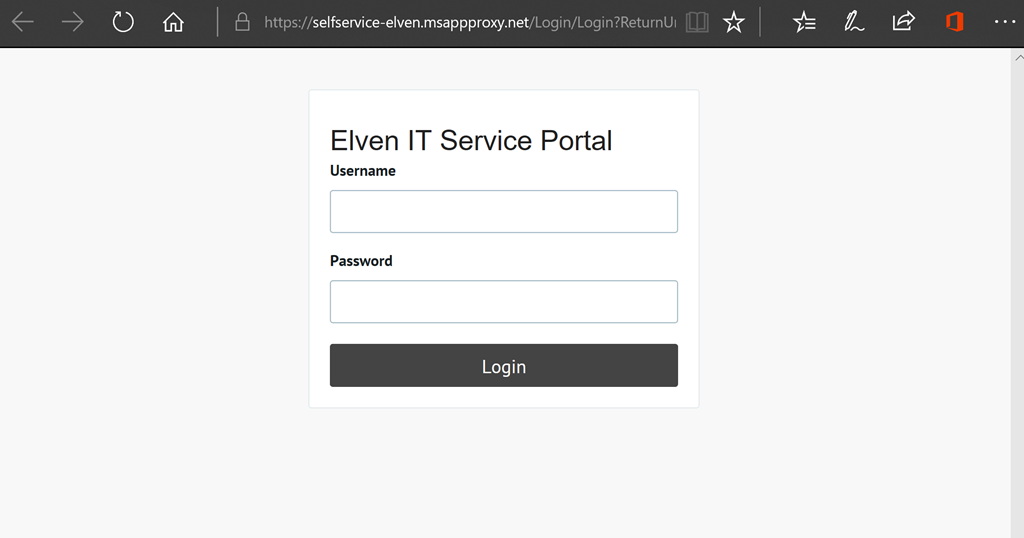
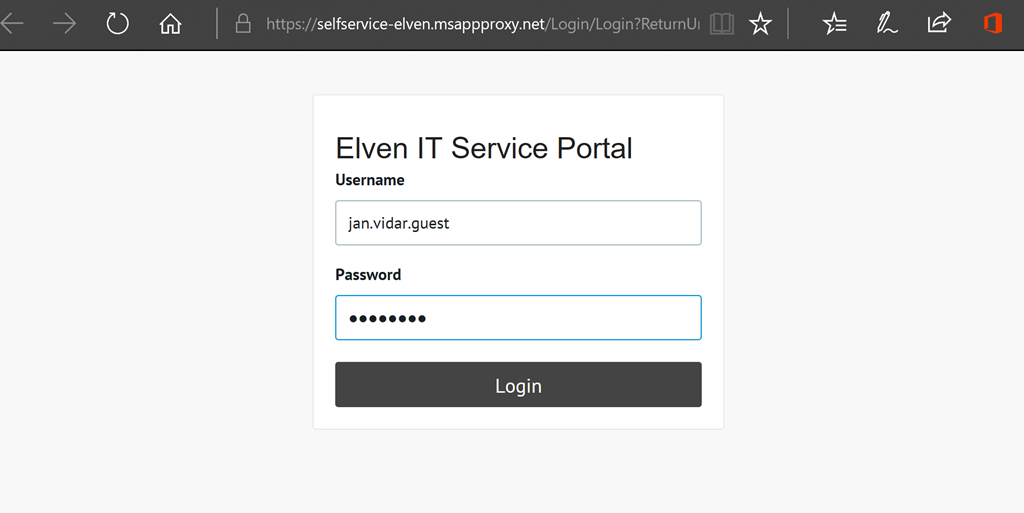
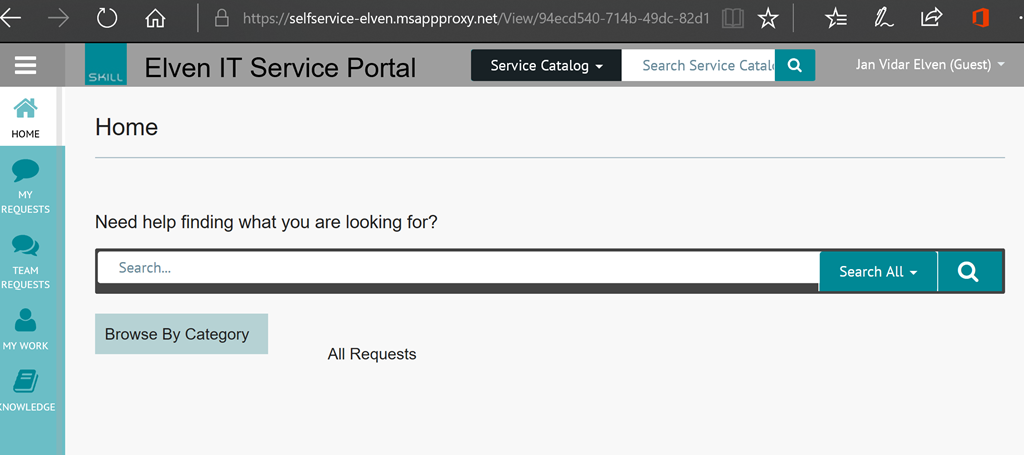
Without Single Sign-On
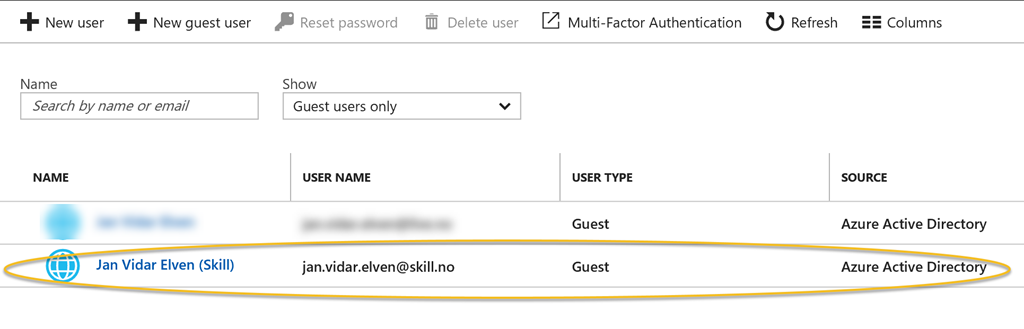
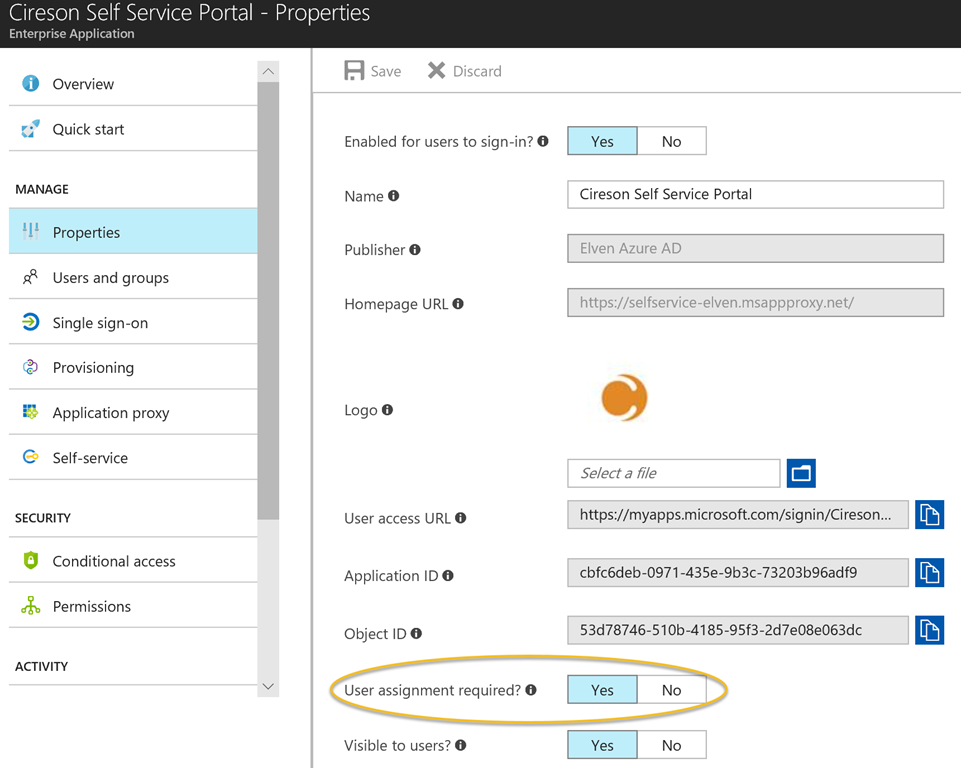
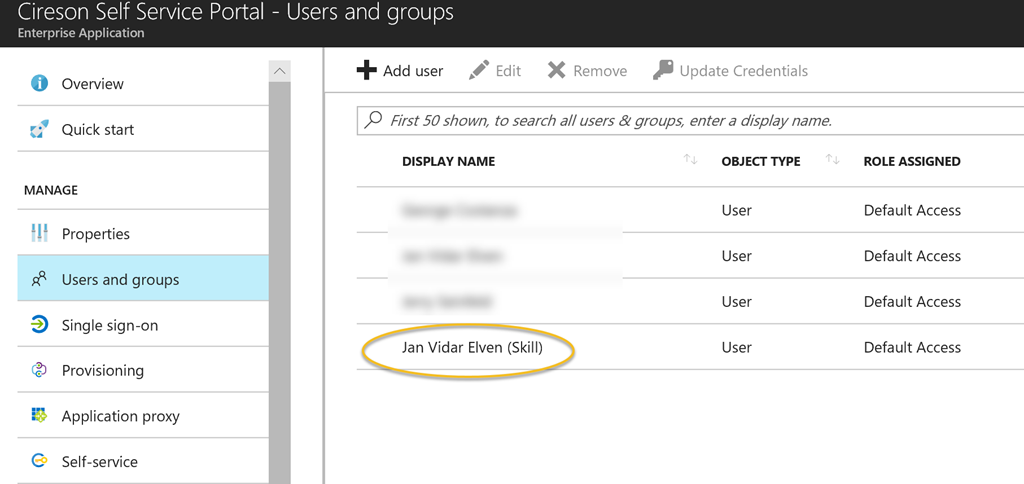
First, this is the guest user I will add to the application:
Azure AD Single Sign-On and Windows Integrated Authentication
First I will need to change the settings for the Azure AD App Proxy application.
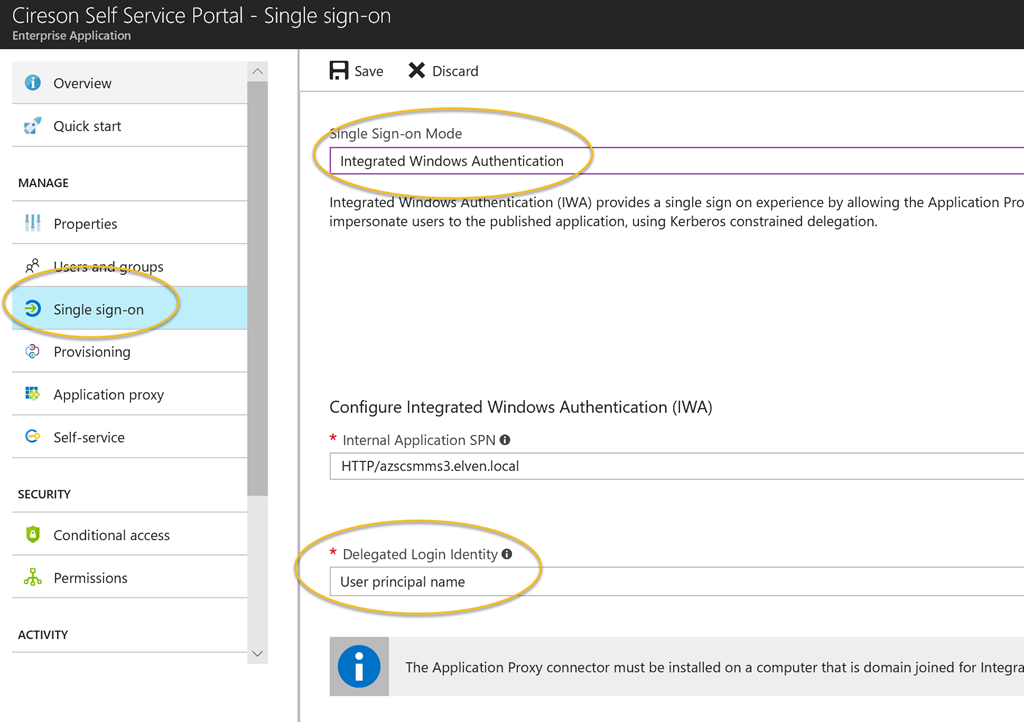
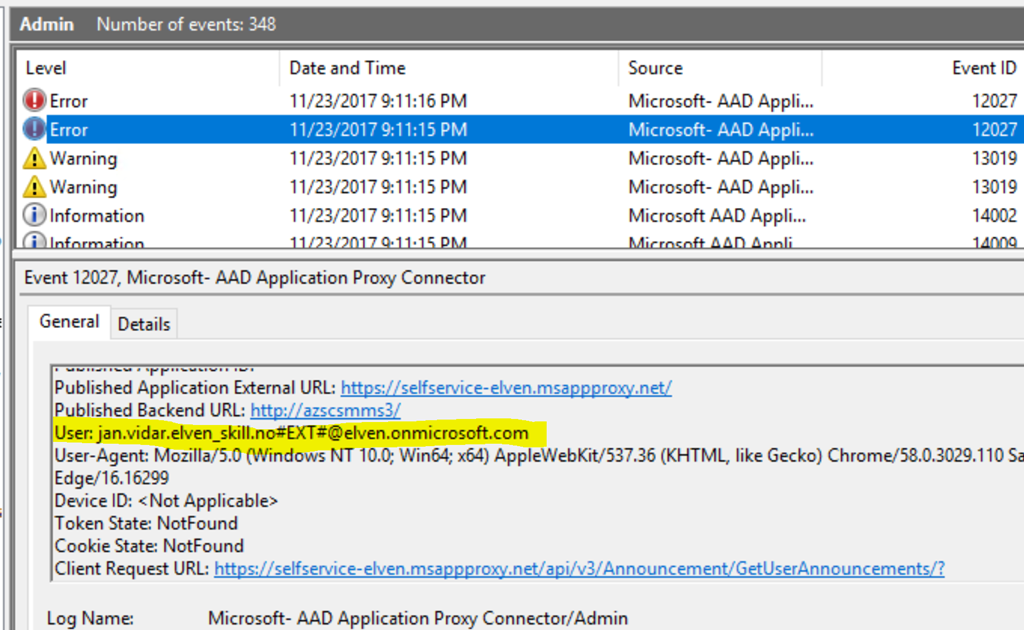
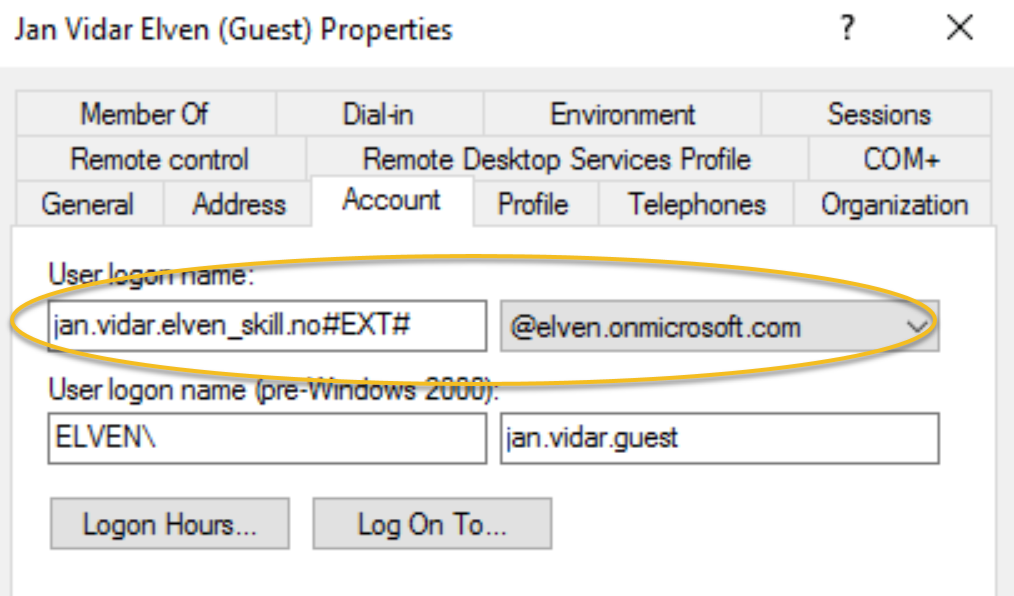
Under Single sign-on I will change to Integrated Windows Authentication, specify a SPN for Kerberos Constrained Delegation, and specify to use User principal name for delegated login identity:
| |
Update: Require MFA from Guest Users
I have had some questions on how requiring MFA would affect guest users when accessing published applications, and decided to update the blog post on this. First of all you would need to create an Azure AD Conditional Access Policy where you:
- Target the policy to your guest users, for example by creating a group (assigned or dynamic) with all guest users in your tenant.
- Target the policy to your selected published Azure AD App Proxy Apps.
- Setting the policy to require MFA.
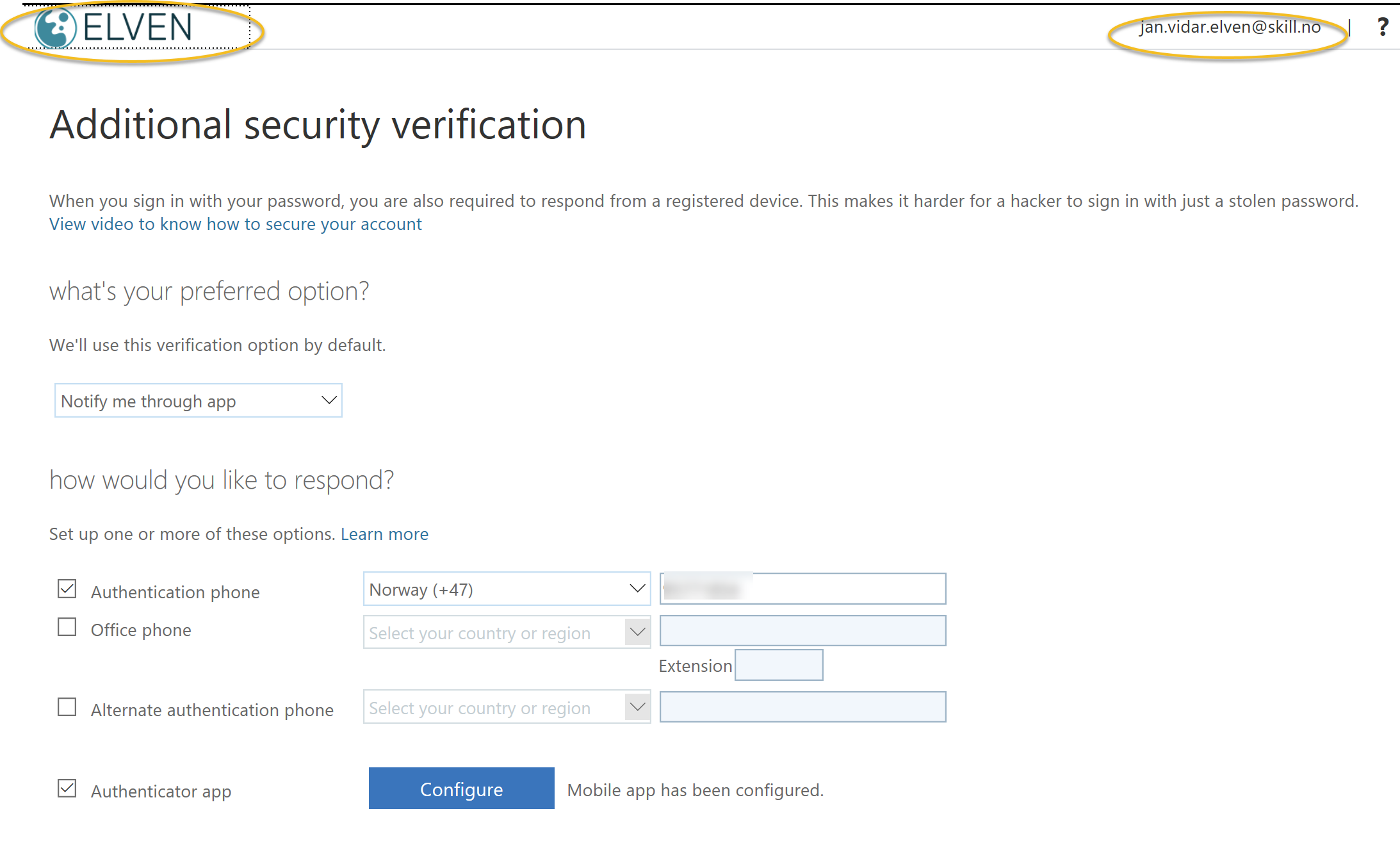
Your guest users will have to set up their security verification methods in your tenant before they can authenticate with MFA as guests to your published application. They will be prompted to do that if they haven’t done it before at first time, but they can also do that by accessing their profile in your tenants myapps.microsoft.com. See below picture where my guest user can set up preferred methods for MFA in the elven tenant:
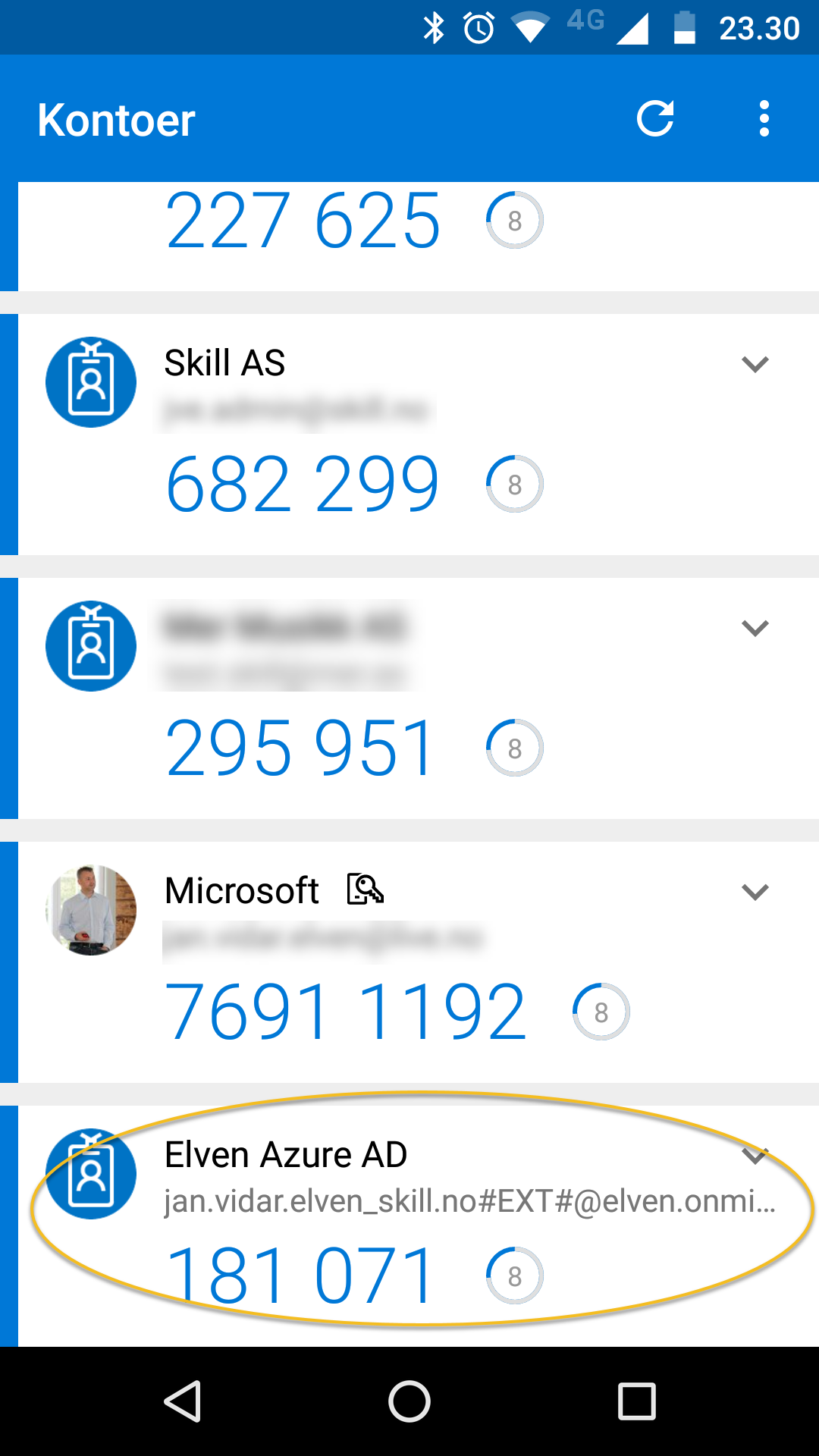
 In this example I have set up Microsoft Authenticator on my mobile phone, and note the #EXT# identity which is the guest user for Elven tenant:
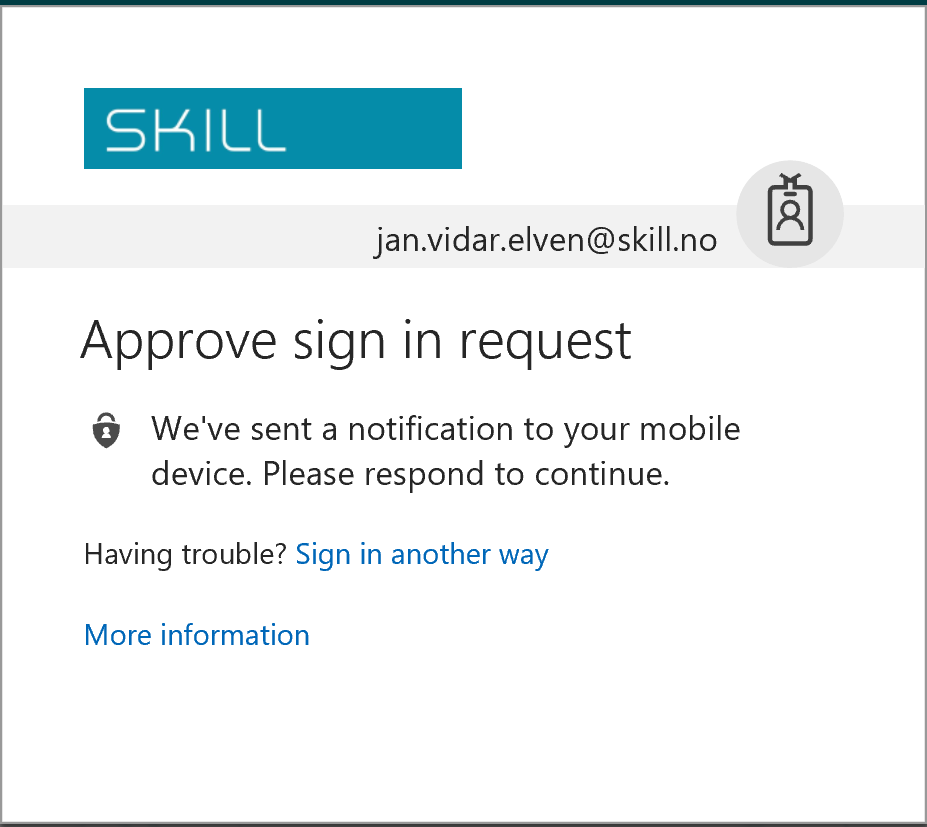
 I can the select to launch the application as a guest user, and will be prompted authenticate with my selected method for MFA:
 In my mobile phone I can approve, again I can see that I authenticate with my #EXT# guest account (most text in Norwegian, but you get the idea;)
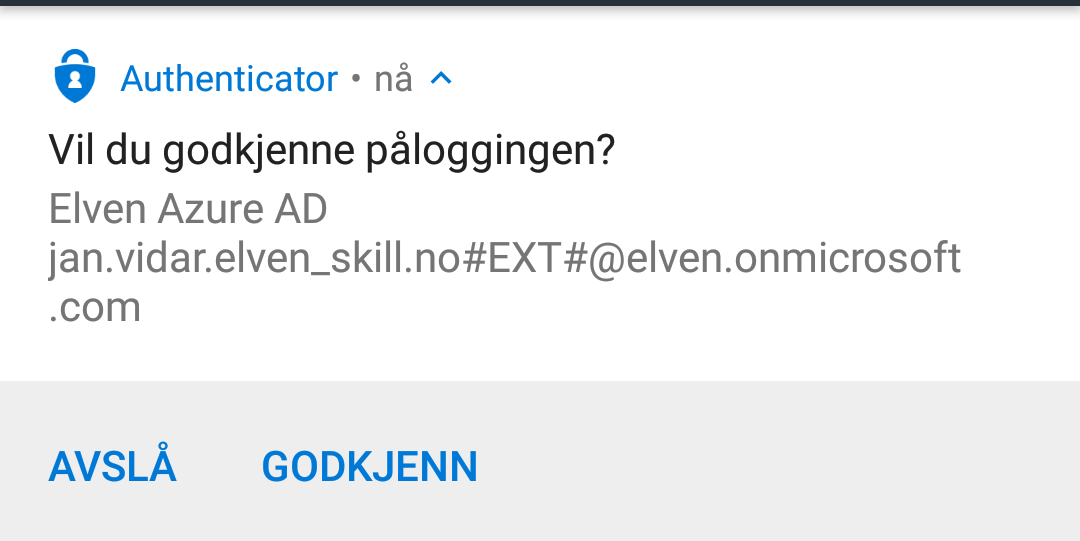 See notes under for license requirements for MFA and guest users.
Notes and tips
Although Azure AD B2B is a free feature, creating local users in Active Directory and accessing resources like web servers, database servers and any third party applications you publish are not free and you will have to check your licensing requirements. You shouldn’t synchronize your shadow guest users to Azure AD with Azure AD Connect. Using Azure AD Conditional Access for require MFA is an Azure AD Premium feature, so you need EMS E3 or Azure AD Premium P1 licenses. You can then use up to 5 Azure AD B2B guests per EMS E3/AADP1 license you own, in a 1:5 ratio. So for example if you internally have 100 EMS licenses, you can require MFA for up to 500 Azure AD B2B guests. And finally, Microsoft has noted that there will be guidance and documentation coming for best practice and governance for these Azure AD and on-premises AD guest users, as there can be a lot more complex enviroments than my example here, see this link: https://techcommunity.microsoft.com/t5/Azure-Active-Directory-B2B/AAD-Application-Proxy-and-B2B-Users/td-p/85249